Render
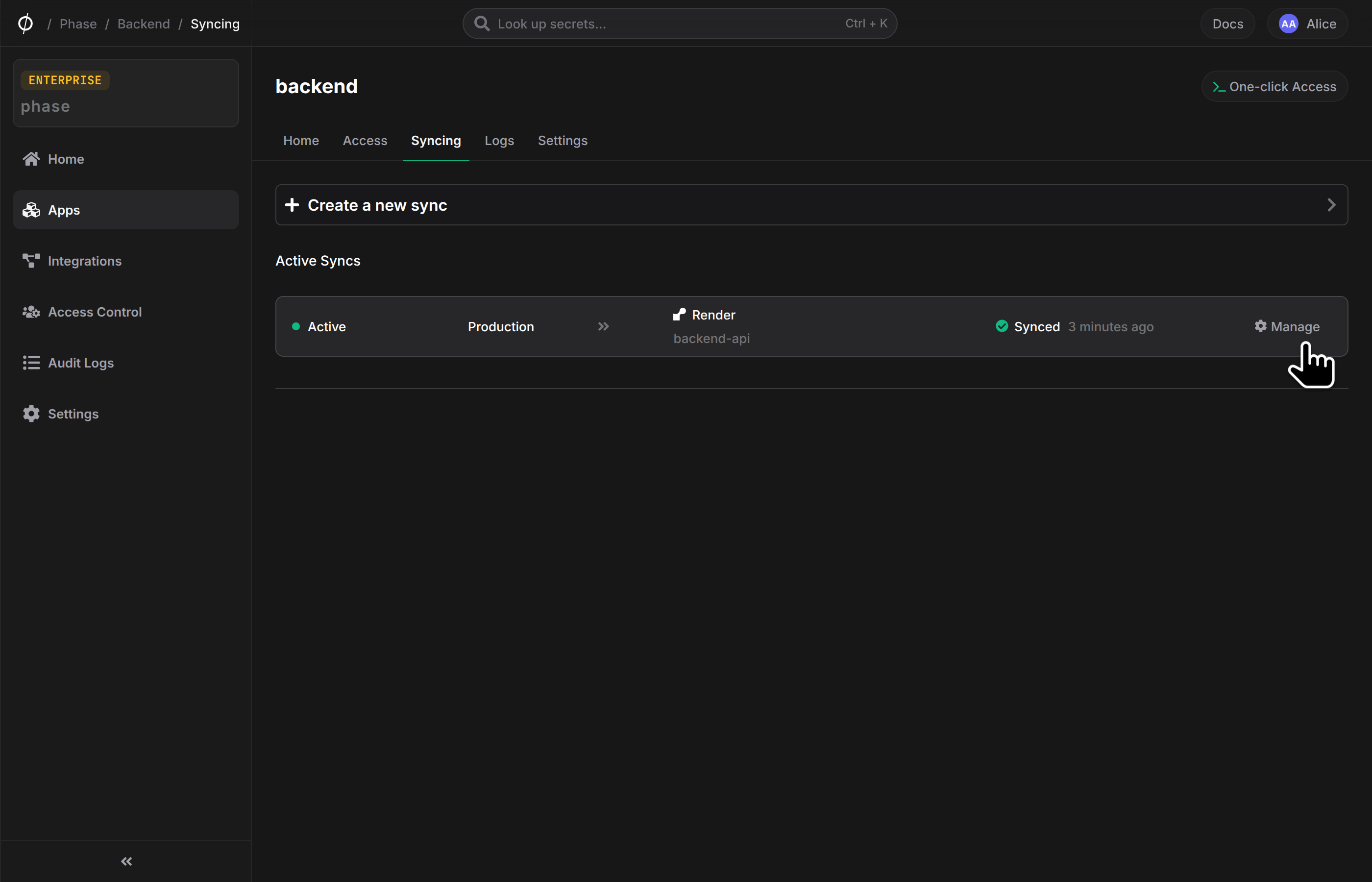
You can use Phase to sync secrets with your Render Services and Environment Groups.
When secret syncing is enabled, secrets stored inside Phase will be treated as the source of truth. Any secrets on the target service will be overwritten or deleted, including those automatically provisioned by Render for services like databases. Please import your secrets into Phase before continuing.
Prerequisites
- Sign up for the Phase Console and create an App.
- Enable Server-side Encryption (SSE) for the App from the Settings tab.
Step 1: Authentication
-
Log in to your Render Dashboard.
-
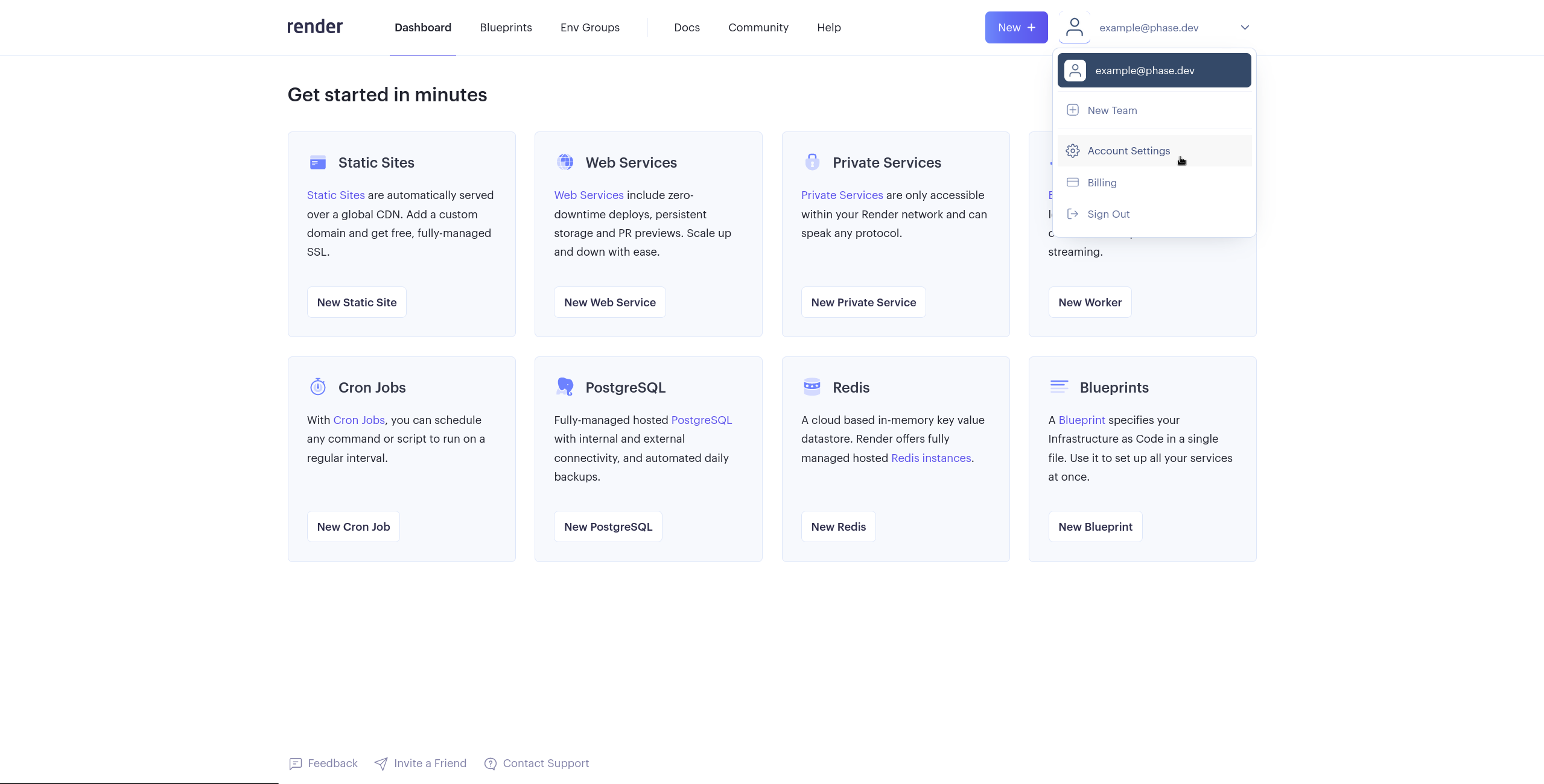
click on the dropdown at the top right and select ⚙️ Account settings
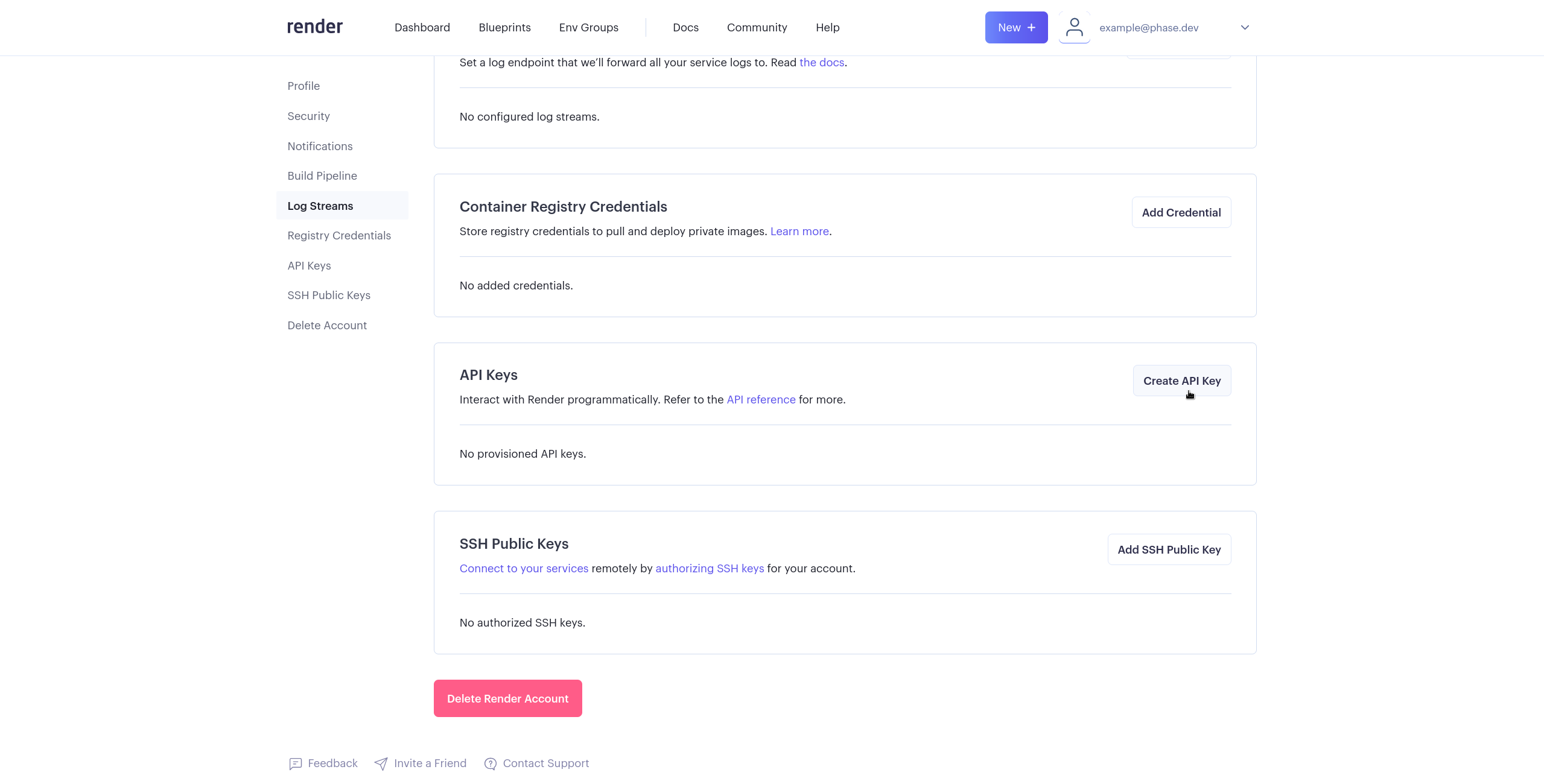
- Scroll down and click on Create API Key in the API Keys section.
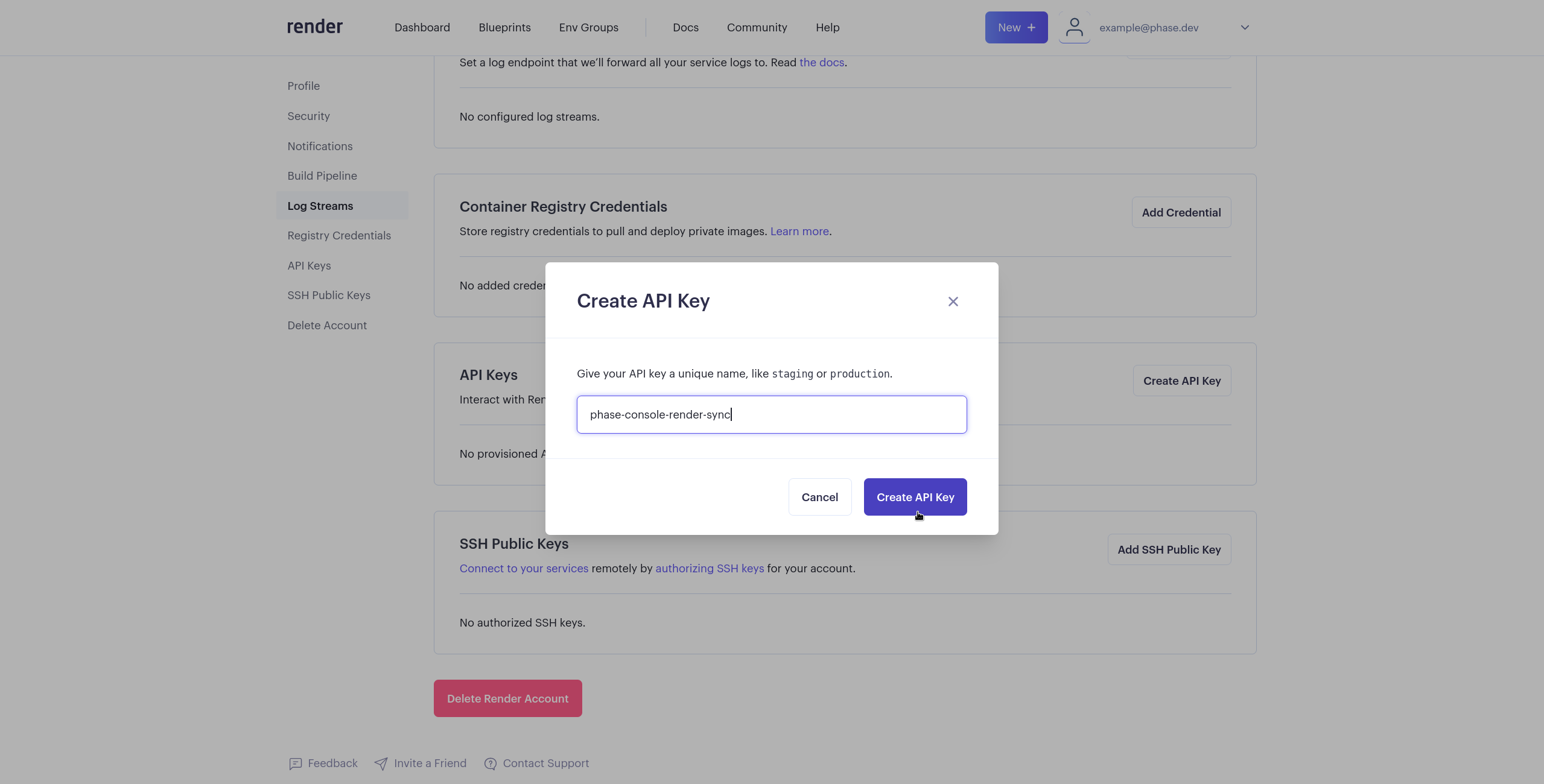
- Give your API Key a descriptive name and click Create API Key
Store authentication credentials in Phase
- Go to Integrations from the sidebar and switch to the Third-party credentials tab.
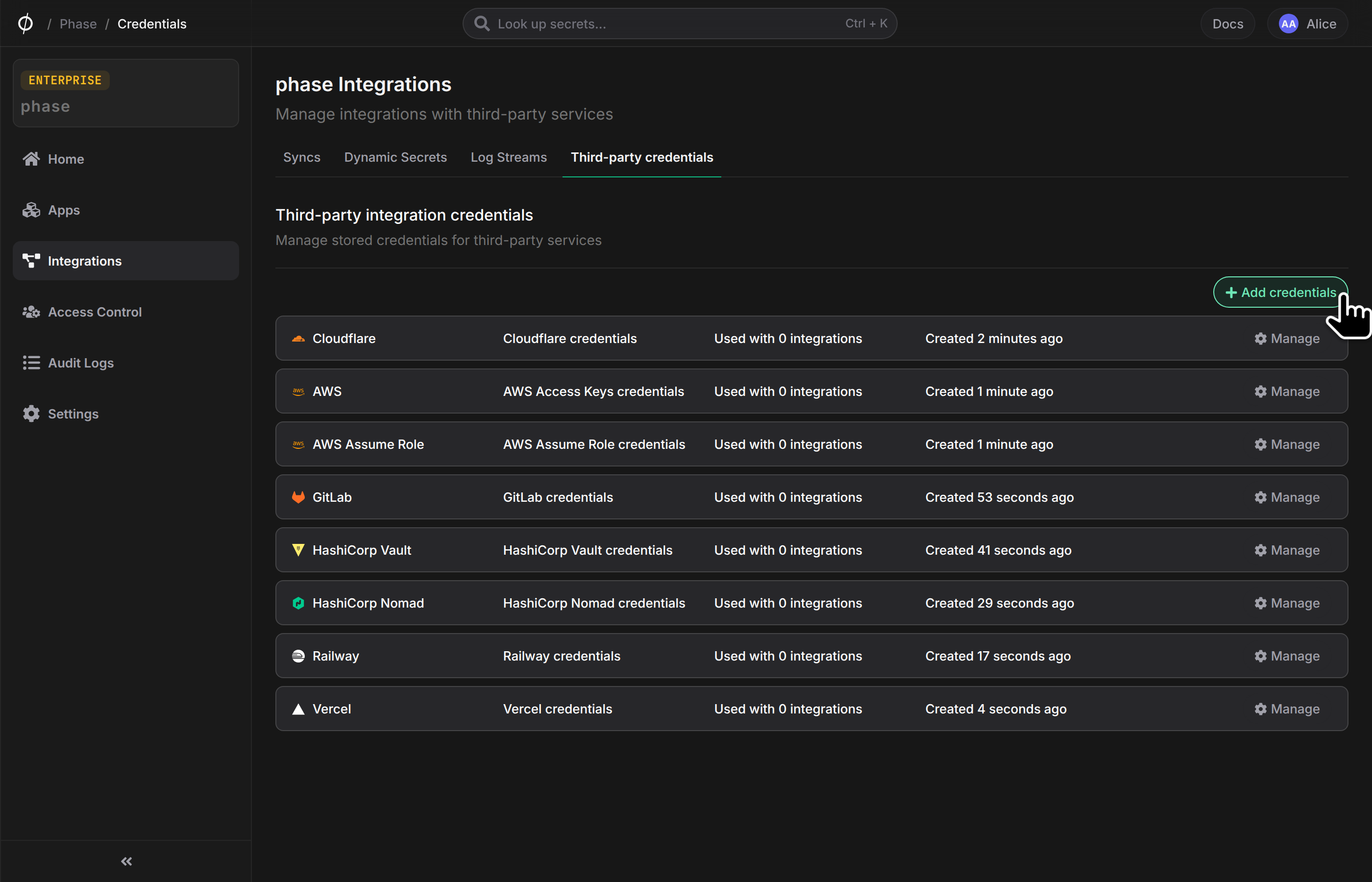
- Click on the Add credentials button and choose Render.
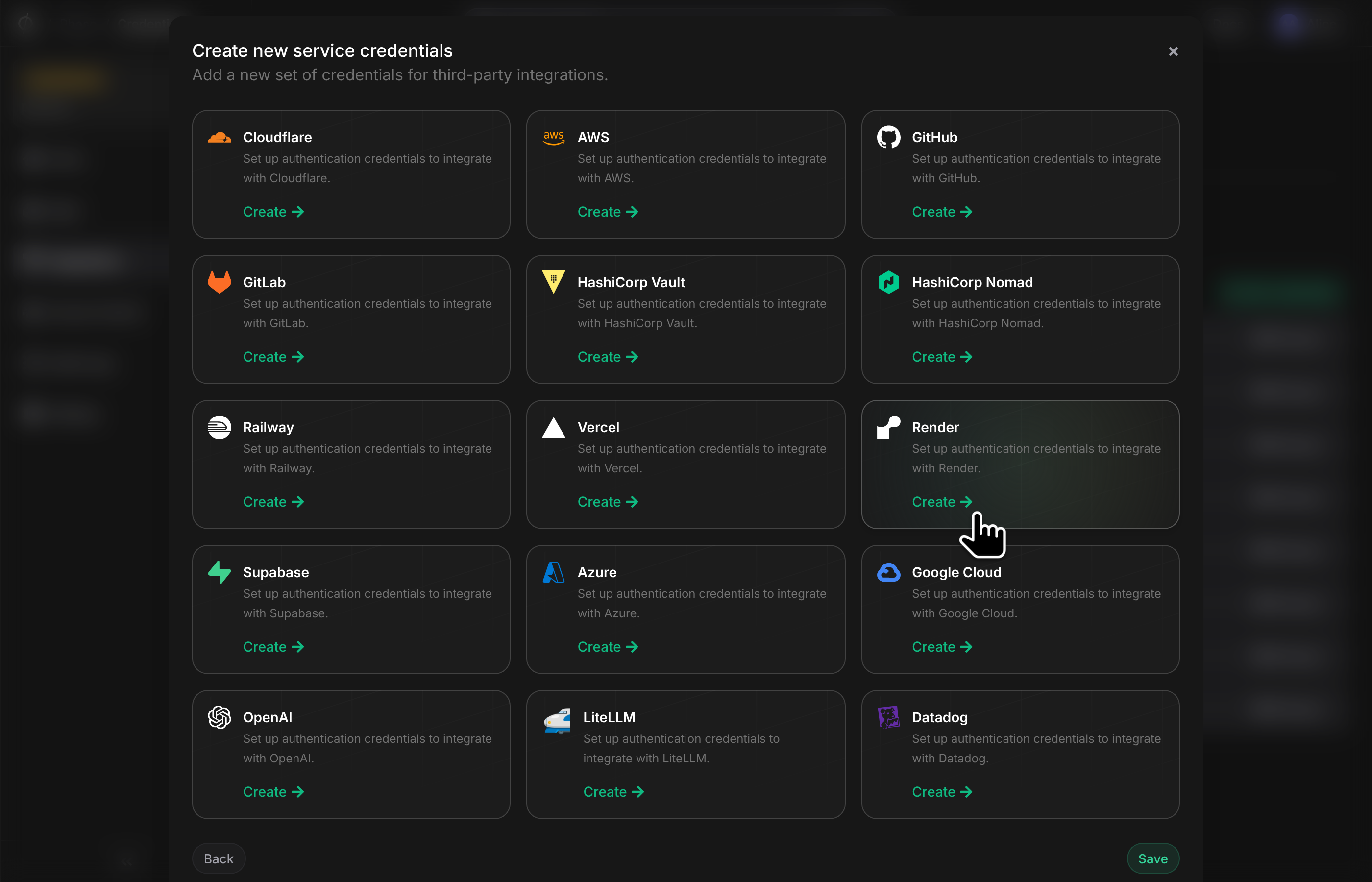
- Enter your render
API Tokenfrom the previous step. Enter a descriptive name and click Save.
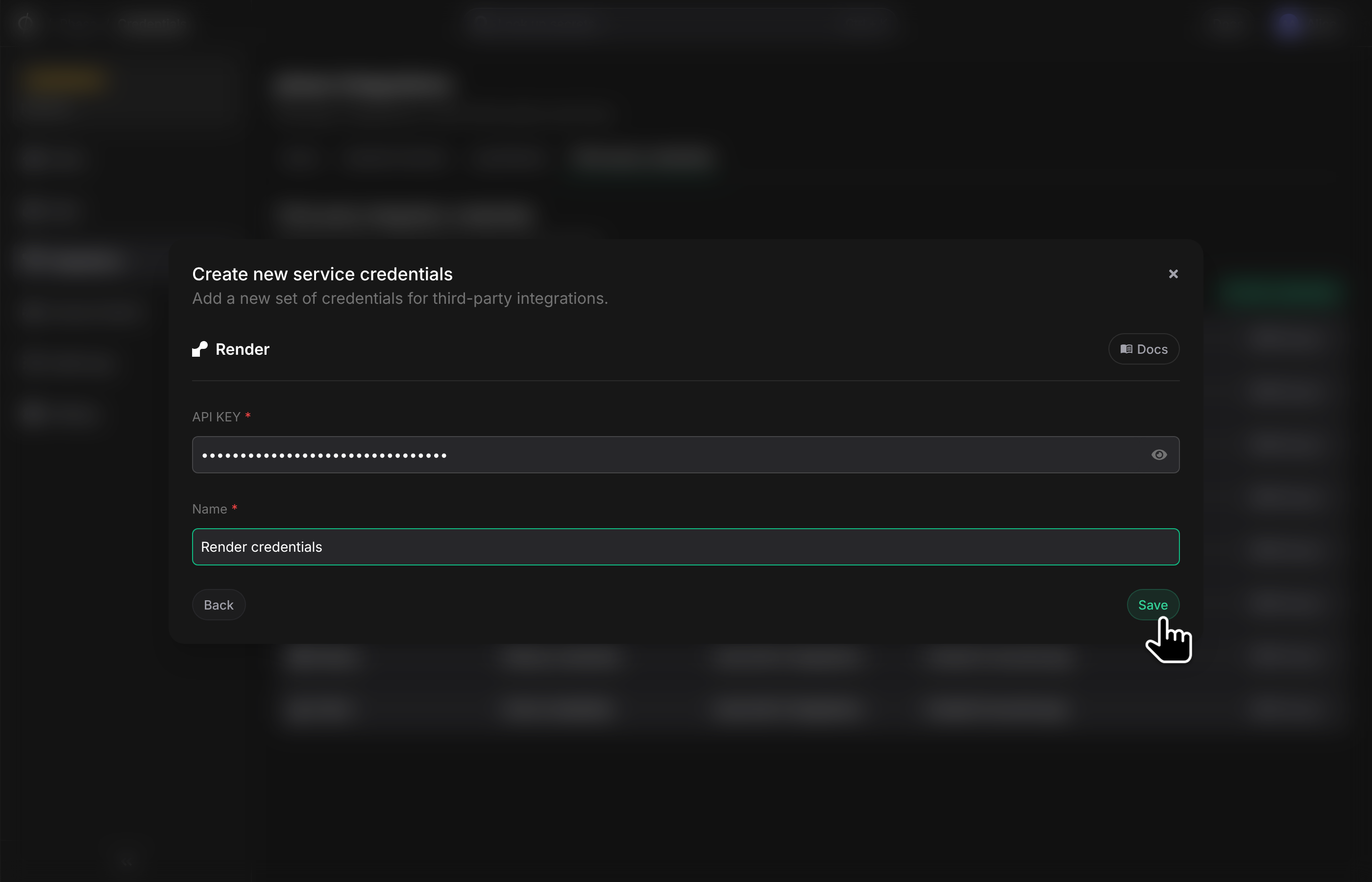
Your credentials will be encrypted and saved. You can view and manage these credentials under Third-party credentials on the Integrations screen.
Step 2: Set up a secret sync
- Go to your App in the Phase Console and go to the Syncing tab. Select Render under the 'Create a new Sync' menu.
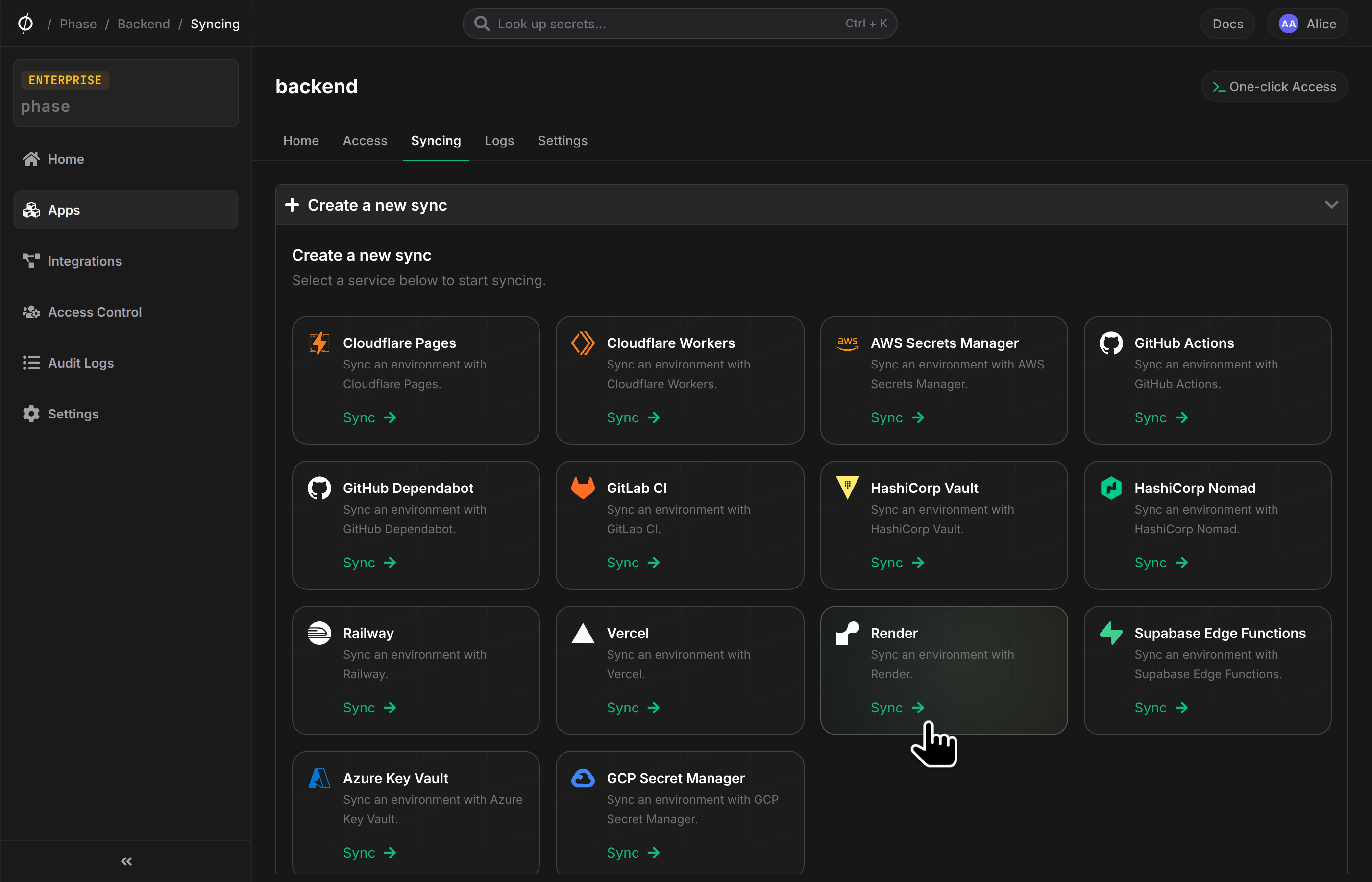
- Choose the credentials you added in the previous step as the authentication mode, and click Next.
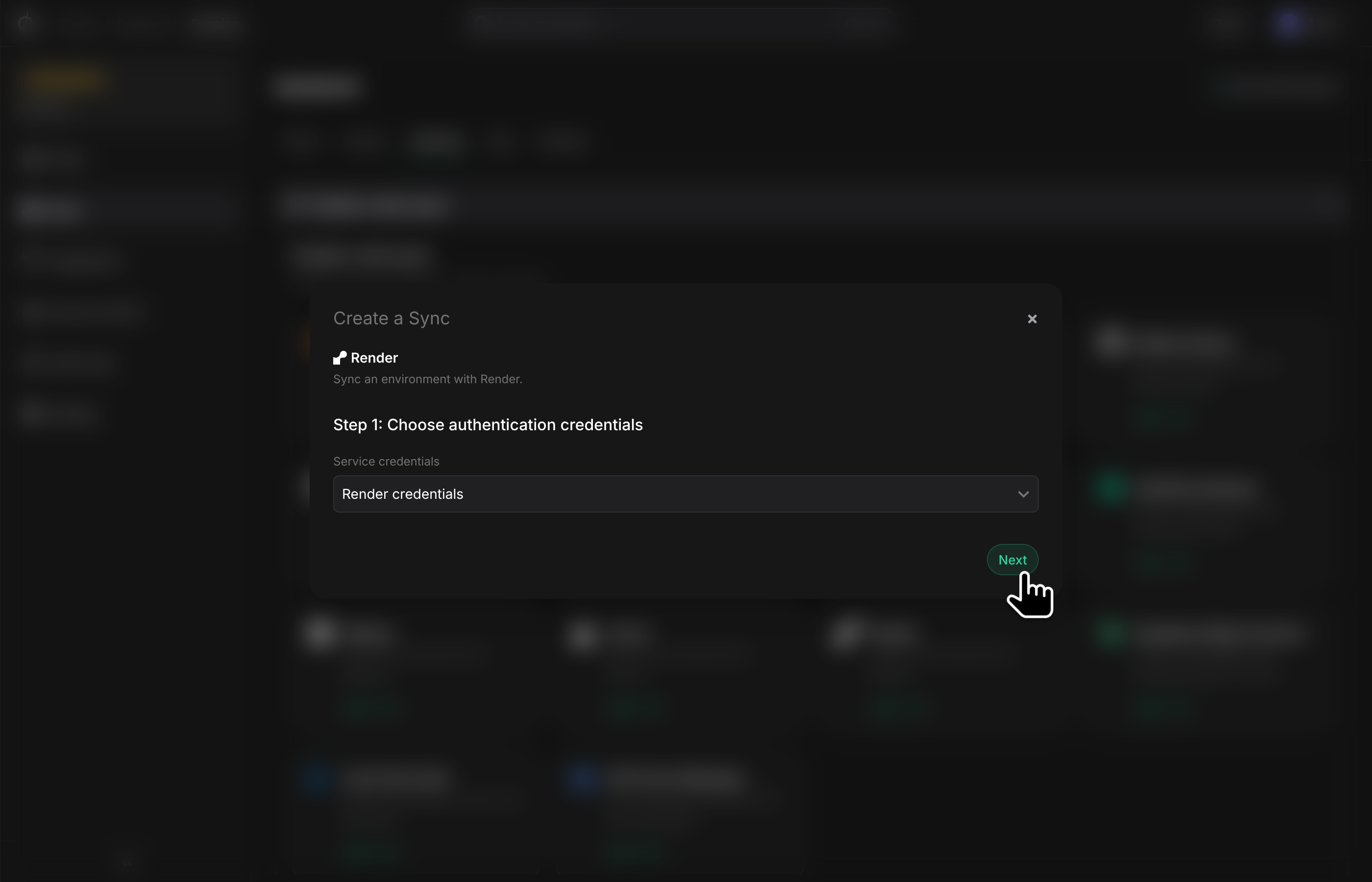
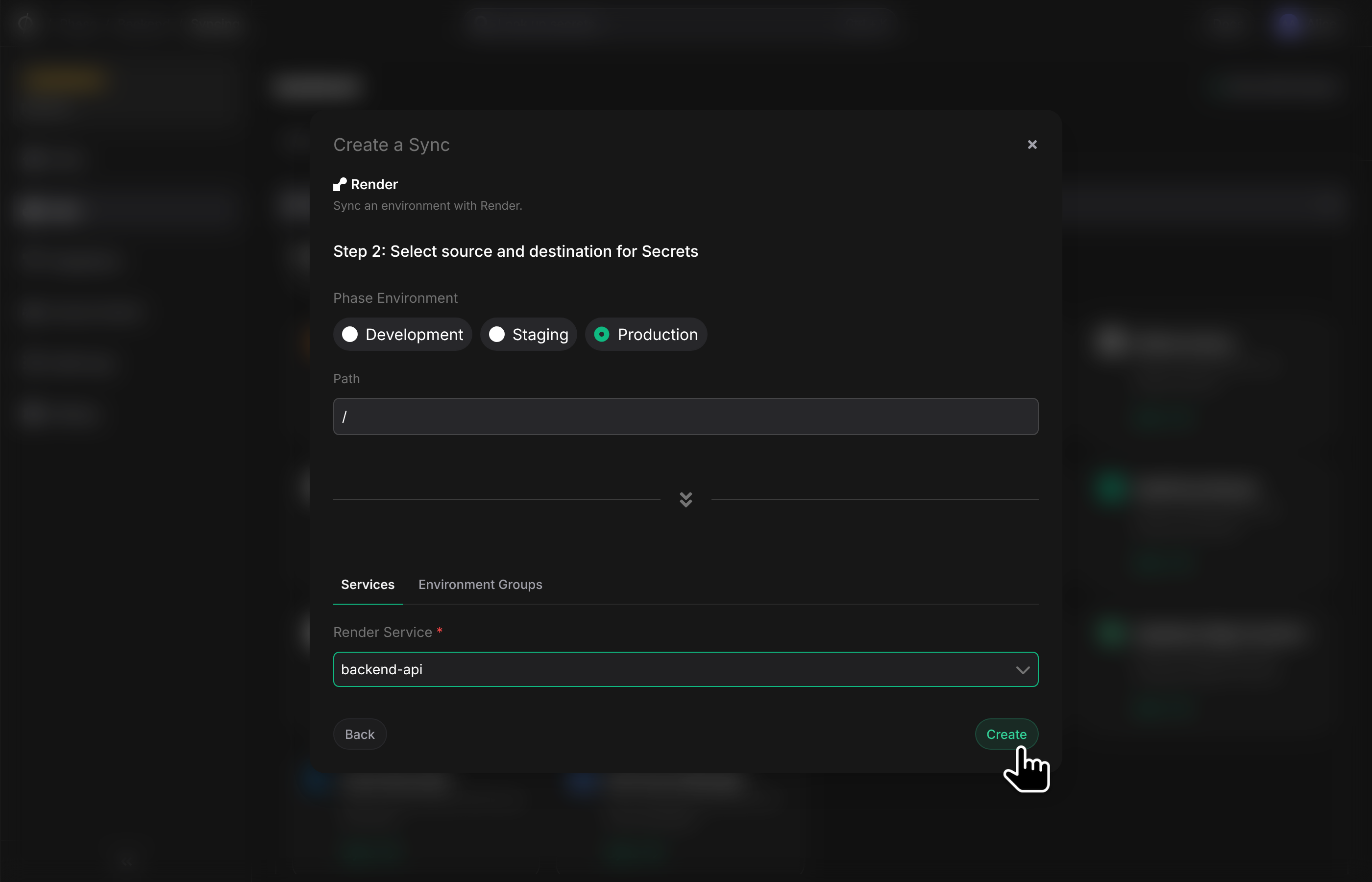
- Next, configure the source and destination for your secrets. Pick an Environment from your App as the source. To configure the destination for the sync you can choose either a Render Service or Environment Group.
Sync to a Render Service
On the Services tab, select the Render Service you want to sync secrets to.
Sync to a Render Environment Group
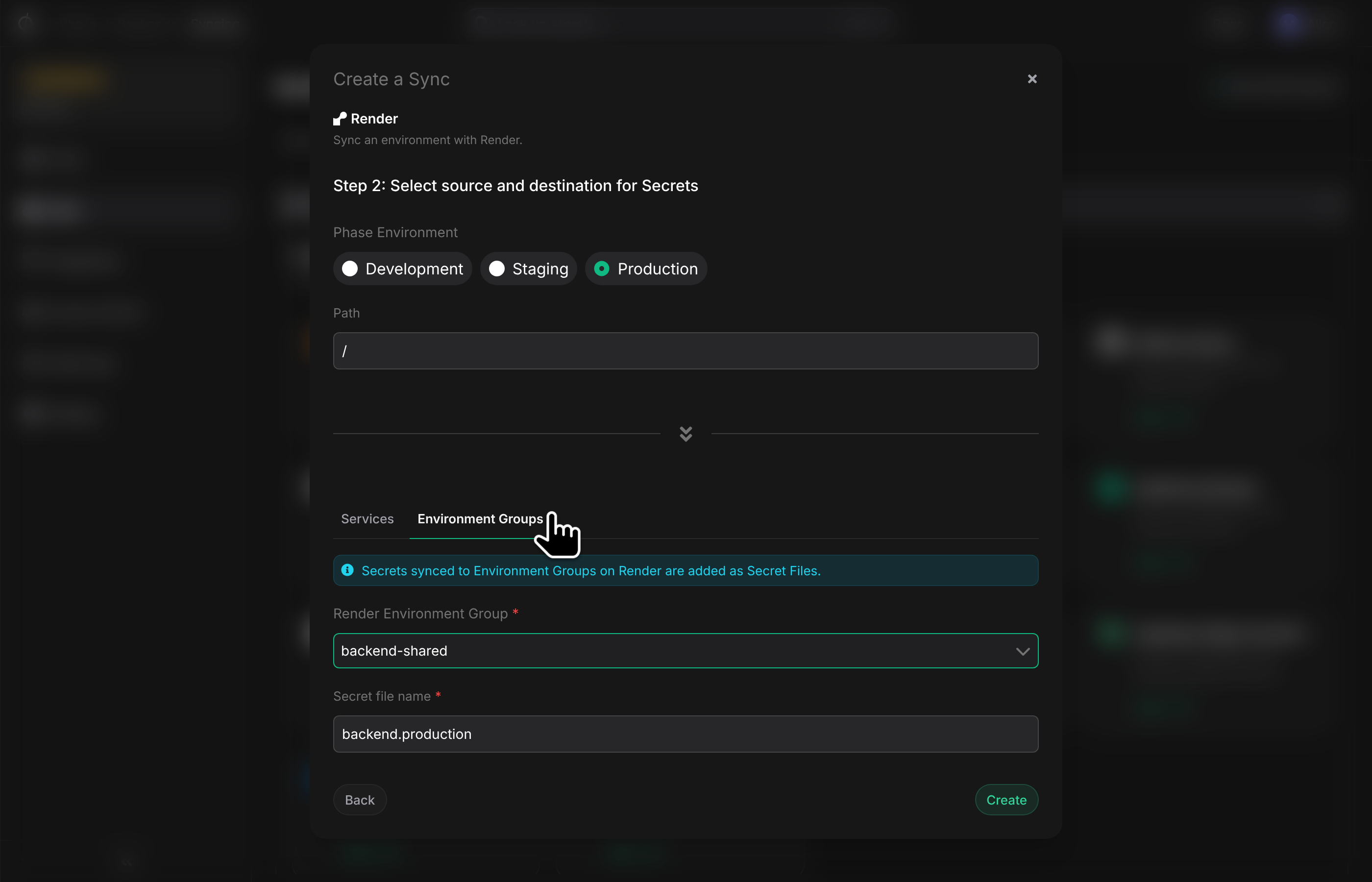
If you choose to sync to a Render Environment Group, secrets will be synced as a Secret File within the chosen group. You can access this file within your application code at /etc/secrets/<filename>
On the Environment Groups tab, select the Render Environment Group you want to sync secrets to. You can also set the filename for the secret file that will be created in the Environment Group. This file will contain all the secrets synced from Phase.
- Once set up, your secrets will automatically be synced to the chosen destination in Render. You can manage your sync from the Syncing tab of your App, or from the Integrations screen.