Railway
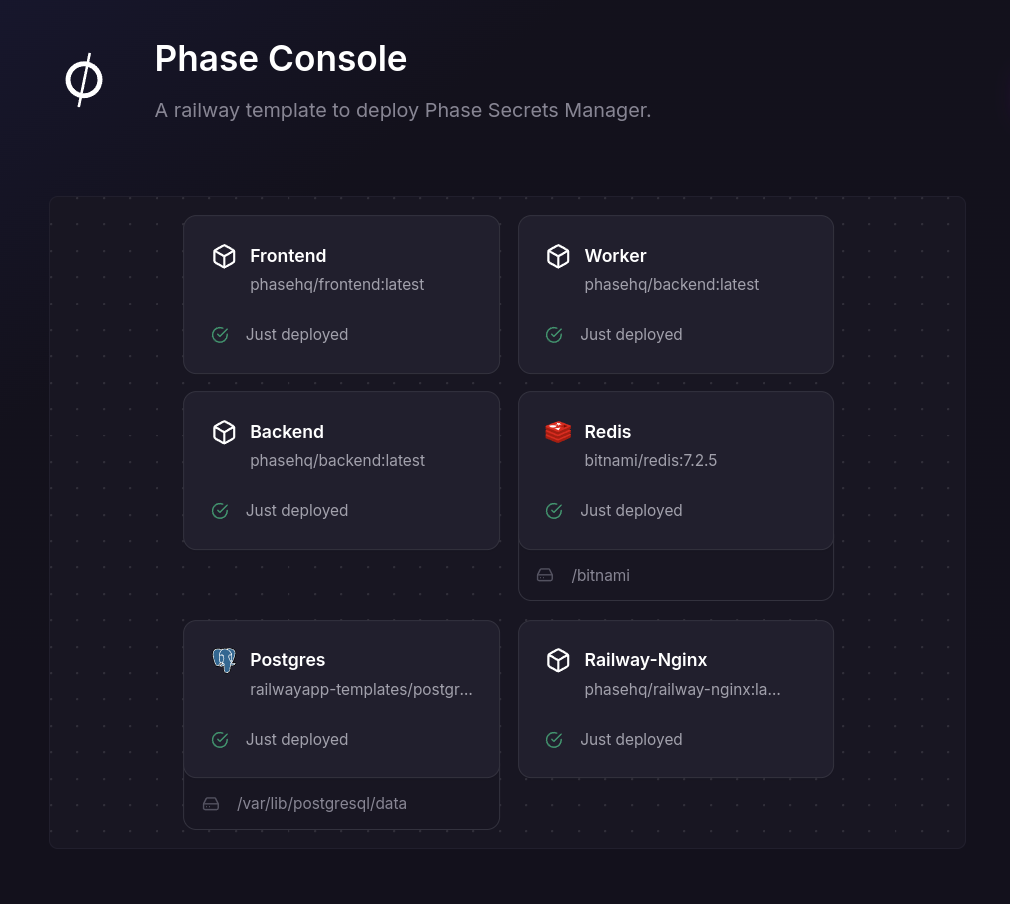
Deploy the Phase Console Railway template.
Prerequisites
- A Railway account on the Hobby tier or better
Known Issues
-
Nginx routing issues: Redeployment of services (frontend, backend, worker), especially due to configuration changes (environment variables, settings, adding custom domains, etc.), can cause the Nginx routing to time out due to IPv6 changes after deployment. If you encounter such issues, please redeploy the
frontend,backendandrailway-nginxservices respectively. Make sure to redeploy the Nginx service last after all other services have been finalized and re-deployed. -
Secret references: To make configuration easier, the Phase Console Railway deployment template uses numerous secret and variable references. These references are resolved only during a service deployment. Future configuration changes to other services may not reflect immediately until a redeployment is triggered (as mentioned in the previous point).
For example, the Phase backend service references an environment variable from the railway-nginx service. If a change occurs in the referenced value ${{railway-nginx.RAILWAY_PUBLIC_DOMAIN}} (e.g., because a new custom domain was added), the backend and the railway-nginx service need to be redeployed respectively:
ALLOWED_HOSTS=healthcheck.railway.app,${{RAILWAY_PRIVATE_DOMAIN}},${{railway-nginx.RAILWAY_PUBLIC_DOMAIN}}
Installation Steps
1. Configure the Railway Deployment Template
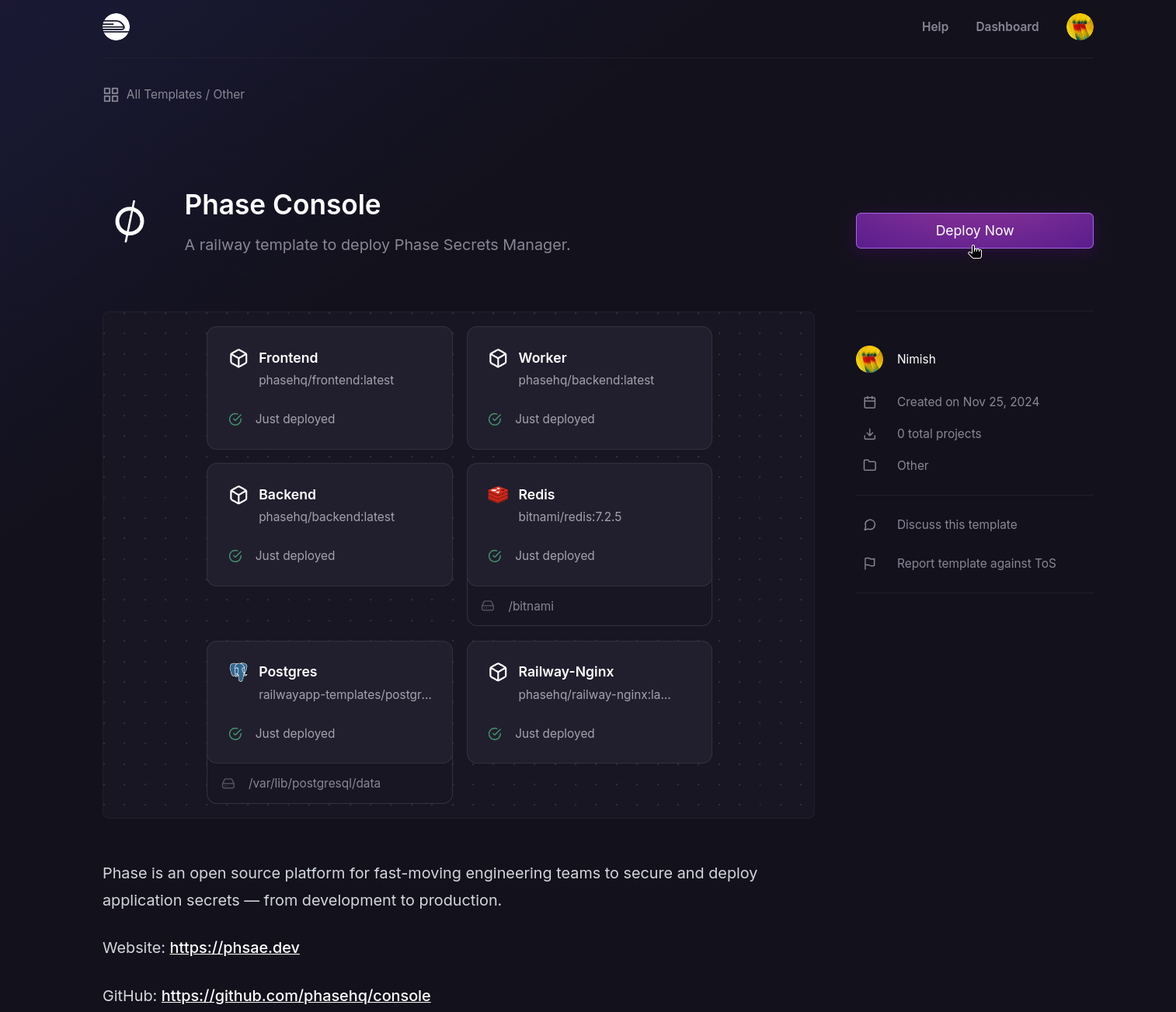
- Go to the Phase Console Railway deployment template page and click Deploy Now.
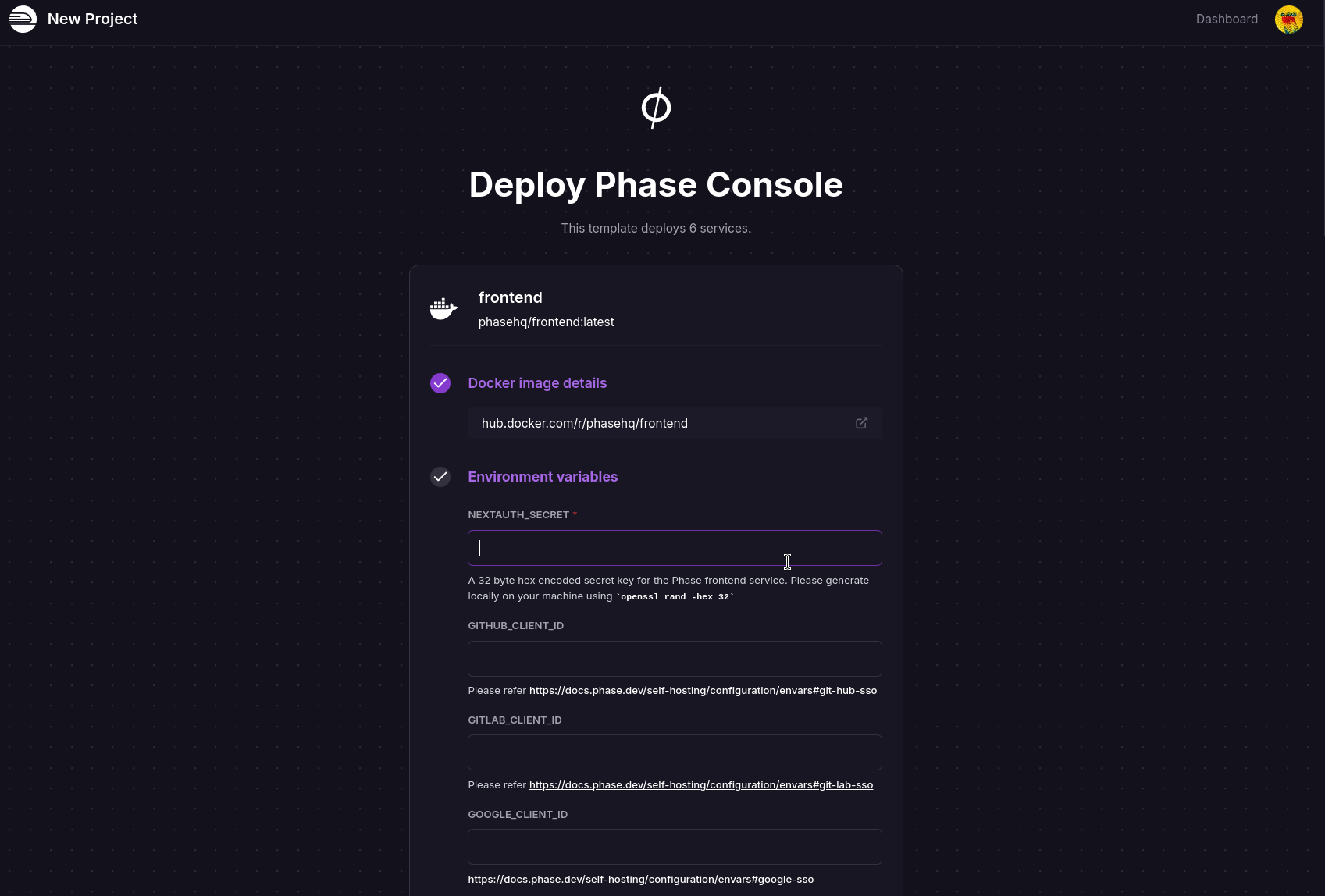
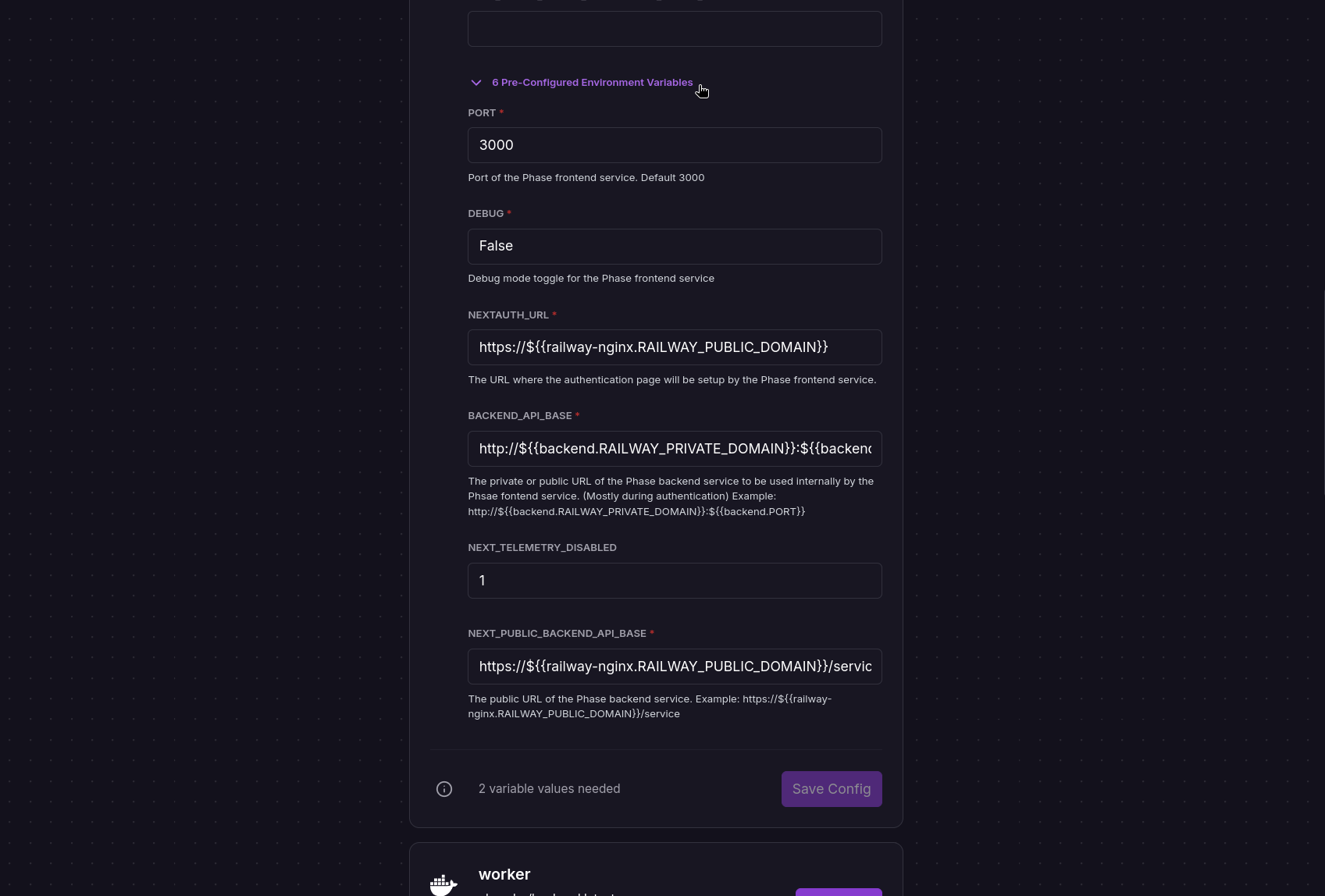
- Click Configure on each service container listed, fill out the required Environment variables, and click Save Config.
Important notes:
- Read the descriptions for each Environment variable as they contain setup instructions
- For security and consistency, we do not autogenerate secrets using Railway's secret function syntax. Generate them manually using
openssllike this:openssl rand -hex 32 - Some Environment variables need to be set across multiple services
For a complete list of all secrets and environment variables with descriptions, see the self-hosting env vars guide.
Optionally, you can click the Pre-Configured Environment Variables dropdown under each service to view or override the pre-set environment variables and secrets to best suit your needs.
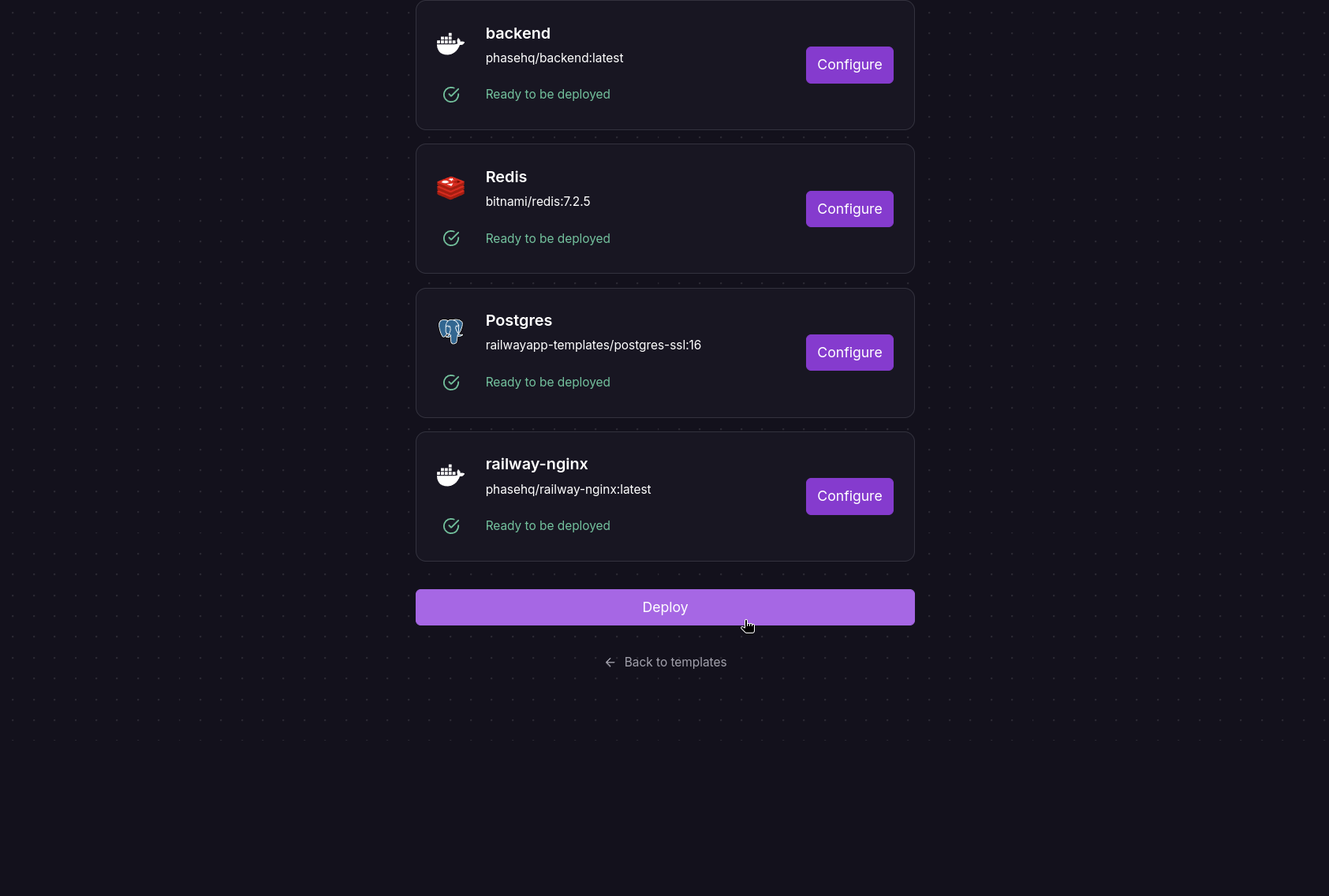
- Once configured, click Deploy.
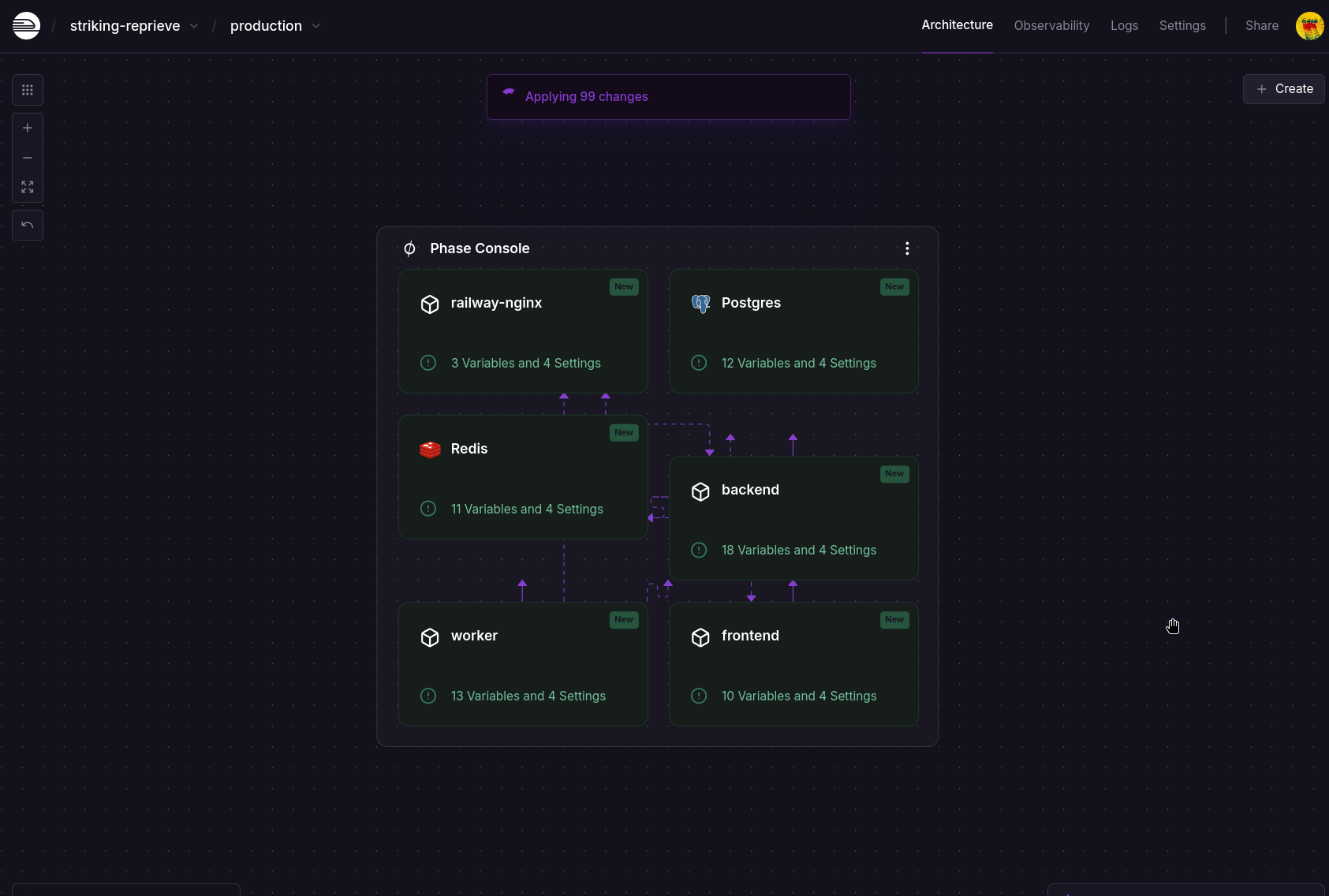
Please wait for the train to arrive. 🚄
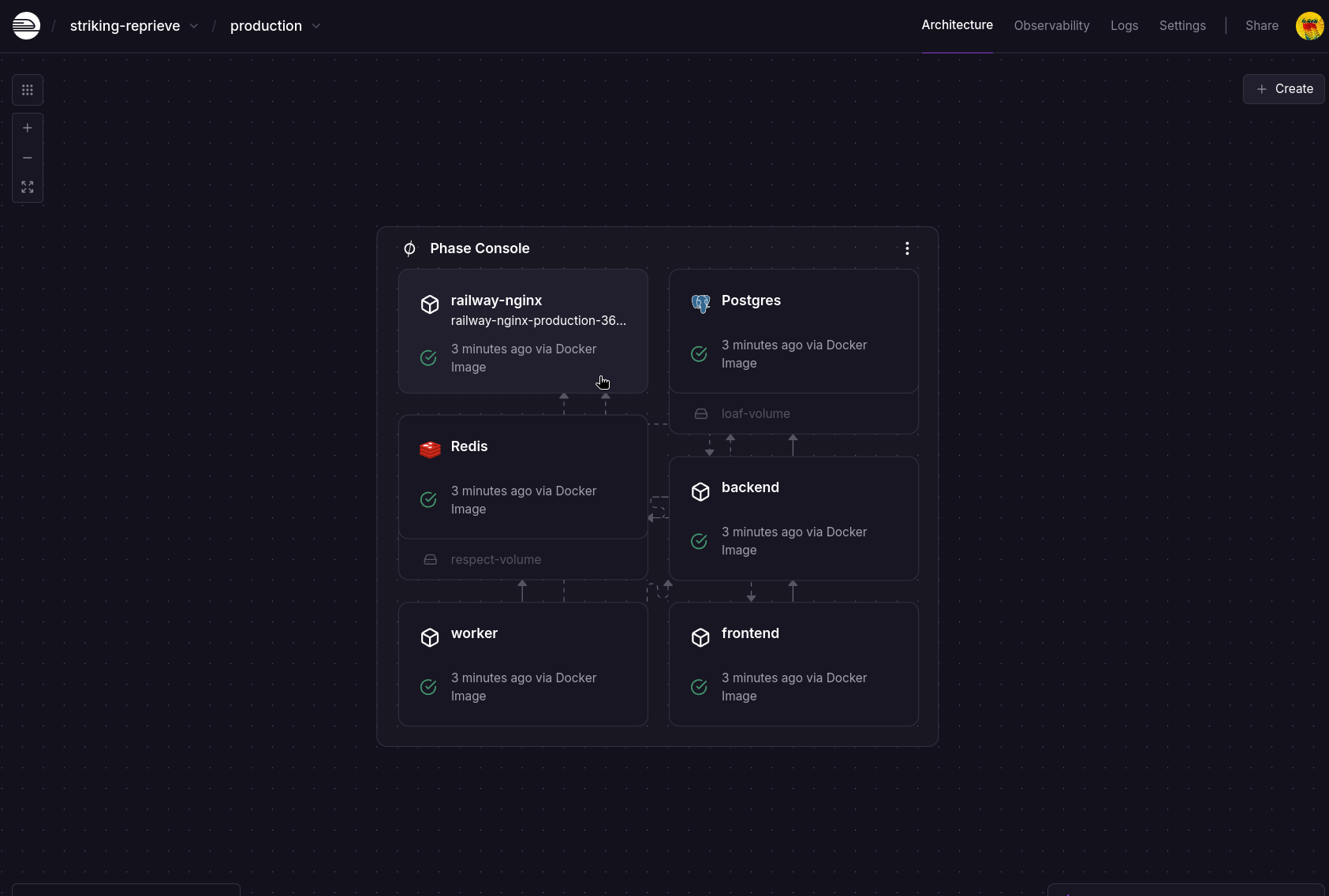
2. Deploy the Template
- Click on the
railway-nginxservice.
- Select the Settings tab.
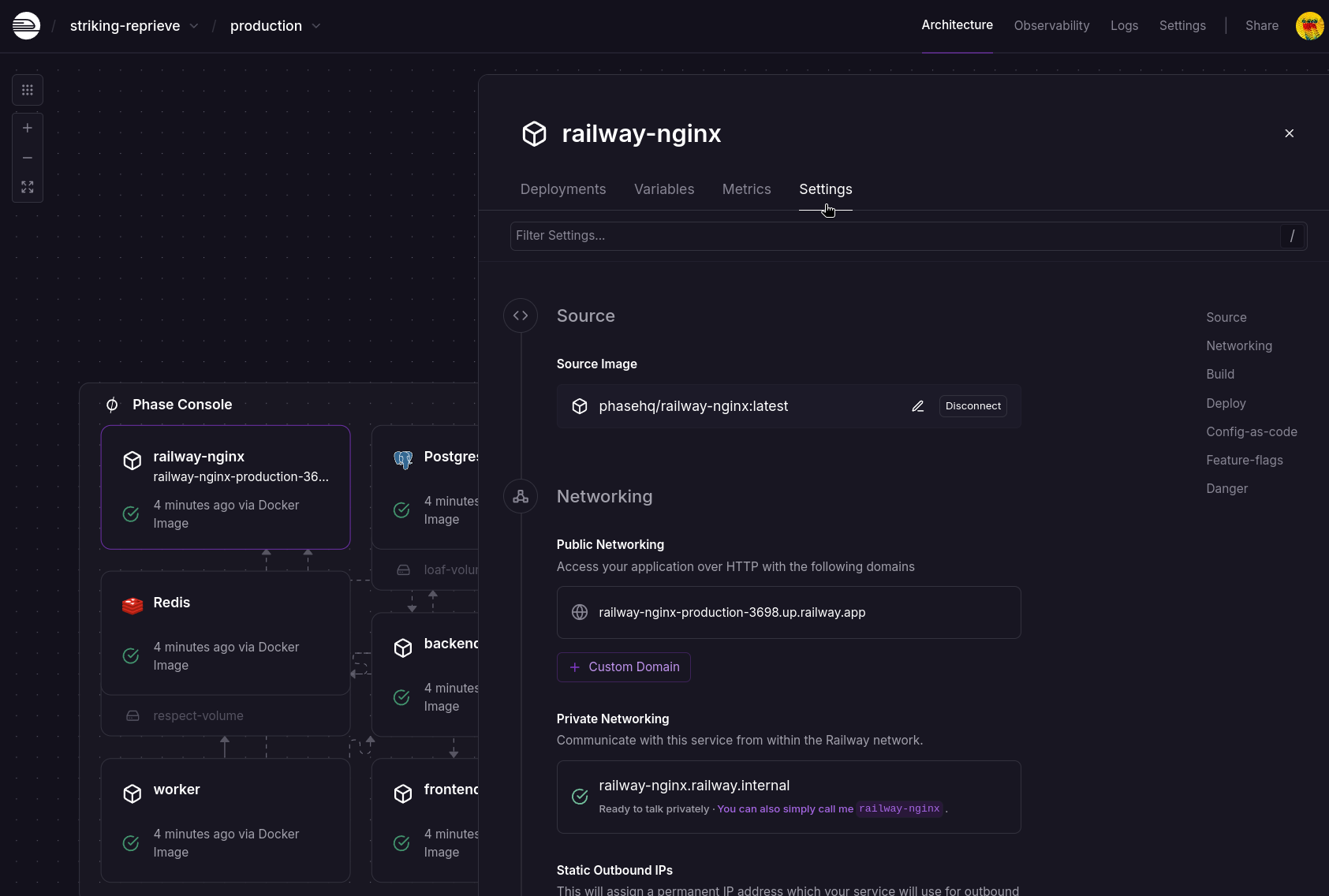
- Scroll down and click + Custom Domain in the Networking section.
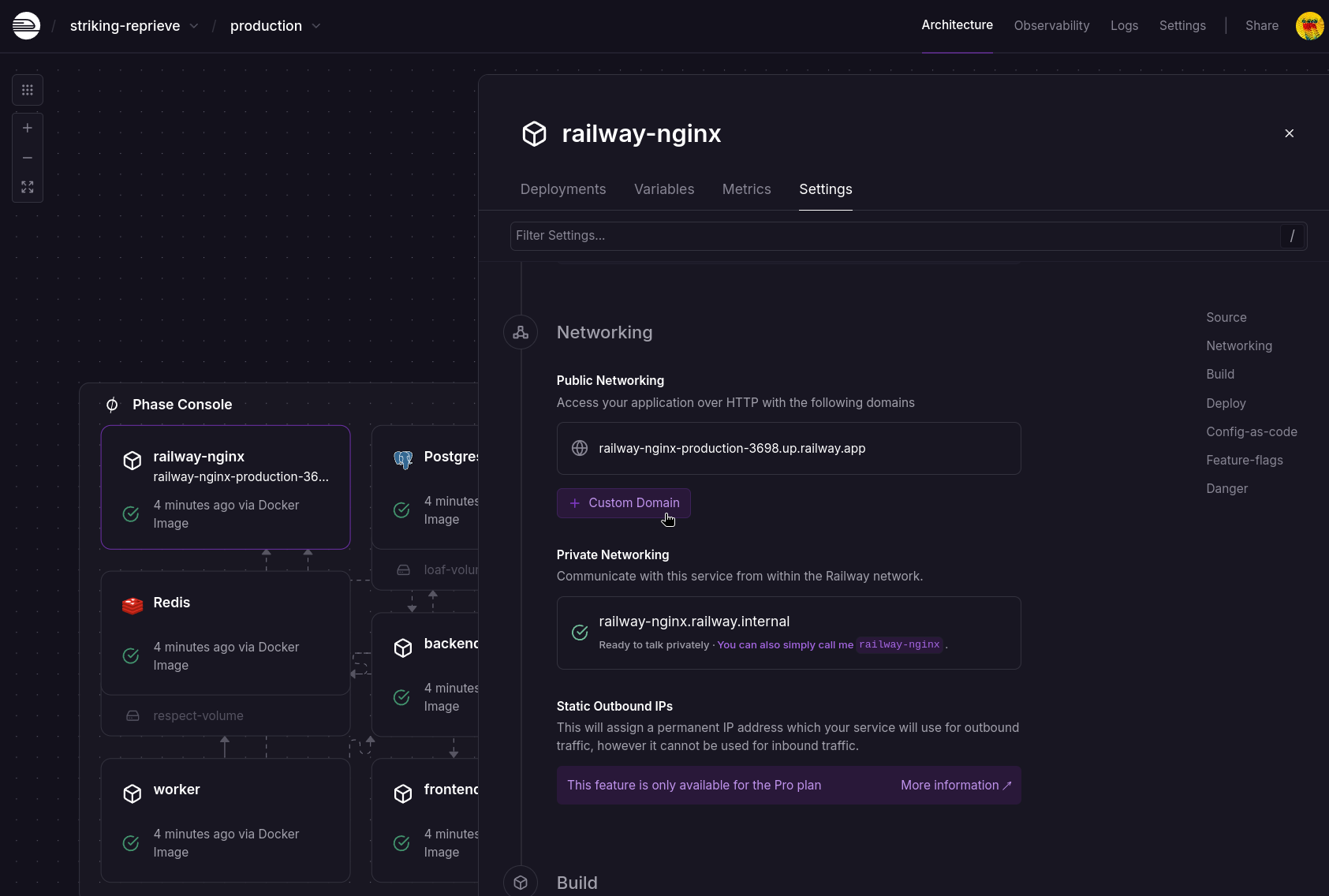
- Enter your Custom Domain, set the port to
80, and click Add Domain.
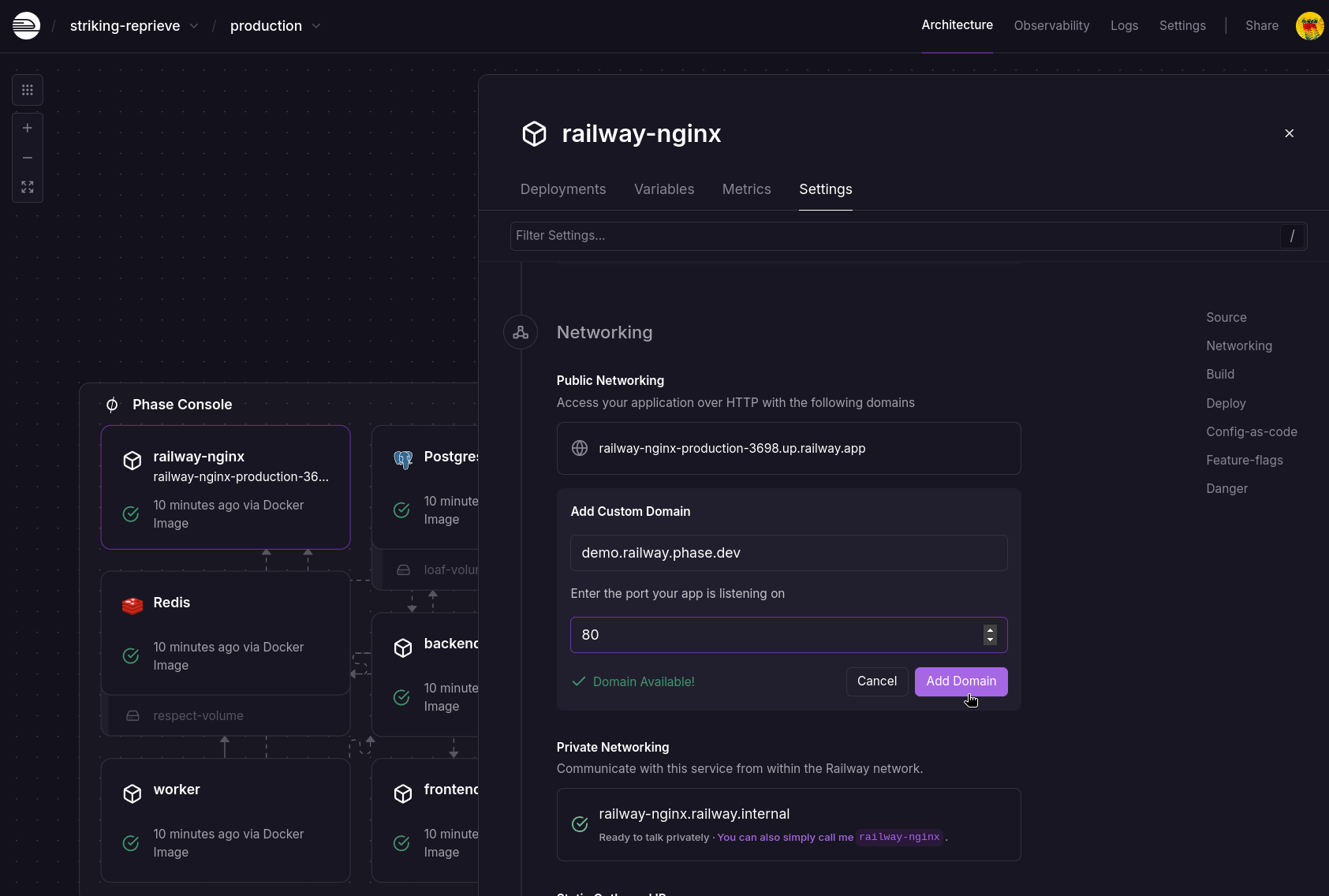
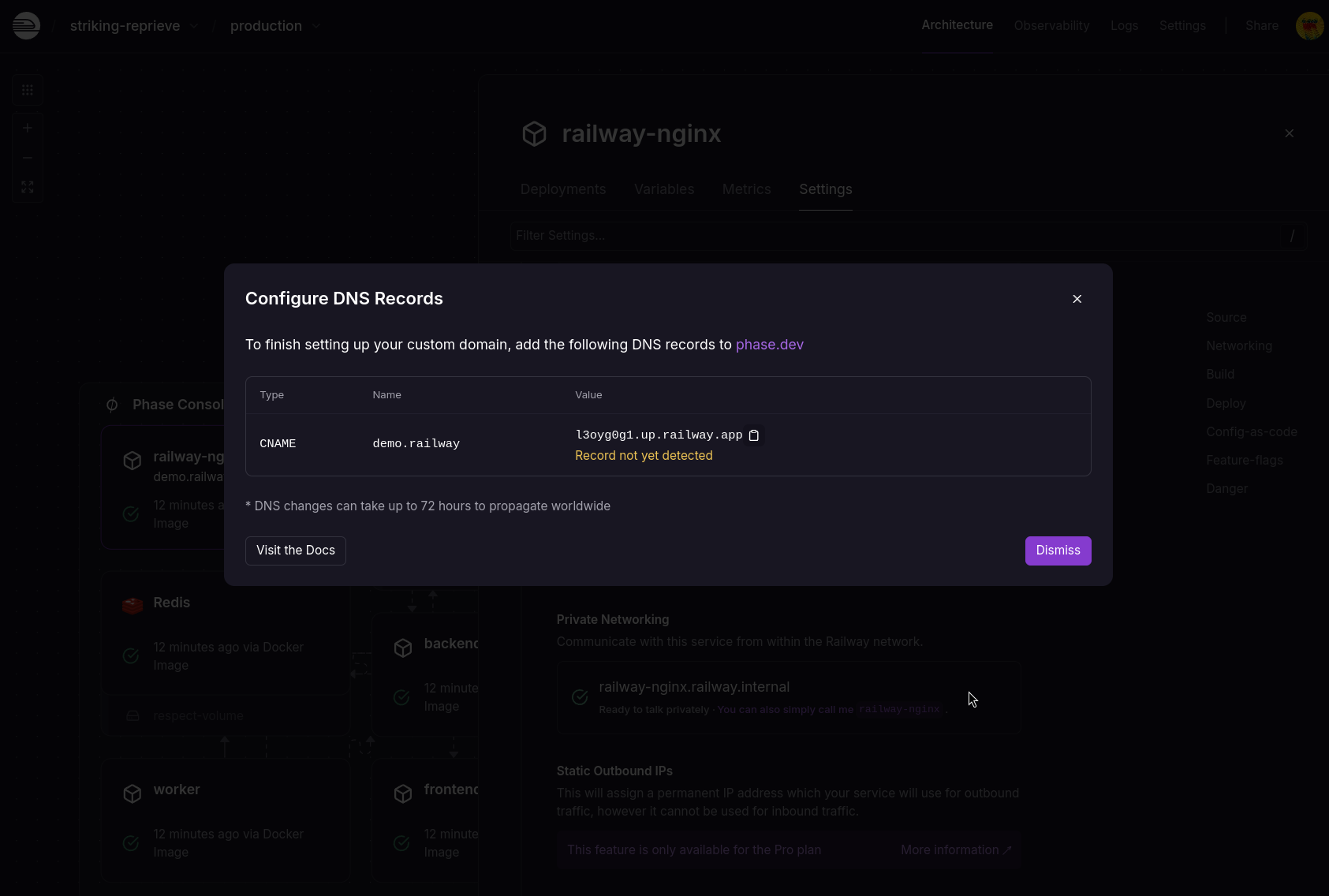
- Configure your DNS settings at your registrar or provider as described in the popup, then click Dismiss. For additional context, refer to the Railway Docs.
Note: If using Cloudflare, disable the Proxy status (orange cloud icon) to avoid double proxying, as Railway uses Cloudflare for routing.
-
Wait for DNS propagation and TLS certificate issuance.
-
Verify the deployment by clicking the custom domain in the Deployments tab.
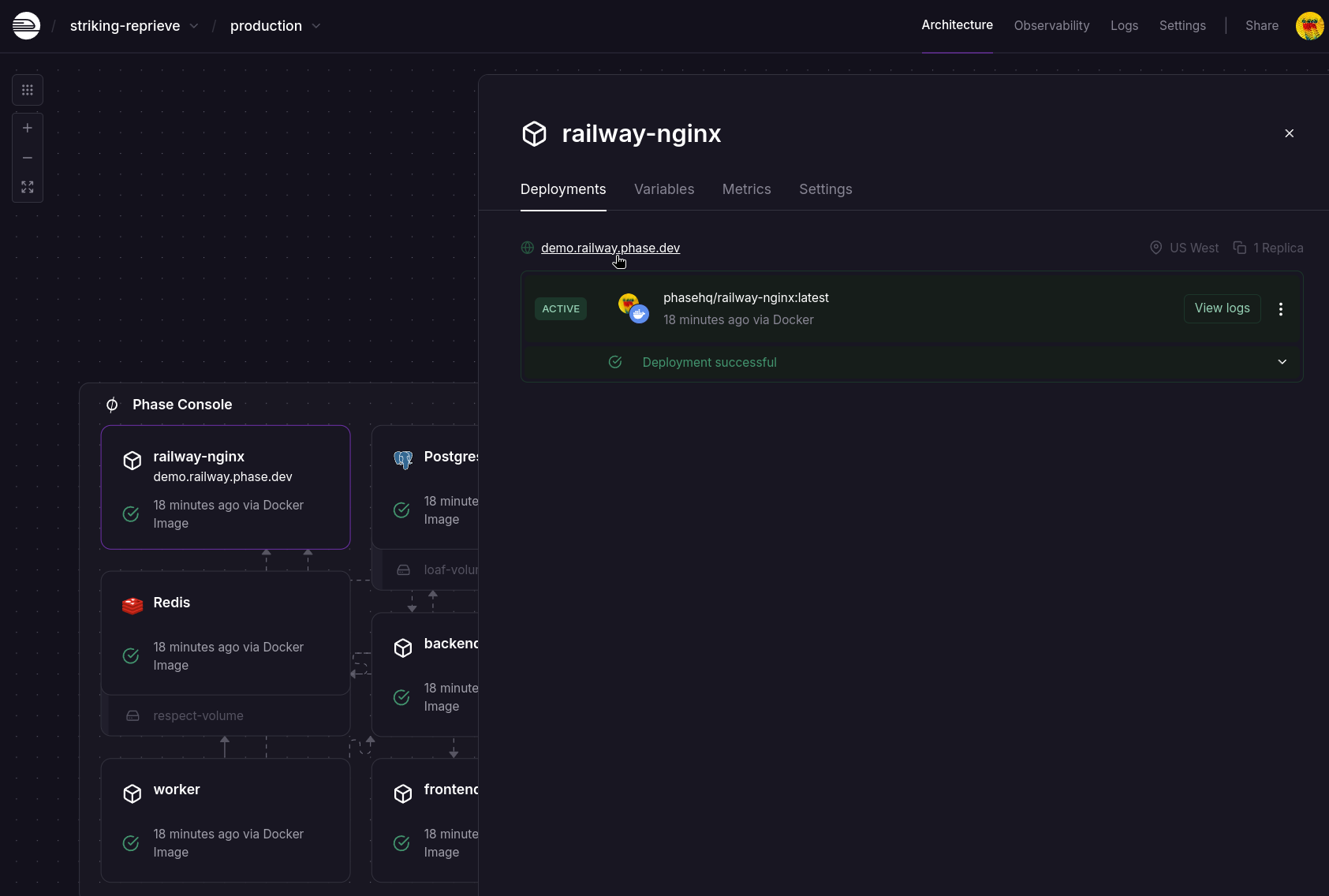
🎉
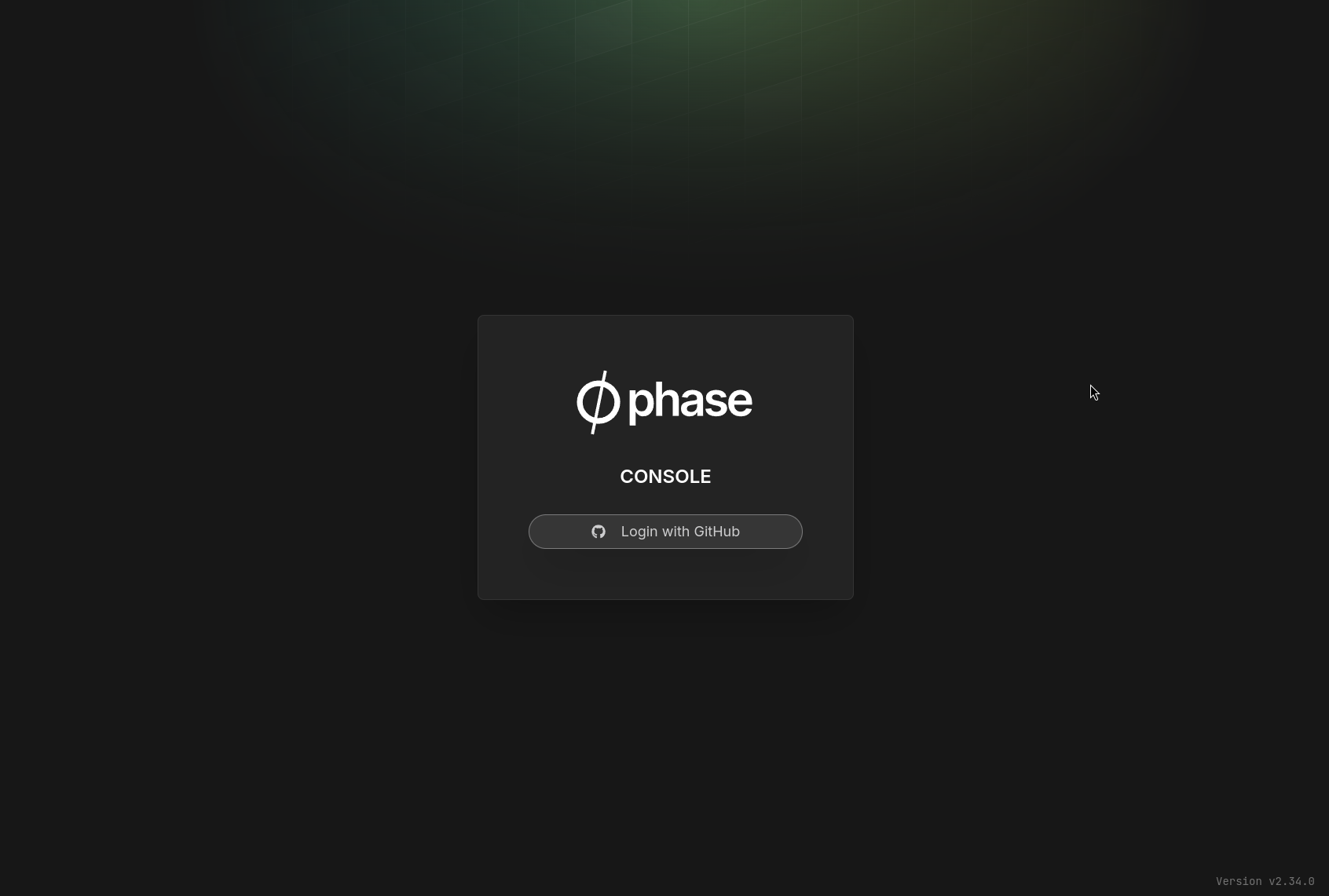
You should be all set! Head on over to your Railway custom domain and sign up for a Phase Console account. Here's a quickstart.
If you want members to sign in via an identity provider, see Authentication — SSO can be configured on your deployment at any time.
Troubleshooting
Check the health endpoints
You may check the routing and the health of your frontend and backend services by making a GET request to the following public endpoints.
Frontend: http(s)://example.com/api/health
Example:
curl https://demo.railway.phase.dev/api/health
{"status":"alive"}
Backend: http(s)://example.com/service/health/
Example:
curl https://demo.railway.phase.dev/service/health/
{"status": "alive", "version": "v2.34.0"}
OAuth Redirection Issues
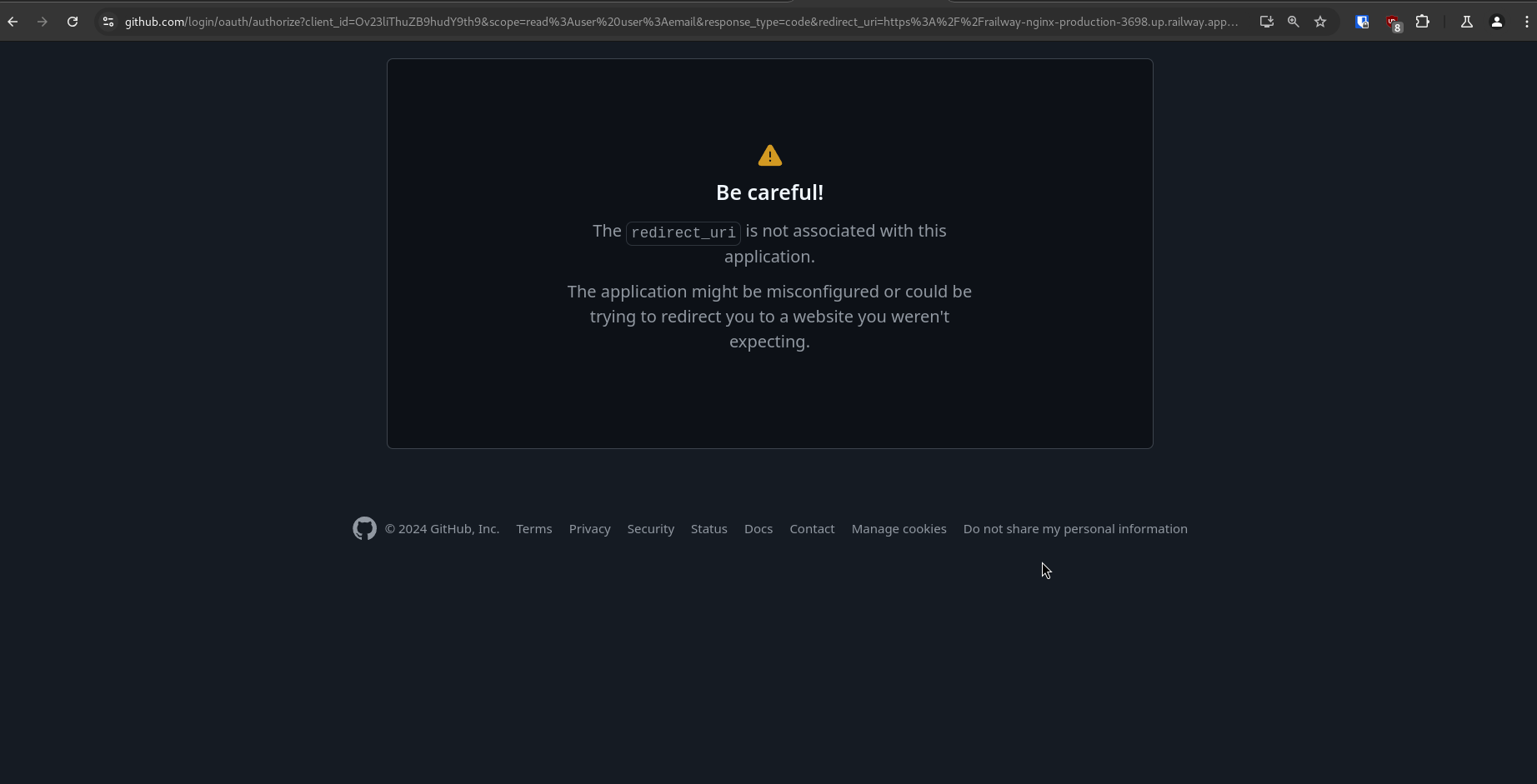
Below is an example of an OAuth redirection error when using GitHub SSO (though not exclusive to GitHub). This can occur even with correct OAuth configuration if the Railway environment variables referenced by the Phase backend service from the railway-nginx server are outdated after adding a new custom domain. An easy way to spot this is by going through the OAuth redirection URL in your browser address bar and looking for the redirect_url=.... In the example below it's set to the Railway provided domain for the railway-nginx service and not the custom domain we have set previously.
Similar issues can appear during login. If you check the browser console, you may see errors indicating that requests to a Railway domain have been blocked by the Content Security Policy (CSP) of the Phase Console. This suggests that services (frontend or backend) are using incorrect or outdated Railway referenced Environment variables. Verify the referenced variables in each service's Environment Variable tab, redeploy them, and then redeploy the railway-nginx service.
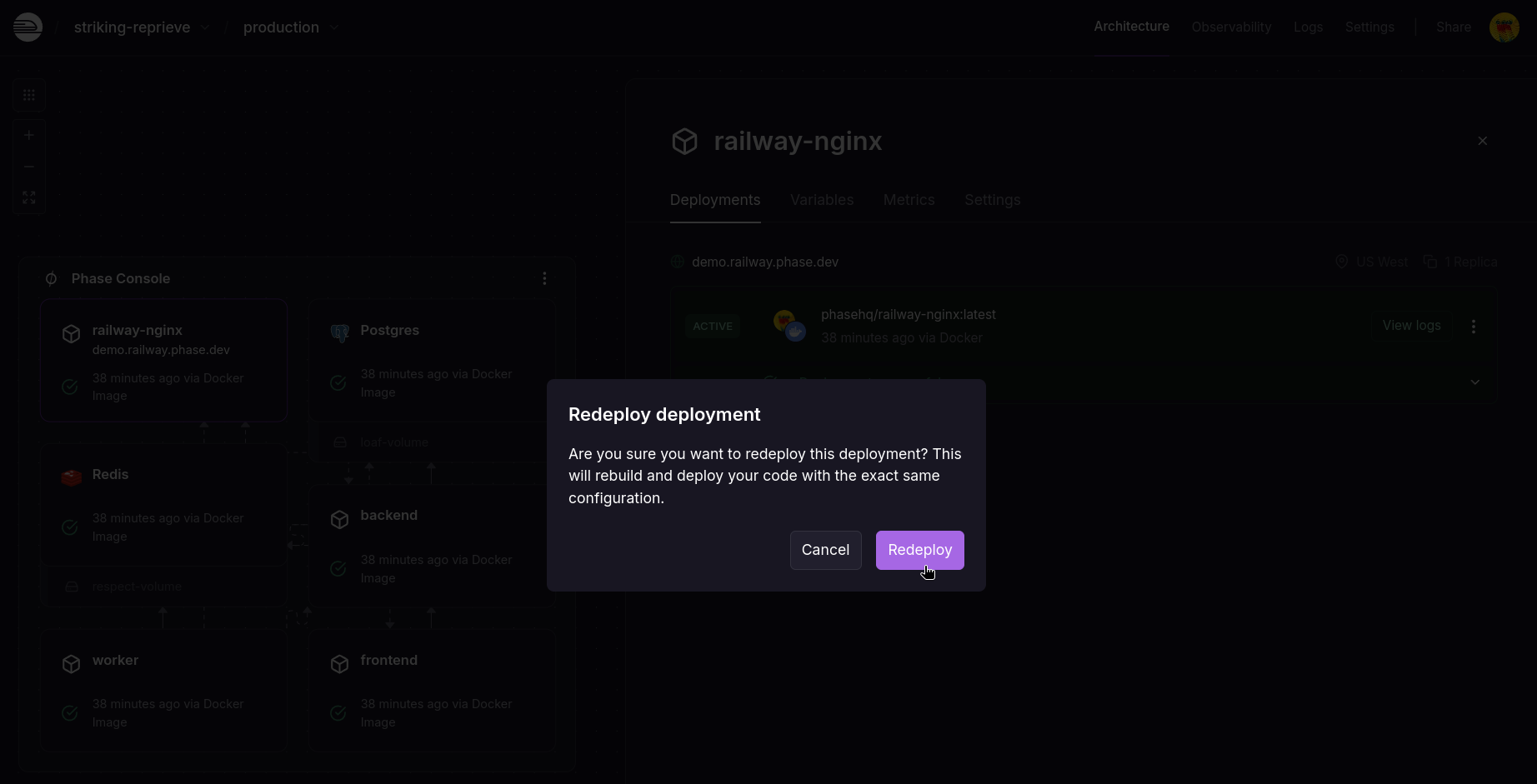
Redeploying Services
- Select the service to redeploy.
- From the Deployments tab, find the latest Active deployment (in green), click the options button next to "View logs", and select Redeploy.
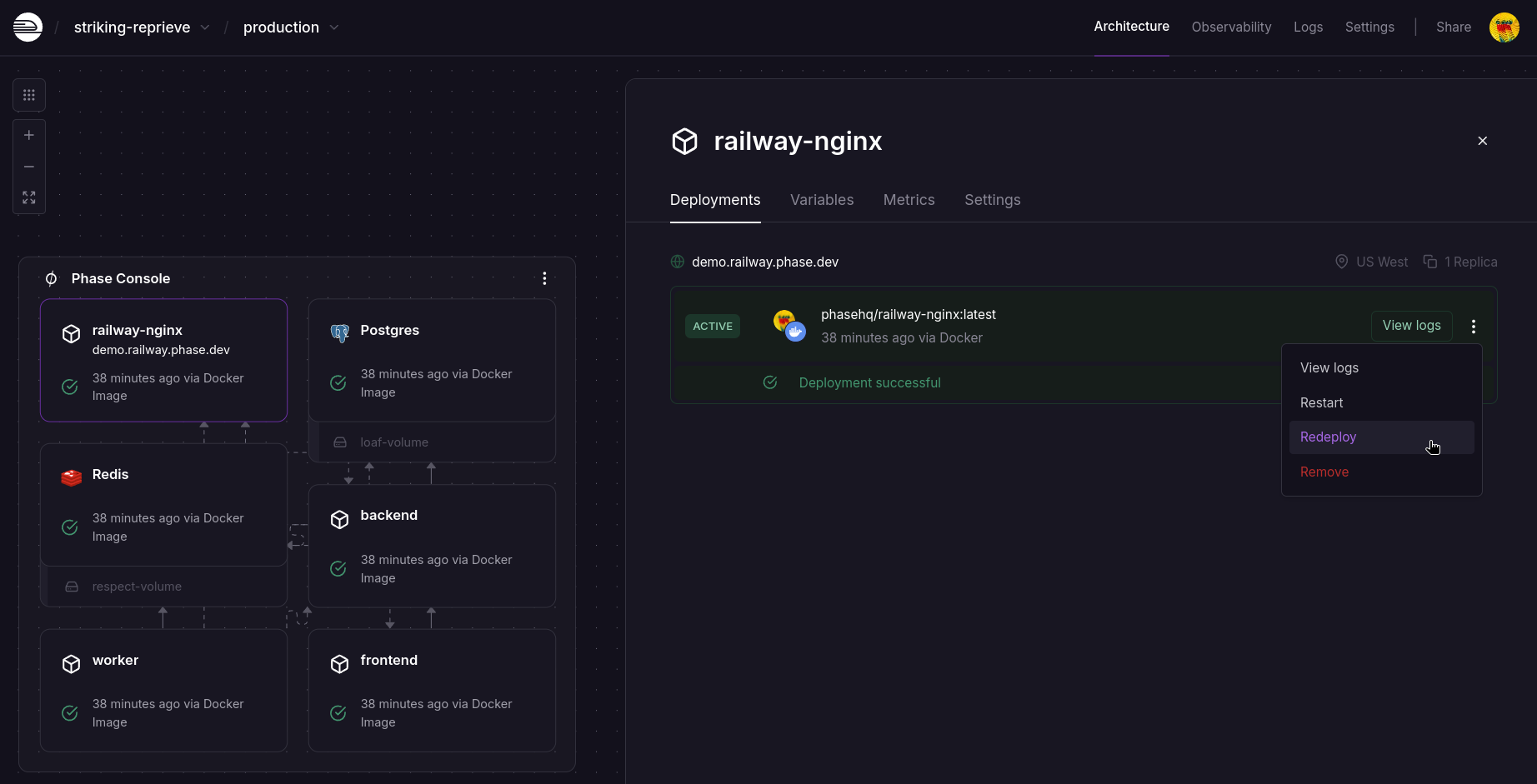
- Confirm the redeployment.
Viewing Logs
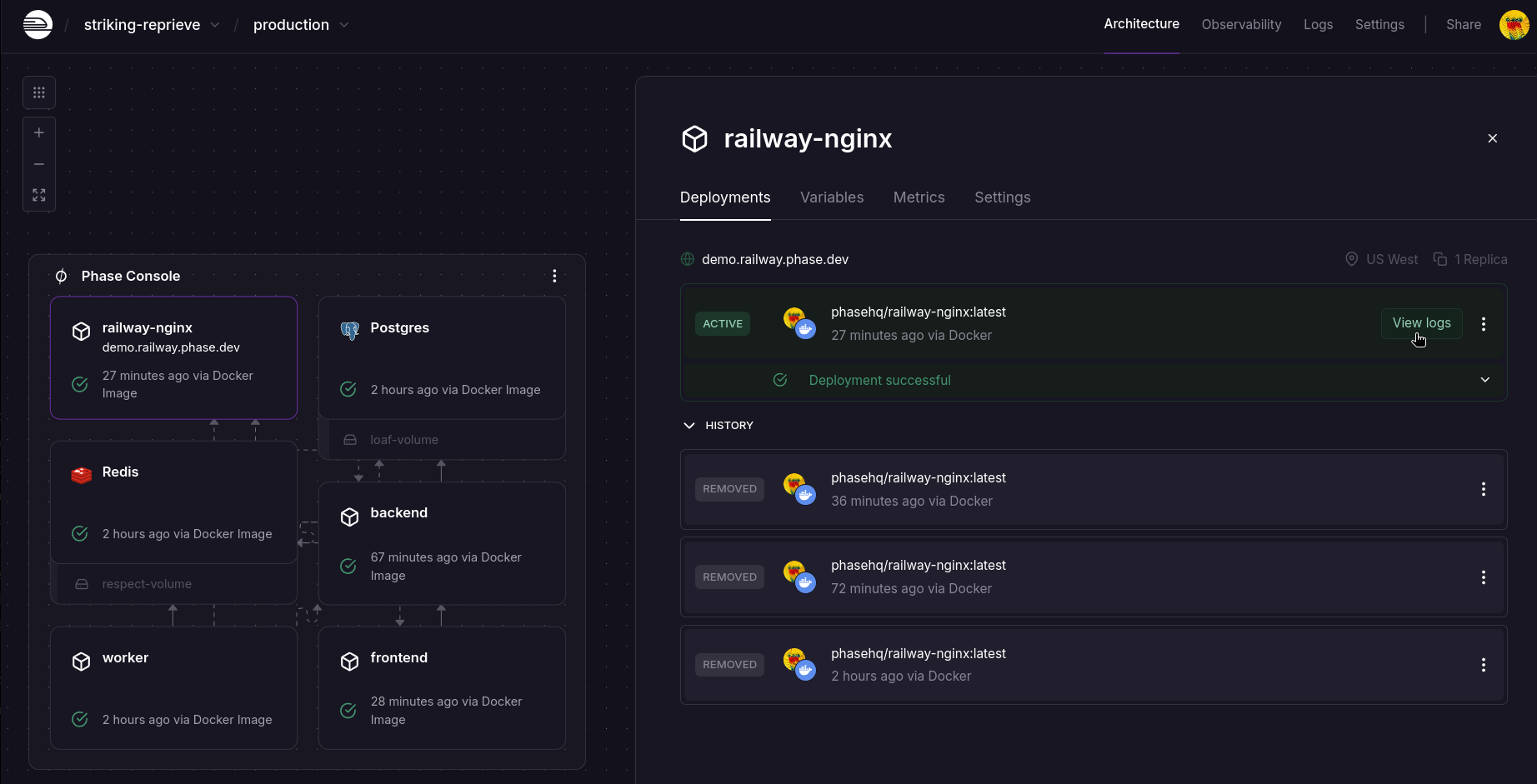
- Select the service to inspect.
- From the Deployments tab, click the green View logs button from the latest active deployment.
- Select Deploy logs to see application-level logs.
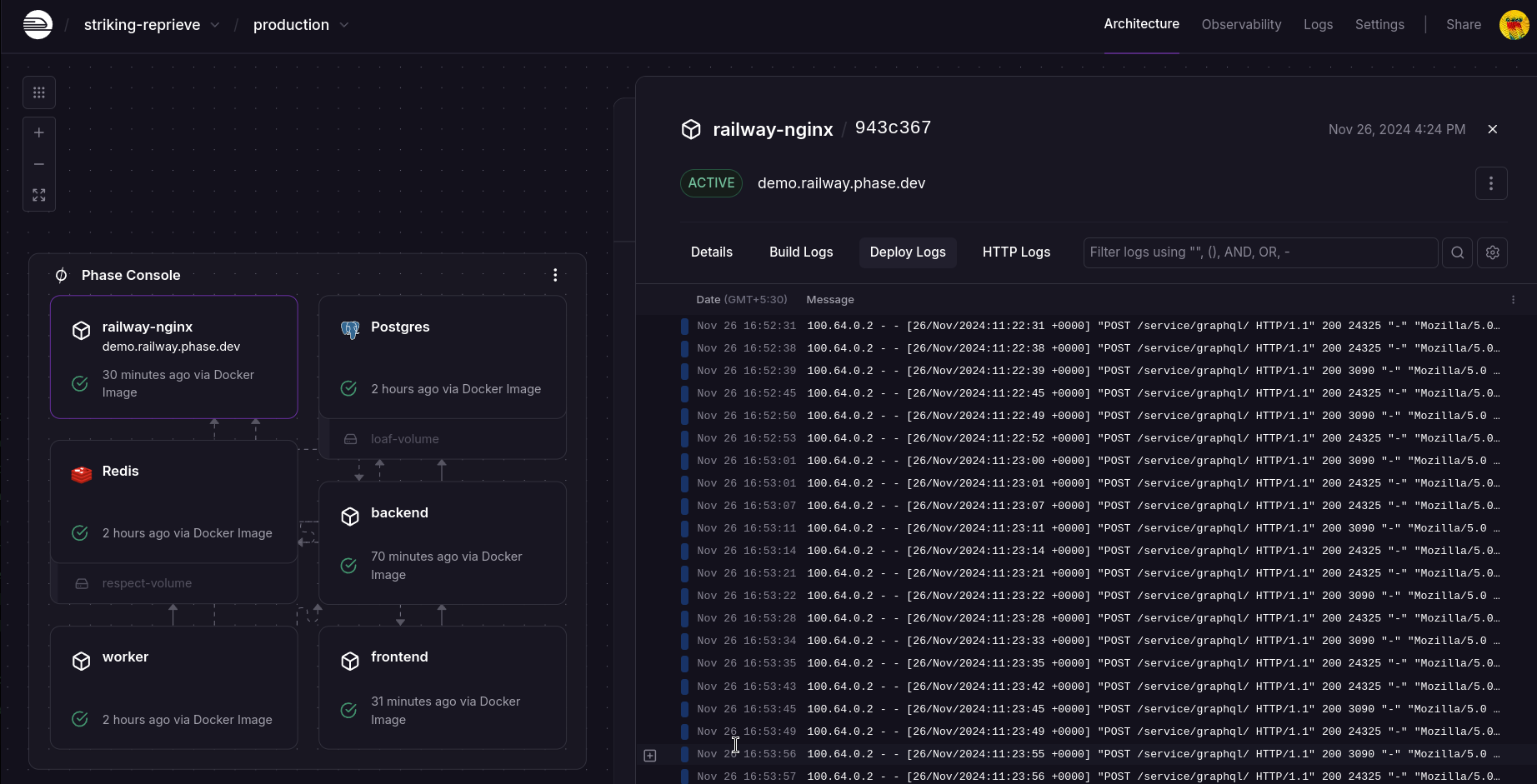
- For publicly exposed services (like
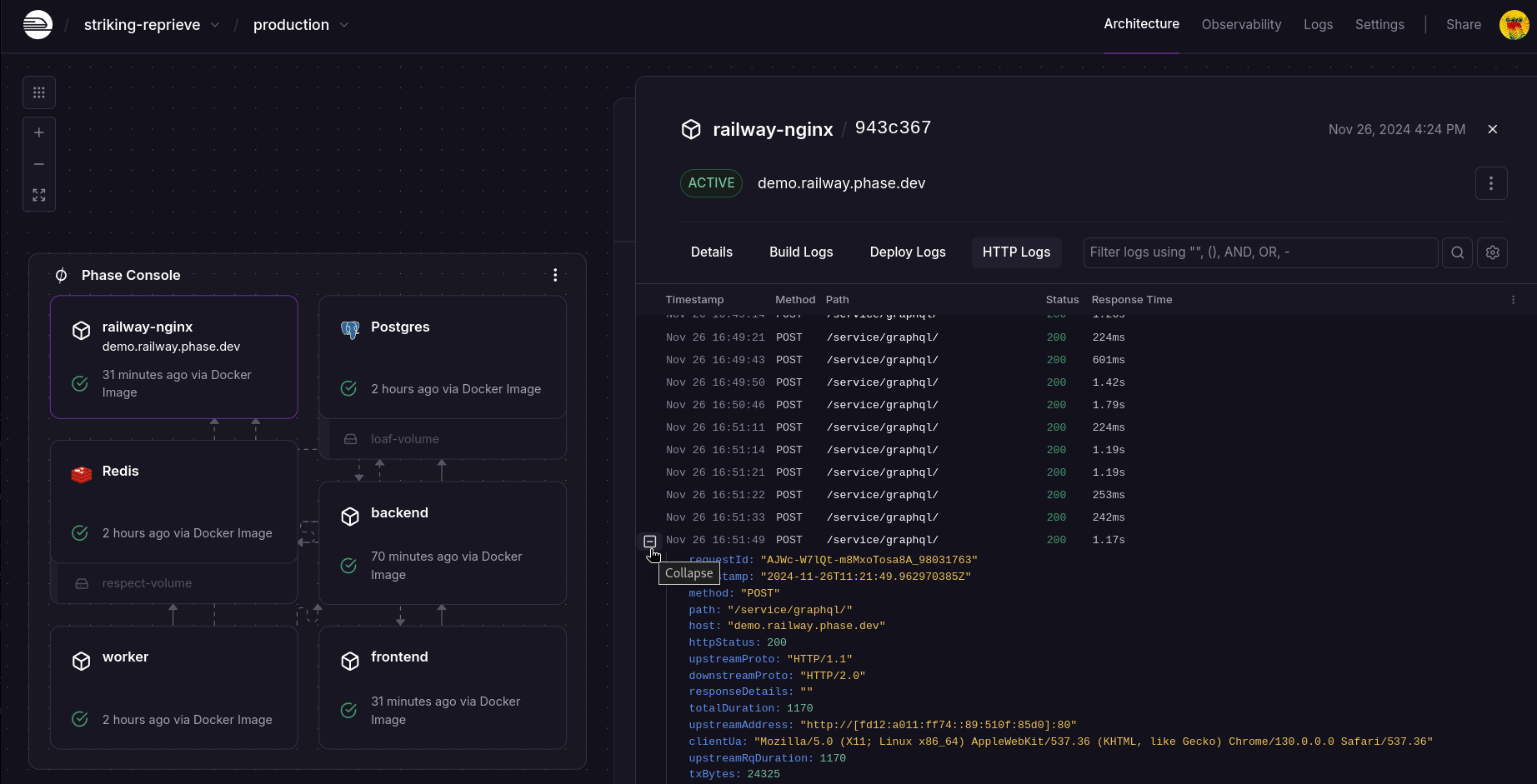
railway-nginx), you can also view the HTTP Logs.