Apps
A Phase App is used to manage Secrets for a single project, repository, or application. An App can contain multiple Environments. Users can be added to or removed from an App to manage access.
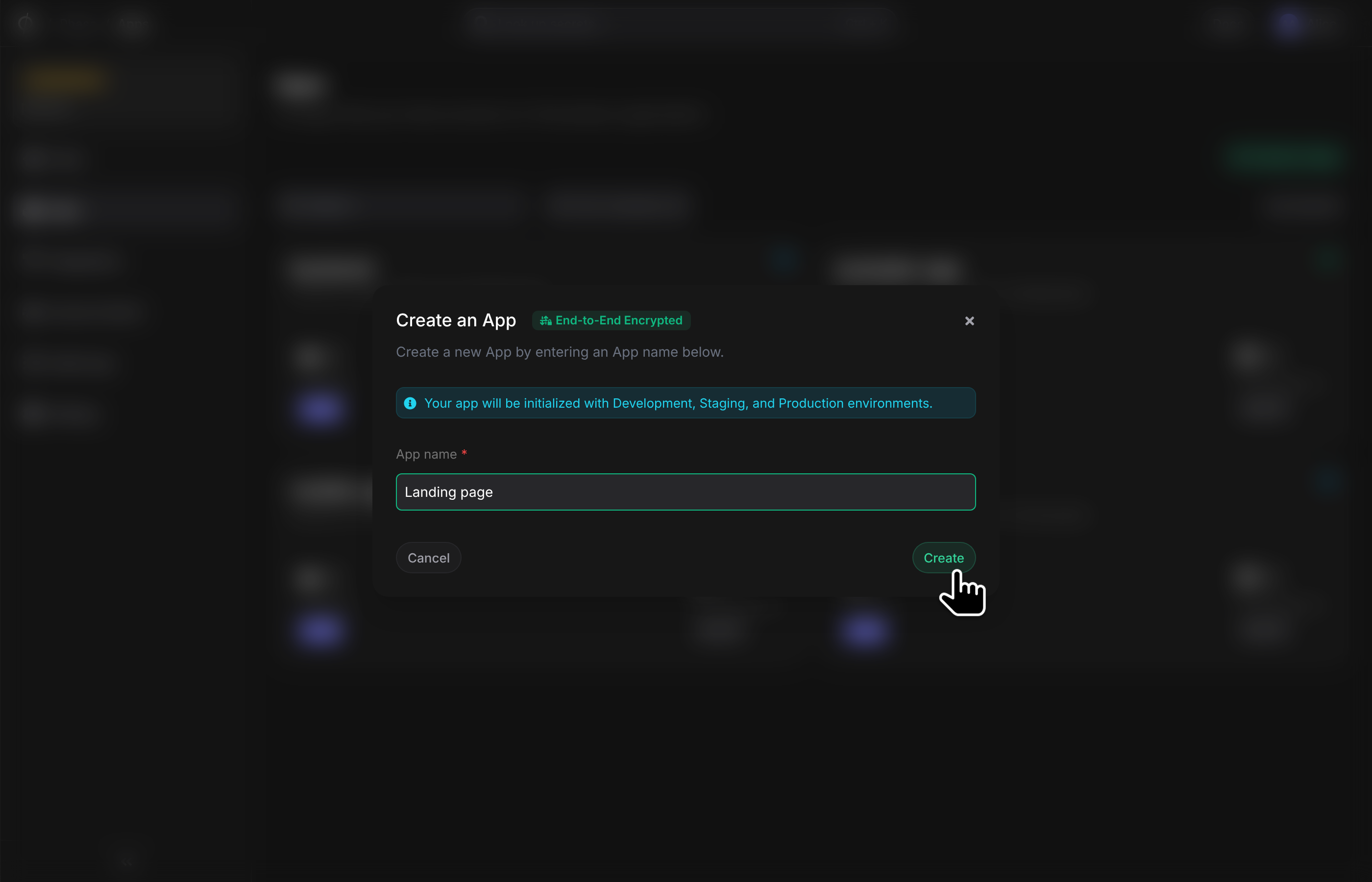
Create an App
Create an App by clicking the "+" button on the Apps screen. Enter a name for your App and your sudo password if prompted.
You can also optionally choose to initialize your App with example secrets. This option is automatically selected for your first App.
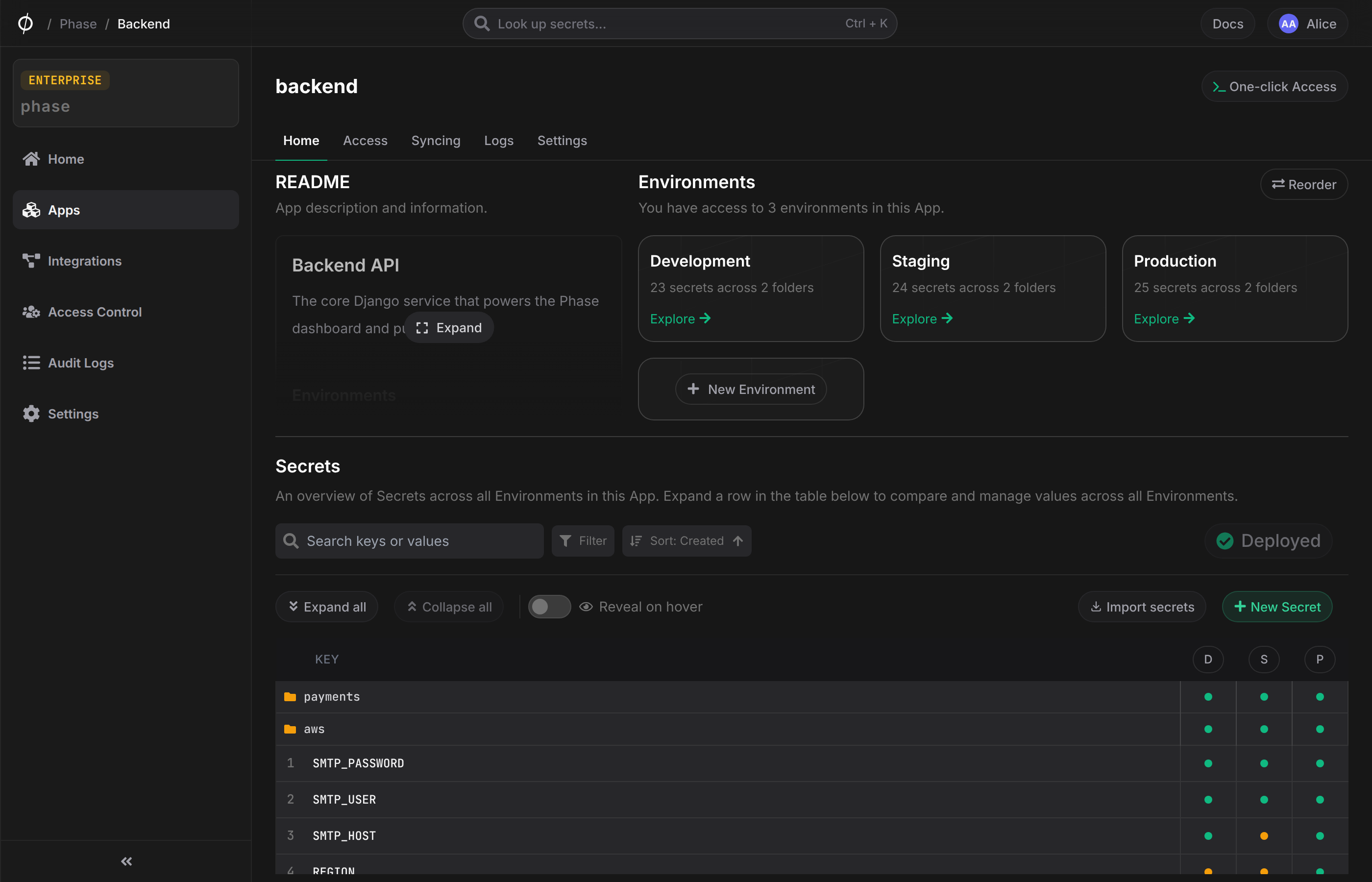
App Readme
Each App can have a readme that serves as a space for developer documentation, runbooks, onboarding notes, or any other relevant information. The readme is displayed on the App's Home tab and supports full markdown rendering, including headings, lists, links, code blocks, and blockquotes.
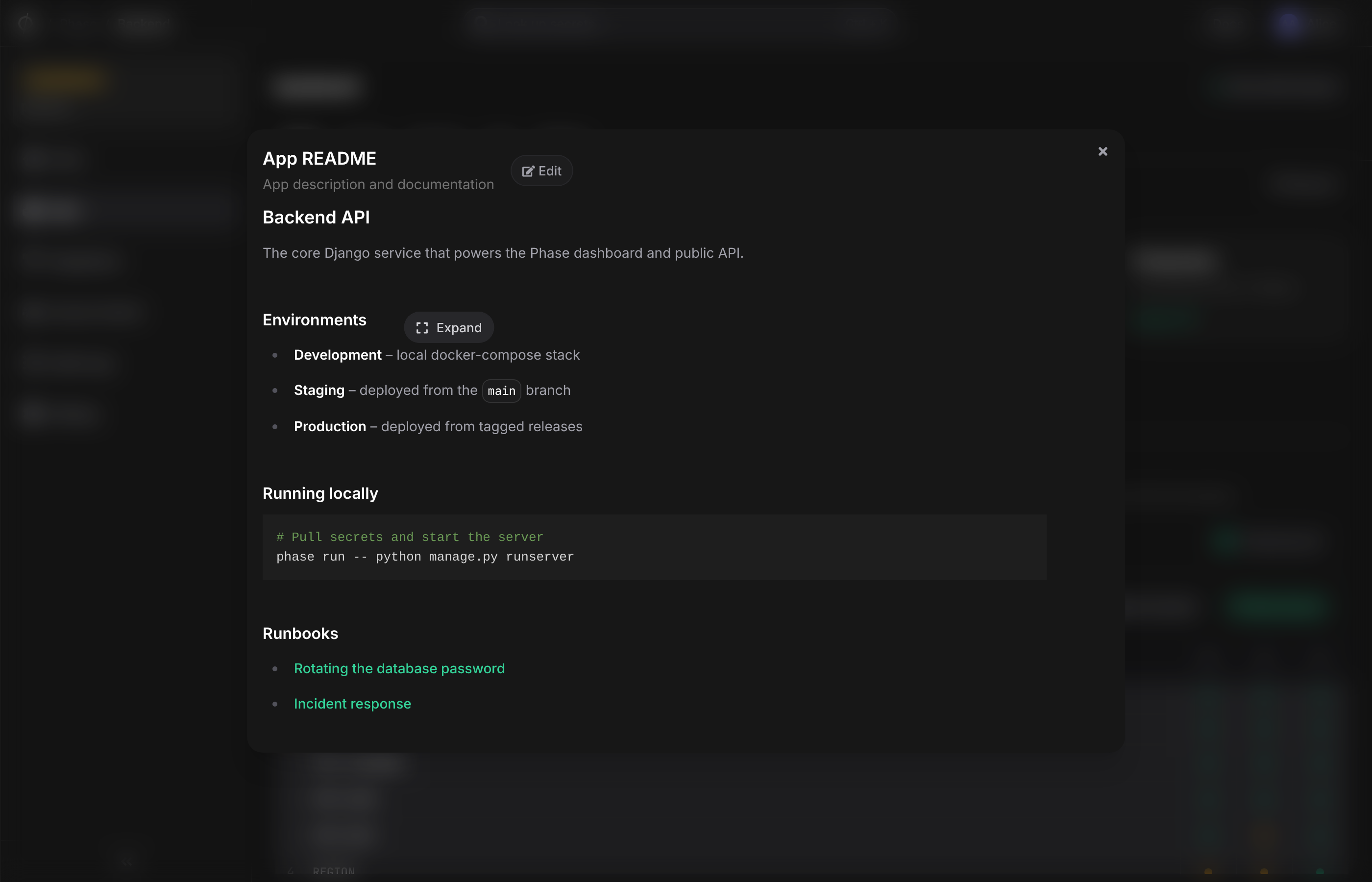
Click the readme to expand it in a full-screen dialog for easier reading.
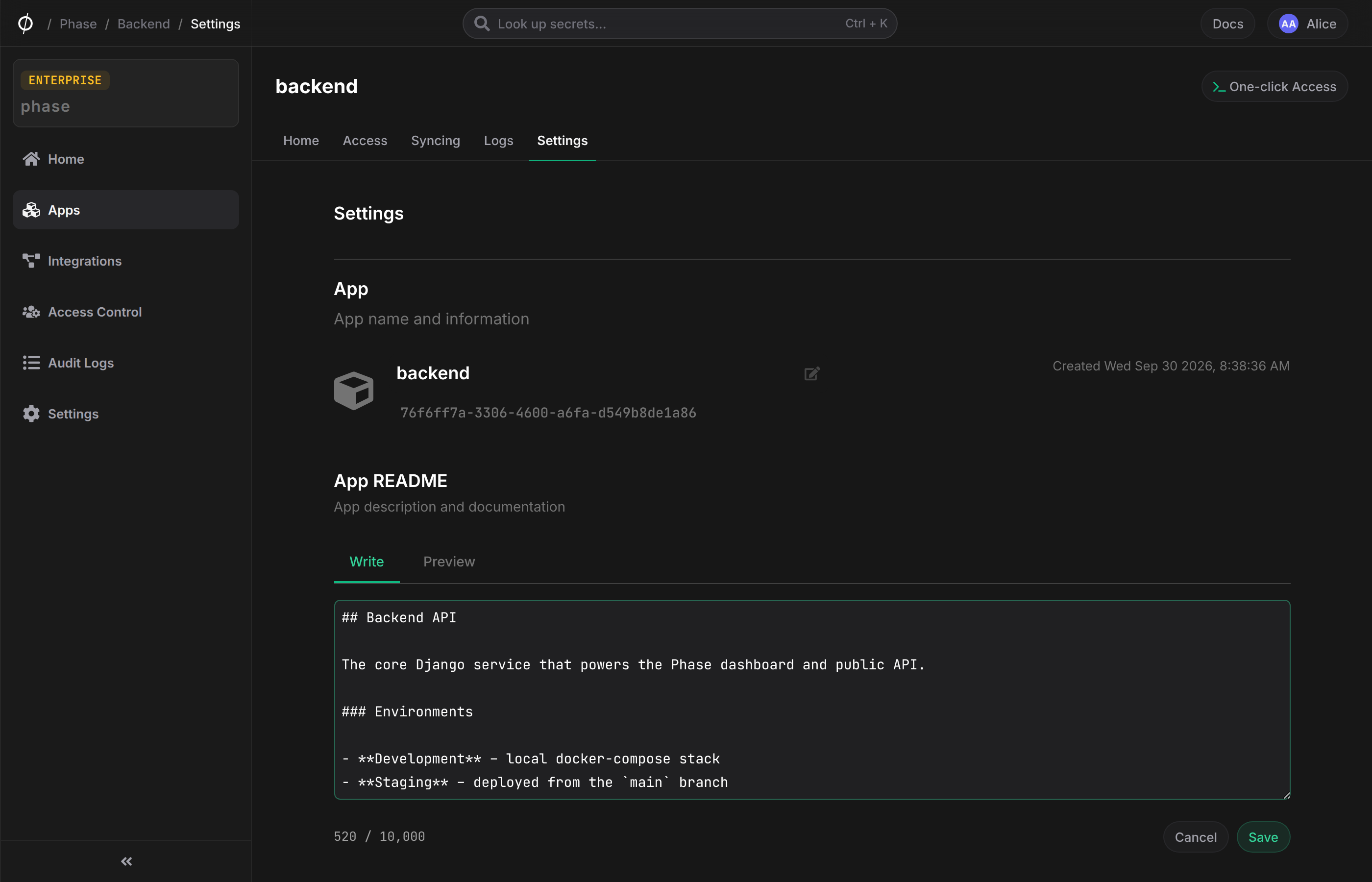
Editing the readme
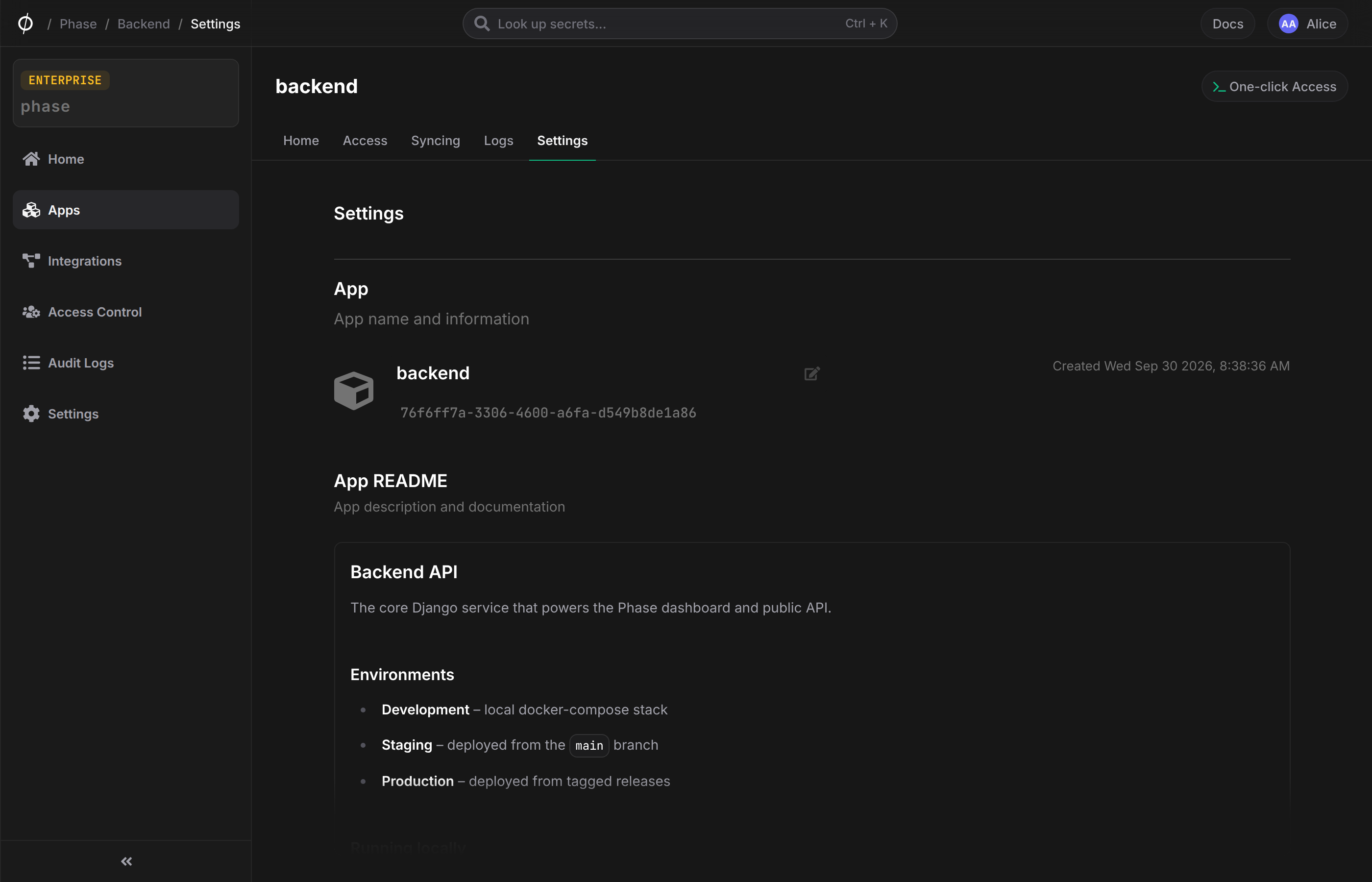
To add or edit a readme, go to the App's Settings tab. The editor supports a Write and Preview toggle so you can author Markdown and preview the rendered output before saving.
New organisations are created with an example app that includes a sample readme demonstrating the available Markdown features.
Secrets
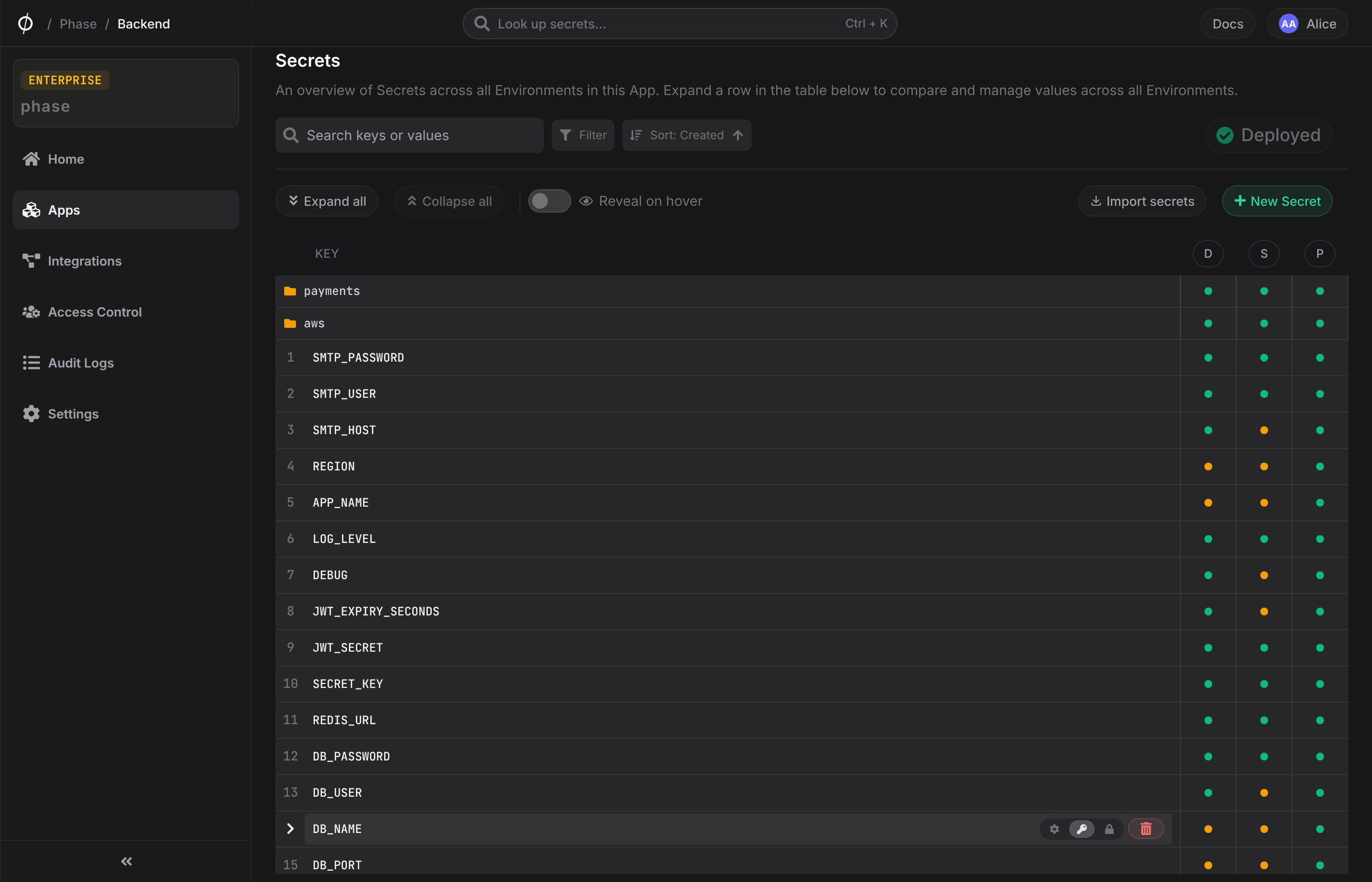
This screen shows an overview of all Secrets in this App across all Environments. You can explore a specific Environment by clicking the Environment name in the column headers. You can expand a Secret to view its status in each Environment. Clicking an Environment name will take you to this Secret in the respective Environment management screen.
One-click secret access
The Phase Console has a "One-click access" menu in the top right of the screen when inside of an App. Open this menu and click to copy a one-liner for either the CLI or REST API to fetch secrets from the current environment and path based on the context (this defaults to the first environment and the root / path if in the App home). The ability to access secrets over the REST API requires an SSE (Server-Side Encryption) enabled App.
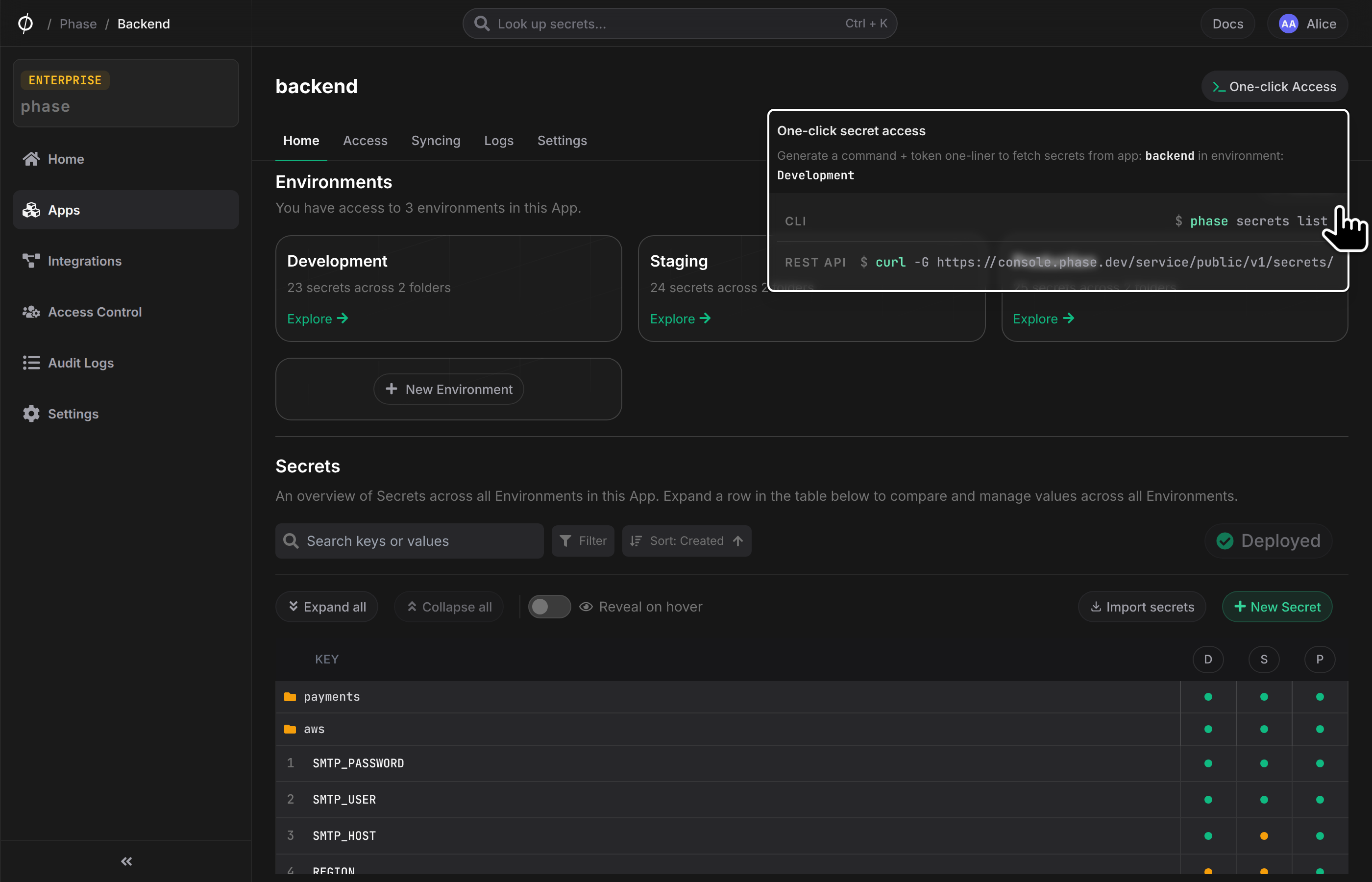
Here's a quick demo of how it works:
A temporary Personal Access Token (PAT) is automatically generated and copied to your clipboard to authenticate the request. This is ideal for quickly fetching secrets either in your dev environment or in a shell session on a remote machine.
You may modify the one-liners to best suit your needs by injecting, exporting, or parsing the secrets via the CLI or over the REST API with curl. You may also run follow-up commands as the one-liners set the Personal Access Token as the PHASE_TOKEN environment variable, and the token is valid for 5 minutes.
Access
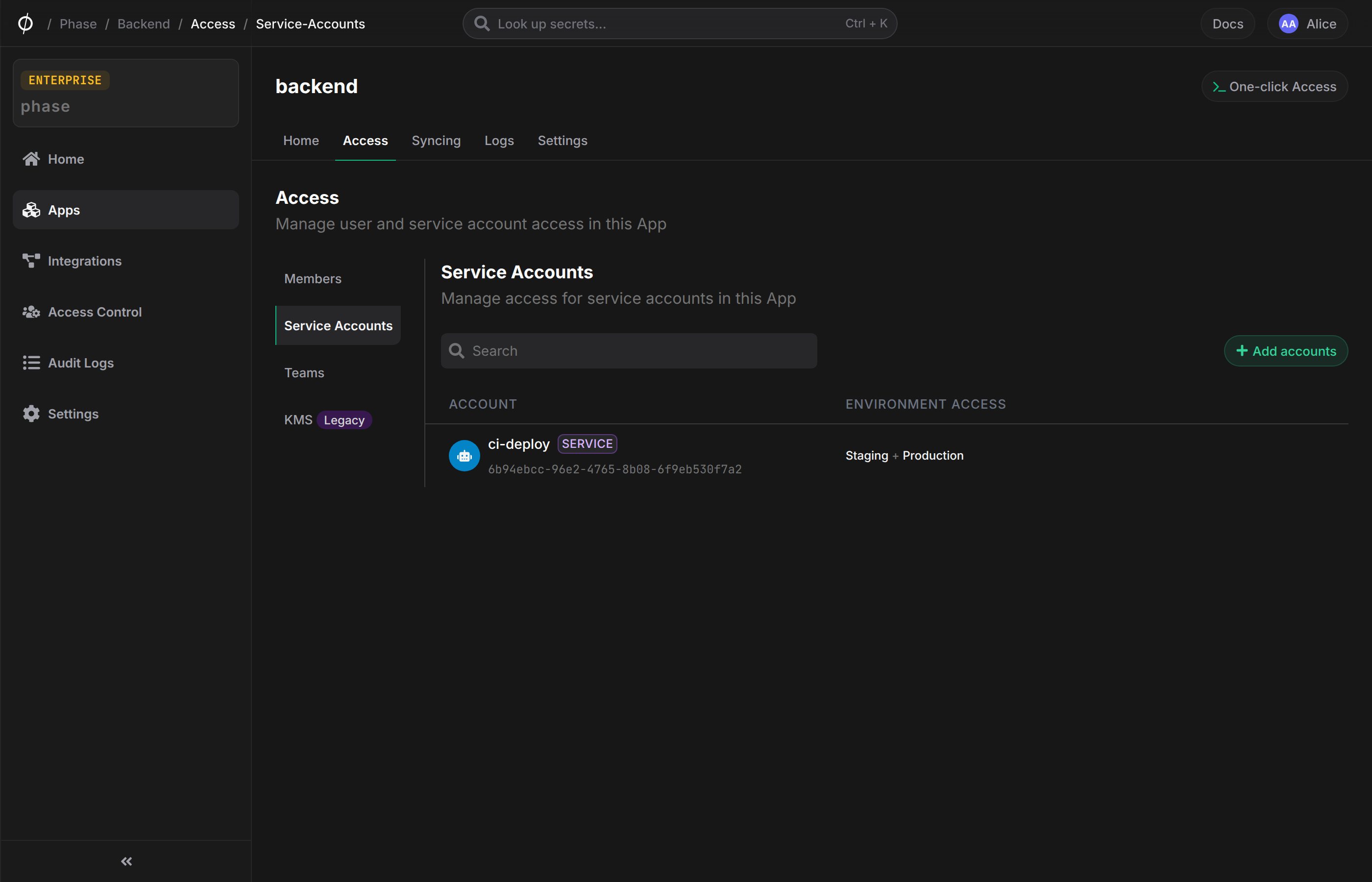
Add a service account to an App
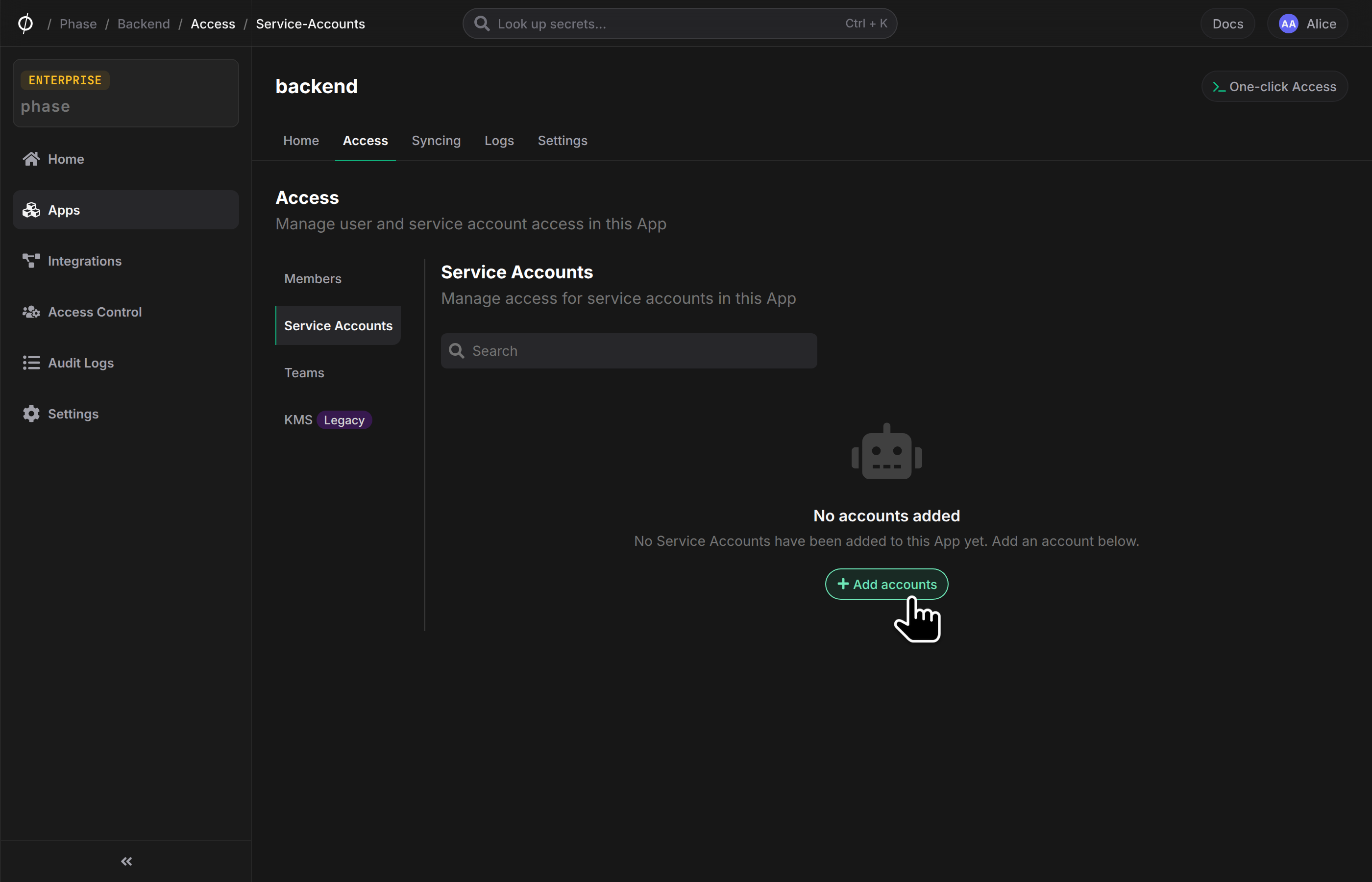
You can add a Service Account to any App from the respective App's "Access" tab.
- Click "Service accounts" on the left, and then "Add service account"
- Select the service account from the list of accounts. Next, select the Environments that this account should have access to. Once you have selected the account and scope, click "Add"
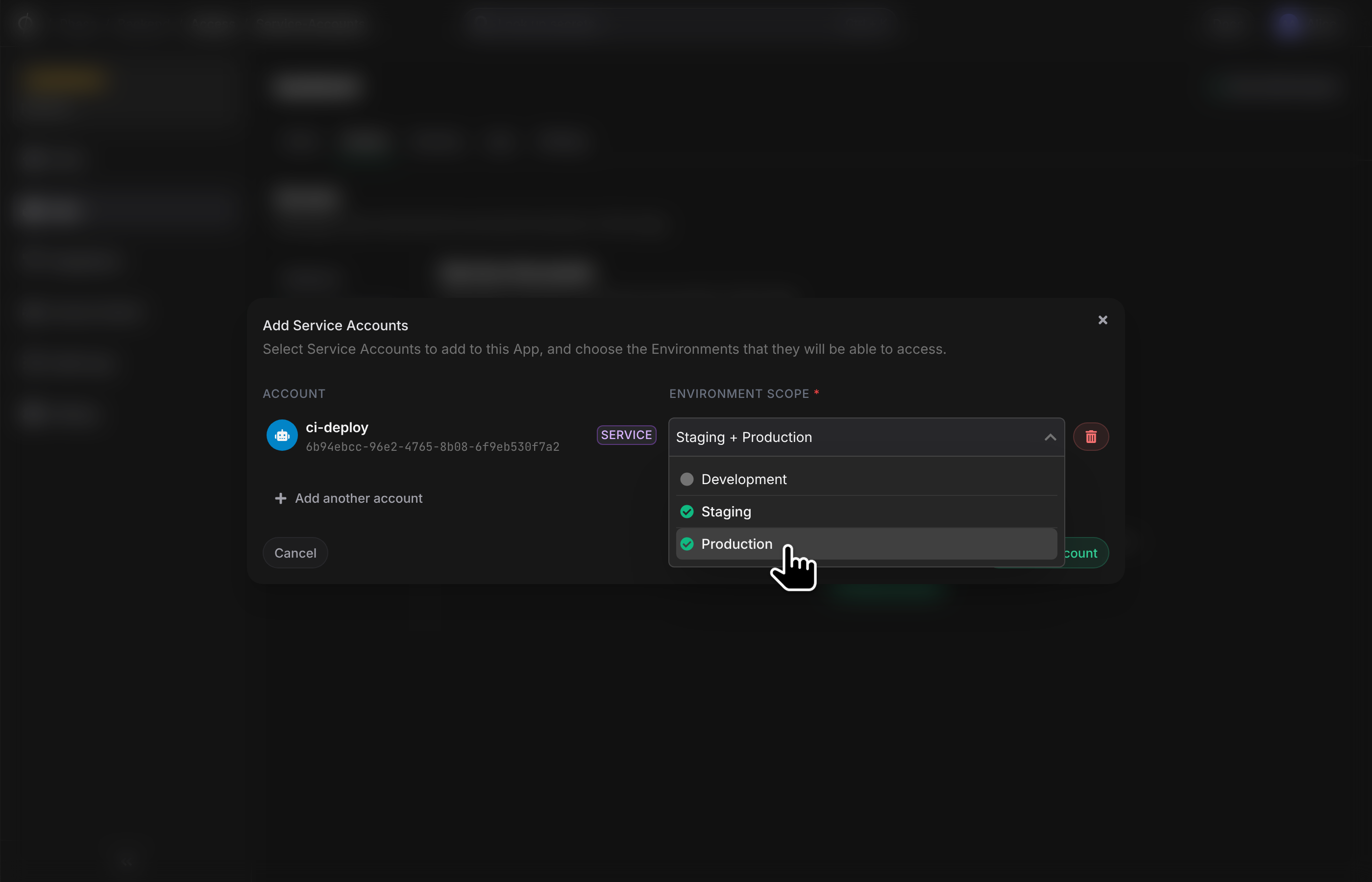
- The account will now have access to the Environments you selected. You can always update the Environment scope for this account or remove it from the App entirely.
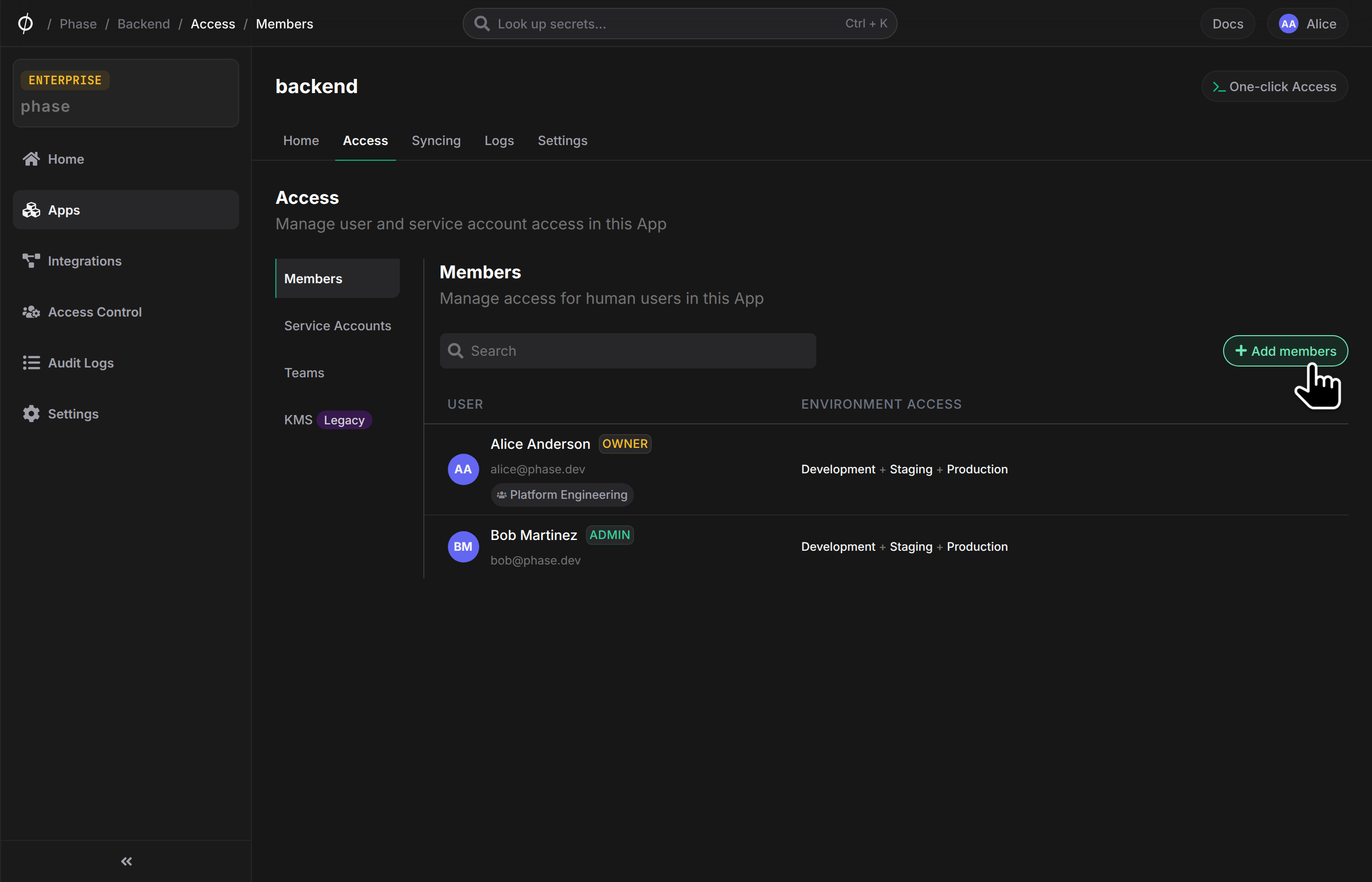
Add a member to an App
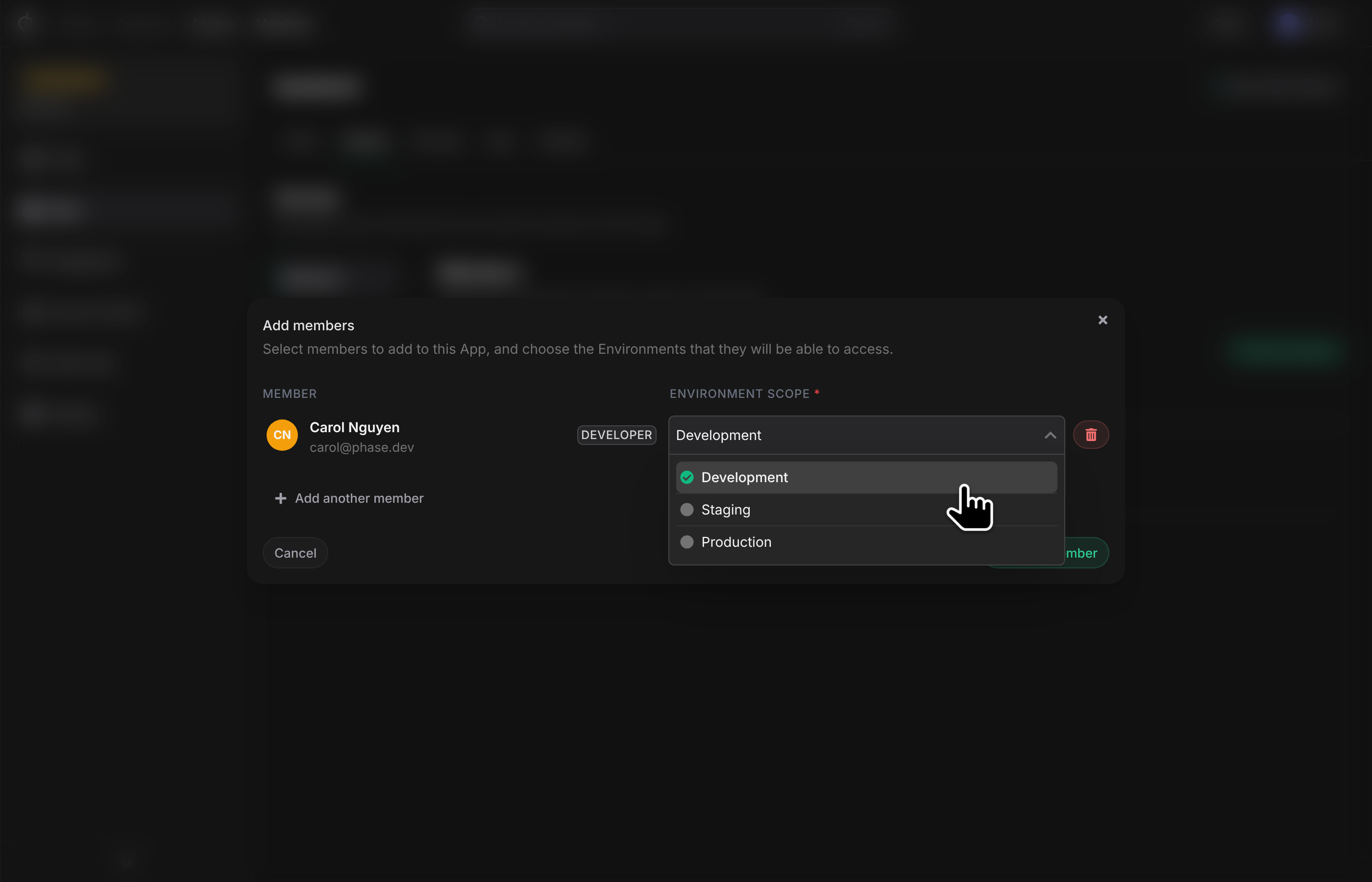
You can add a new user to any App from the respective App's "Access" tab. To add a member to an App, click the "+ Add a member" button. Select an Organization member from the dropdown list, select which Environments to grant them access to, and click "Add".
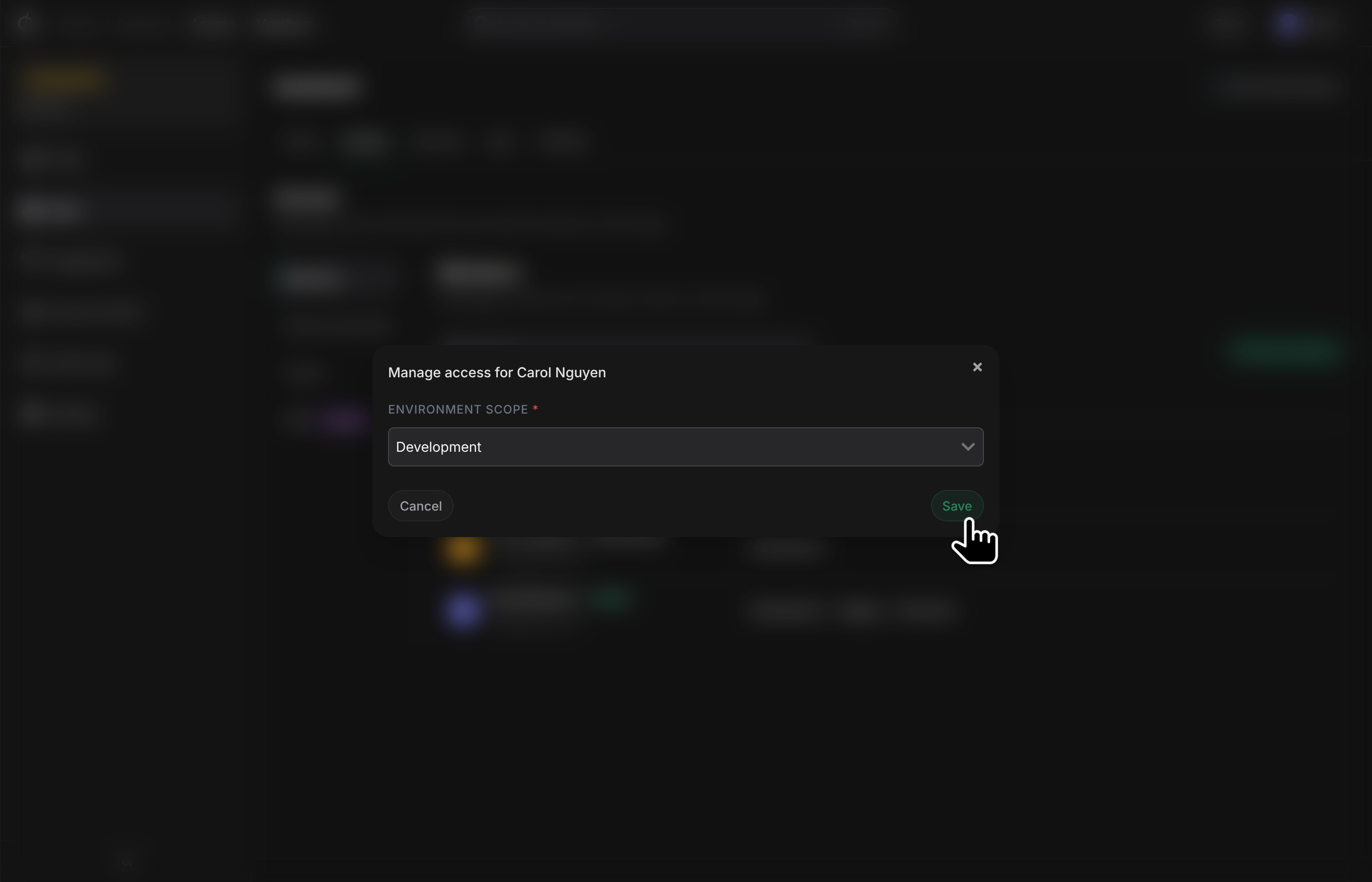
Update Environment access for a member
To update the Environments that a specific user can access, click the "Manage user access" button. Update the Environment selection and click "Save".
Remove a member from an App
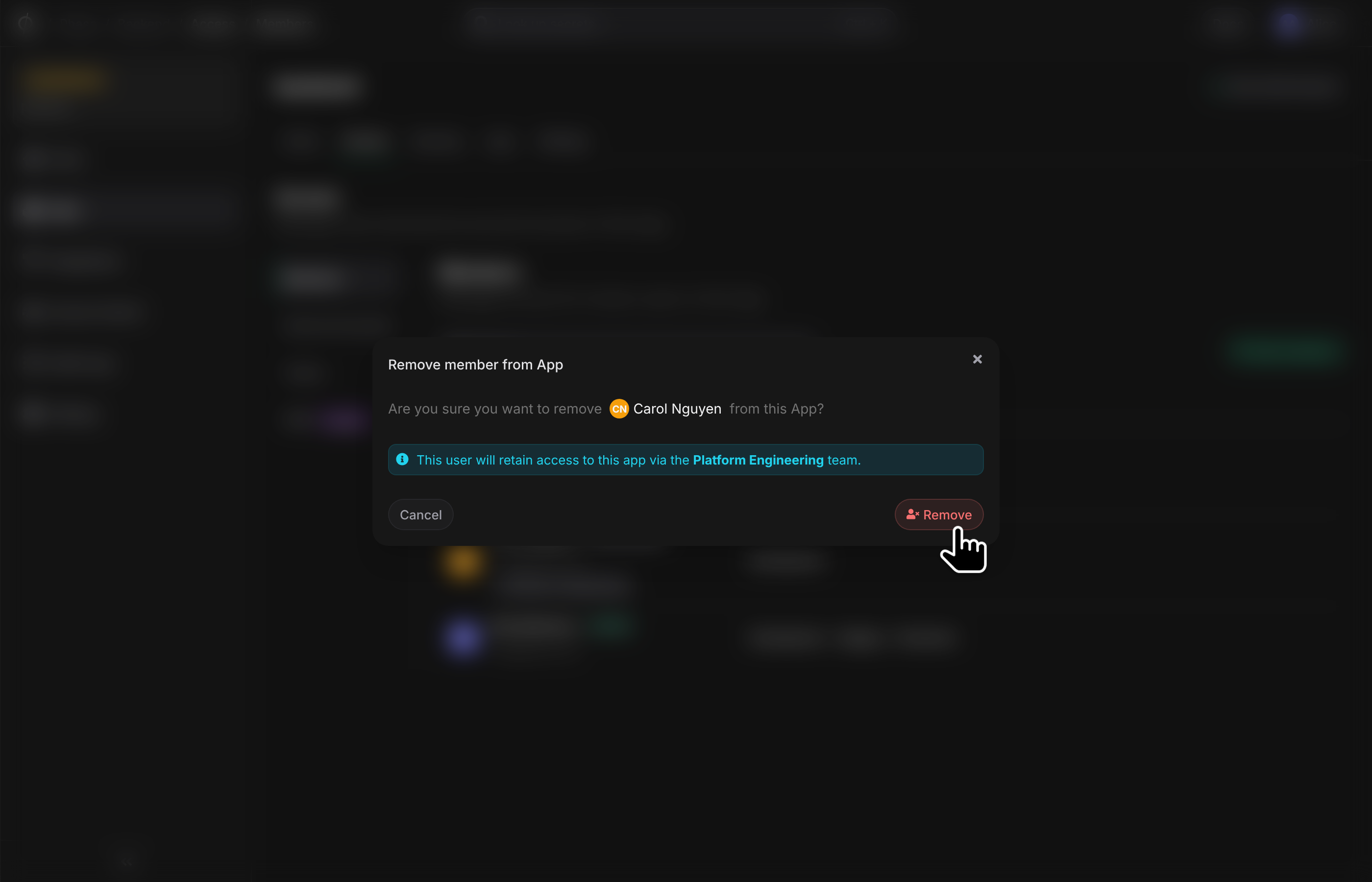
To remove a member from an App, click the "Remove member" button.
Syncing
Phase offers the ability to automatically sync secrets to various third-party platforms and services. This feature enables seamless deployment of secrets to services like GitHub Actions, Railway, AWS Secrets Manager, and HashiCorp Nomad.
Requirements for Syncing
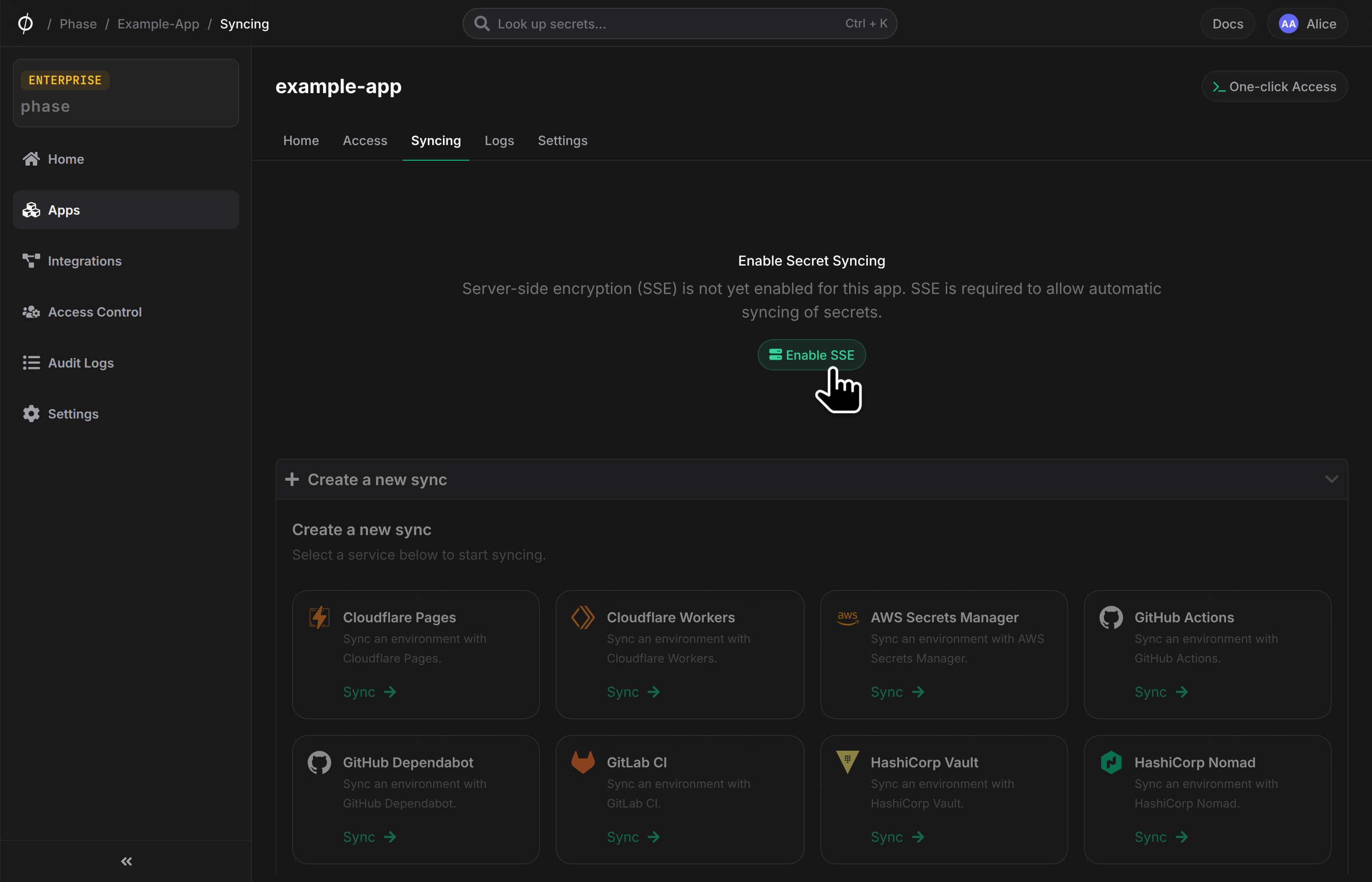
- Server-Side Encryption (SSE) must be enabled for the App to use secret syncing integrations. This allows Phase to securely manage and deploy secrets to external services.
- Appropriate permissions and access tokens for the target service must be configured.
Setting Up a Sync
To set up a new sync:
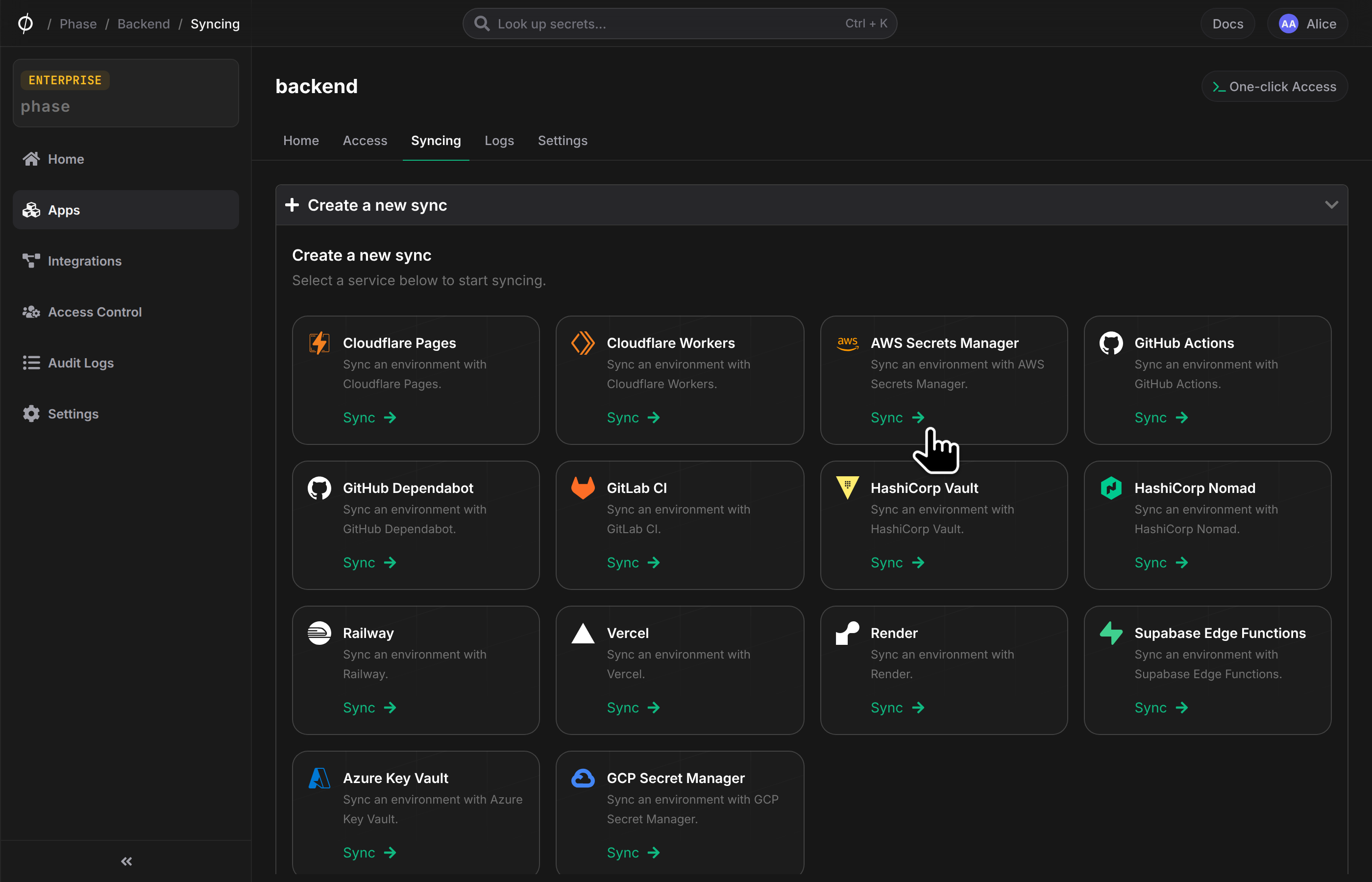
- Navigate to the "Syncing" tab in your App.
- Click on "Create a new sync" and select the desired service.
- Follow the prompts to configure the sync, including selecting the Environment and specific secrets to sync.
Syncing allows Phase to keep your secrets up-to-date across different platforms automatically. This ensures consistency and reduces manual secret management tasks.
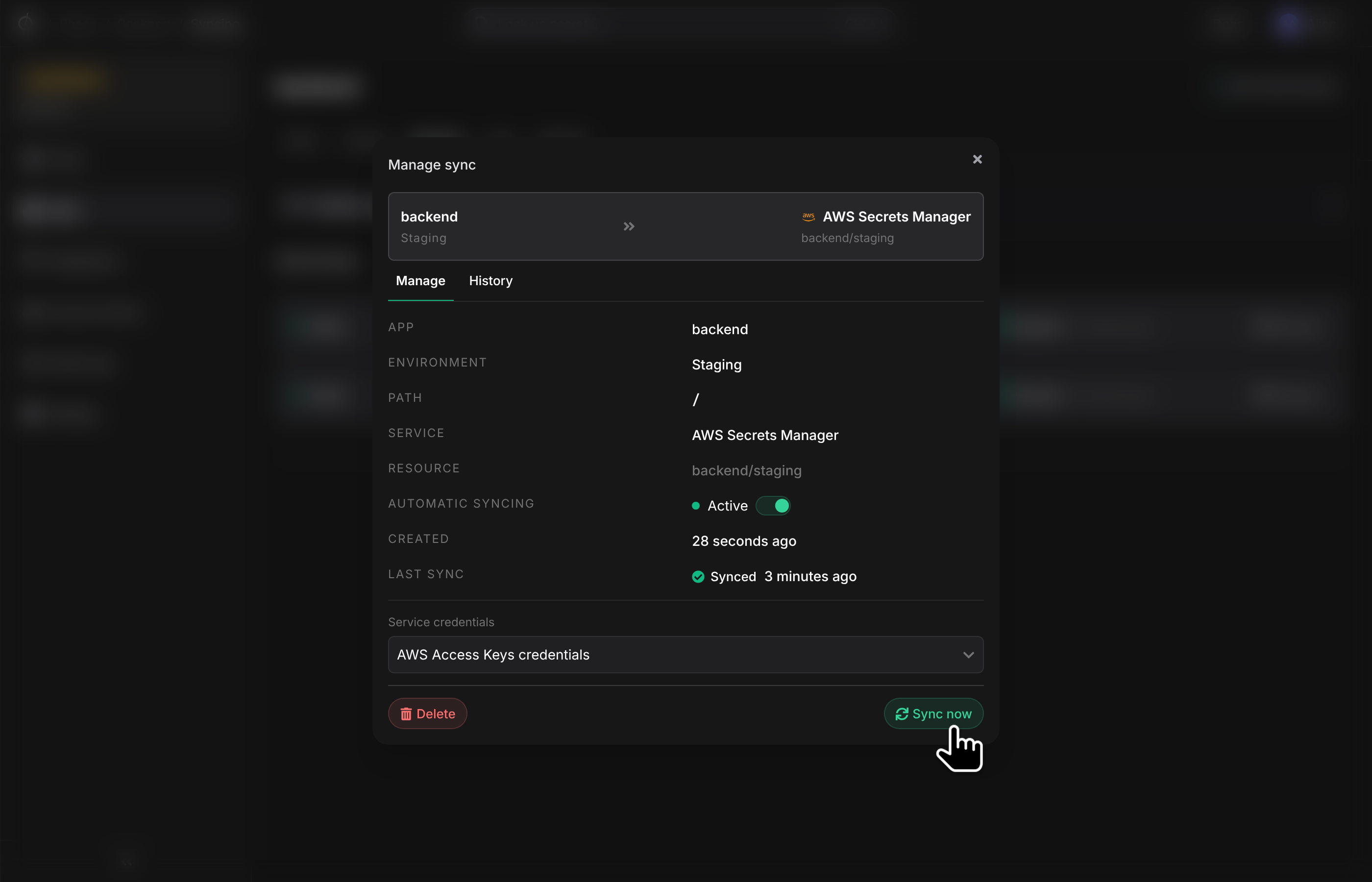
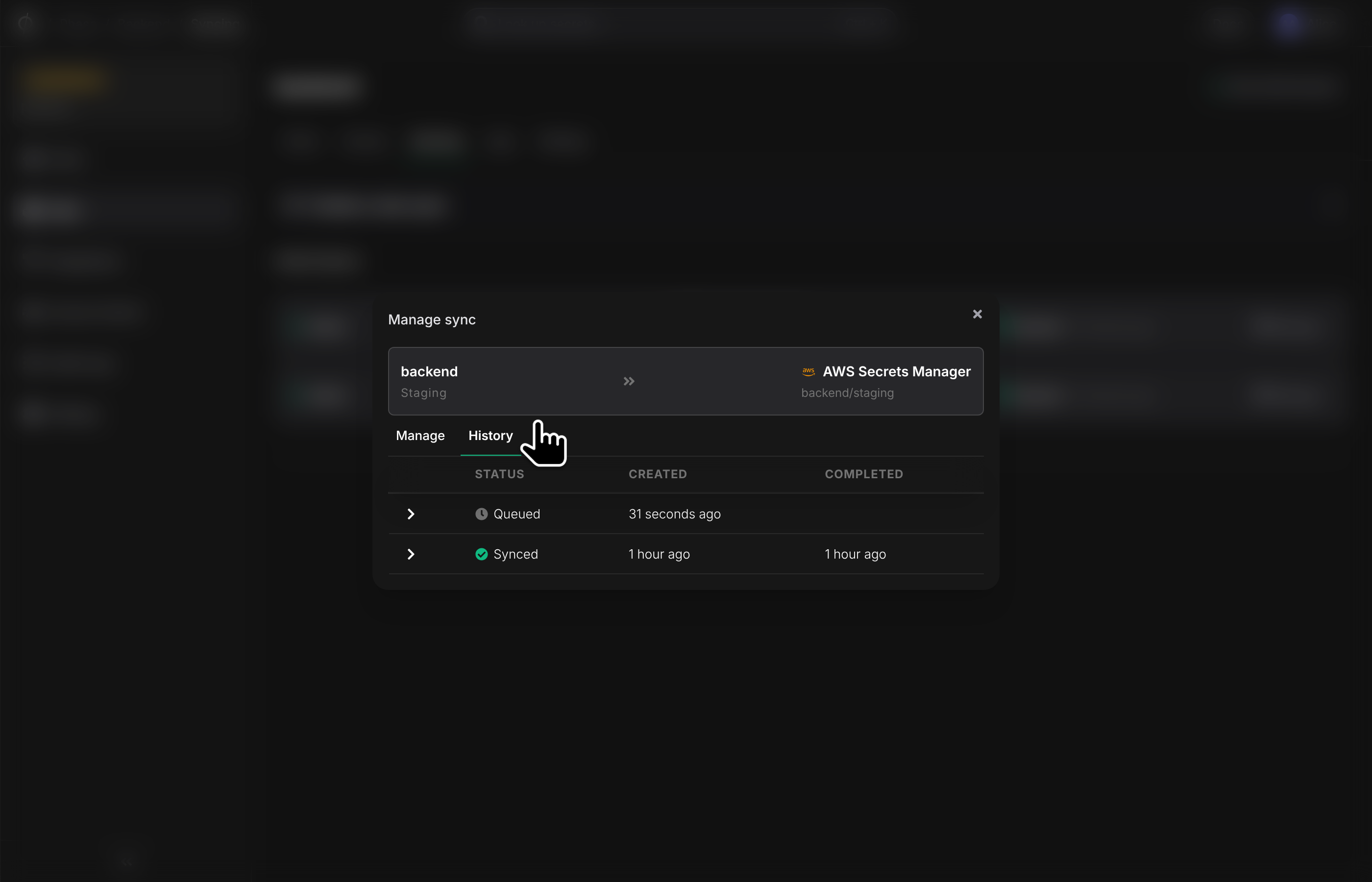
Click Manage on a sync card to view its sync history, trigger a sync manually, pause automatic syncing or update the credentials it uses.
Logs
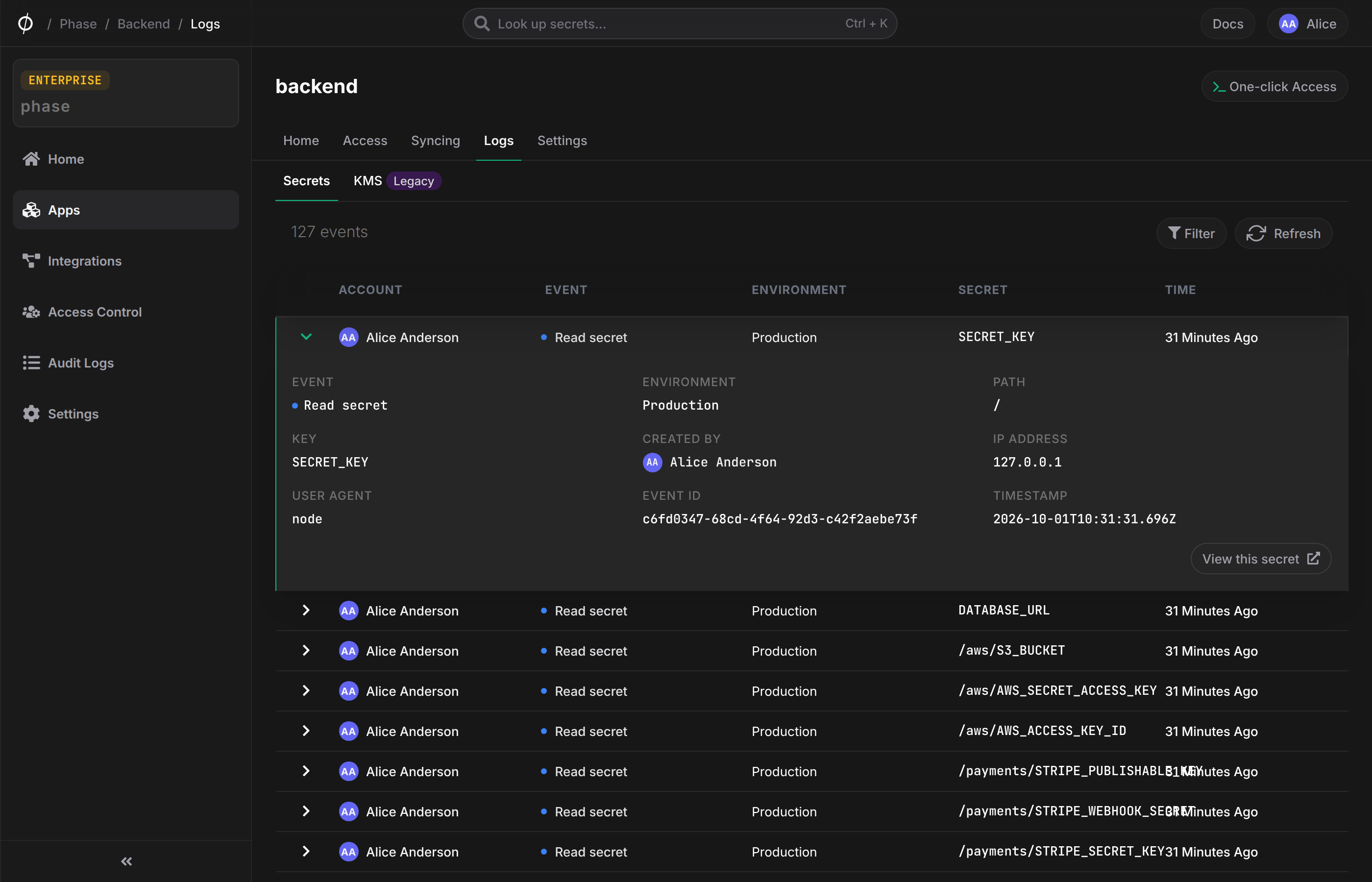
This screen shows you audit logs for all CRUD events for all Secrets and Environments in this App. You can expand a specific log event to view more information.
Settings
This screen shows you metadata for the App and allows you to perform administrative tasks such as changing the encryption mode of the App or deleting it permanently.
Encryption
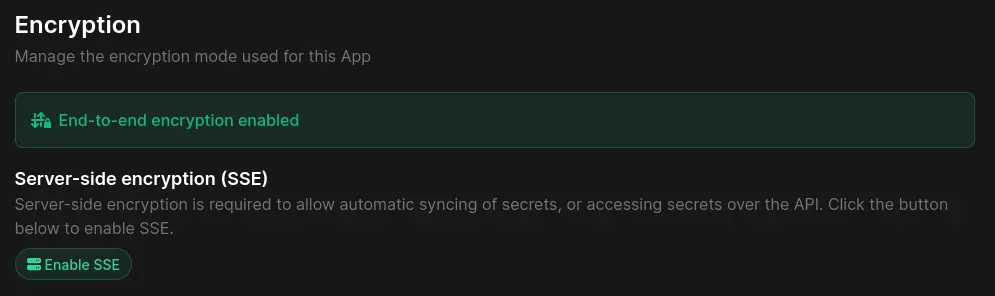
Phase Apps are secured with end-to-end encryption (E2EE) by default. This means only users who are granted access to the App and its Environments can decrypt the secrets that are stored within it. However, to use certain features of Phase such as third-party integrations or the public REST API, you will need to enable server-side encryption (SSE). Enabling SSE will store a copy of each Environment's root key on the server, encrypted with the server's encryption key. This allows the server to decrypt secrets for syncing with third parties or to make them available over the API.
Enabling SSE
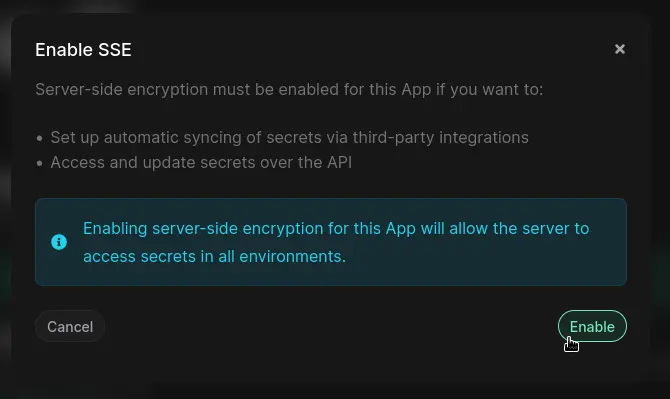
To enable SSE for an App, click the "Enable SSE" button under the "Encryption" section of the App Settings tab.
Click "Enable" on the confirmation dialog:
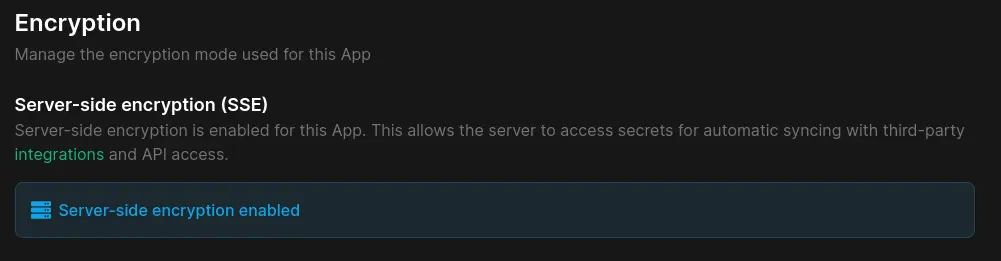
Once enabled, the settings page will show you the updated Encryption mode:
Delete an App
To delete an App, click the "Delete" button in the Settings tab.
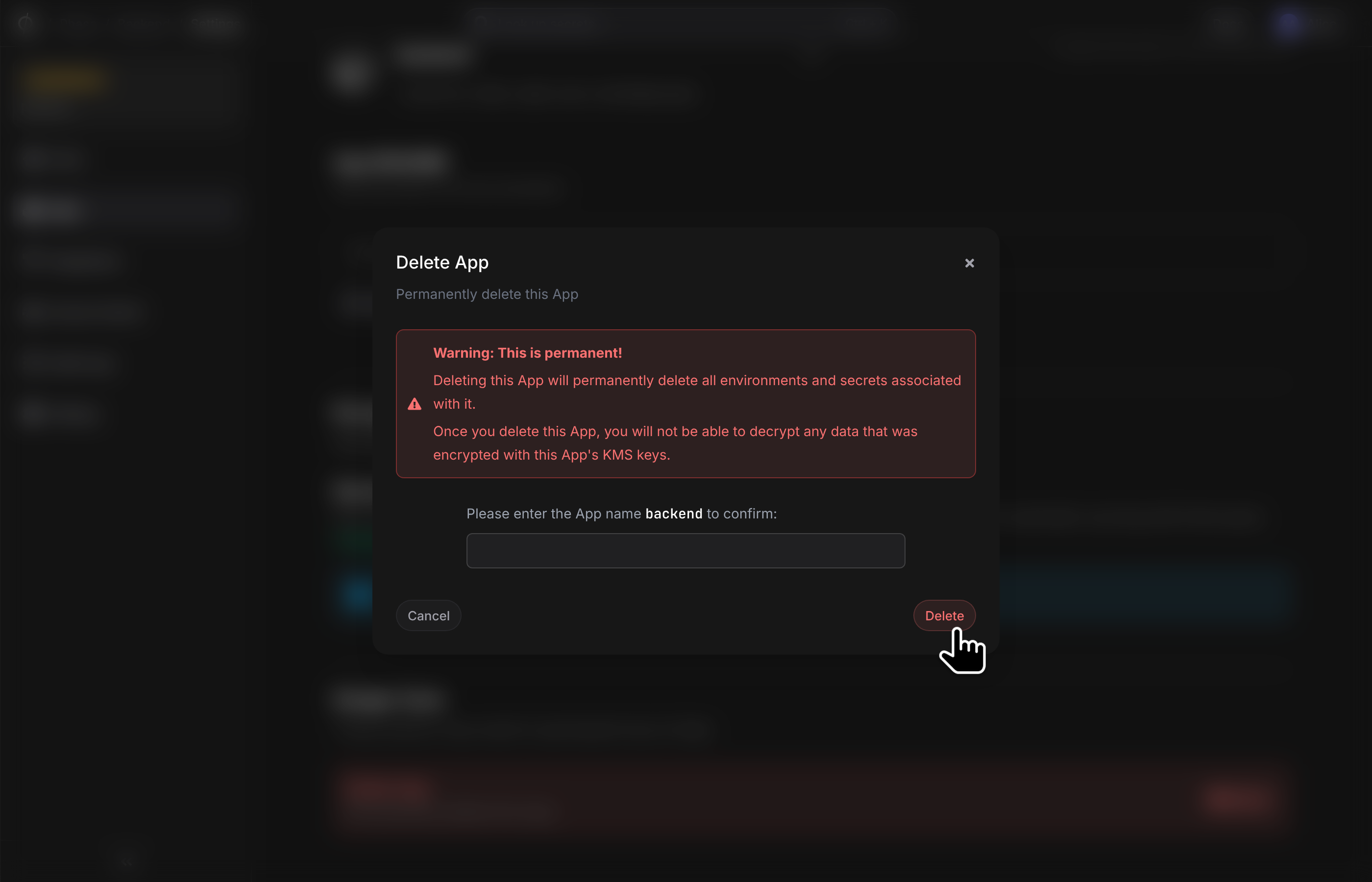
Deleting an App will permanently delete all Environments and Secrets associated with it.