AWS IAM - Dynamic Secrets
You can use Phase to generate dynamic secrets for AWS IAM, allowing you to create temporary AWS credentials that can be used to access AWS services. Each time a credential is generated, a new IAM user is created, and credentials are created for this user.
Prerequisites
- AWS CLI / AWS CloudShell
- An AWS account with permissions to create IAM users and attach policies
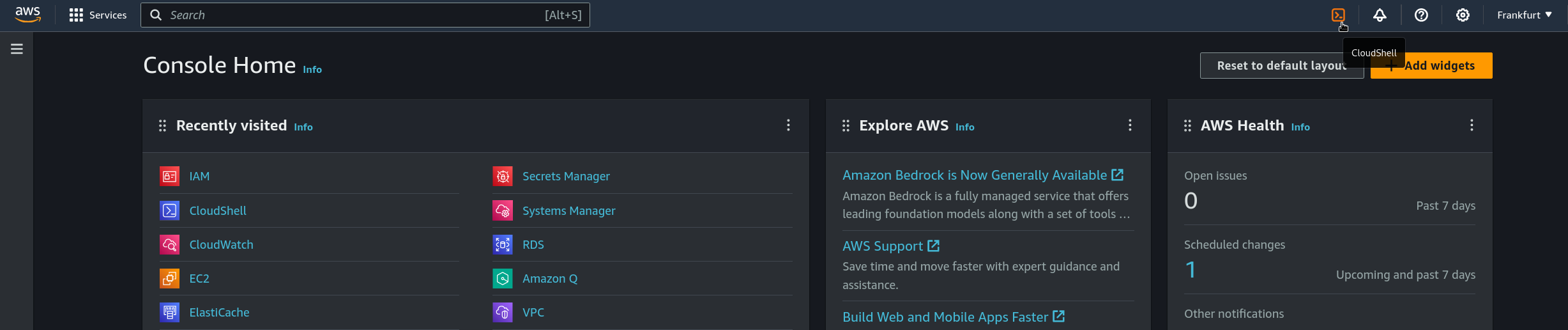
Note: If you don't have aws-cli installed locally on your system you can use AWS CloudShell by logging in to your AWS Console and clicking the terminal icon in the top left.
AWS Authentication Setup
Choose your preferred method for authenticating Phase with AWS:
Phase Cloud
Set up an IAM Role that Phase will assume to create short-lived IAM users for dynamic secrets. Create a policy with the required permissions, then create a role that trusts Phase with an External ID.
Step 1: Create IAM Policy for IAM Dynamic Secrets (in your AWS account)
This policy lets Phase create and manage ephemeral (dynamic) IAM users and their access keys.
aws iam create-policy --policy-name phase-console-aws-iam-dynamic-secrets-policy --policy-document '{
  "Version": "2012-10-17",
  "Statement": [
    {
      "Effect": "Allow",
      "Action": [
        "iam:AttachUserPolicy",
        "iam:CreateAccessKey",
        "iam:CreateUser",
        "iam:DeleteAccessKey",
        "iam:DeleteUser",
        "iam:DeleteUserPolicy",
        "iam:DetachUserPolicy",
        "iam:GetUser",
        "iam:ListAccessKeys",
        "iam:ListAttachedUserPolicies",
        "iam:ListGroupsForUser",
        "iam:ListUserPolicies",
        "iam:PutUserPolicy",
        "iam:AddUserToGroup",
        "iam:RemoveUserFromGroup",
        "iam:TagUser"
      ],
      "Resource": ["*"]
    }
  ]
}'
After running the command, note the Policy ARN (e.g., arn:aws:iam::YOUR_ACCOUNT_ID:policy/phase-console-aws-iam-dynamic-secrets-policy).
Step 2: Obtain External ID from Phase Console
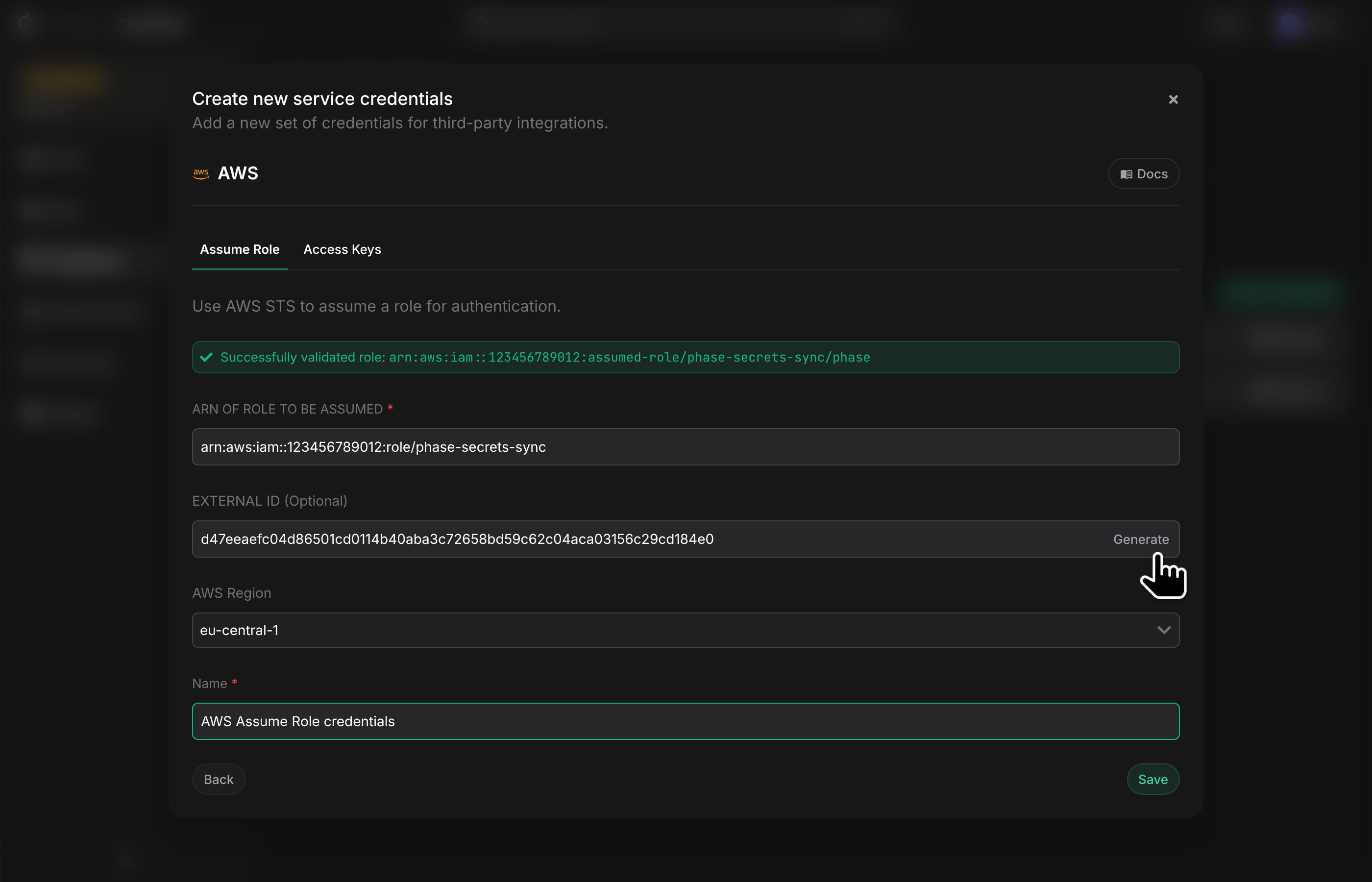
- In the Phase Console, go to Integrations > Third-party credentials.
- Click AWS and select the Assume Role tab.
- Click Generate next to EXTERNAL ID and copy it.
Step 3: Create IAM Role (in your AWS account)
Create a role that trusts Phase's AWS role using the External ID, then attach the policy from Step 1.
- Create a file named
phase-cloud-trust-policy.jsonwith:
{
  "Version": "2012-10-17",
  "Statement": [
    {
      "Effect": "Allow",
      "Principal": {
        "AWS": "arn:aws:iam::499502749186:role/PhaseIntegrationTrustAnchor"
      },
      "Action": "sts:AssumeRole",
      "Condition": {
        "StringEquals": {
          "sts:ExternalId": "YOUR_PHASE_GENERATED_EXTERNAL_ID"
        }
      }
    }
  ]
}
- Create the role (feel free to choose a different name):
aws iam create-role --role-name phase-console-aws-iam-dynamic-secrets-integration --assume-role-policy-document file://phase-cloud-trust-policy.json
-
Note the Role ARN (e.g.,
arn:aws:iam::YOUR_ACCOUNT_ID:role/phase-console-aws-iam-dynamic-secrets-integration). -
Attach the policy from Step 1 to this role:
aws iam attach-role-policy --role-name phase-console-aws-iam-dynamic-secrets-integration --policy-arn YOUR_POLICY_ARN_FROM_STEP_1
Step 4: Configure Credentials in Phase Console
-
Return to the Phase Console (Integrations > Third-party credentials > AWS > Assume Role).
-
Paste the Role ARN in ARN (From step 3) OF ROLE TO BE ASSUMED.
-
Ensure EXTERNAL ID matches what you generated.
-
Select Region, give it a Name, and click Save.
Self-hosted Phase
Please make sure to have set-up the AWS integration for your self-hosted Phase instance. This provides the primary IAM Role or User that Phase will use to assume other roles, including the one for IAM dynamic secrets.
To set up dynamic secret integration with your self-hosted Phase instance, create a dedicated IAM Role in your AWS account that the primary integration principal can assume.
Step 1: Create IAM Policy for IAM Dynamic Secrets
Define and create a policy that allows managing ephemeral IAM users and access keys.
- Create a file named
phase-iam-dynamic-secrets-policy.jsonwith:
{
  "Version": "2012-10-17",
  "Statement": [
    {
      "Effect": "Allow",
      "Action": [
        "iam:AttachUserPolicy",
        "iam:CreateAccessKey",
        "iam:CreateUser",
        "iam:DeleteAccessKey",
        "iam:DeleteUser",
        "iam:DeleteUserPolicy",
        "iam:DetachUserPolicy",
        "iam:GetUser",
        "iam:ListAccessKeys",
        "iam:ListAttachedUserPolicies",
        "iam:ListGroupsForUser",
        "iam:ListUserPolicies",
        "iam:PutUserPolicy",
        "iam:AddUserToGroup",
        "iam:RemoveUserFromGroup",
        "iam:TagUser"
      ],
      "Resource": ["*"]
    }
  ]
}
- Create the policy:
aws iam create-policy \
  --policy-name phase-console-aws-iam-dynamic-secrets-policy \
  --policy-document file://phase-iam-dynamic-secrets-policy.json
Note the Policy ARN for Step 2.
Step 2: Create IAM Role for IAM Dynamic Secrets
This role will be assumed by your Phase instance's primary AWS integration principal (IMDS/IRSA/Access Keys).
- Create a file named
phase-iam-ds-trust-policy.jsonwith the following content. Replace"<ARN_OF_YOUR_PHASE_INTEGRATION_PRINCIPAL>"with the ARN of the IAM Role or User configured in your self-hosted integration.
{
  "Version": "2012-10-17",
  "Statement": [
    {
      "Effect": "Allow",
      "Principal": {
        "AWS": "<ARN_OF_YOUR_PHASE_INTEGRATION_PRINCIPAL>"
      },
      "Action": "sts:AssumeRole"
    }
  ]
}
- Create the role (choose any suitable name):
aws iam create-role \
  --role-name phase-console-aws-iam-dynamic-secrets-integration-policy \
  --assume-role-policy-document file://phase-iam-ds-trust-policy.json \
  --description "IAM role for self-hosted Phase to create dynamic IAM users"
-
Note the Role ARN (e.g.,
arn:aws:iam::YOUR_ACCOUNT_ID:role/phase-console-aws-iam-dynamic-secrets-integration-policy). -
Attach the policy created in Step 1 to this role:
aws iam attach-role-policy \
  --role-name phase-console-aws-iam-dynamic-secrets-integration-policy \
  --policy-arn YOUR_POLICY_ARN_FROM_STEP_1
Step 3: Configure Credentials in Phase
-
In the Phase Console, navigate to Integrations > Third-party credentials.
-
Click Add credentials, select AWS, and choose the Assume Role tab.
-
Paste the Role ARN from Step 2.3 into ARN OF ROLE TO BE ASSUMED.
-
The EXTERNAL ID field can be left blank unless you require it for cross-account constraints.
-
Select Region, provide a Name, and click Save.
Create an AWS IAM Dynamic Secret
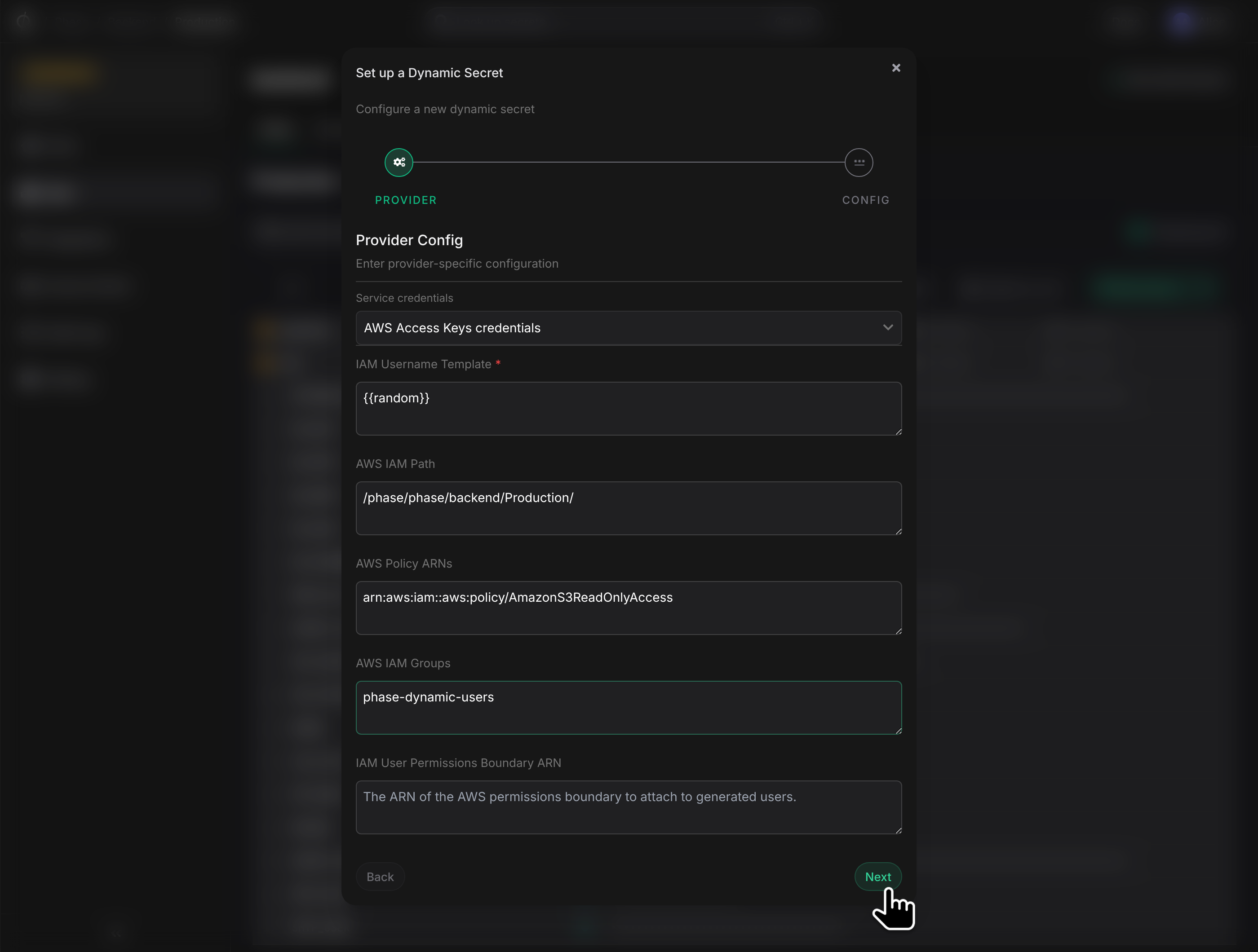
AWS IAM Dynamic Secrets allow you to create temporary AWS credentials that can be used to access AWS services. Each time a credential is generated, a new IAM user is created, and credentials are created for this user. Usernames are unique and contain a {{random}} string with a prefix or suffix that you can define.
To create an AWS IAM Dynamic Secret, you will need to provide the following information:
- Authentication credentials: You can choose to authenticate using either an IAM Role or Access Keys.
- If you choose IAM Role, you will need to provide the Role ARN and External ID (if applicable).
- If you choose Access Keys, you will need to provide the Access Key ID and Secret Access Key.
- IAM User template: A template string used to create unique IAM usernames. The template must include the
{{random}}variable, which will be replaced with a random string when the user is created. You can also include a prefix or suffix to make the usernames more identifiable. - AWS IAM Path: The path for the IAM user. This is optional and defaults to
/phase/<org_name>/<app_name>/<environment_name>/<secret_path>. - AWS Policy ARNs: A list of IAM policy ARNs to attach to the user. You can attach multiple policies by separating them with commas.
- AWS IAM Groups: A list of IAM groups to add the user to. You can add the user to multiple groups by separating them with commas.
- IAM User Permission Boundary ARN: An optional ARN of the policy to use as a permission boundary for the user.