Azure Key Vault
You can use Phase to sync secrets to Azure Key Vault. Phase supports two sync modes:
- Individual Secrets: Each Phase secret becomes a separate Key Vault secret. Ideal for workloads that reference individual secrets via
@Microsoft.KeyVault(...)(e.g. Azure App Service, Azure Functions). - JSON Blob: All Phase secrets are synced as a single JSON object to one Key Vault secret. Useful for applications that consume all secrets at once.
Prerequisites
- Azure CLI (
az) installed locally, or use Azure Cloud Shell - An Azure account with permissions to create App Registrations and assign Key Vault roles
When secret syncing is enabled, secrets stored inside Phase will be treated as the source of truth. In Individual Secrets mode, any Key Vault secrets not present in Phase will be disabled. In JSON Blob mode, the target secret will be overwritten. Please import your secrets into Phase before enabling a sync.
Azure Authentication Setup
Phase authenticates with Azure using a Service Principal (App Registration with a client secret). This gives Phase the tenant_id, client_id, and client_secret it needs to access your Key Vault.
Step 1: Create a Key Vault (skip to Step 2 if you already have one)
Create a resource group and Key Vault. Replace phase-rg and phase-kv with your preferred names:
az group create --name phase-rg --location eastus
az keyvault create --name phase-kv --resource-group phase-rg --location eastus
Your Vault URI will be https://phase-kv.vault.azure.net (replace phase-kv with your vault name).
If you see "You are unauthorized to view these contents" when viewing the vault in the Azure Portal, grant yourself access:
# 👇 Replace phase-rg and phase-kv with your resource group and key vault names
az role assignment create --role "Key Vault Secrets Officer" --assignee $(az ad signed-in-user show --query id -o tsv) --scope /subscriptions/$(az account show --query id -o tsv)/resourceGroups/phase-rg/providers/Microsoft.KeyVault/vaults/phase-kv
Note: Role assignments can take up to 30 seconds to propagate. Refresh the page if you don't see the change immediately.
Step 2: Create a Service Principal with Key Vault access
This scope is suitable for syncing to a single Key Vault. The service principal can only access secrets in the specified vault.
# 👇 Replace phase-rg and phase-kv with your resource group and key vault names
az ad sp create-for-rbac --name phase-kv-sync --role "Key Vault Secrets Officer" --scopes /subscriptions/$(az account show --query id -o tsv)/resourceGroups/phase-rg/providers/Microsoft.KeyVault/vaults/phase-kv
Example output:
{
  "appId": "12345678-abcd-1234-efgh-123456789012", // 👉 Store as Client ID in Phase
  "displayName": "phase-kv-sync",
  "password": "abcdefgh-1234-5678-ijkl-mnopqrstuvwx", // 👉 Store as Client Secret in Phase
  "tenant": "87654321-dcba-4321-hgfe-210987654321" // 👉 Store as Tenant ID in Phase
}
Sync Secrets from Phase
Step 1: Set up your Azure credentials in Phase
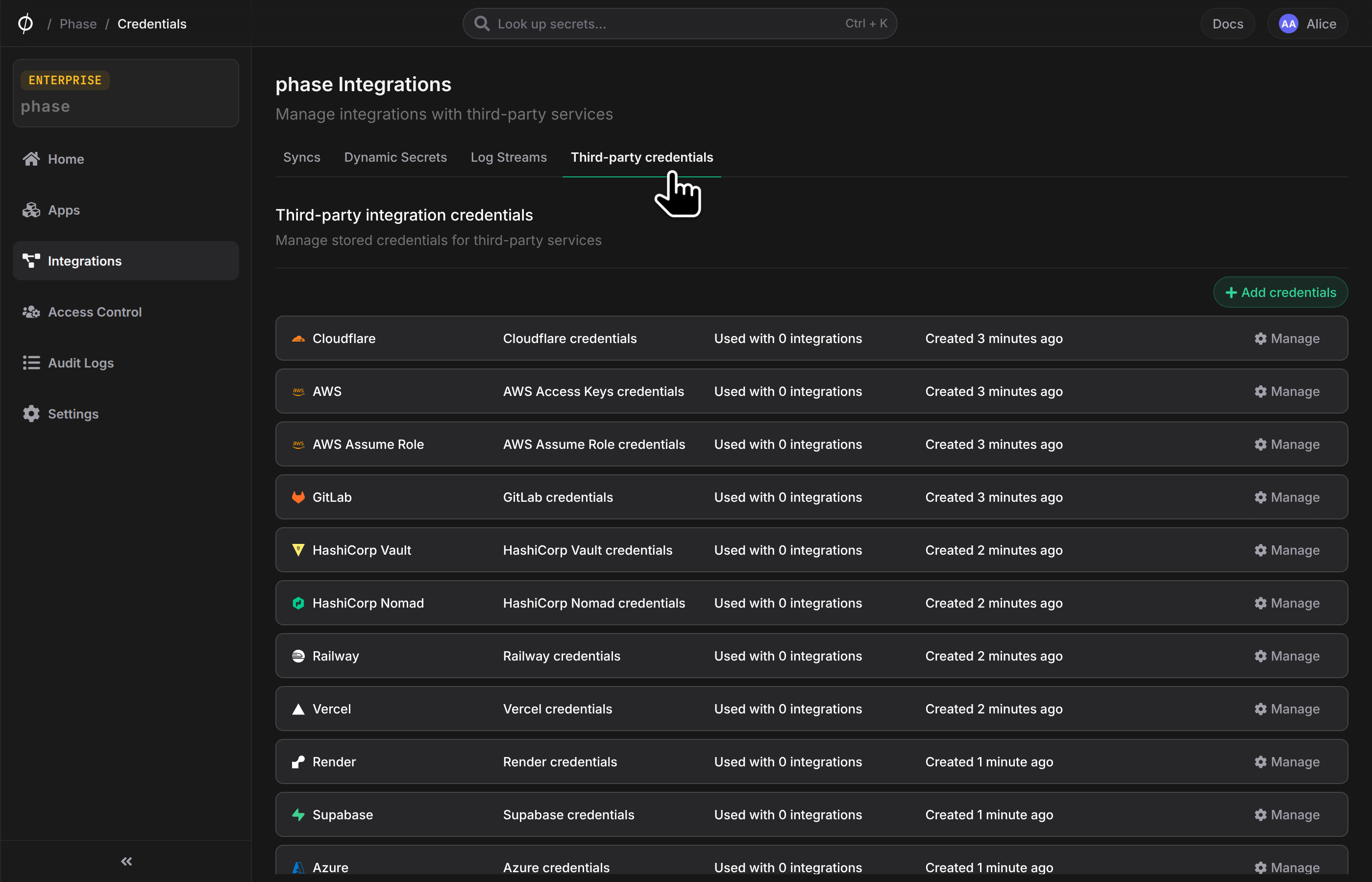
- Go to Integrations from the sidebar and click on Third-party credentials.
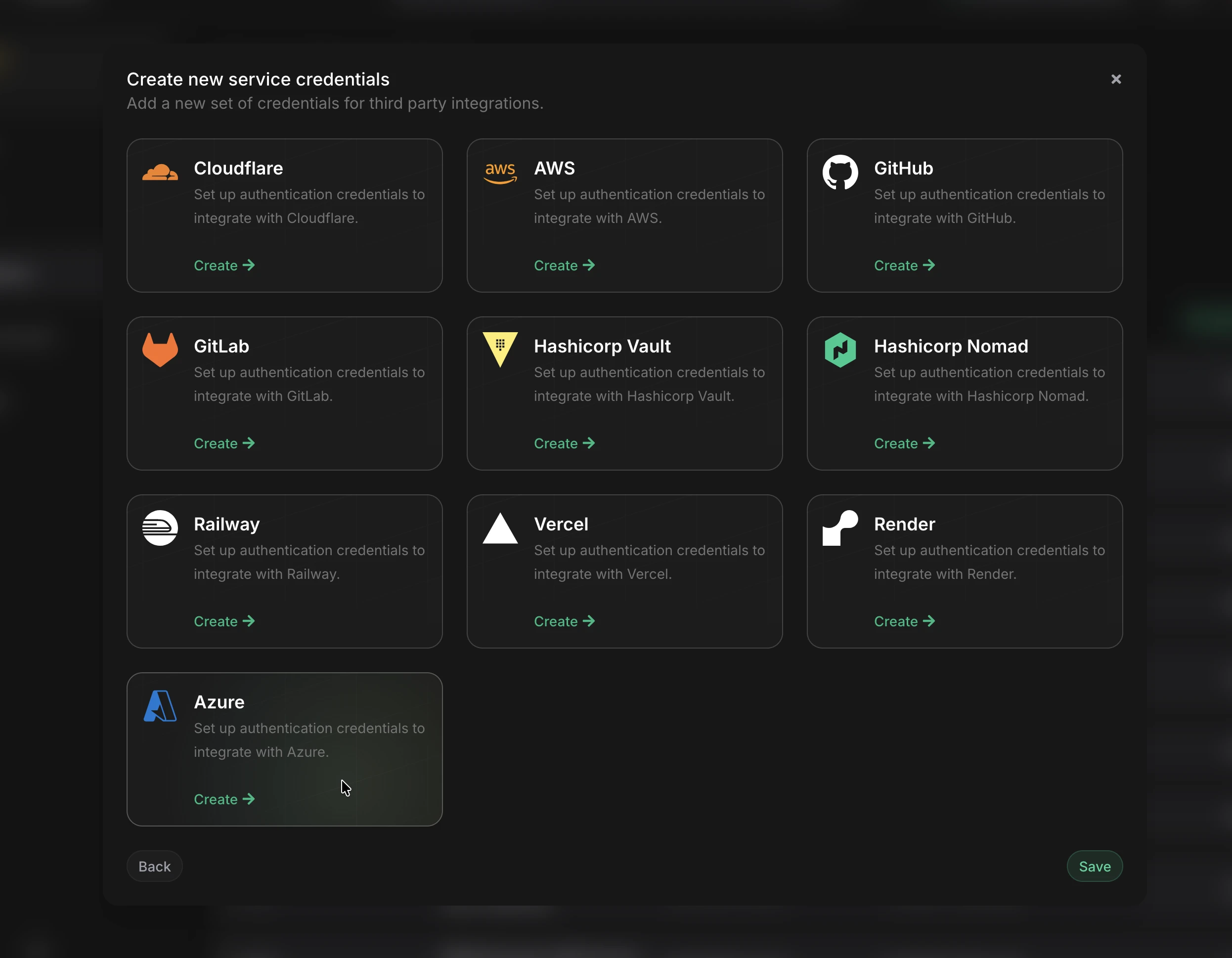
- Click on Azure.
- Enter the credentials from Step 2:
- Tenant ID: The
tenantvalue - Client ID: The
appIdvalue - Client Secret: The
passwordvalue
- Tenant ID: The
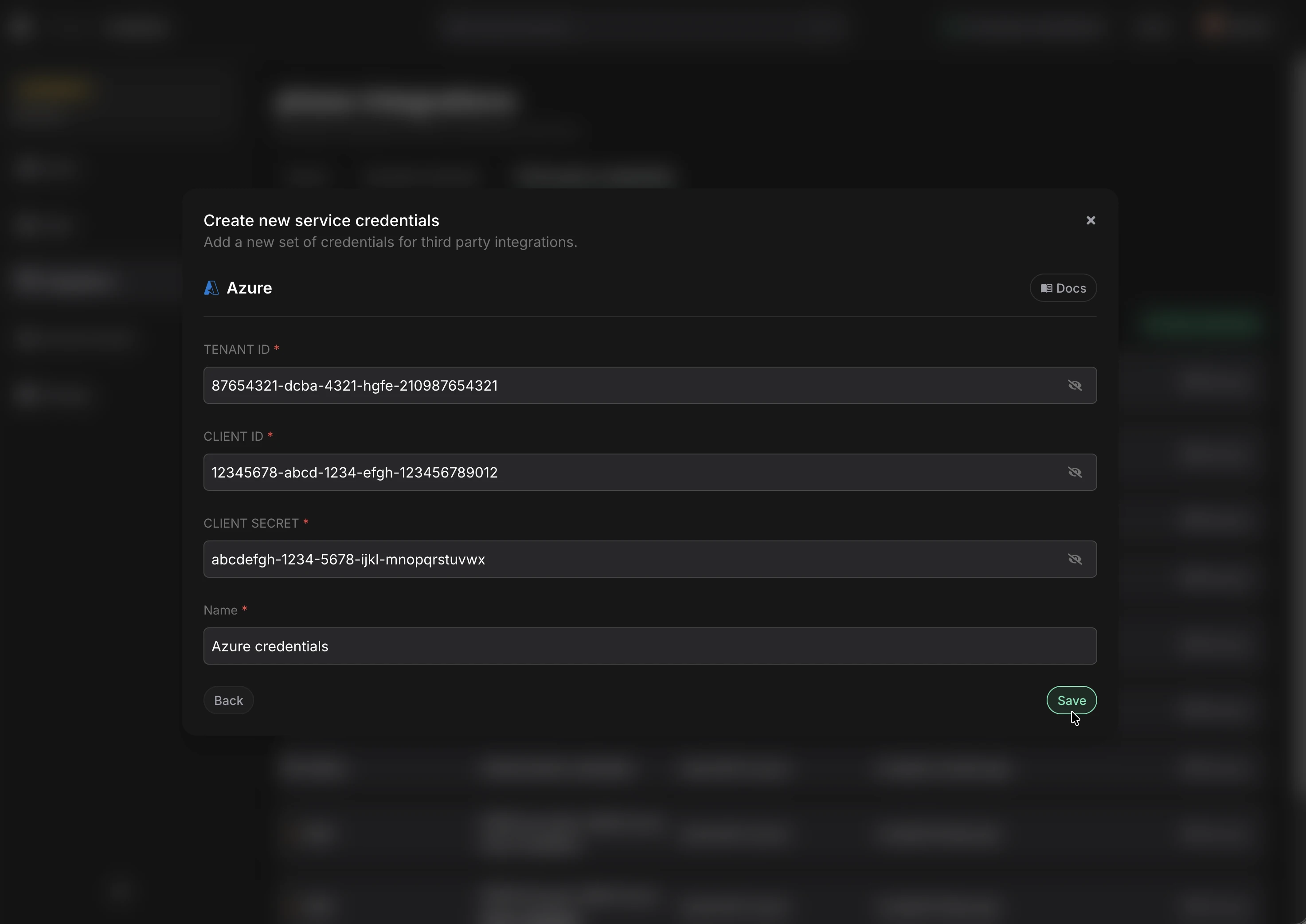
- Give these credentials a descriptive name (e.g. "Azure KV - Production") and click Save.
Step 2: Configure the Sync
-
Enable Server-side Encryption (SSE) for the App from the Settings tab if not enabled already.
-
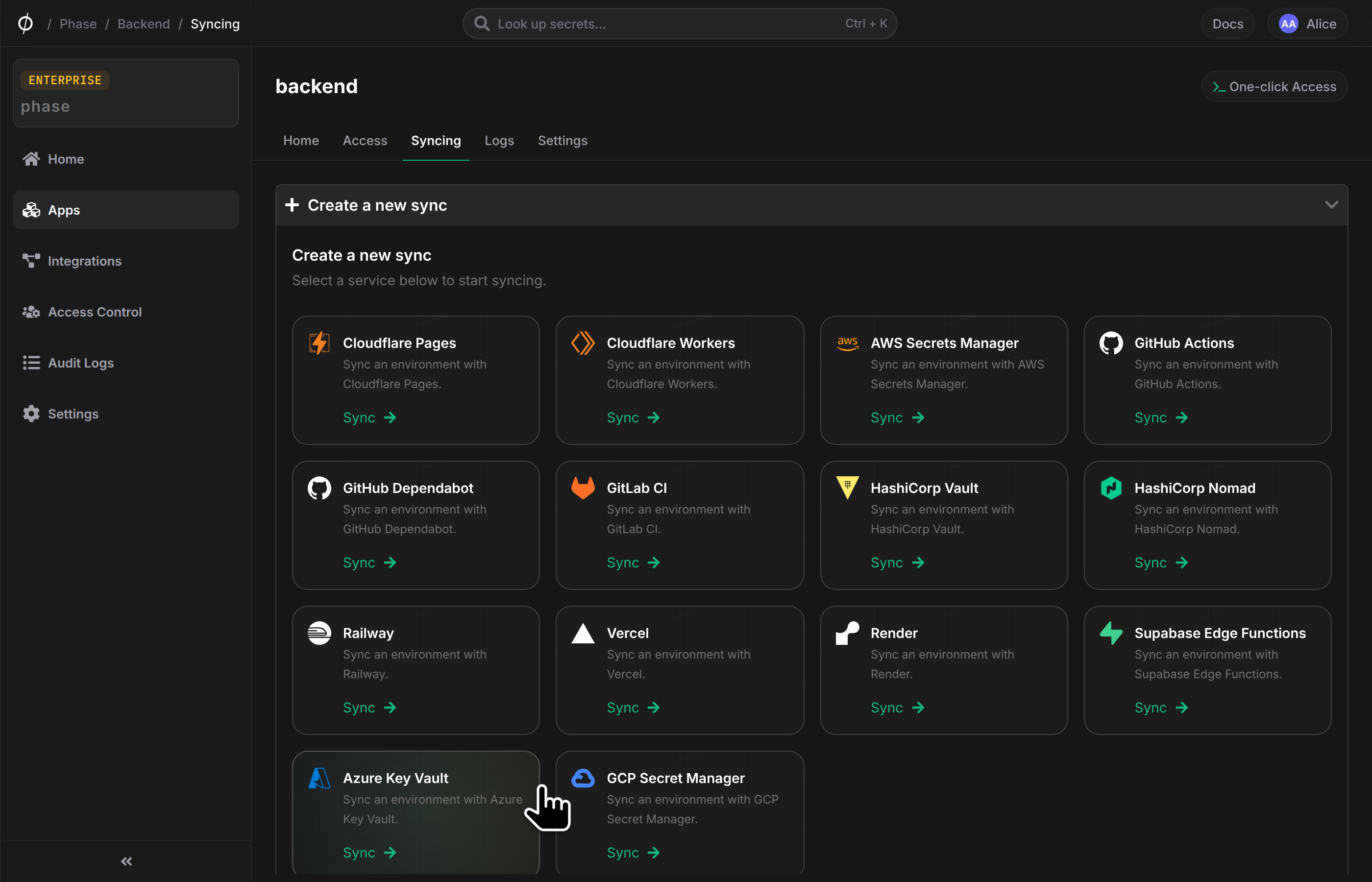
Go to your App in the Phase Console and go to the Syncing tab. Select Azure Key Vault under the 'Create a new Sync' menu.
- Select the Azure credentials stored in the previous step and enter your Vault URI (e.g.
https://phase-kv.vault.azure.net). Click Next.
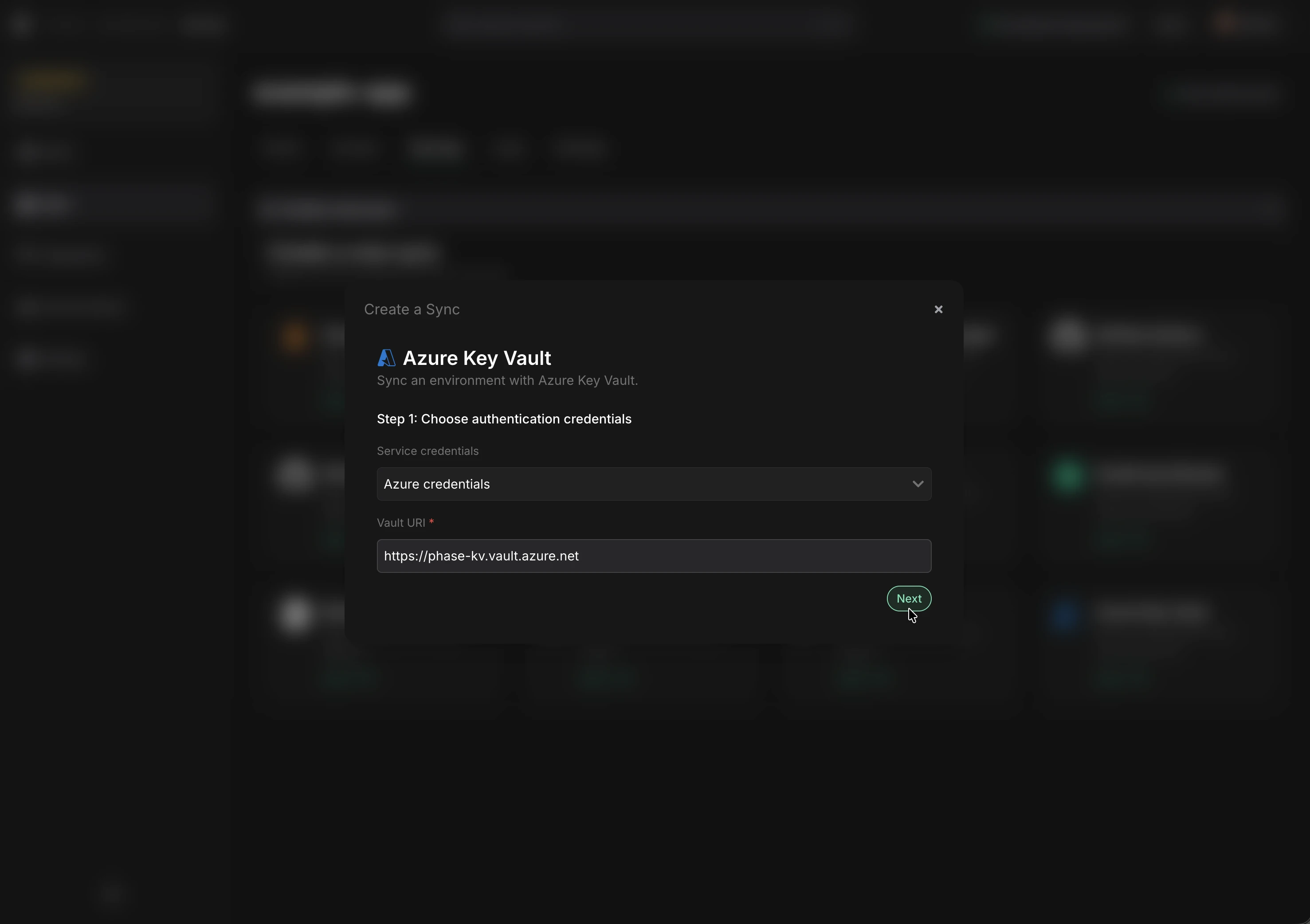
If you see an error and cannot proceed, verify that the credentials are correct and that the service principal has the Key Vault Secrets Officer role on the target vault. See Troubleshooting for debugging steps.
-
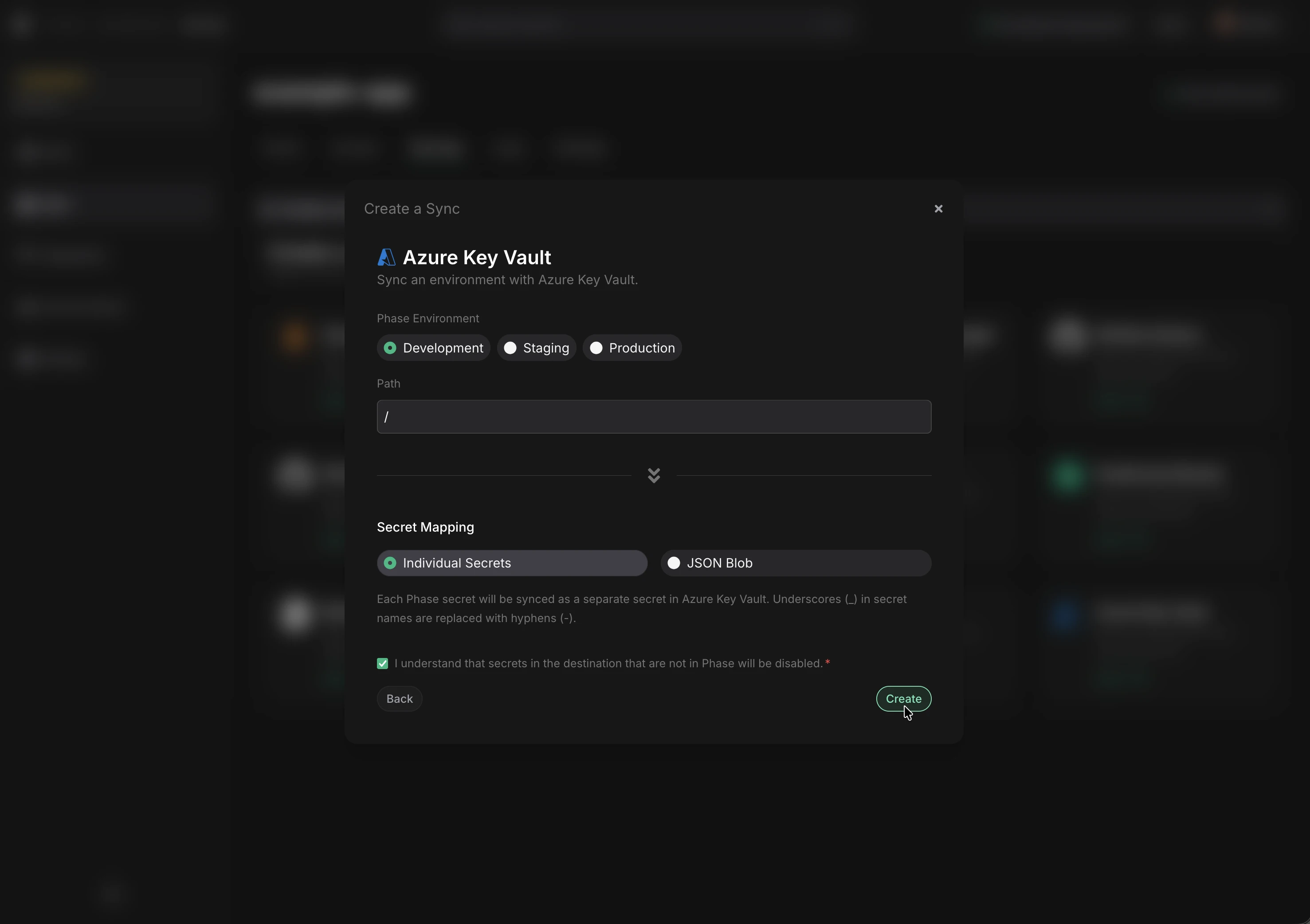
Choose the Phase Environment and Path as the source for secrets.
-
Select a Sync Mode:
Each Phase secret is synced as its own Key Vault secret. Underscores (_) in secret names are automatically converted to hyphens (-) to comply with Key Vault naming rules. Secrets in Key Vault that are not present in Phase will be disabled (not deleted).
Naming behavior
Azure Key Vault secret names only allow alphanumeric characters and hyphens. Phase automatically transforms secret names:
| Phase Secret Name | Key Vault Secret Name |
|---|---|
DATABASE_URL | DATABASE-URL |
API_KEY | API-KEY |
my_secret_value | my-secret-value |
Referencing secrets in App Service
Once secrets are synced, you can reference them in Azure App Service or Azure Functions using Key Vault references:
@Microsoft.KeyVault(SecretUri=https://phase-kv.vault.azure.net/secrets/DATABASE-URL/)
Or using the vault name shorthand:
@Microsoft.KeyVault(VaultName=phase-kv;SecretName=DATABASE-URL)
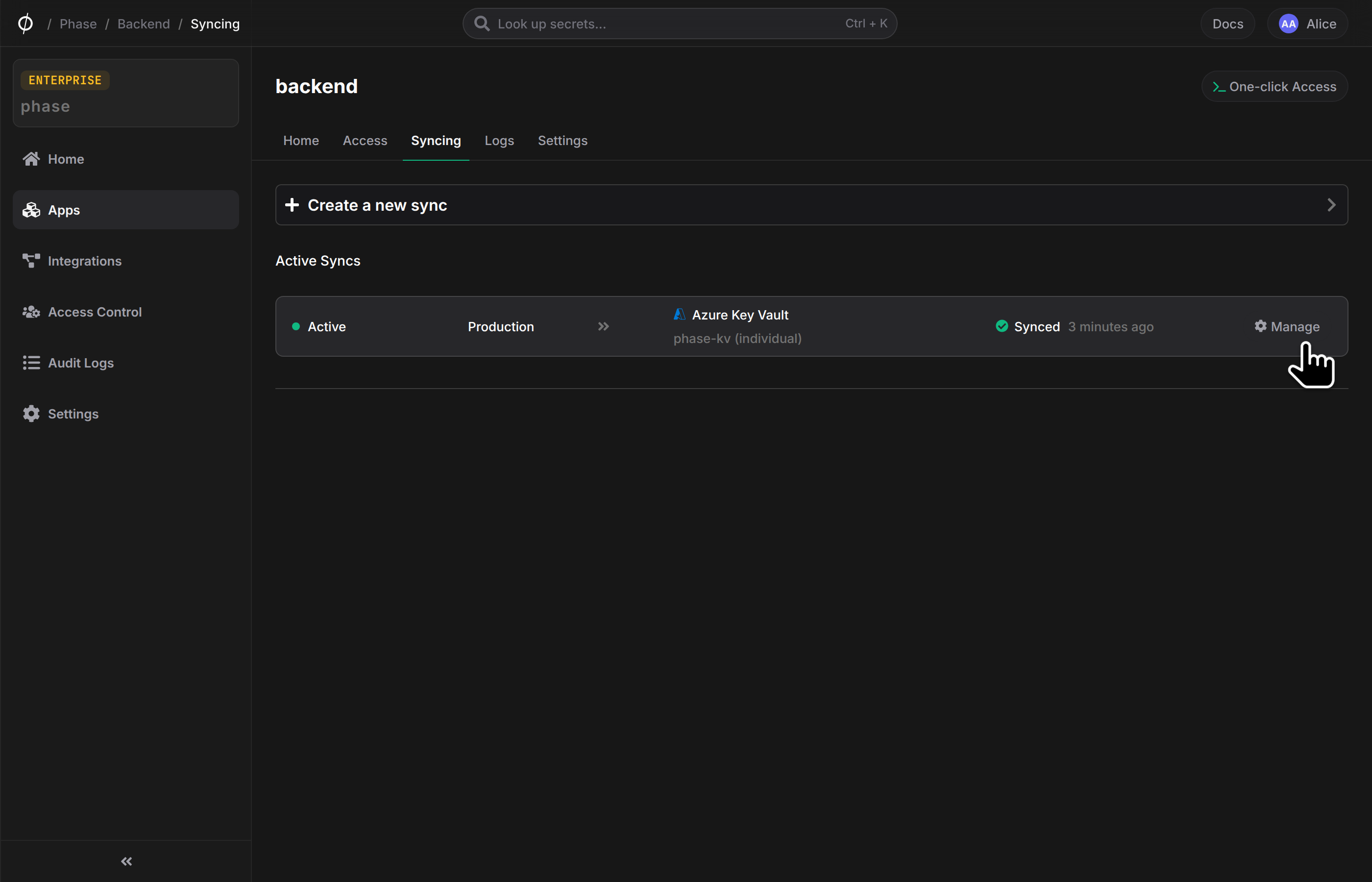
- Click Create. The sync is now active! Secrets will automatically sync whenever they are updated in Phase.
Optional: Import existing secrets from Azure Key Vault into Phase
If you have existing secrets in your Key Vault that you want to manage with Phase, you can export them to a .env file and import them.
- List all secrets in your vault:
az keyvault secret list --vault-name phase-kv --query "[].name" -o tsv
- Export secrets to a
.envfile:
for name in $(az keyvault secret list --vault-name phase-kv --query "[].name" -o tsv); do
  value=$(az keyvault secret show --vault-name phase-kv --name "$name" --query "value" -o tsv)
  # Convert hyphens back to underscores for env var names
  env_name=$(echo "$name" | tr '-' '_')
  echo "${env_name}=${value}" >> .env
done
- Import secrets into Phase via the
phase-cli:
phase secrets import .env --env development
- Delete the
.envfile:
rm .env
Troubleshooting
If syncing fails or you get authentication errors when setting up the sync, you can verify your service principal credentials directly via the Azure CLI.
1. Test authentication
Log in as the service principal using the credentials you stored in Phase:
az login --service-principal \
  --username "CLIENT_ID" \
  --password "CLIENT_SECRET" \
  --tenant "TENANT_ID"
If this fails, the credentials are invalid — create a new client secret with:
az ad app credential reset --id "CLIENT_ID"
2. Verify role assignment
Check that the service principal has the correct role on your Key Vault:
az role assignment list \
  --assignee "CLIENT_ID" \
  --scope /subscriptions/$(az account show --query id -o tsv)/resourceGroups/phase-rg/providers/Microsoft.KeyVault/vaults/phase-kv \
  --query "[].roleDefinitionName" -o tsv
This should return Key Vault Secrets Officer. If empty, reassign the role:
az role assignment create \
  --role "Key Vault Secrets Officer" \
  --assignee "CLIENT_ID" \
  --scope /subscriptions/$(az account show --query id -o tsv)/resourceGroups/phase-rg/providers/Microsoft.KeyVault/vaults/phase-kv
3. Test secret access
Try listing secrets in the vault as the service principal:
az keyvault secret list --vault-name phase-kv --query "[].name" -o tsv
If this returns results (or an empty list) without errors, the service principal has the correct access. Log back in as yourself afterwards:
az login