Secrets
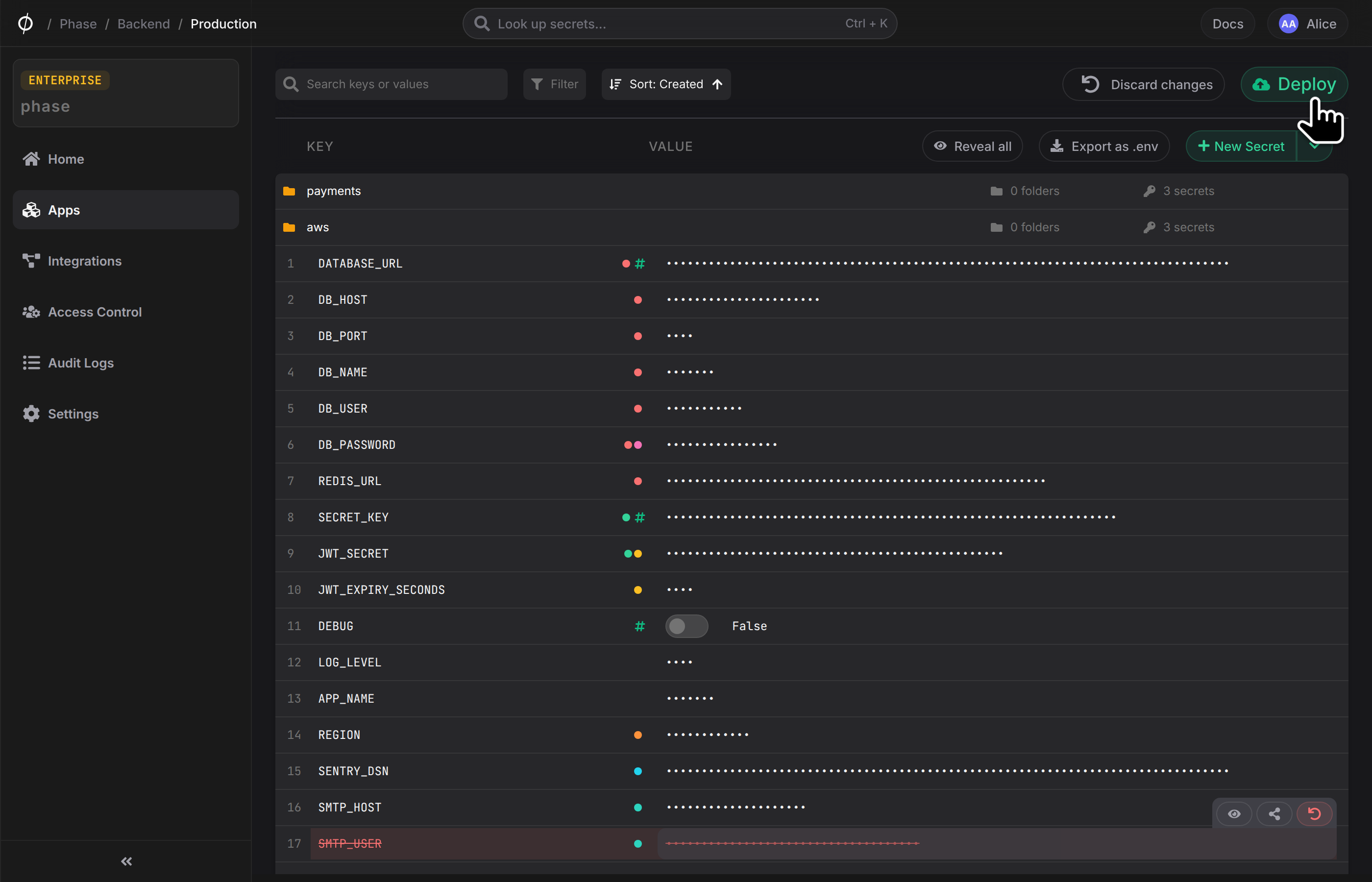
Secrets are key/value pairs used to store application secrets and configuration for your applications across Environments in various folders and paths. Secrets in Phase can additionally have tags and comments associated with them. Every read, update or delete event for a secret will be logged and viewable on the App logs screen. All changes to secrets in an environment automatically trigger deployments to their platform secret sync integrations, if set up.
Create a Secret
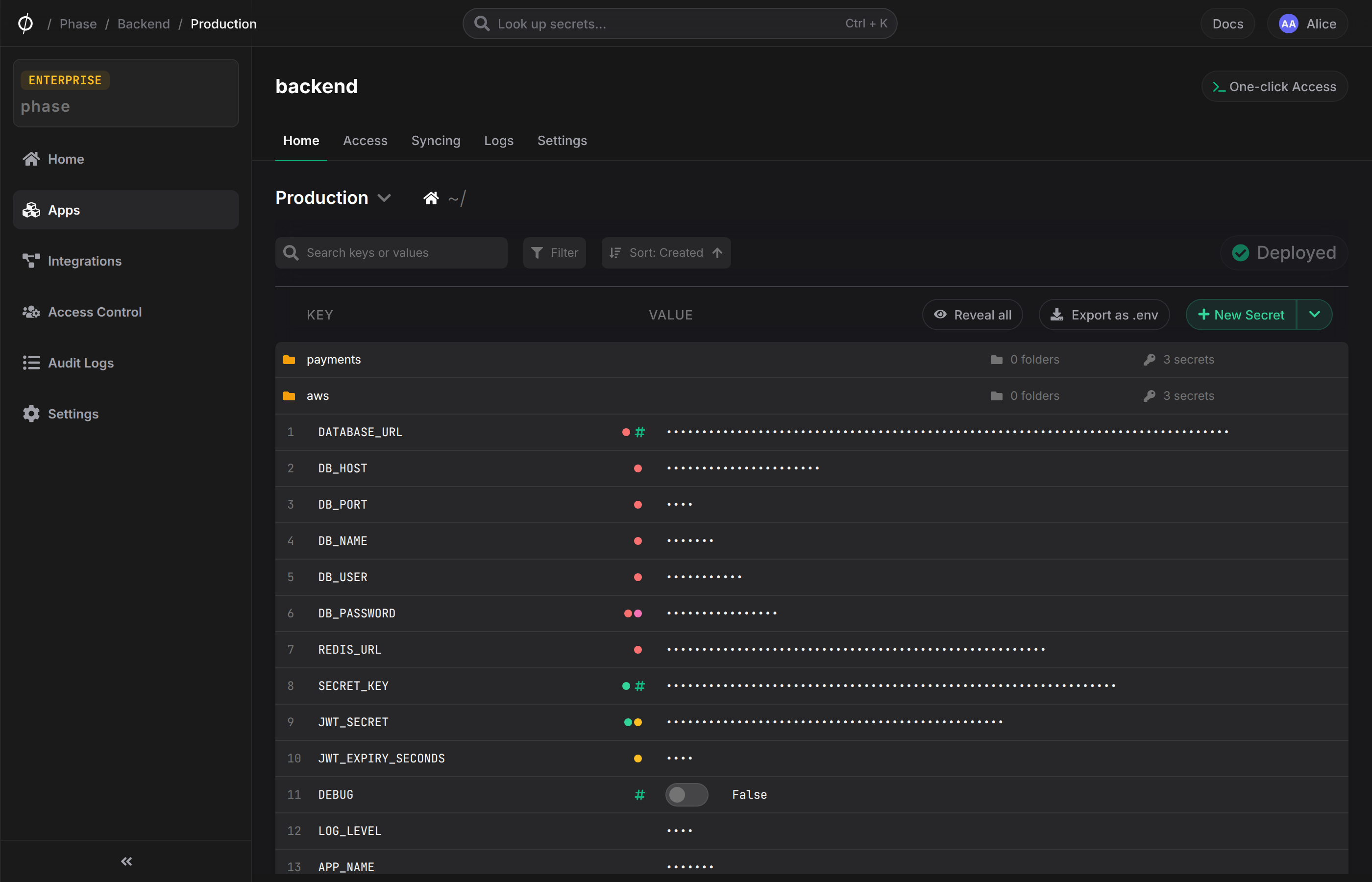
To create a Secret in a specific Environment, click the "New Secret" button. This will create a new empty secret, with a blank key and value. Enter the desired key and value and click "Deploy" to save your changes.
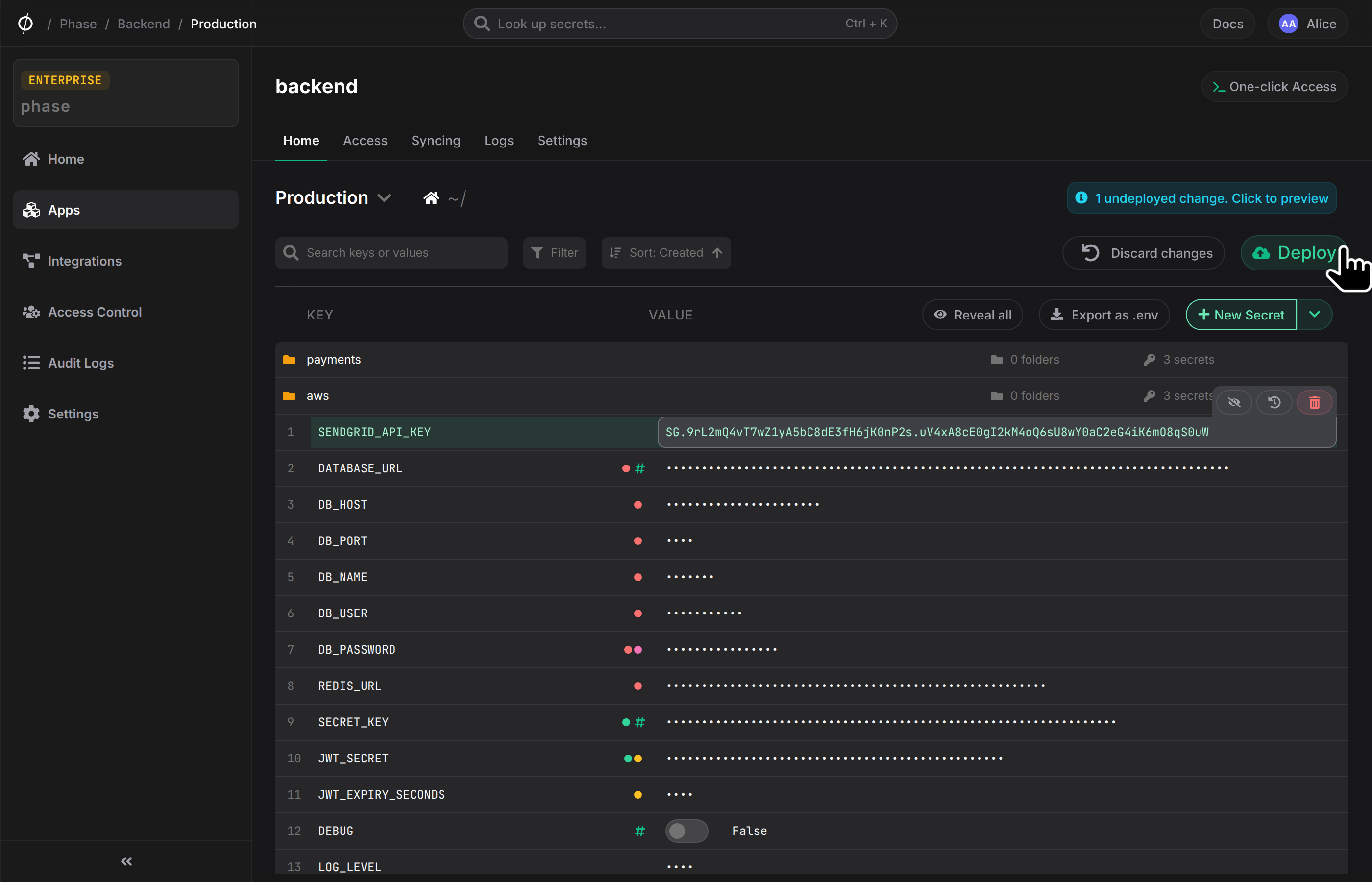
Secret keys cannot be empty, or share the same key as another secret in the current environment at the same path.
Secret Types
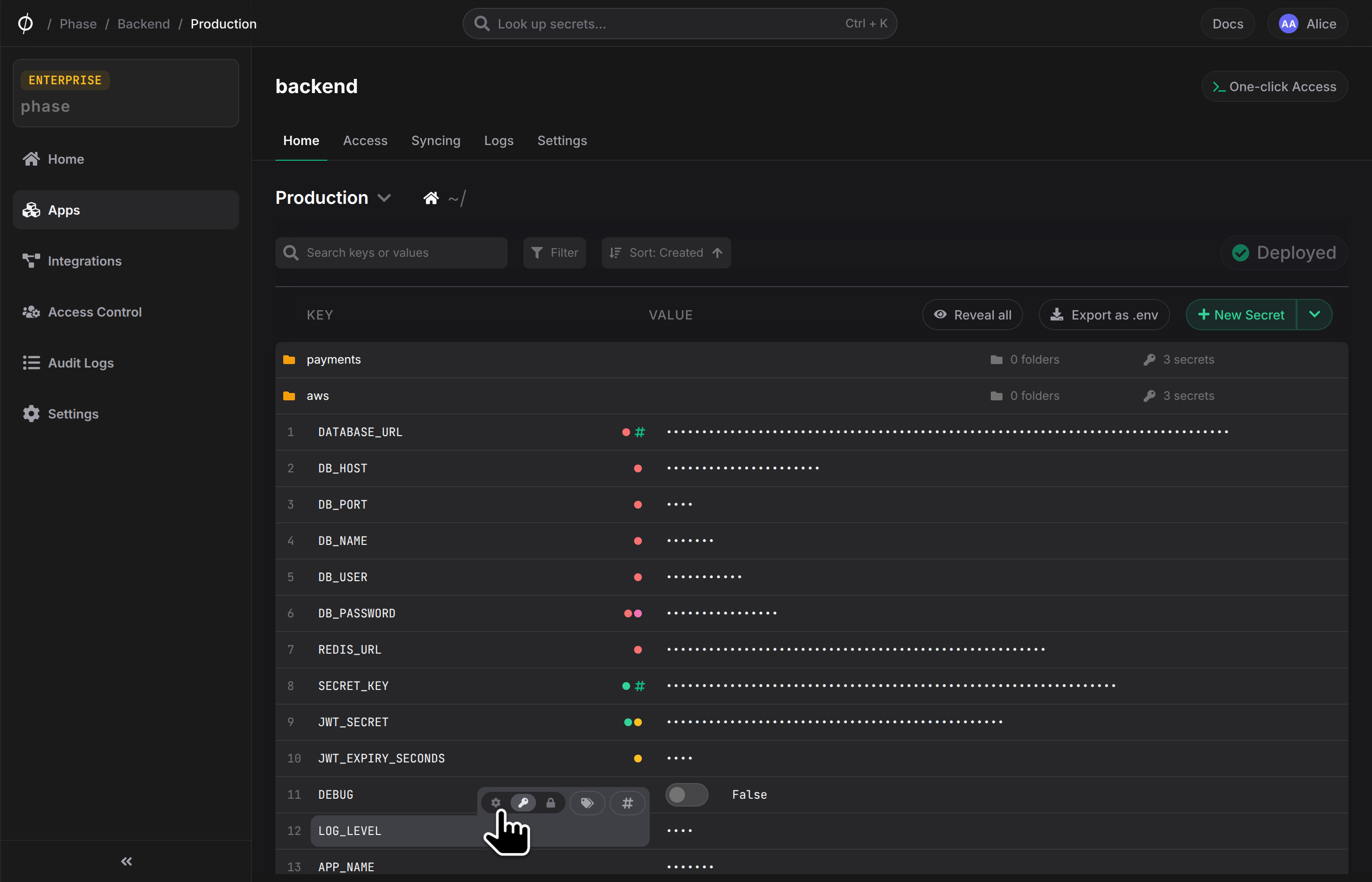
Every secret in Phase has a type that controls its behavior and visibility. All secrets are end-to-end encrypted regardless of type — the type only affects how the secret is displayed and whether the value can be read back after saving. You can set the type when creating a secret, or change it later using the type selector that appears when hovering over the secret key.
| Type | Description |
|---|---|
| Secret | The default type. Values are masked in the UI until revealed. |
| Sealed | Values are write-once. After saving, the plaintext value is redacted server-side and can never be read back in the Console UI. The type cannot be changed once saved. Use this for values that should only be injected at runtime and never exposed in the UI, such as root credentials or signing keys. |
| Config | Non-sensitive configuration values (e.g. APP_NAME, LOG_LEVEL, REGION). Values are shown in plaintext by default without masking. |
Changing a secret's type
You can change a secret's type by hovering over the secret row and using the type selector in the key field. Type changes are staged like any other edit and are only saved when you deploy.
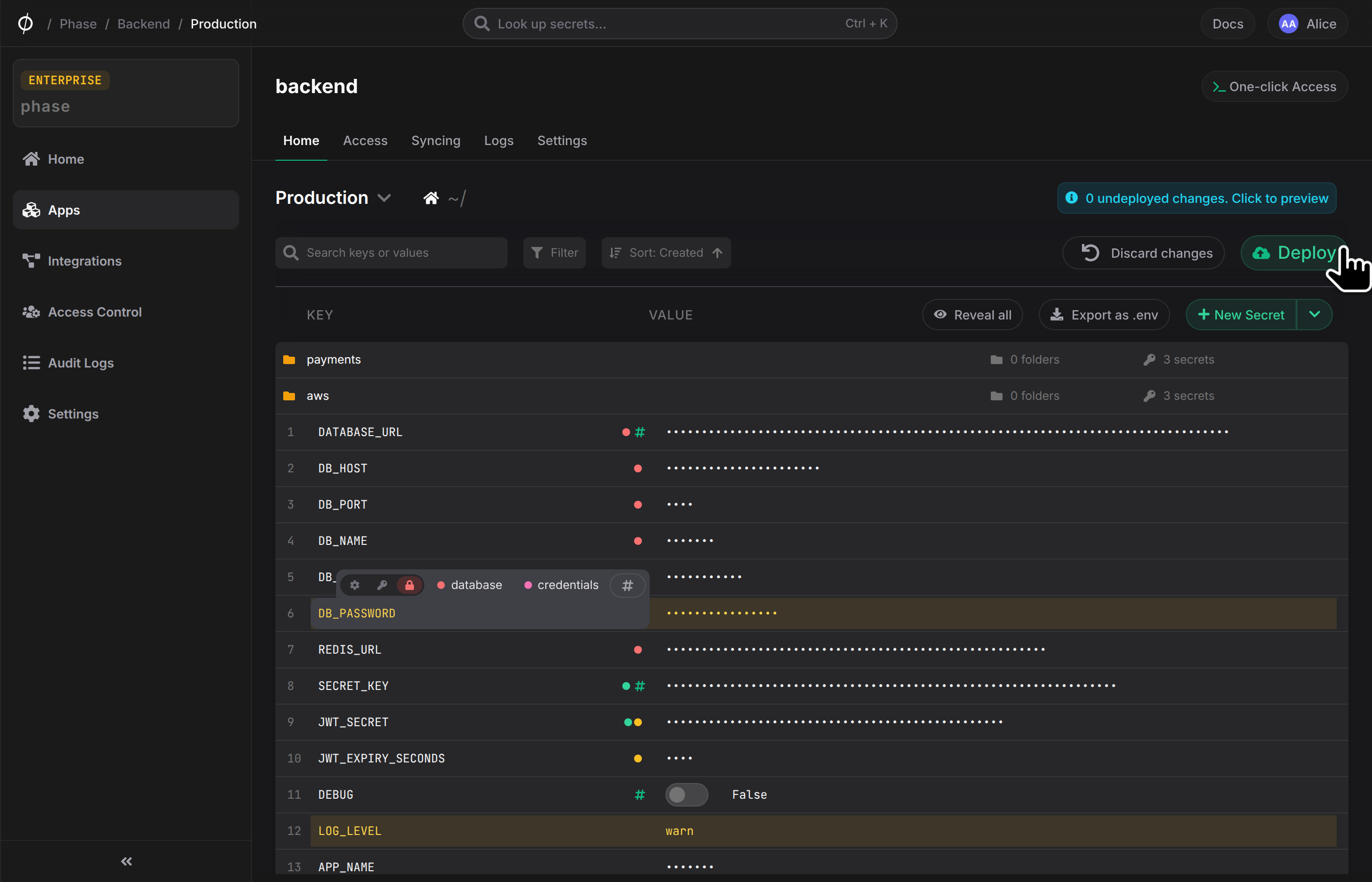
Once a sealed secret is saved, its type is permanently locked. You cannot unseal a secret or change it to another type. To replace it, delete the secret and create a new one.
Import Secrets
You can import secrets into your Apps and Environments by dragging-and-dropping .env files or selecting them from your filesystem.
By default, Phase will parse all key-value pairs in your .env files, as well as any comments that are either in-line or precede a key-value pair. You can also open the "Import secrets" menu for more detailed import options as well as a text area to simply paste the contents of your .env file.
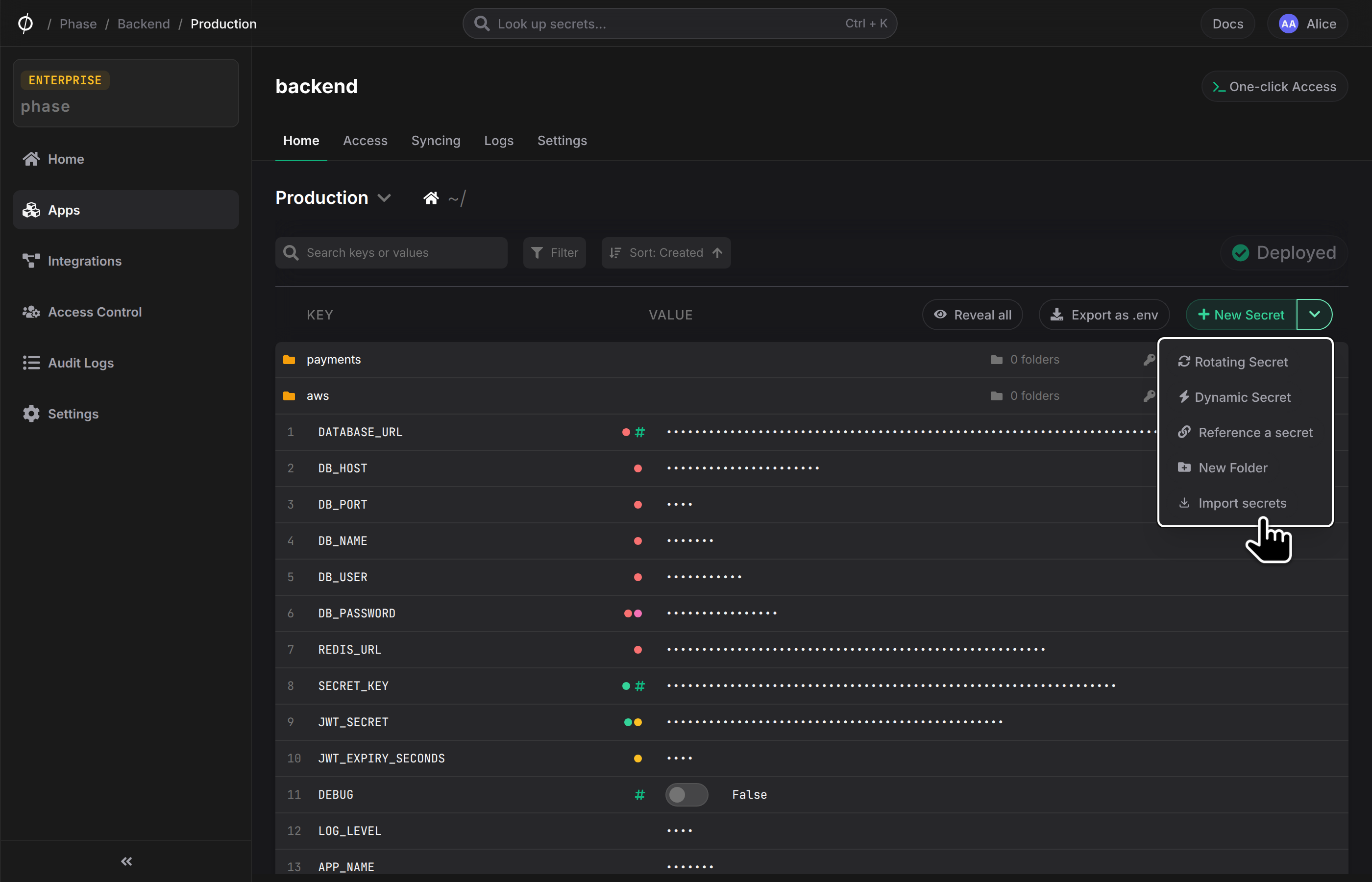
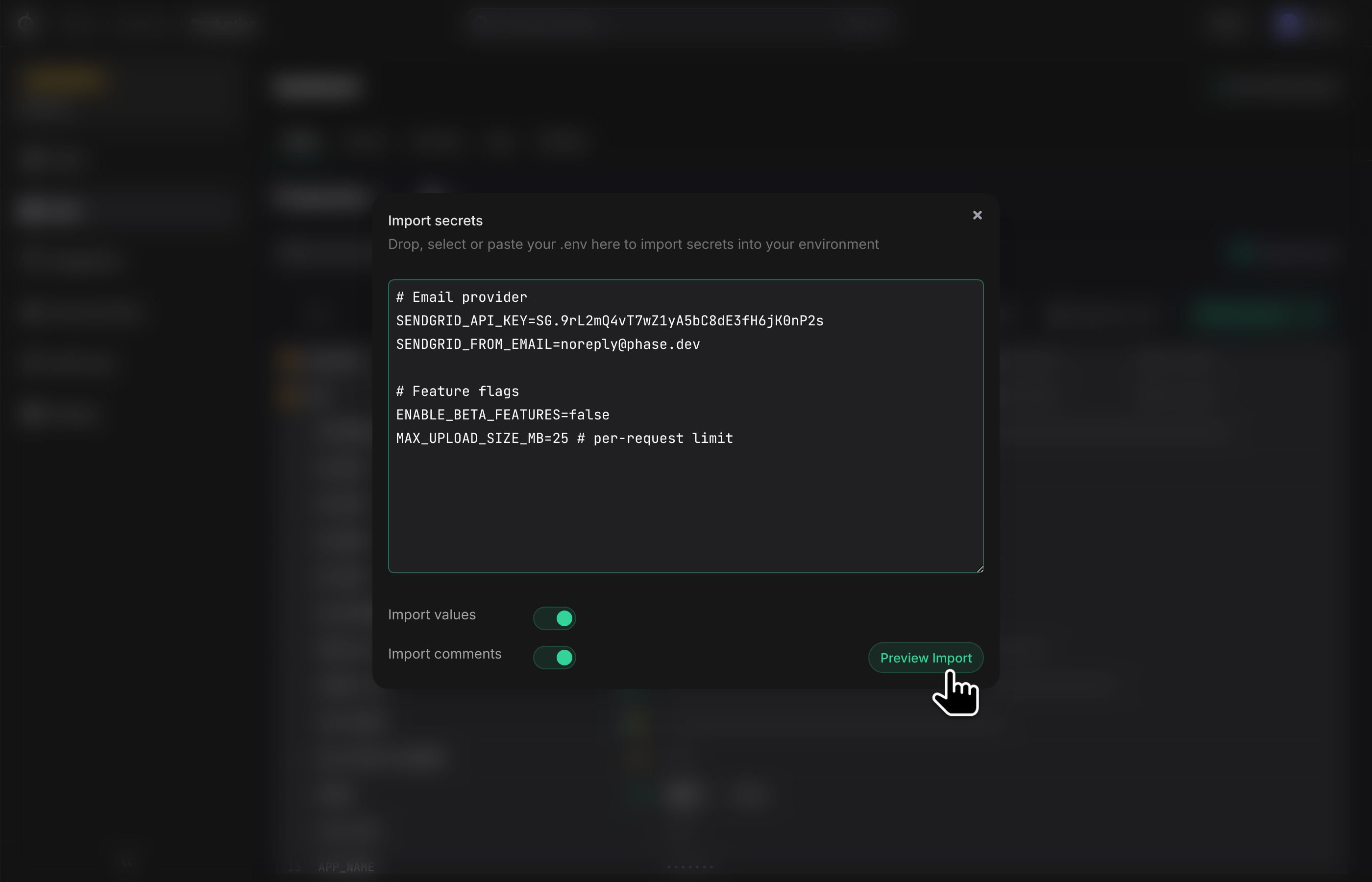
If one or more keys of the secret that you are trying to import into Phase already exist, their respective values will automatically be updated. You can easily review the changes while in the deploy preview before deploying.
Here's a quick demo of how to import secrets into a single environment:
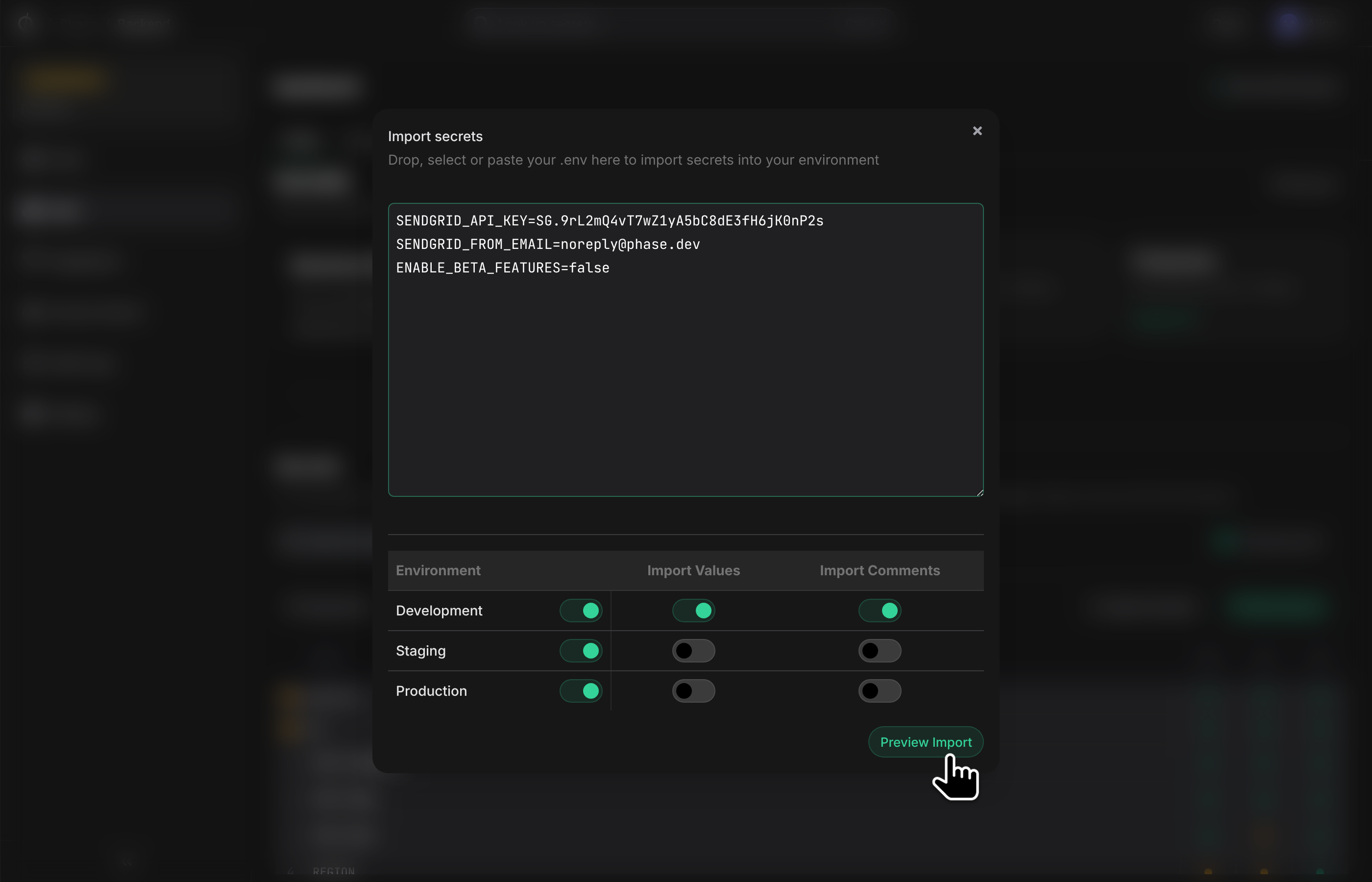
You can also import .env files into multiple Environments simultaneously from the Secrets tab. You'll be able to decide which specific environments to import into, and whether or not to include values and comments in each respective Environment. This is great for quickly initializing your App with dev secrets from your local .env file, while populating other Environments with just the corresponding keys.
Secret Referencing
You can use the value of other secrets inside a given secret across environments and folders. This may be useful for things like database connection strings.
Example:
DATABASE_URL=postgresql://${DB_USER}:${DB_PASSWORD}@${DB_HOST}:${DB_PORT}/${DB_NAME}
DB_USER=j_mclaren
DB_PASSWORD=2ff9853e23b68587480da26a478b782aa8aeafe46ec716d0667ad7078870c345
DB_HOST=mc-laren-prod-db.c9ufzjtplsaq.us-west-1.rds.amazonaws.com
DB_PORT=5432
DB_NAME=XP1_LM

# will resolve to:
DATABASE_URL=postgresql://j_mclaren:6c37810ec6e74ec3228416d2844564fceb99ebd94b29f4334c244db011630b0e@mc-laren-prod-db.c9ufzjtplsaq.us-west-1.rds.amazonaws.com:5432/XP1_LM
Secret referencing syntax:
| Value reference syntax | Environment | Path | Secret Key Being Referenced | Description |
|---|---|---|---|---|
${KEY} | same environment | / | KEY | Local reference in the same environment and path root (/). |
${staging.DEBUG} | staging | / (root of staging environment) | DEBUG | Cross-environment reference to a secret at the root (/). |
${production./frontend/SECRET_KEY} | production | /frontend/ | SECRET_KEY | Cross-environment reference to a secret in a specific path. |
${/backend/payments/STRIPE_KEY} | same environment | /backend/payments/ | STRIPE_KEY | Local reference with a specified path within the same environment. |
${backend_api::production.SECRET_KEY} | production (in backend_api app) | / (root of backend_api app) | SECRET_KEY | Cross-application reference to a secret at the root path within another application. |
${backend_api::production./frontend/SECRET_KEY} | production (in backend_api app) | /frontend/ | SECRET_KEY | Cross-application reference to a secret in a specific path within another application. |
Please note the following when using secret referencing:
-
Authentication requirements: Your authentication token must have access to all referenced secrets across apps, environments, and paths. If access is insufficient, the reference won't be resolved and will be returned with the original syntax. For example, if you have access to the
productionenvironment inbackend_apibut not infrontend, the value${backend_api::production./frontend/SECRET_KEY}will not be resolved. -
Third-party sync integration behavior: When syncing to third-party services, Phase requires all secret references to be resolvable. The sync will fail if any referenced secret is not found in its specified location (whether locally, in a path, or within an app). This design ensures third-party platforms never receive broken references, as many support their own native referencing syntax.
-
Name collision handling: If two or more applications in your organization share the same name (case insensitive), any secret reference to these applications will be deemed ambiguous and will be returned as unresolved when accessed via the REST API. Additionally, any sync operation involving these ambiguous references will fail with an error message.
-
Server-side Encryption (SSE): For references to resolve over the Public API or native integrations, all referenced apps must have SSE enabled. If a secret is referenced in an app without SSE, the reference will not resolve, will be returned as-is over the API, and sync jobs will fail. Note: SSE is not required for references to resolve when using E2E enabled clients such as the CLI or SDKs.
Override a Secret (Personal Secrets)
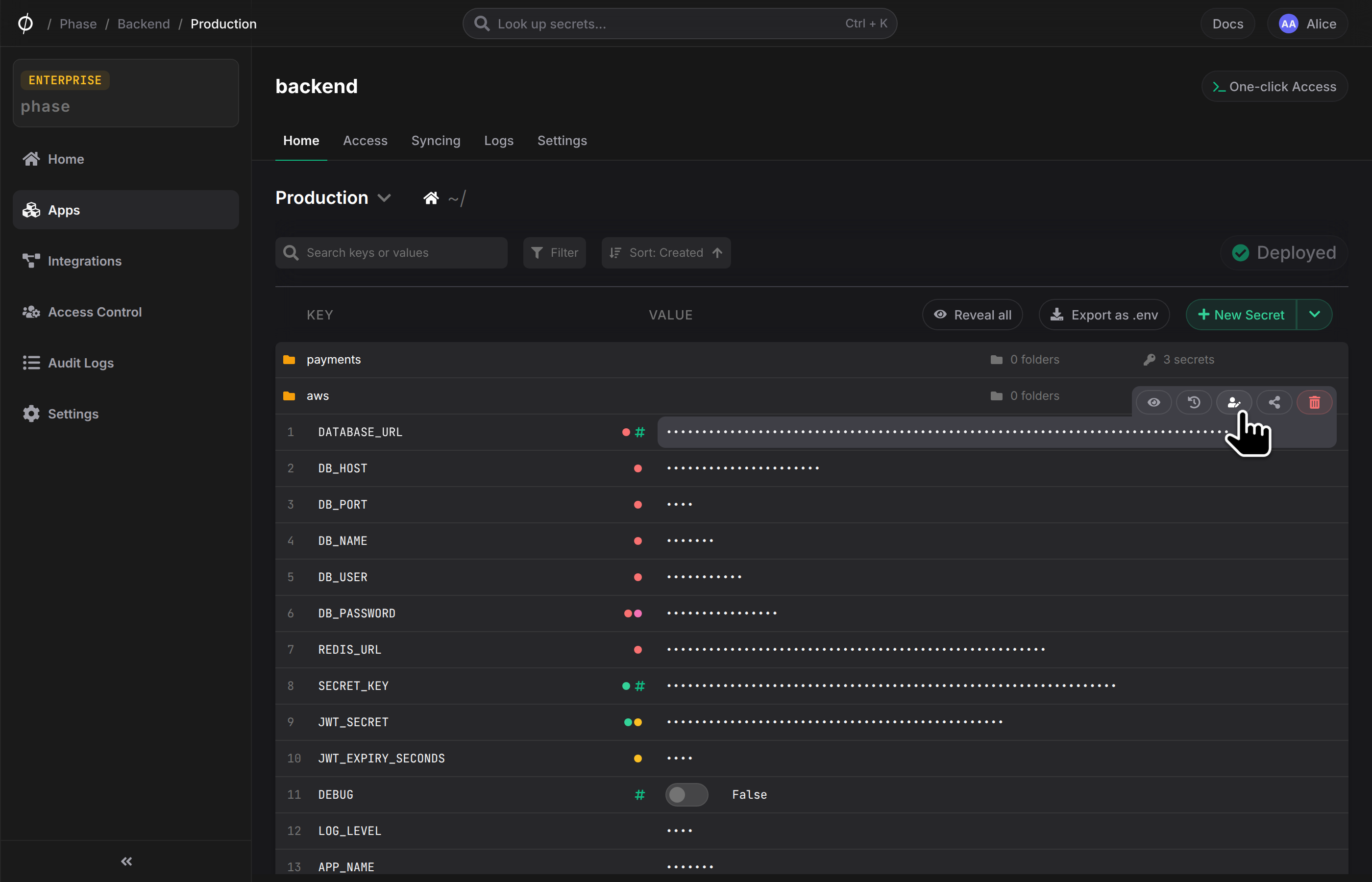
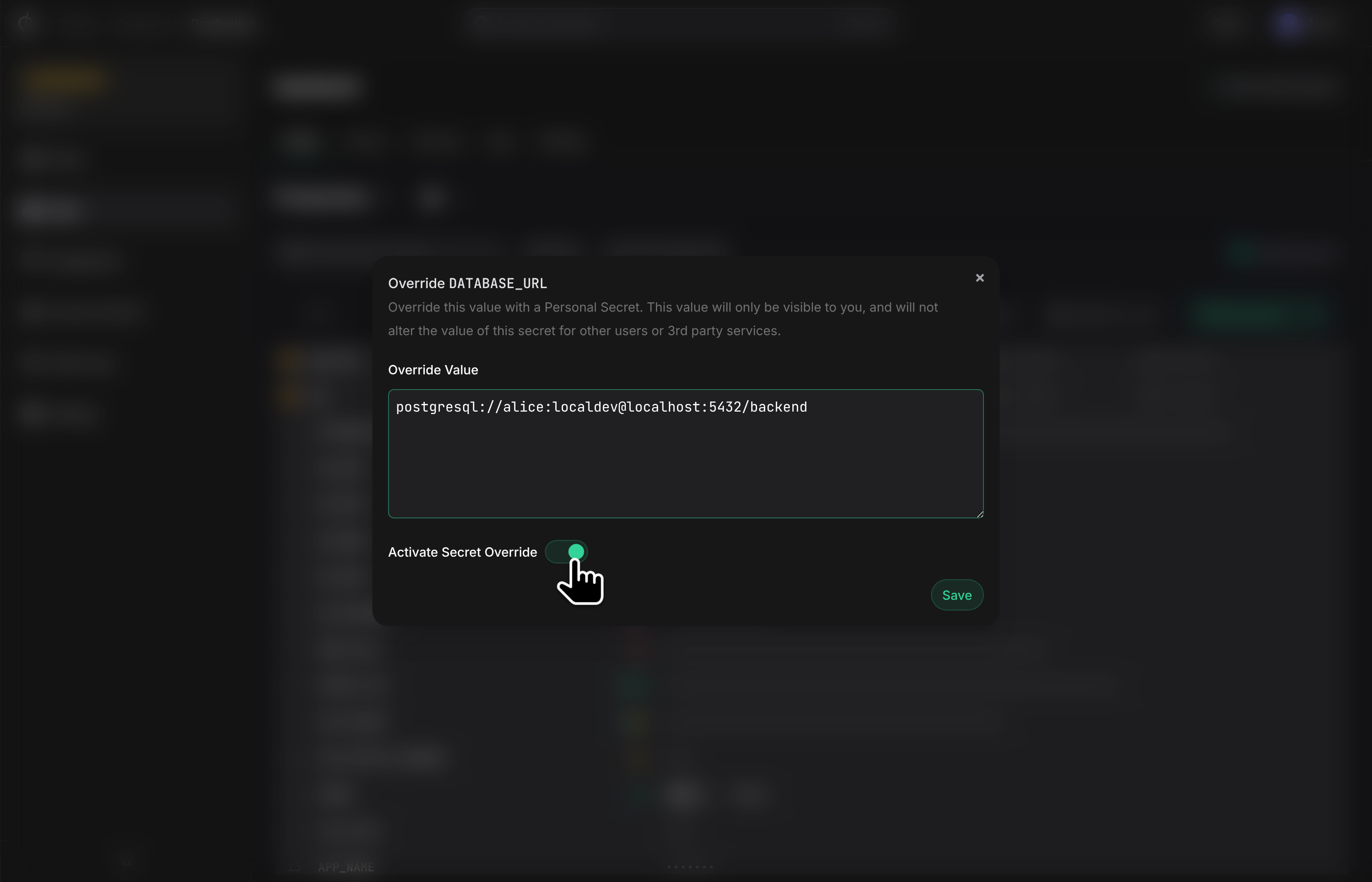
You can override the value of a Secret with a Personal Secret. This can be useful for using API keys, authentication credentials, or other environment variables that are unique to your development setup without having to modify the environment for other users. When applied, the overridden value of the Secret will only be visible to you. When developing locally with the Phase CLI, the override value will be used by default.
To create a Personal Secret, click on the "Override" button for a secret.
Then simply enter the value you wish to override this secret with. You can also control whether a Personal Secret override is active using the "Activate Secret Override" toggle switch.
Tag a Secret
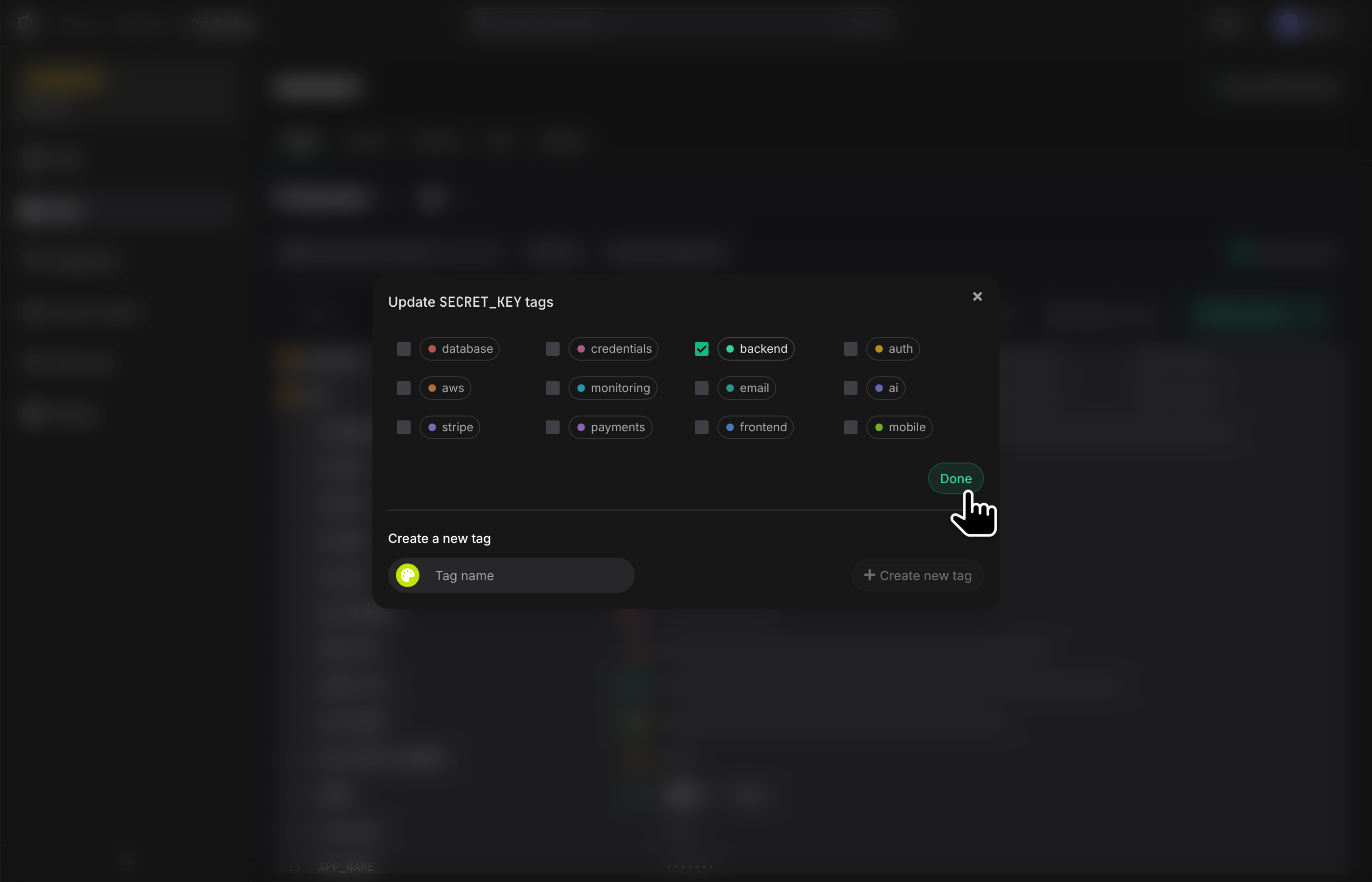
To apply a tag to a Secret, hover on the Secret row and click on "Tags" in the secret key input box to open the Tags dialog. You can select one or more tags to apply to this Secret, or create new Tags if required.
All tags applied to a secret will be displayed inline with the secret name.
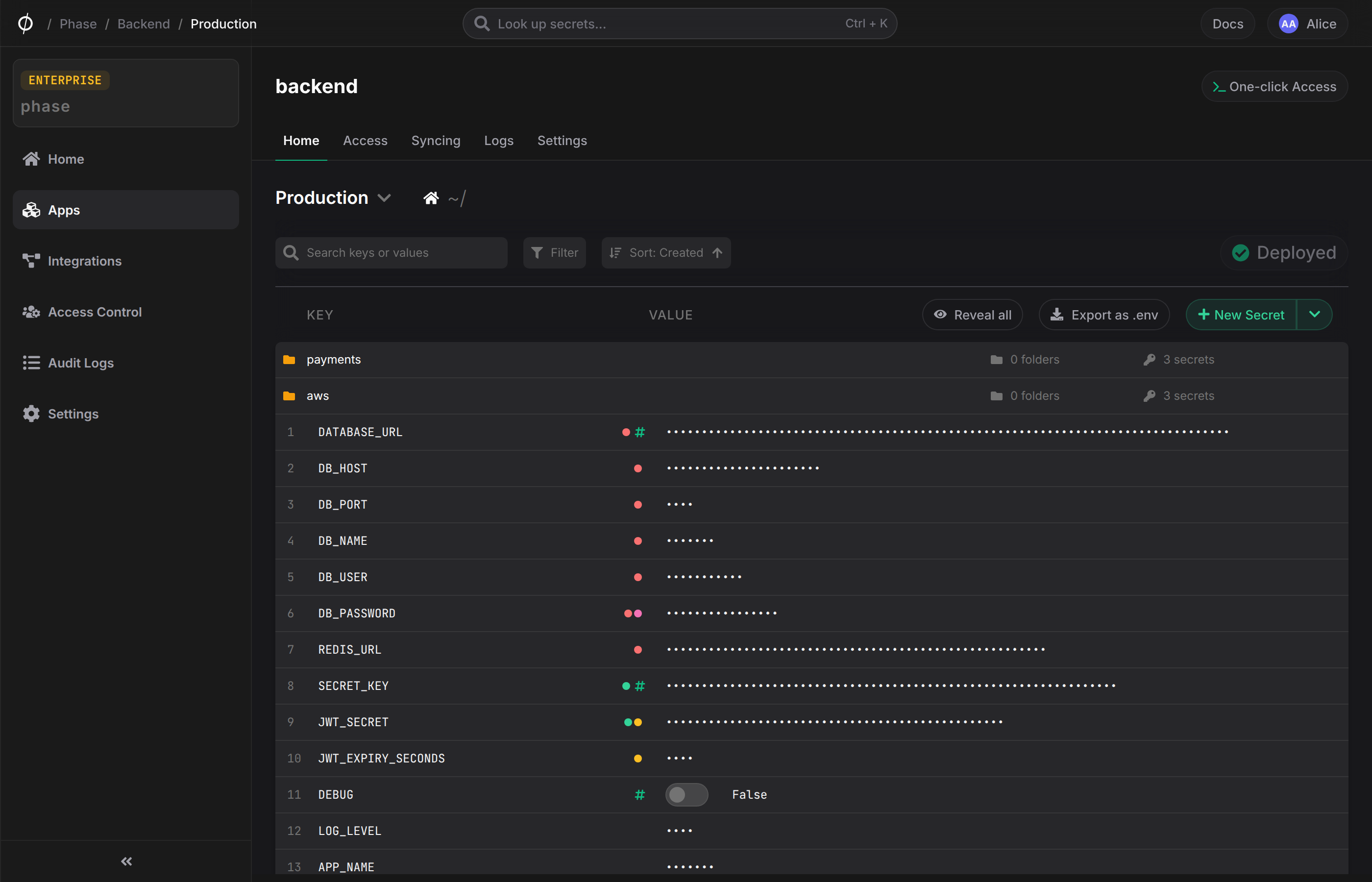
Note: Secret tags are not saved until you "Deploy" changes to the Environment
Add comments to a Secret
To add comments to a Secret, hover in the Secret row and click on the "Comment" button in the value input box to open the comment dialog. Type your comment and close the dialog.
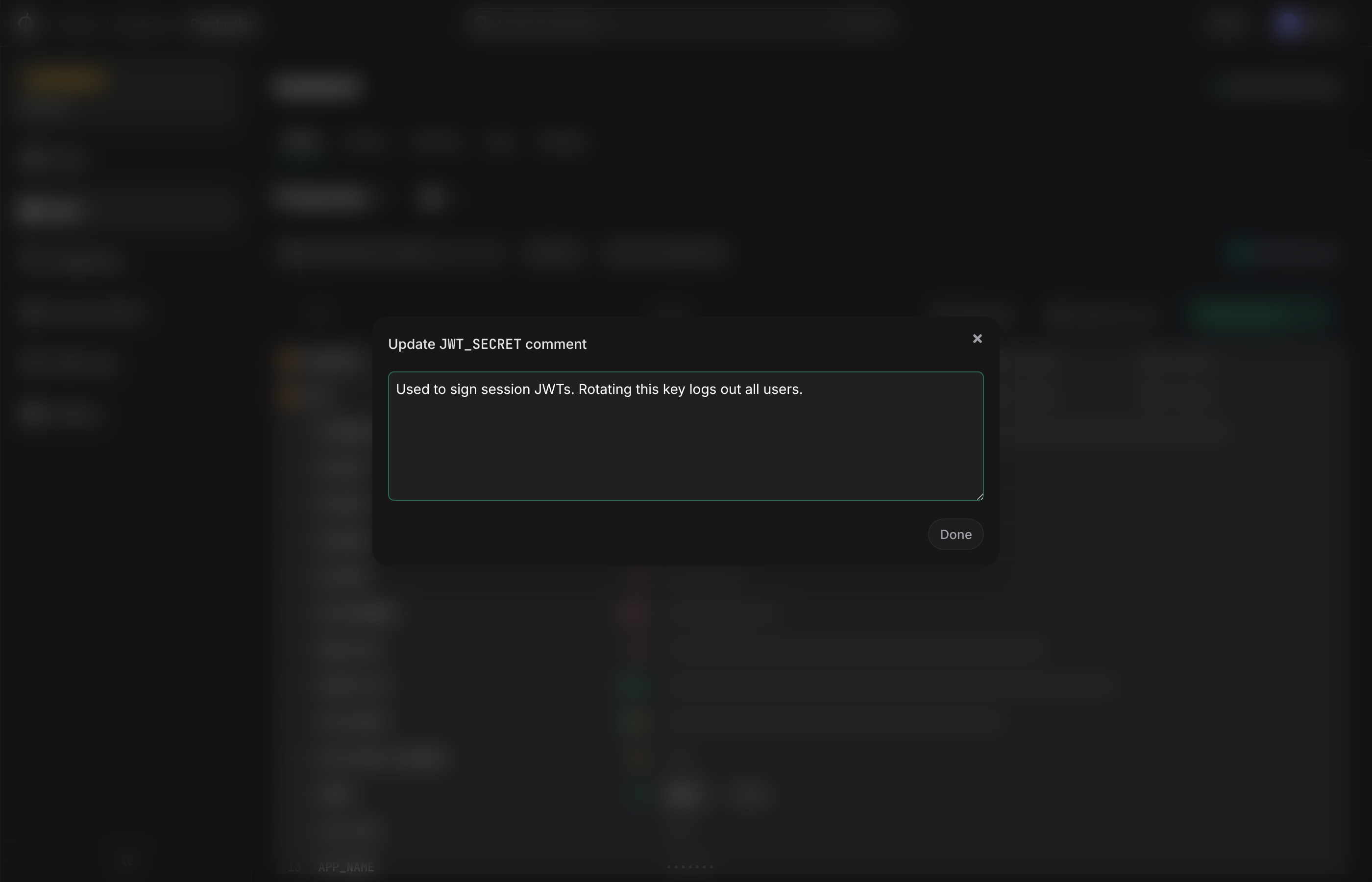
Secrets with comments will be identifiable by a green comment icon.
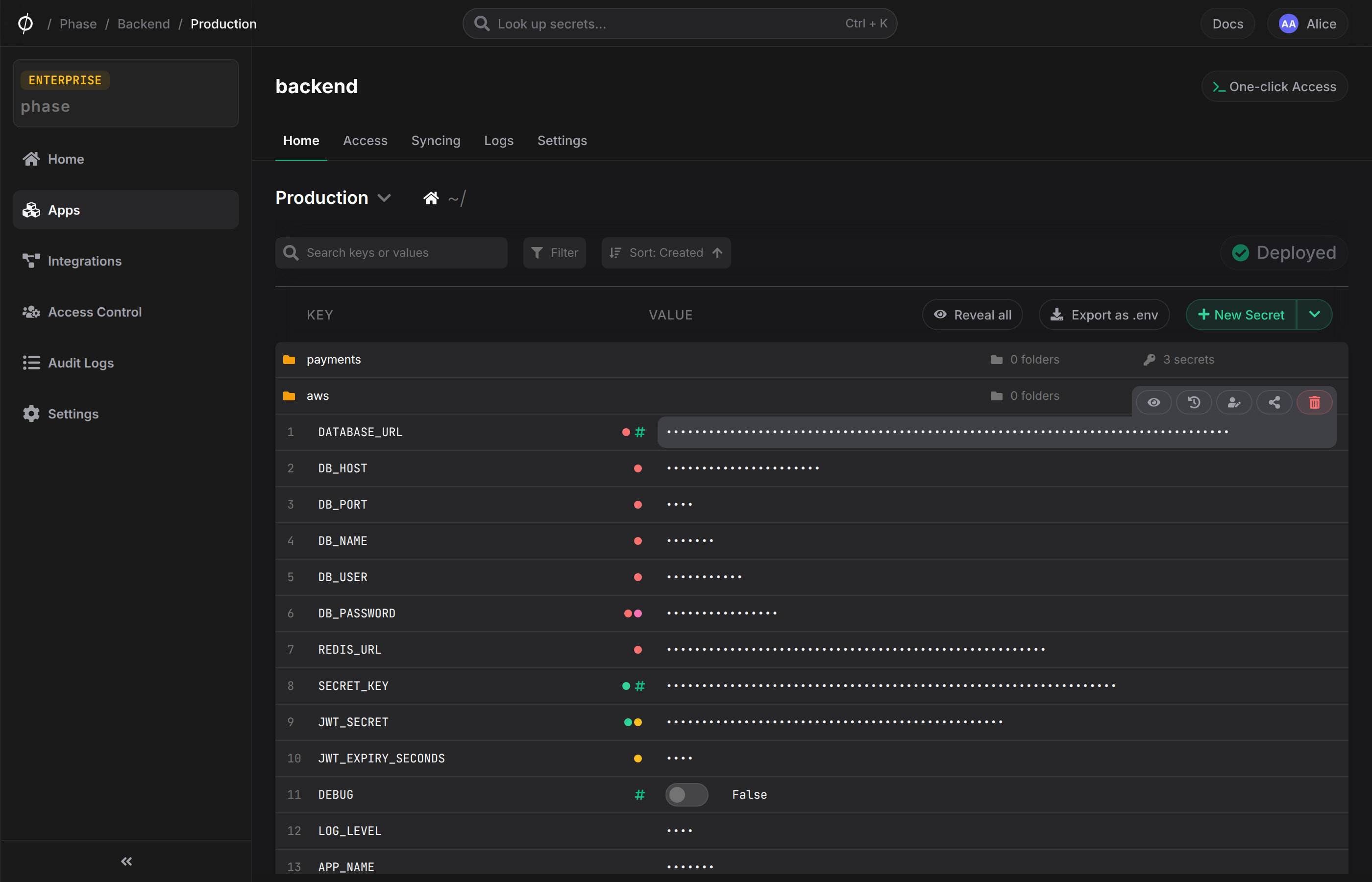
Note: Secret comments are not saved until you "Deploy" changes to the Environment
Share a Secret
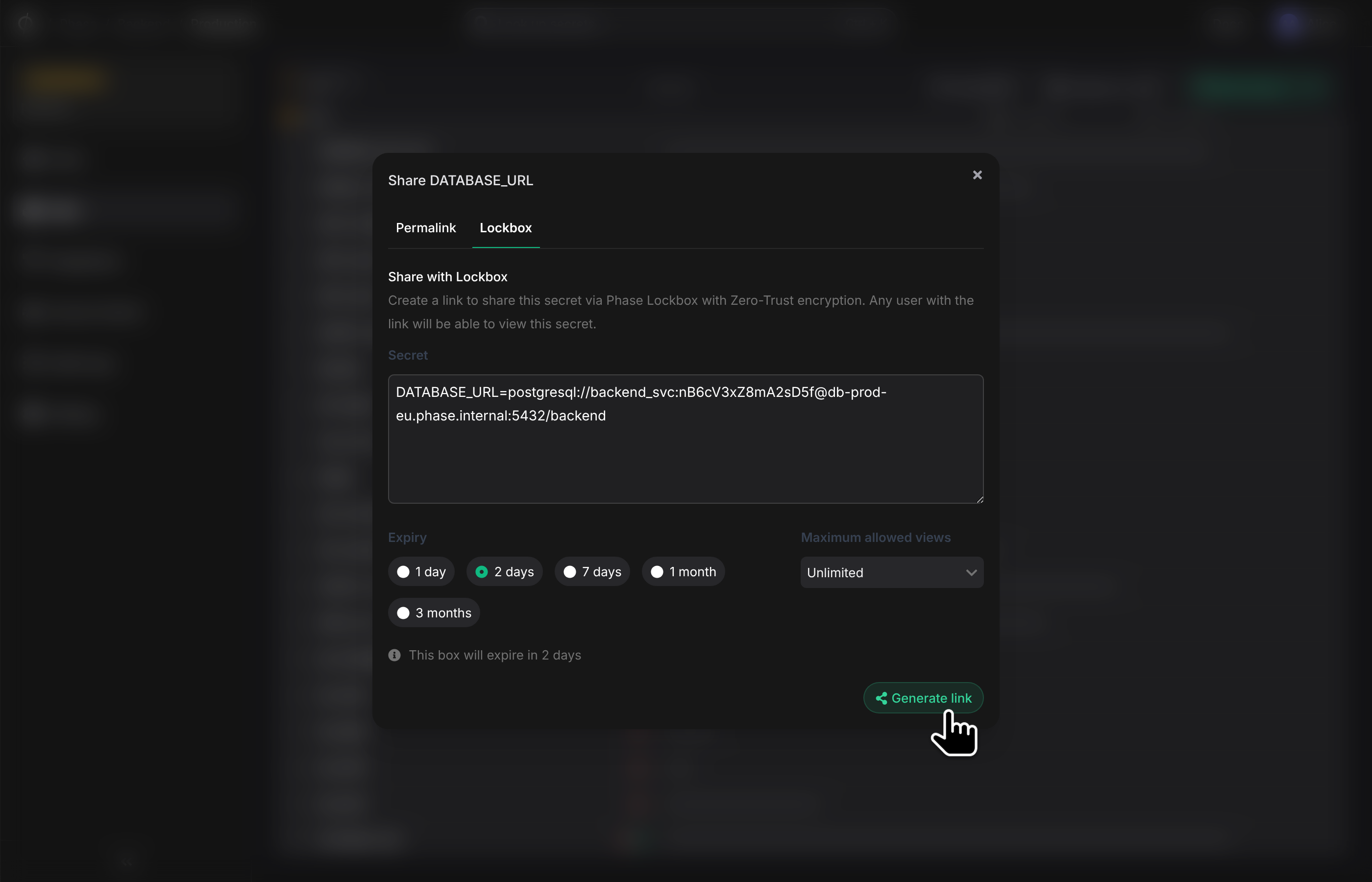
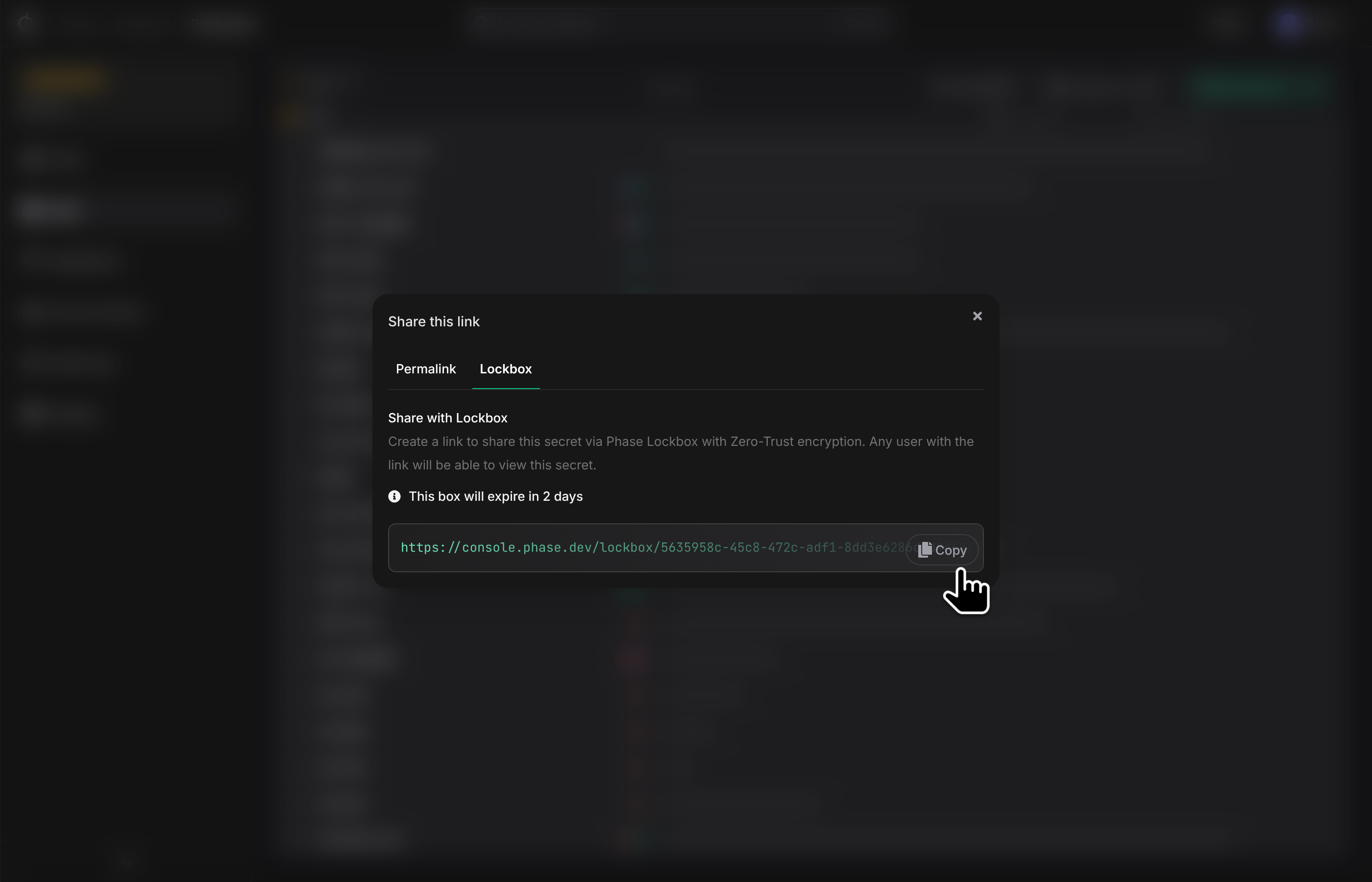
You can easily share secrets to other users via a secure link. When sharing a secret, you need to decide whether you simply want to link a secret to another user who already has access to it in Phase (via a Permalink) or an external user who may not have an account in Phase (via a Lockbox). You can hover over the secret row and click the "Share" button to see the menu to create a Permalink or Lockbox.
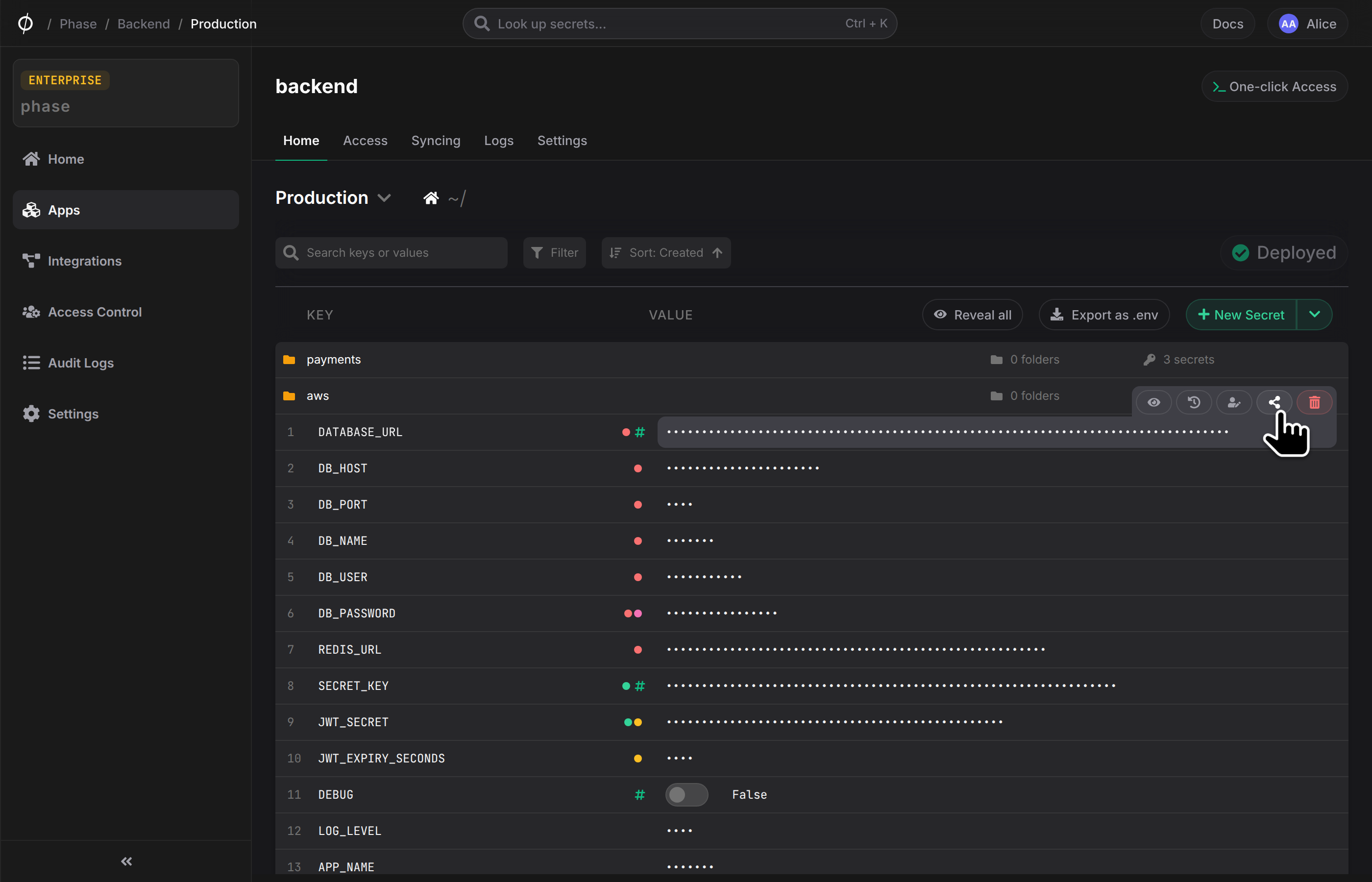
Permalink
Permalinks allow you to share a secret with other users who already have access to it in Phase. This is useful when you want to link a specific secret within an App, Environment, or Folder to others on your team.
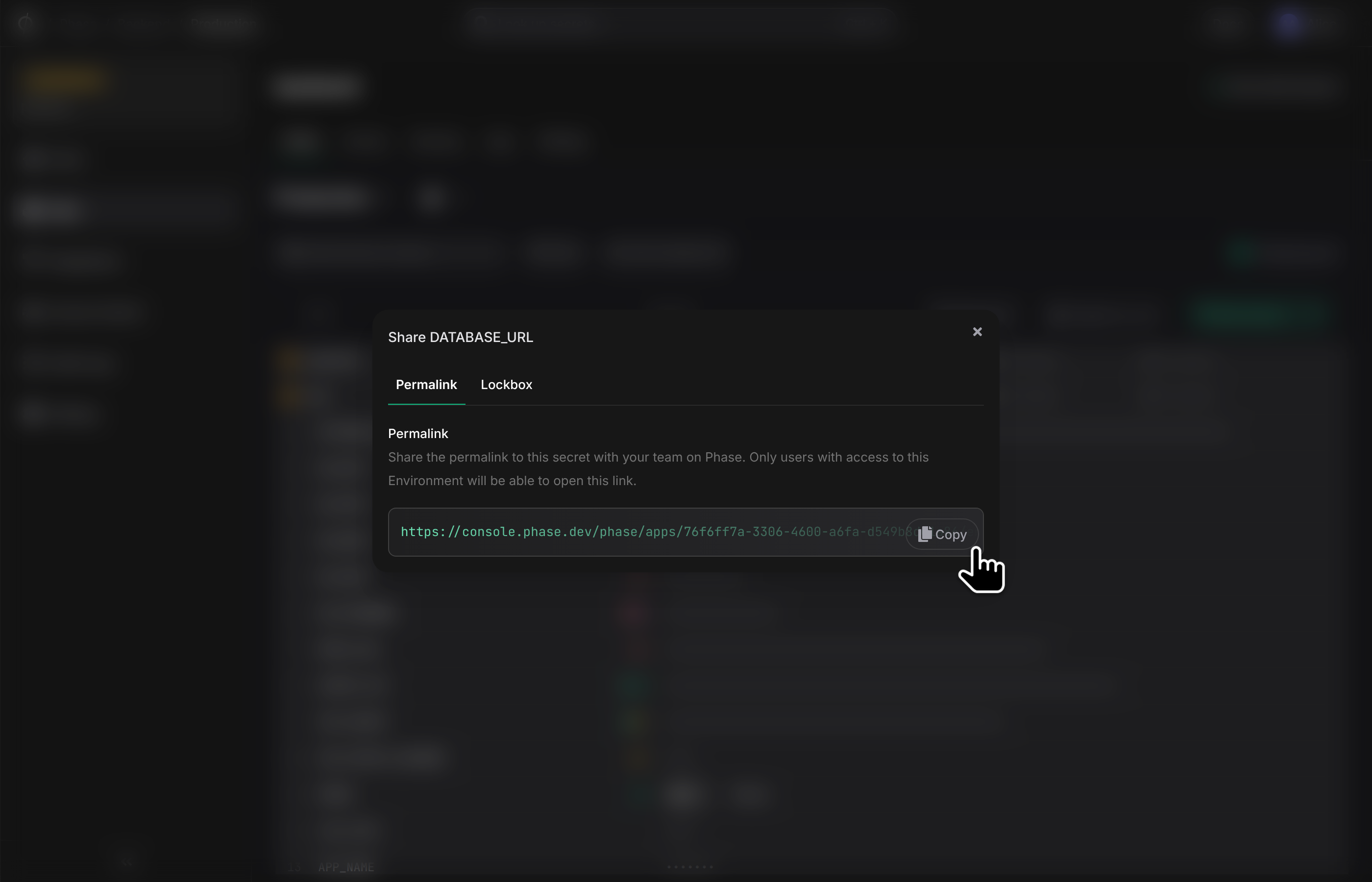
Lockbox
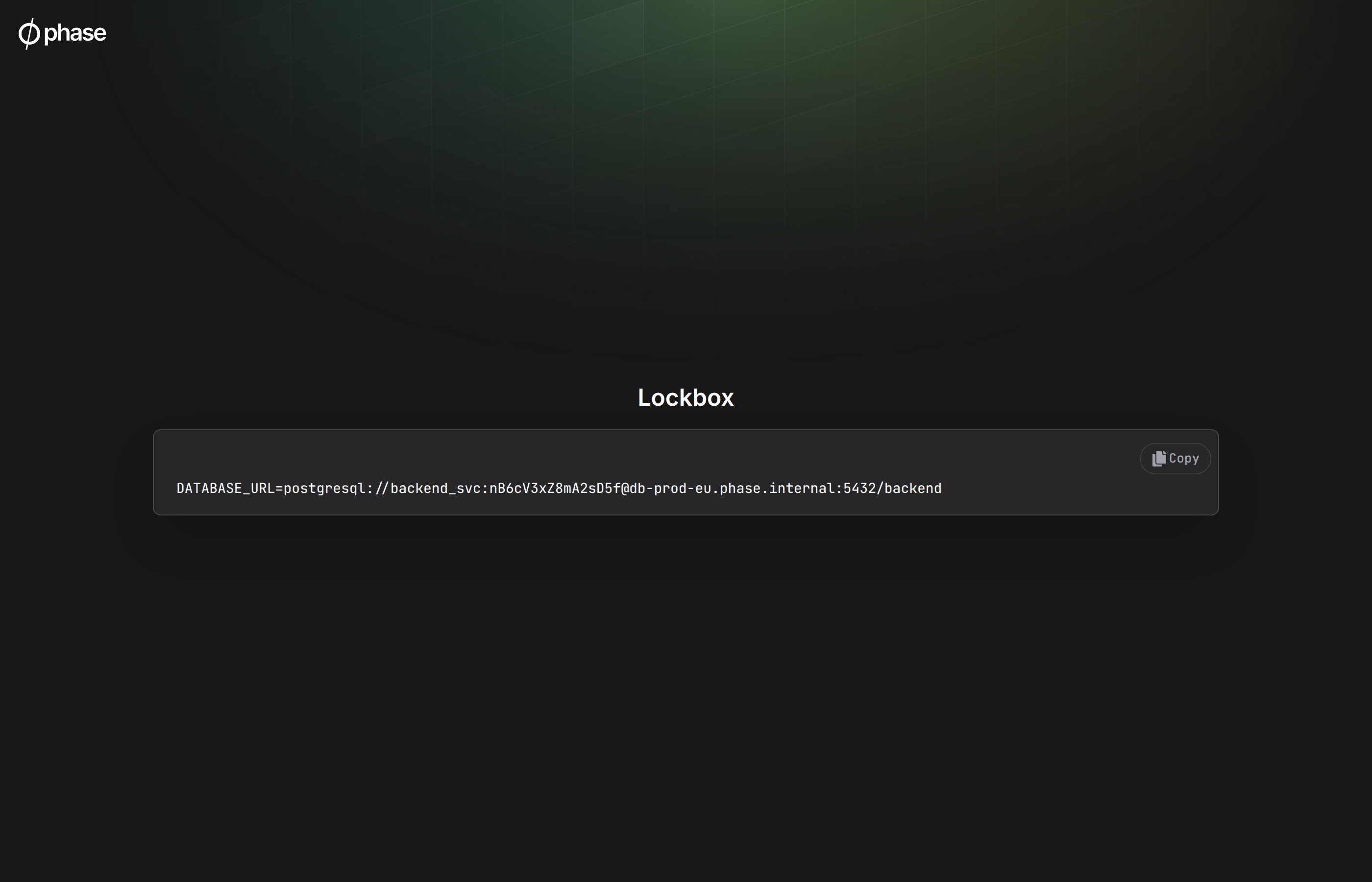
Lockbox allows secrets to be shared via a single link using a "sealed box" with zero-trust encryption. The key that is used to decrypt the secret is encoded as a URL fragment and is not stored in Phase or transmitted to the server. When creating a Lockbox, you will be able to update or override the value of the secret and specify the expiry time and the maximum number of views. Please be mindful that anyone with the link will be able to access the secret.
View Secret history
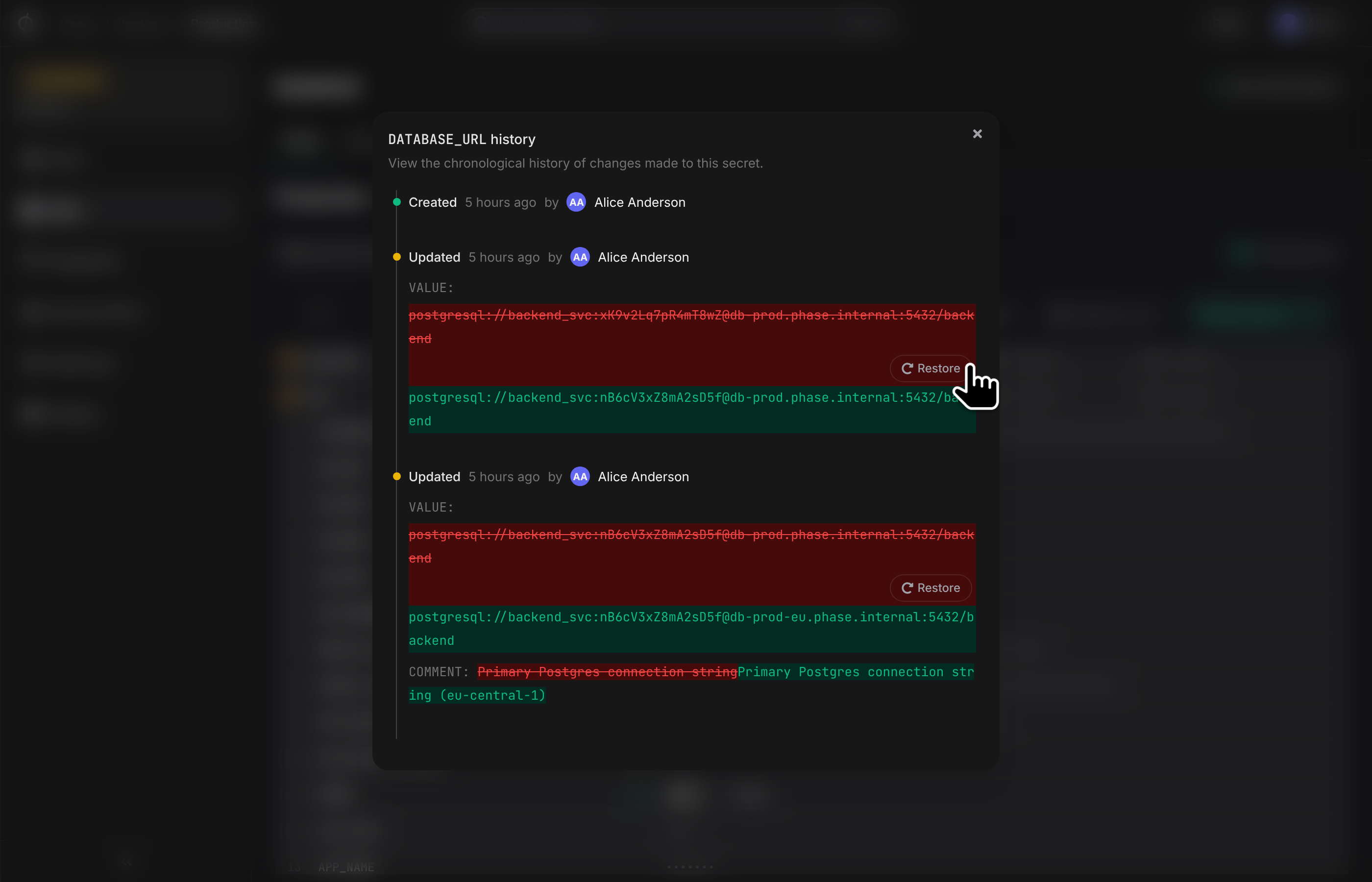
You can view the entire history of a Secret by hovering on the Secret row and clicking the "History" button. This dialog shows a timeline of changes to all properties of this secret, with timestamps and user information for each change.
You can also restore the "Value" of a secret from history by clicking the "Restore" button. This will update the value of the Secret, and will be saved when you next Deploy your changes.
Search for a Secret
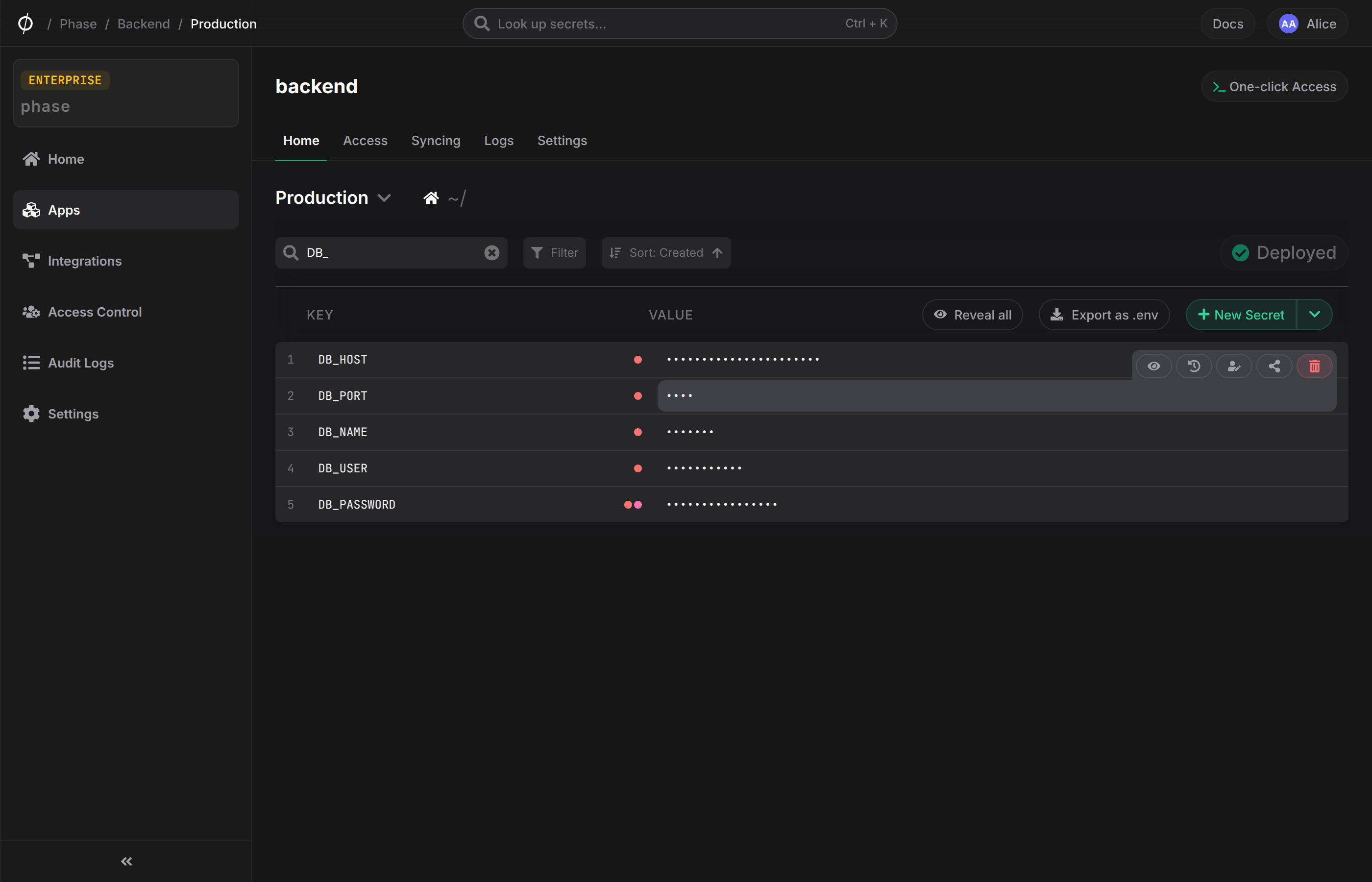
You can search for a secret by typing the secret key into the search bar in a single environment or across all environments in the App Secrets tab. This will filter the list of secrets to only show secrets that match the search query.
Global Secret search
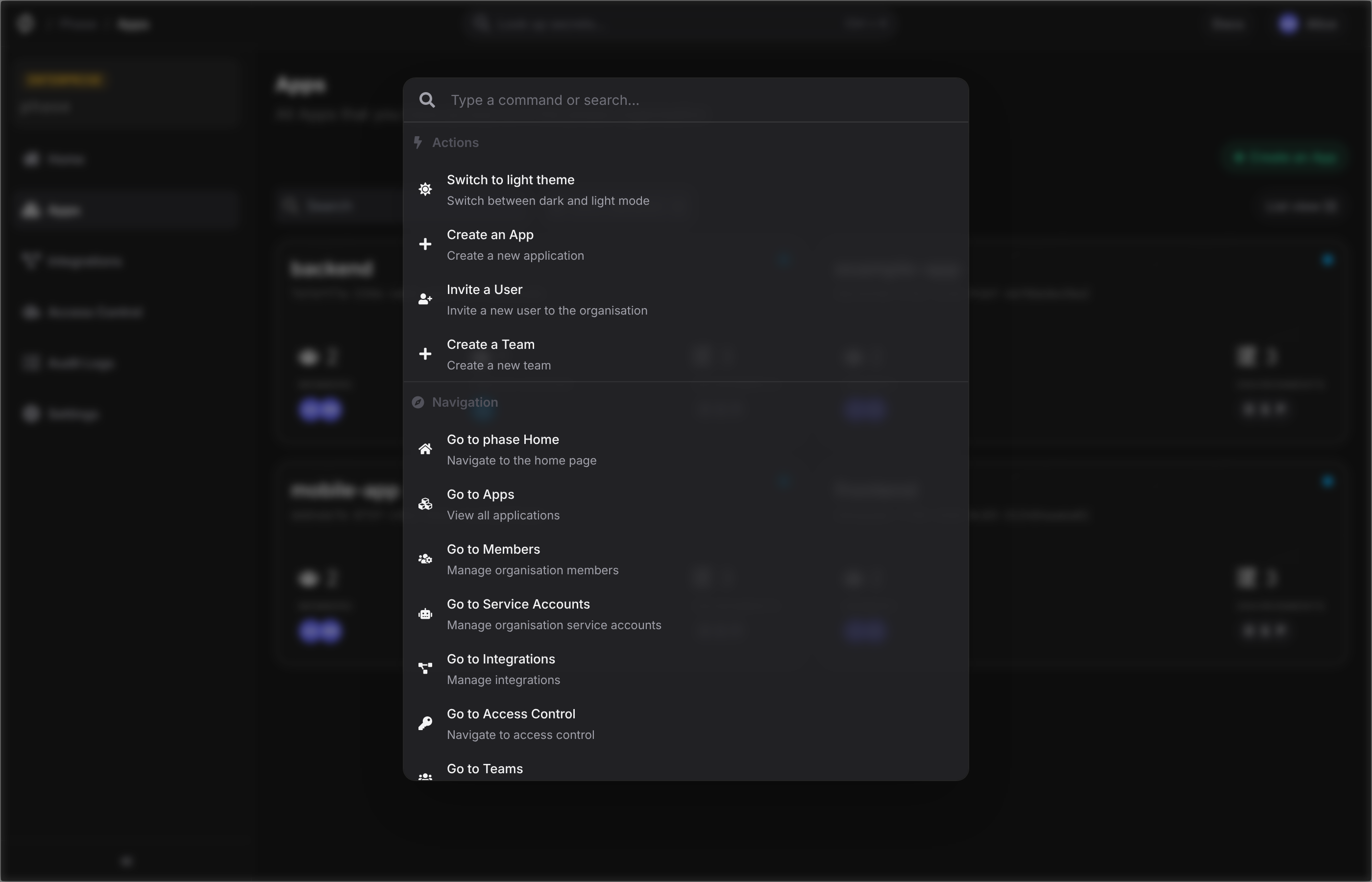
You can also search for secrets across all Apps, Environments, and Folders that you have access to in your organization via the command palette. You will see matching results listed with the App, Environment, and Path context of each secret.
All secret searches are performed client side in your browser regardless of App encryption mode. Secret values are not fetched or decrypted when performing searches.
Update a Secret
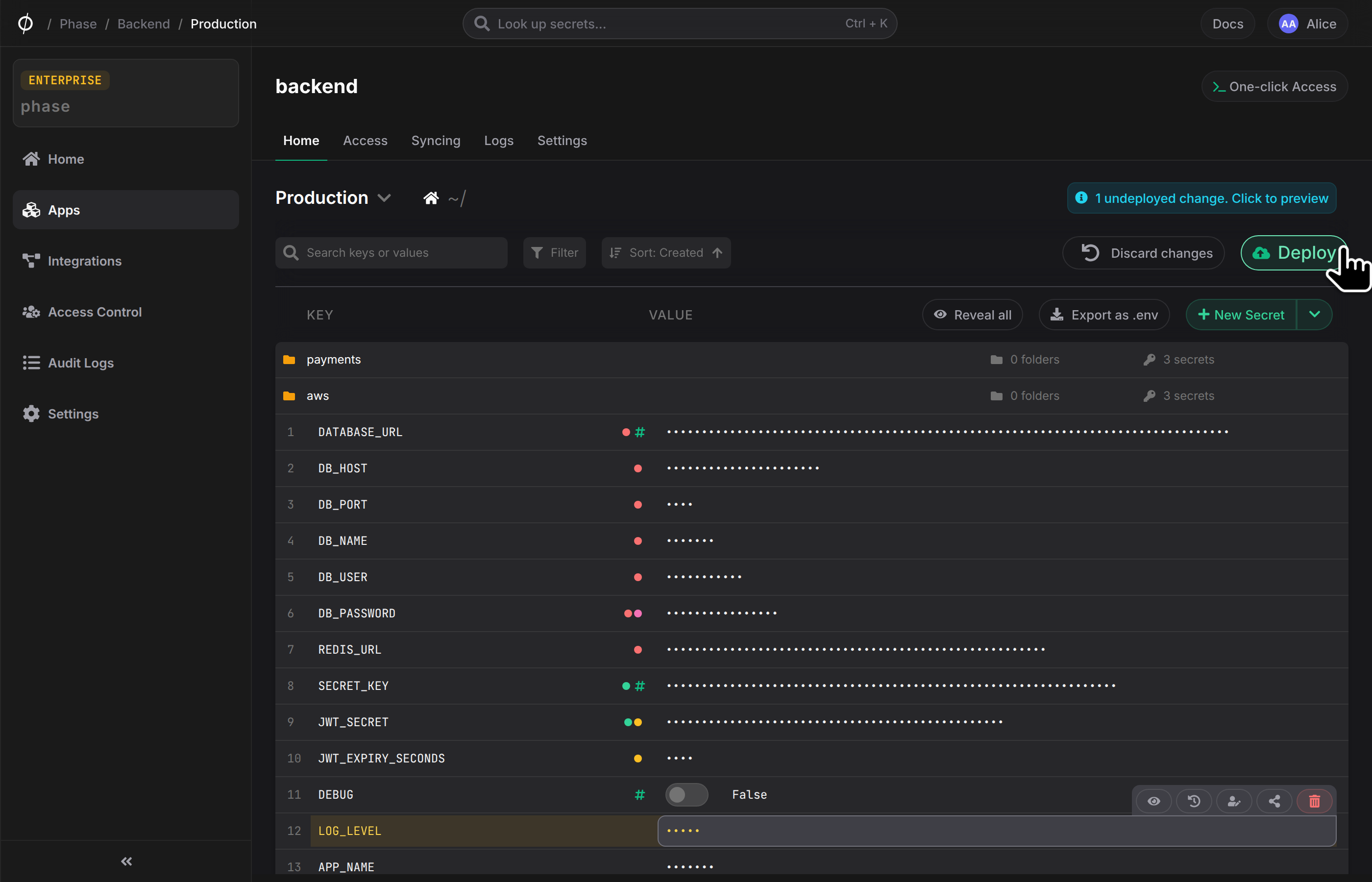
To update the key or value of a secret, simply find the secret row of the secret you wish to update and start typing the new key or value. You may choose to reveal the value of the secret by clicking the "Reveal" button. "Boolean secrets" can be easily flipped between "true" and "false" values with the toggle switch. The existing case of your boolean value will be preserved e.g., True will be flipped to False and vice versa, true will be flipped to false and so forth.
Secrets that have been updated will be highlighted in yellow to indicate that they have been updated. You can update any number of secrets at once. Once finalized, click the "Deploy" button to save your changes.
Delete a Secret
To delete a secret (key & value), simply hover on the Secret row and click the red 🗑️ (trashcan) button at the end of the secret options menu. This will select the secret for deletion. You will see the row being highlighted in red to indicate that it is selected for deletion.
You can select any number of secrets for deletion by clicking the red 🗑️ (trashcan) button on the corresponding secret row. You can also deselect a secret that was selected for deletion by clicking the red restore button. Once finalized, click the "Deploy" button to delete the selected secrets.