Cloudflare Pages
You can use Phase to sync secrets with your Cloudflare Pages.
When secret syncing is enabled, secrets stored inside Phase will be treated as the source of truth. Any secrets on the target service will be overwritten or deleted. Please import your secrets into Phase before continuing.
Prerequisites
- Sign up for the Phase Console and create an App.
- Enable Server-side Encryption (SSE) for the App from the Settings tab.
For security reasons Phase sets the secret type in Cloudflare Pages
environment variables as type Encrypted for additional protection. This
means that you will not be able to see the secret value in the Cloudflare
Pages UI. You can still use the secret in your build commands and environment
variables.
Step 1: Authentication
Get your Cloudflare Account ID
-
Log into the Cloudflare dashboard
-
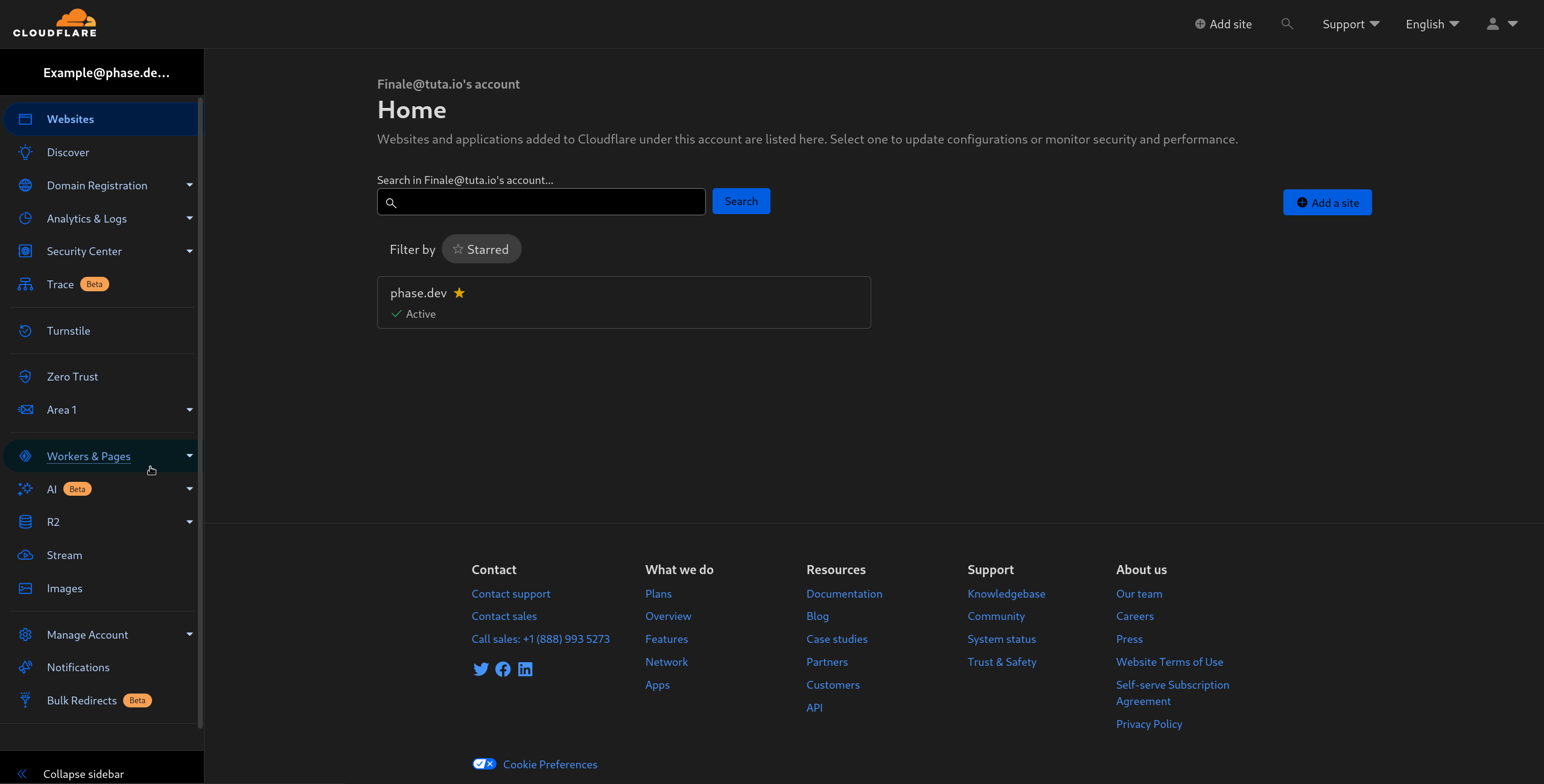
Click on Workers & Pages in the sidebar to the left.
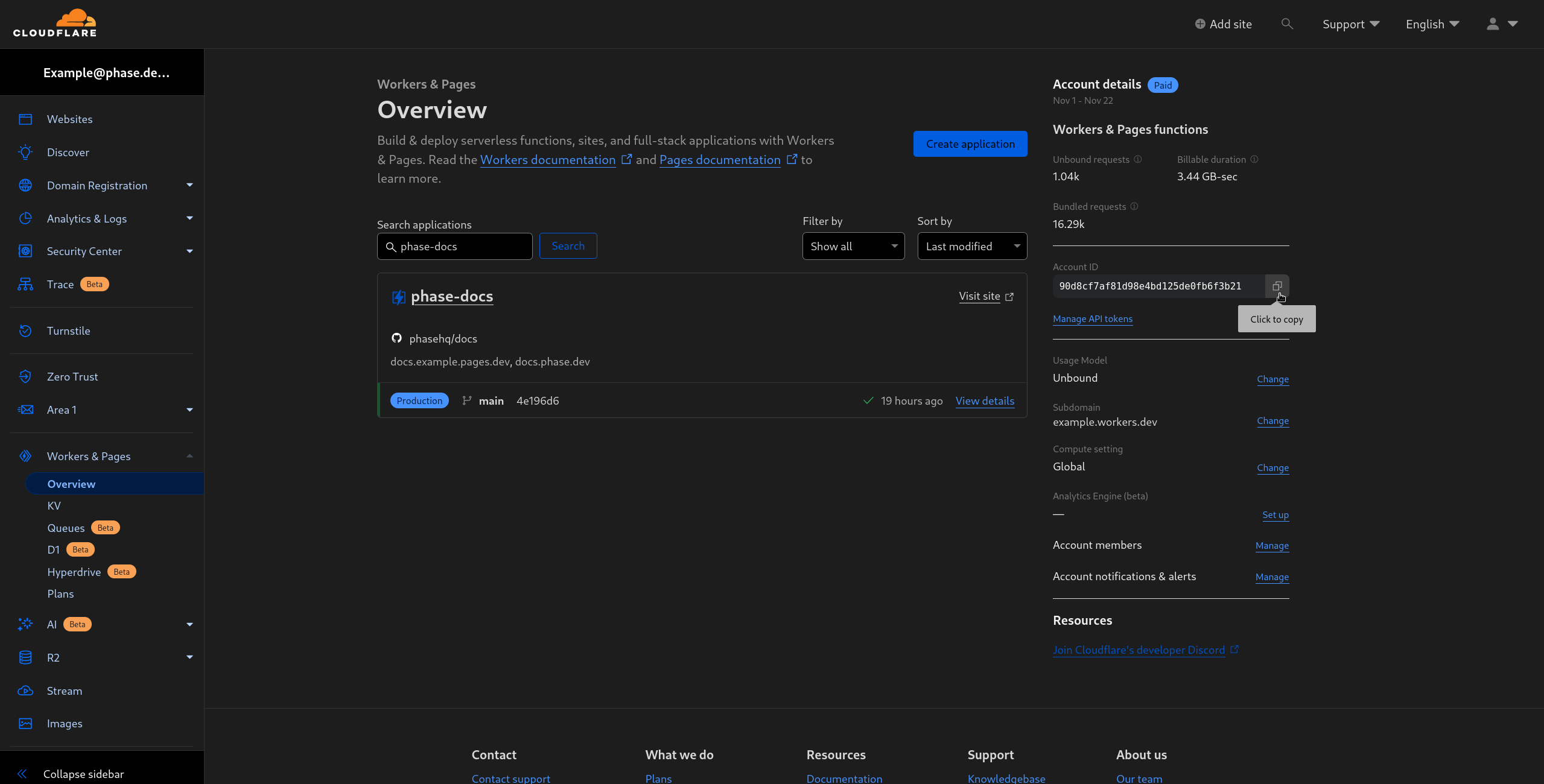
- Copy the Account ID by clicking on the copy button in the Account Details section on the right.
Create a Cloudflare Token
- Go to Cloudflare's API tokens page and click on Create Token

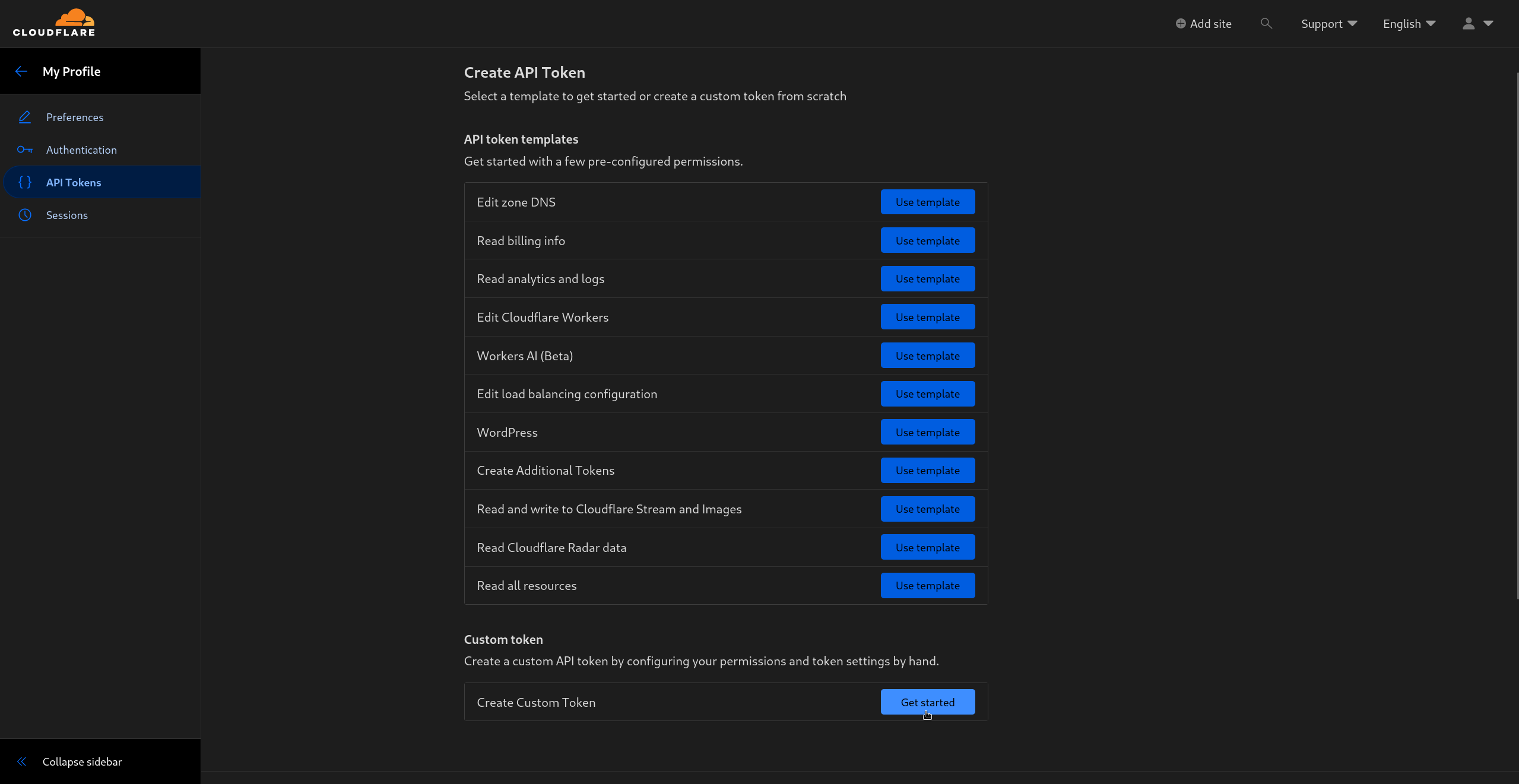
- In the Create API Tokens page, create a Custom Token by clicking on Get started in the Custom token section.
- Give your token a descriptive name and give it Edit access to Cloudflare Pages like in the screen below:
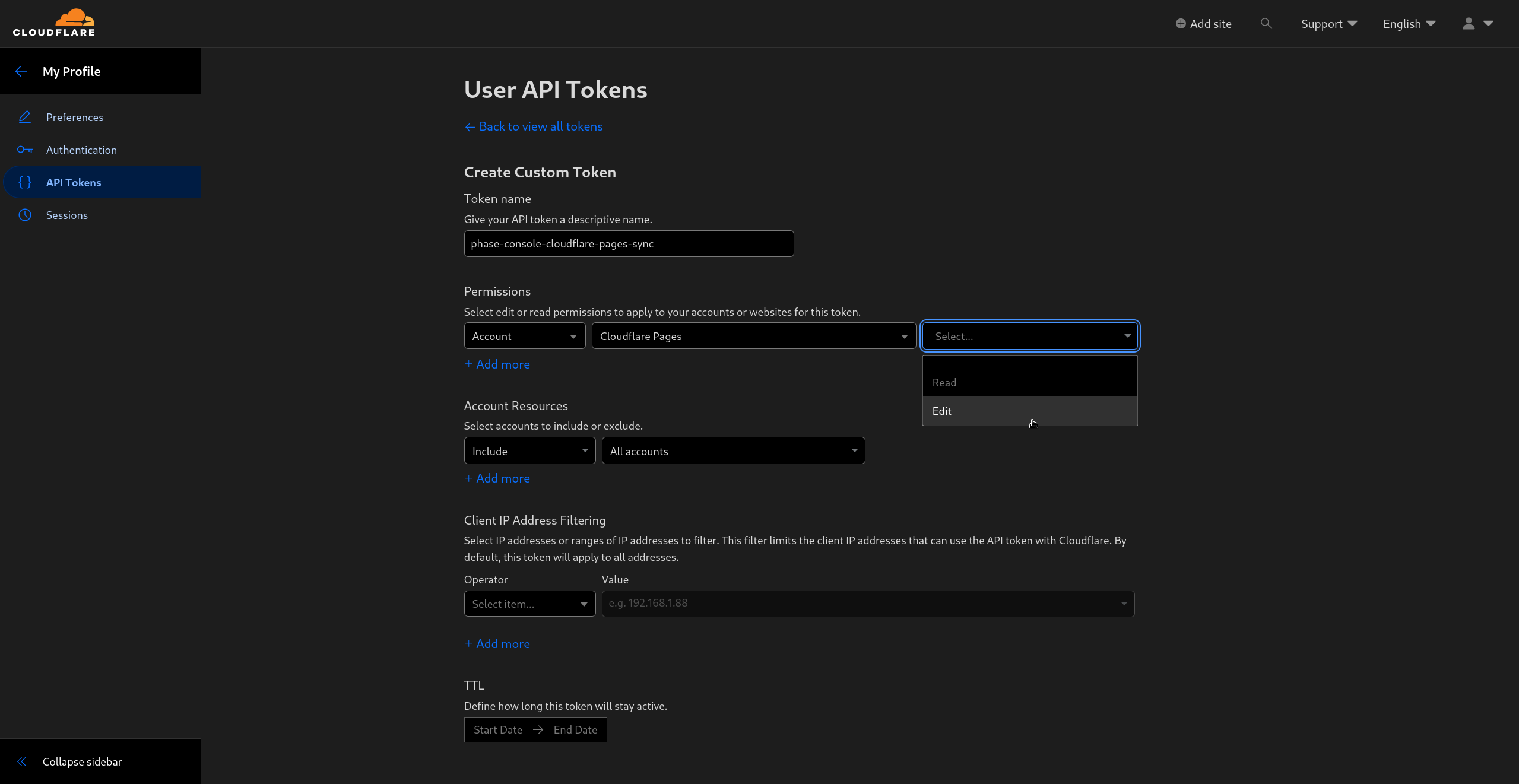
Scroll down and click Continue to summary
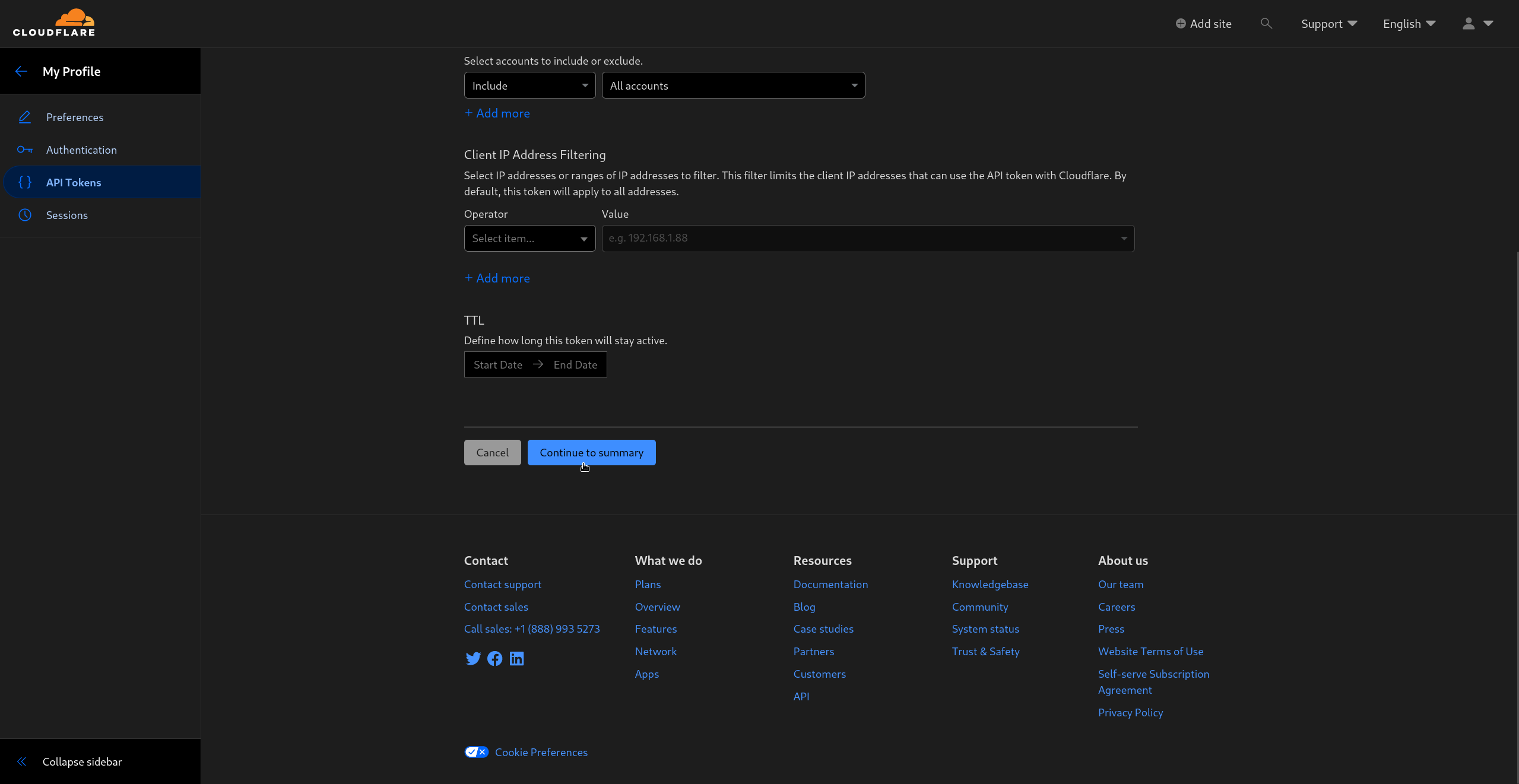
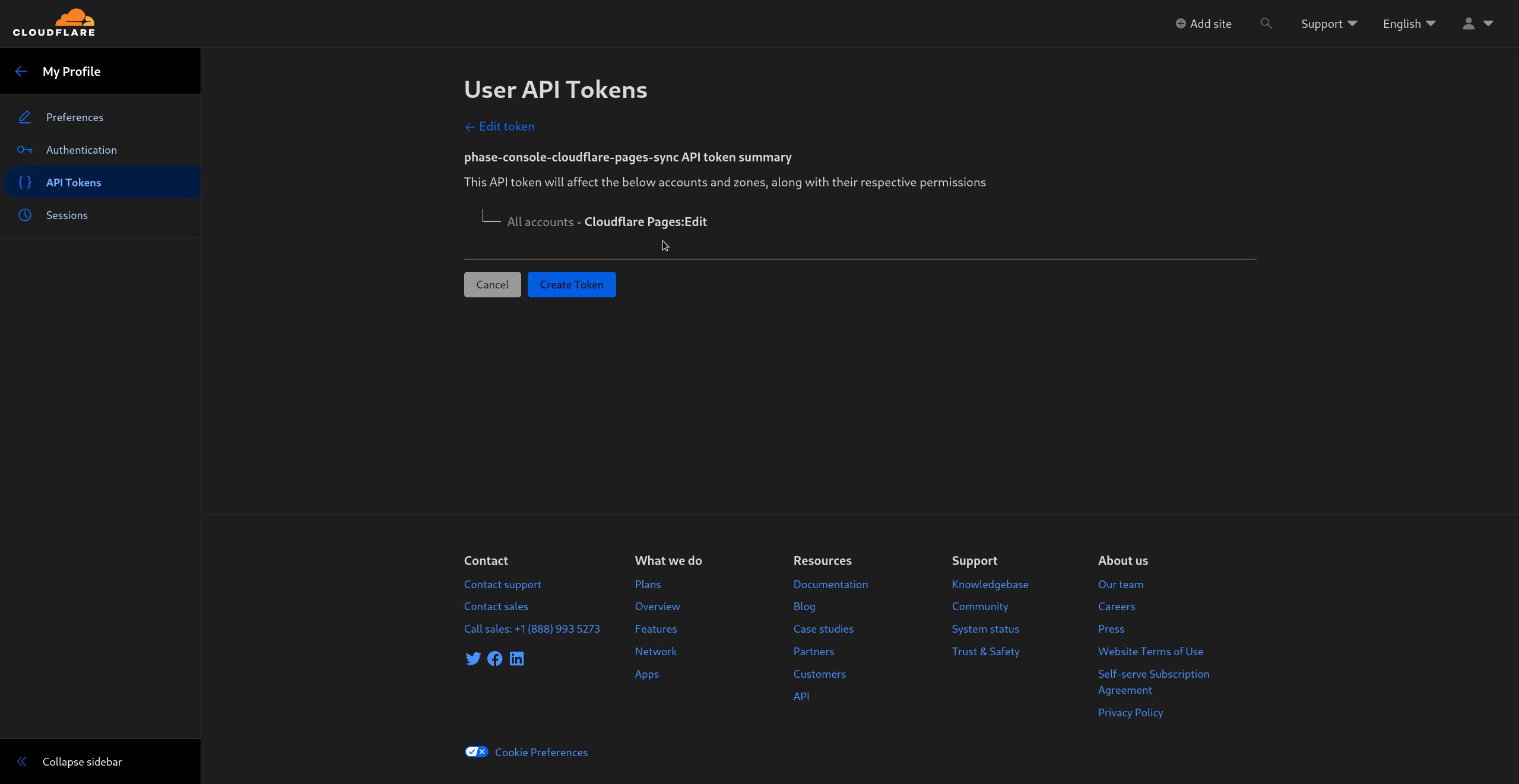
- Confirm the permissions and create the token by clicking on Create token
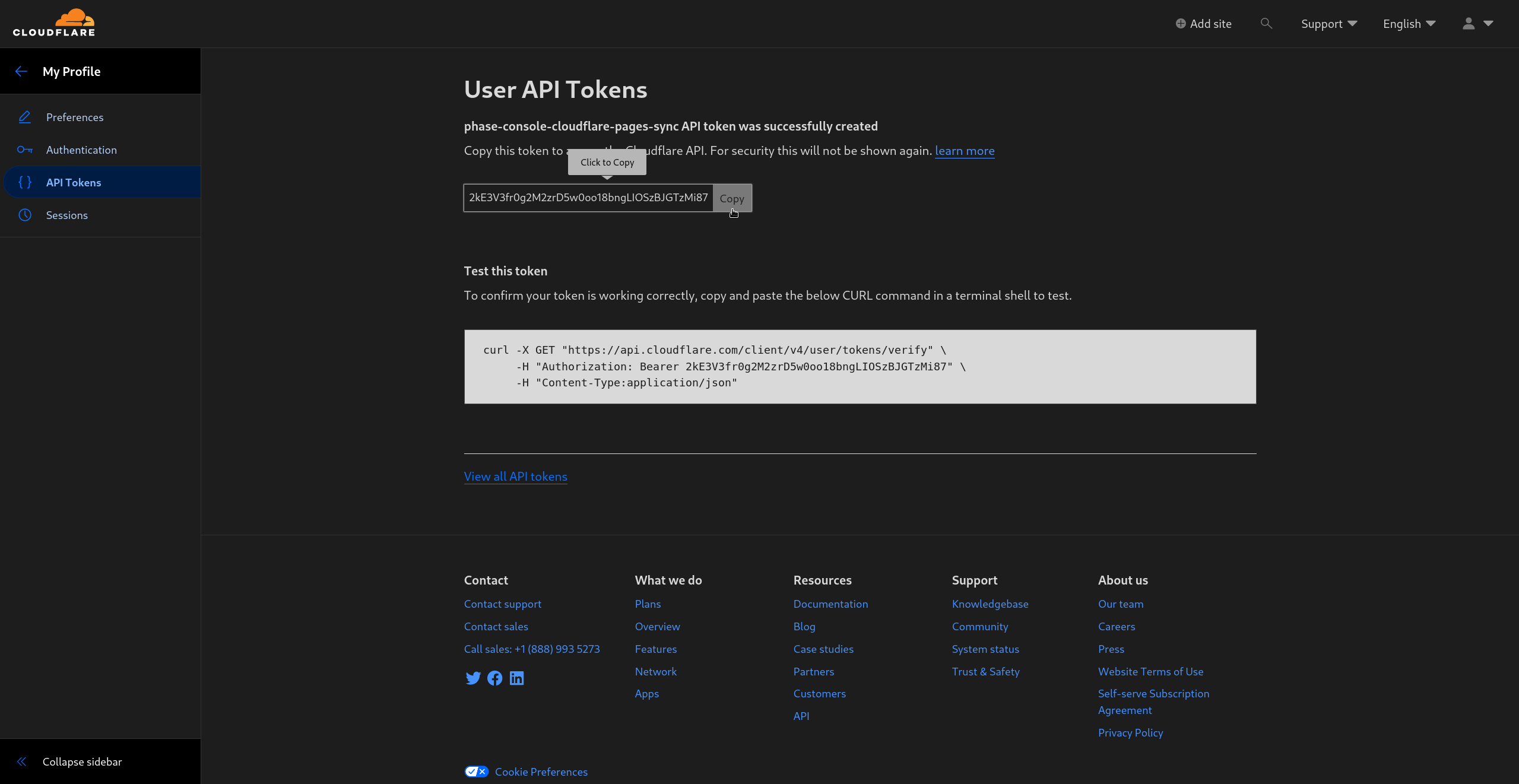
Save your credentials in Phase
- Go to Integrations from the sidebar and click on Third-party credentials in the integrations tab.
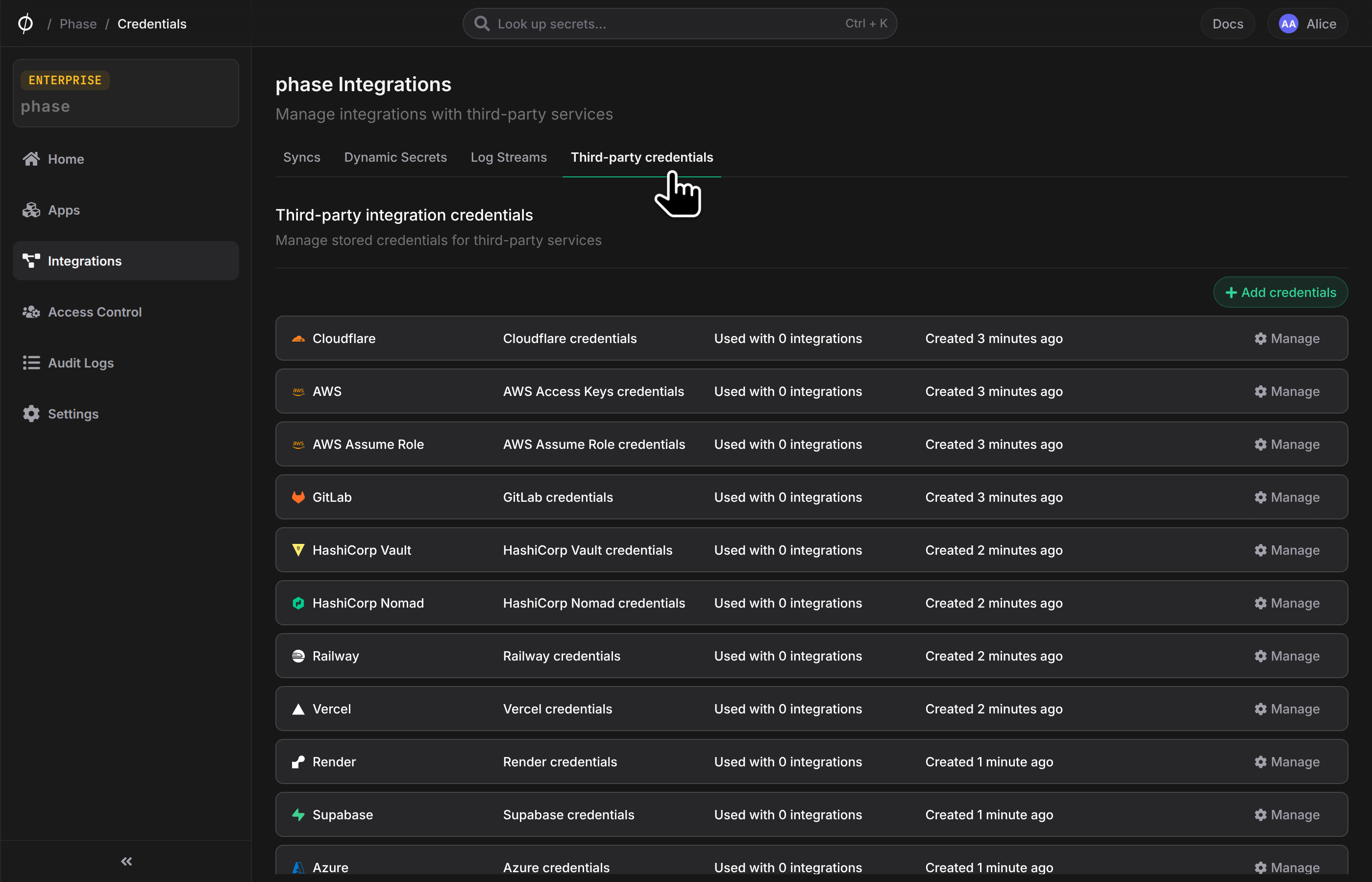
- Click on Cloudflare
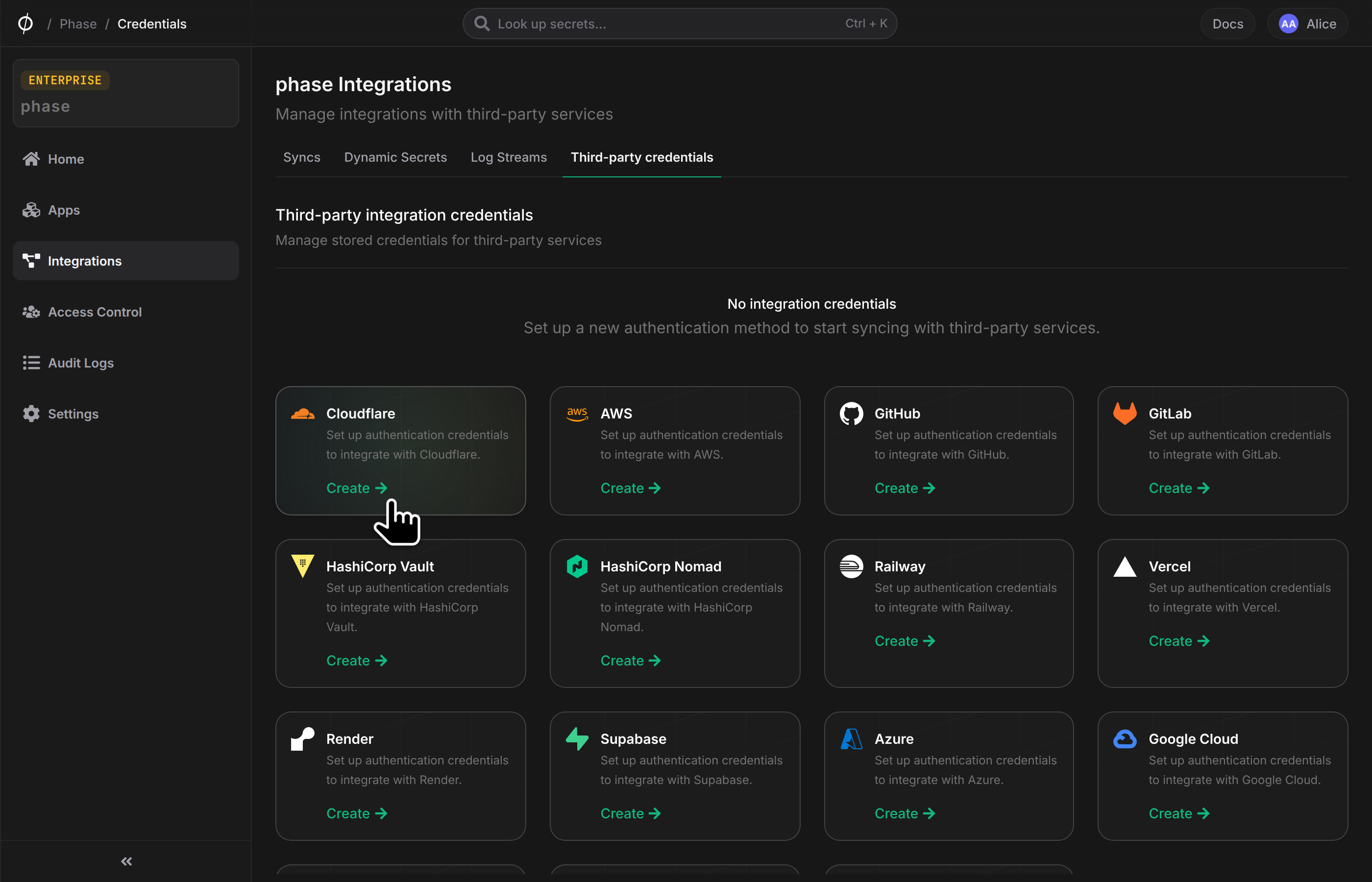
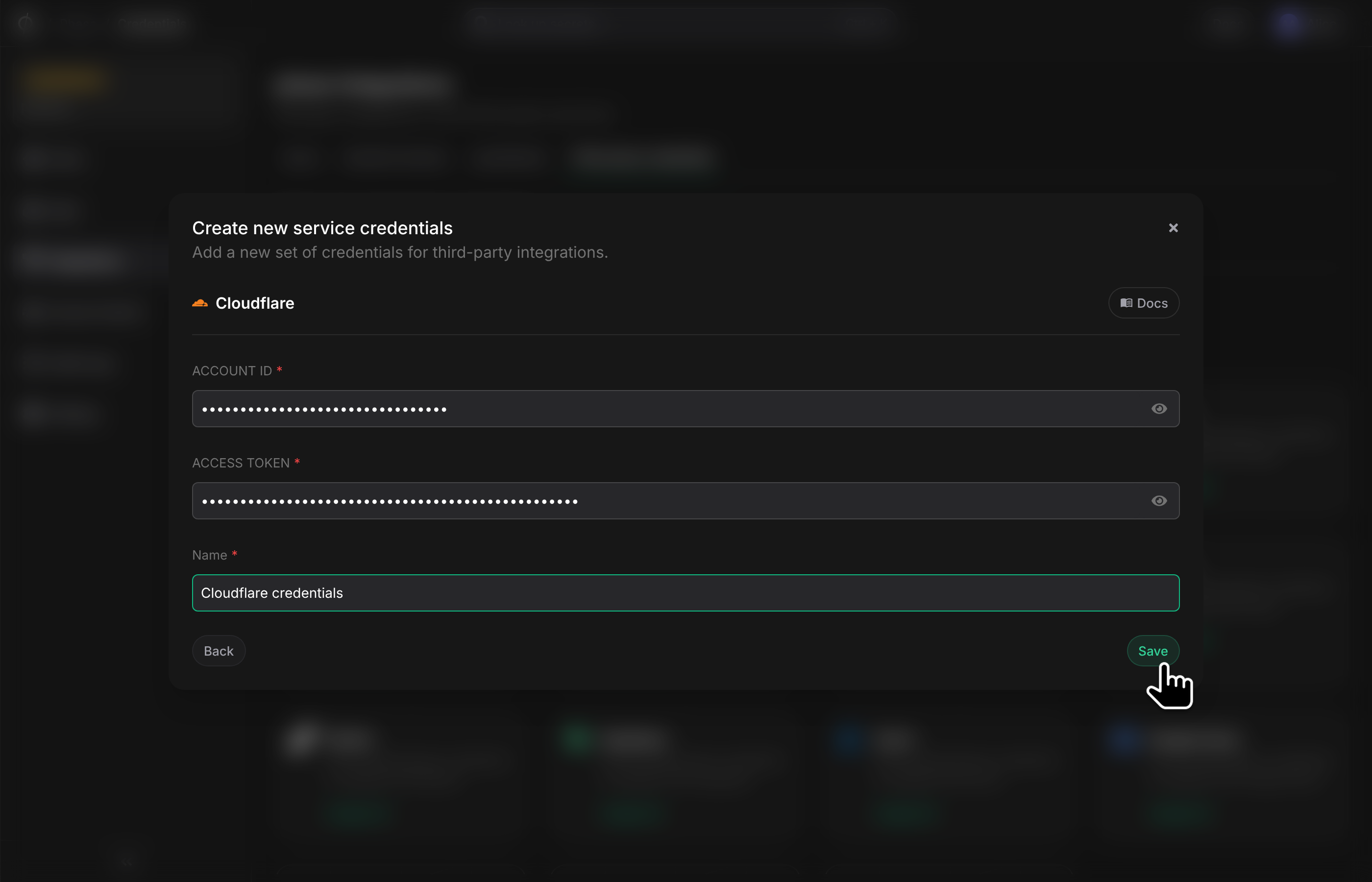
- Copy and paste your
Account IDandAccess tokenfrom the Cloudflare dashboard. Add a descriptive name for these credentials and click Save
Step 2: Sync Secrets from Phase
Now that you have set up your Cloudflare account with Phase, you can start creating Syncs to manage your Cloudflare Pages sites.
Create Sync
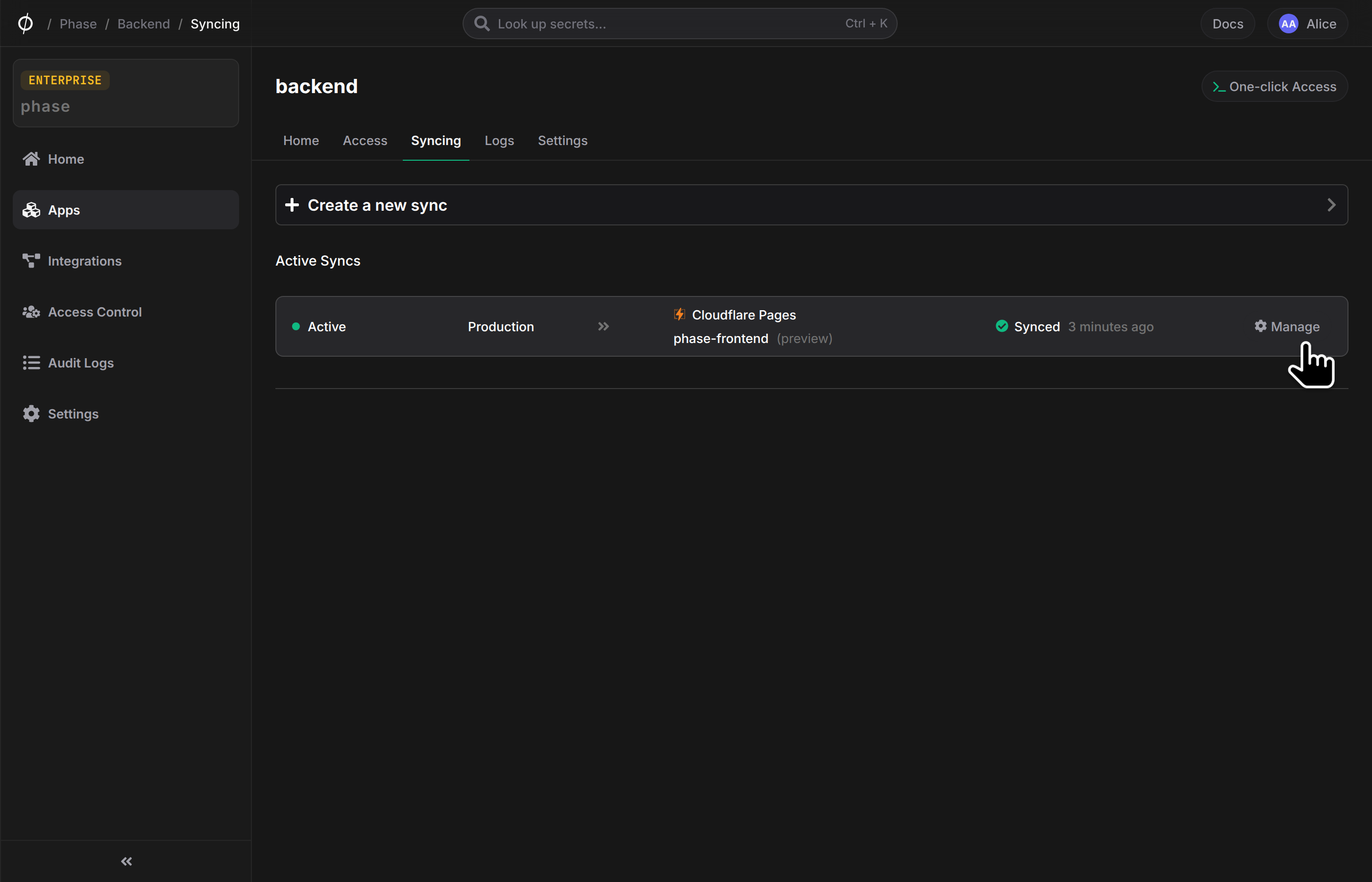
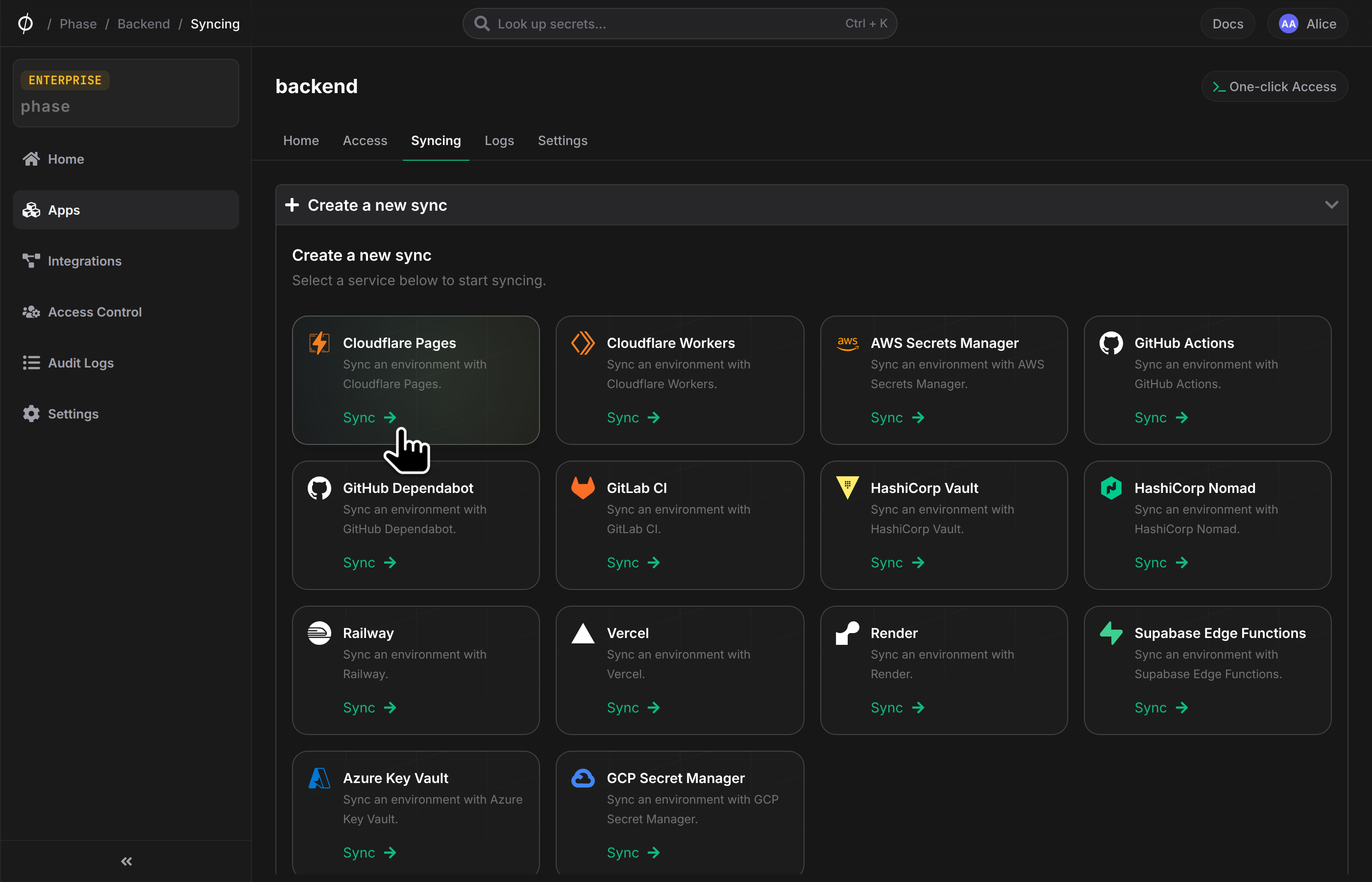
- Select Cloudflare Pages under the 'Syncing' tab.
- Select the credentials stored in the previous step as the authentication method for this sync, and click Next
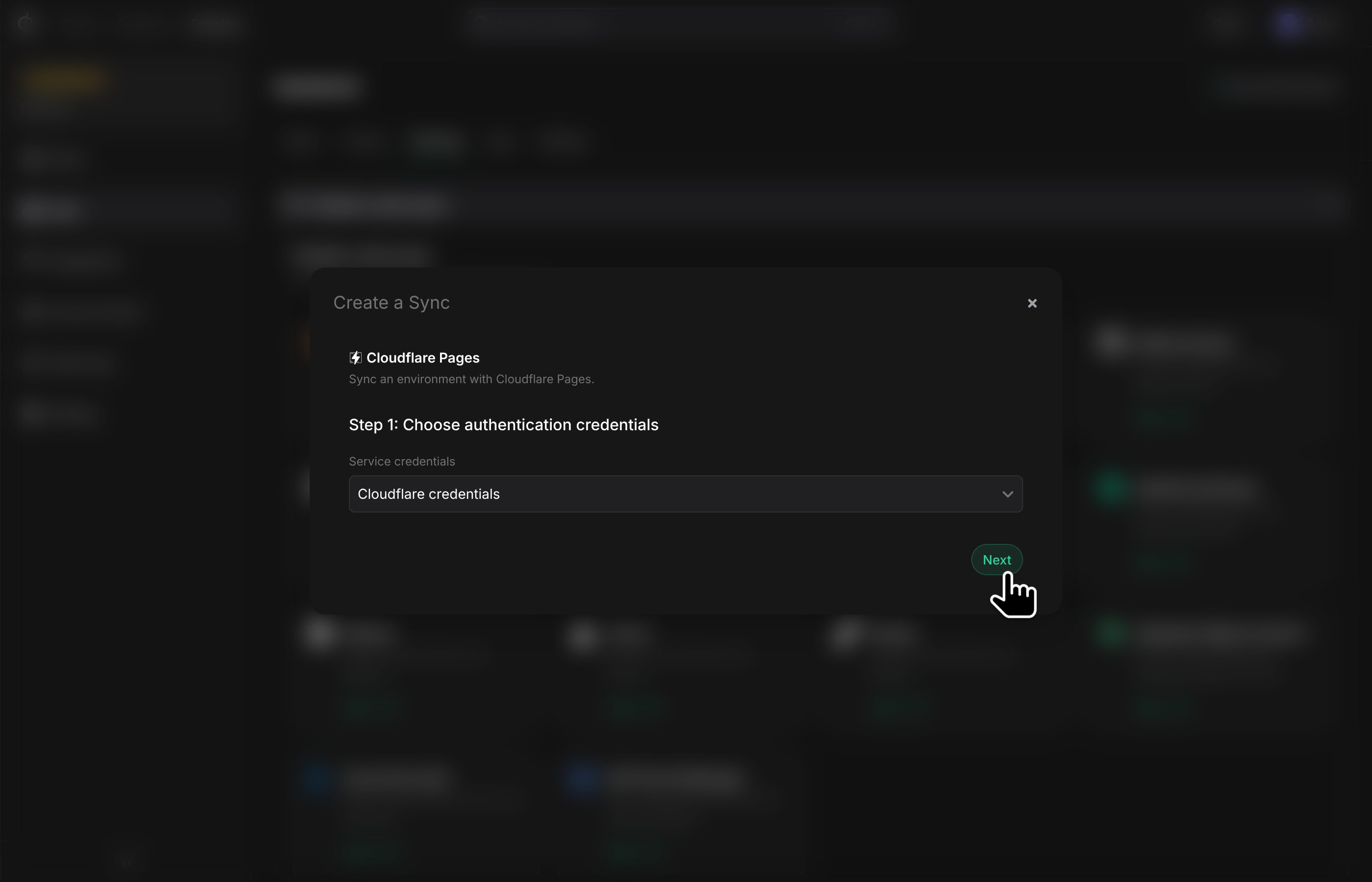
If you see an error message and cannot proceed to the next screen, it is most likely an issue with the Account ID or Access Token. Verify that you created the Cloudflare credentials correctly and update them from the Integrations screen if needed.
- Choose the source and destination to sync secrets. Select an Environment as the source for secrets along with the Path if you have a specific folder you want to sync from. Next, select your Cloudflare Pages project from the 'Cloudflare project' field, and select either the 'Preview' or 'Production' environment. Once you have selected your desired source and destination, click Create.
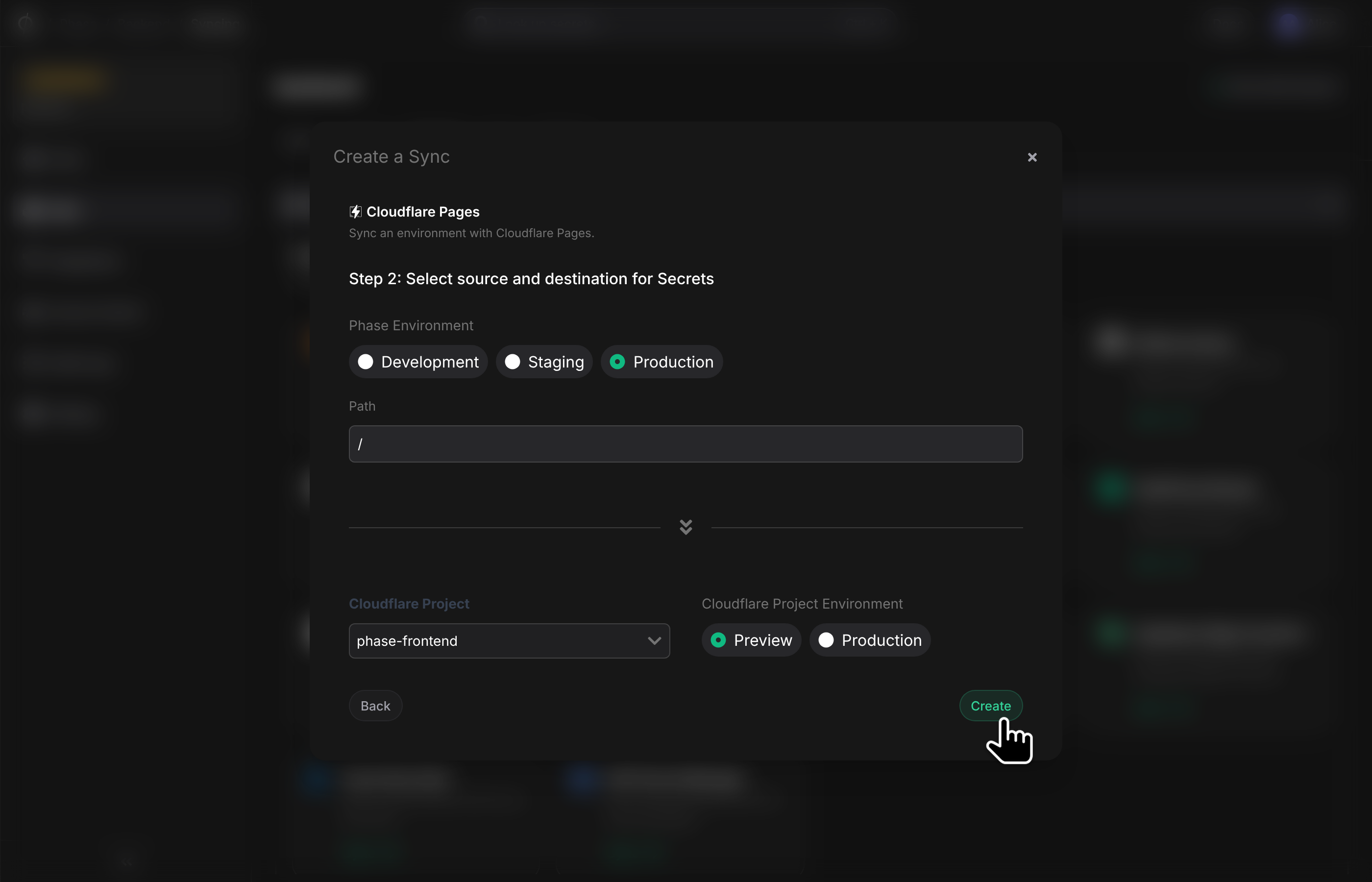
The sync has been set up! Secrets will automatically be Synced from your chosen Phase Environment to the Cloudflare pages project. You can click on the Manage button on the Sync card to view sync logs, pause syncing or update authentication credentials.