Two-Factor Authentication (2FA)
Phase supports two-factor authentication using time-based one-time passwords (TOTP) with any standard authenticator app. Once enabled, every Console sign-in to your account (password, OAuth, or SSO) requires a 6-digit code from your authenticator in addition to your primary sign-in method.
Two-factor authentication protects Console sign-in only. Personal access tokens, service account tokens, and CLI, API, and SDK access are not affected: existing and new tokens keep working without a code.
Enable 2FA
-
Open the user menu in the top right corner of the Console and click your profile card to open the Account page.
-
Under Two-factor authentication, click Enable. You may be asked to confirm it's you first: sensitive account changes require a recent session. You are returned to setup after signing in again.
-
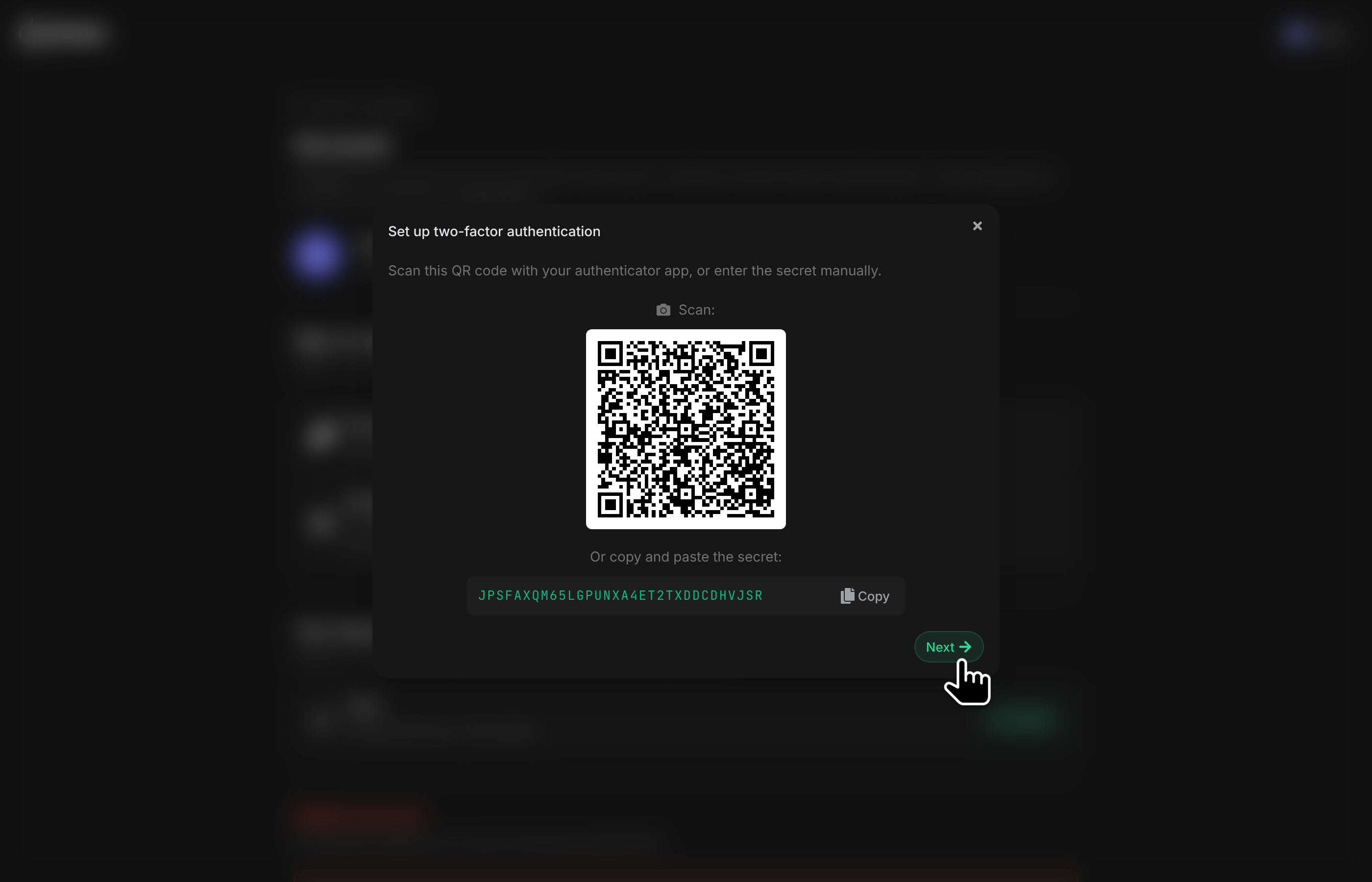
Scan the QR code with your authenticator app, or copy the setup secret shown below the QR code and add it manually.
-
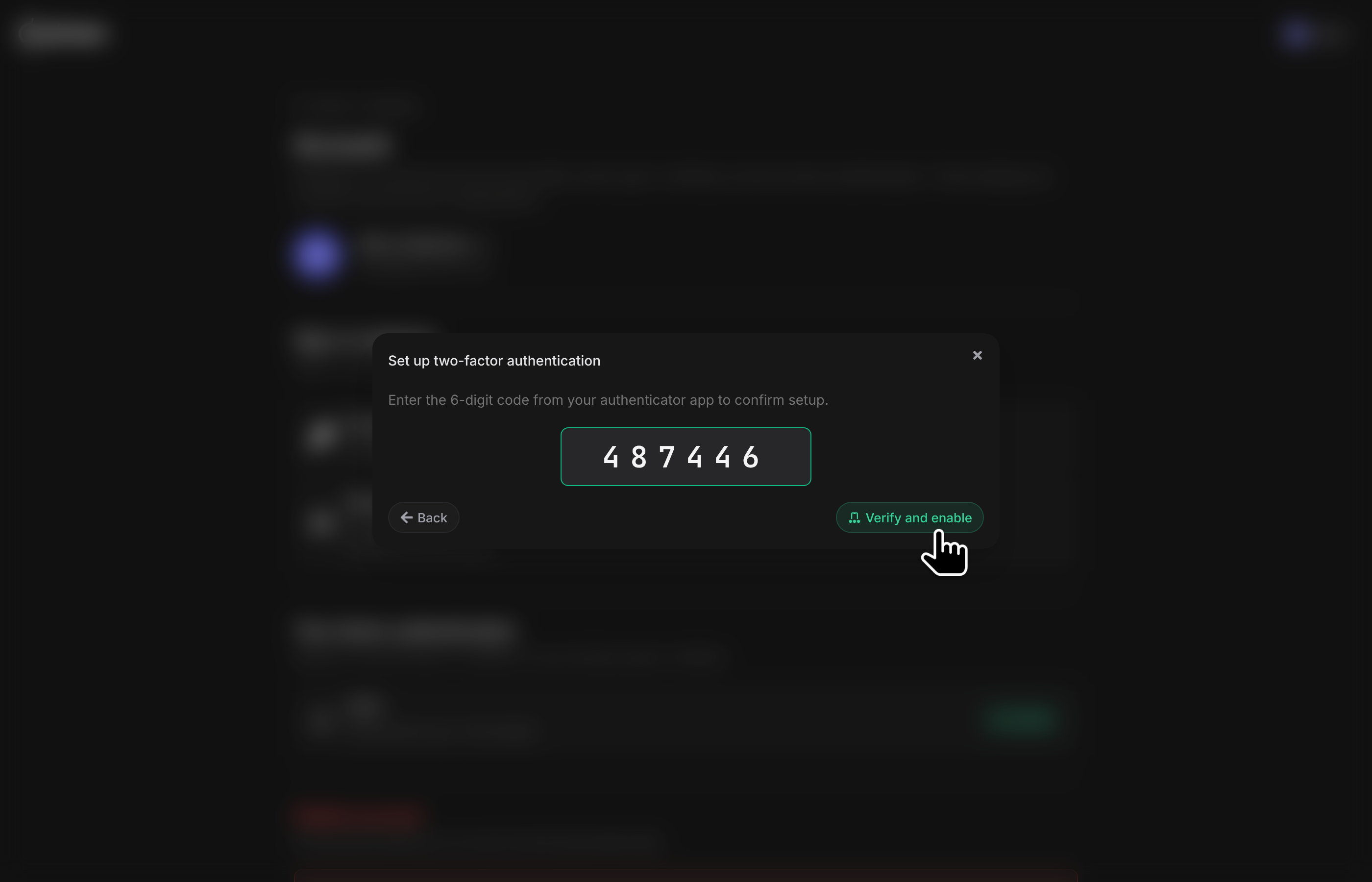
Enter the 6-digit code from your app to confirm. 2FA is only activated once a code has been verified.
-
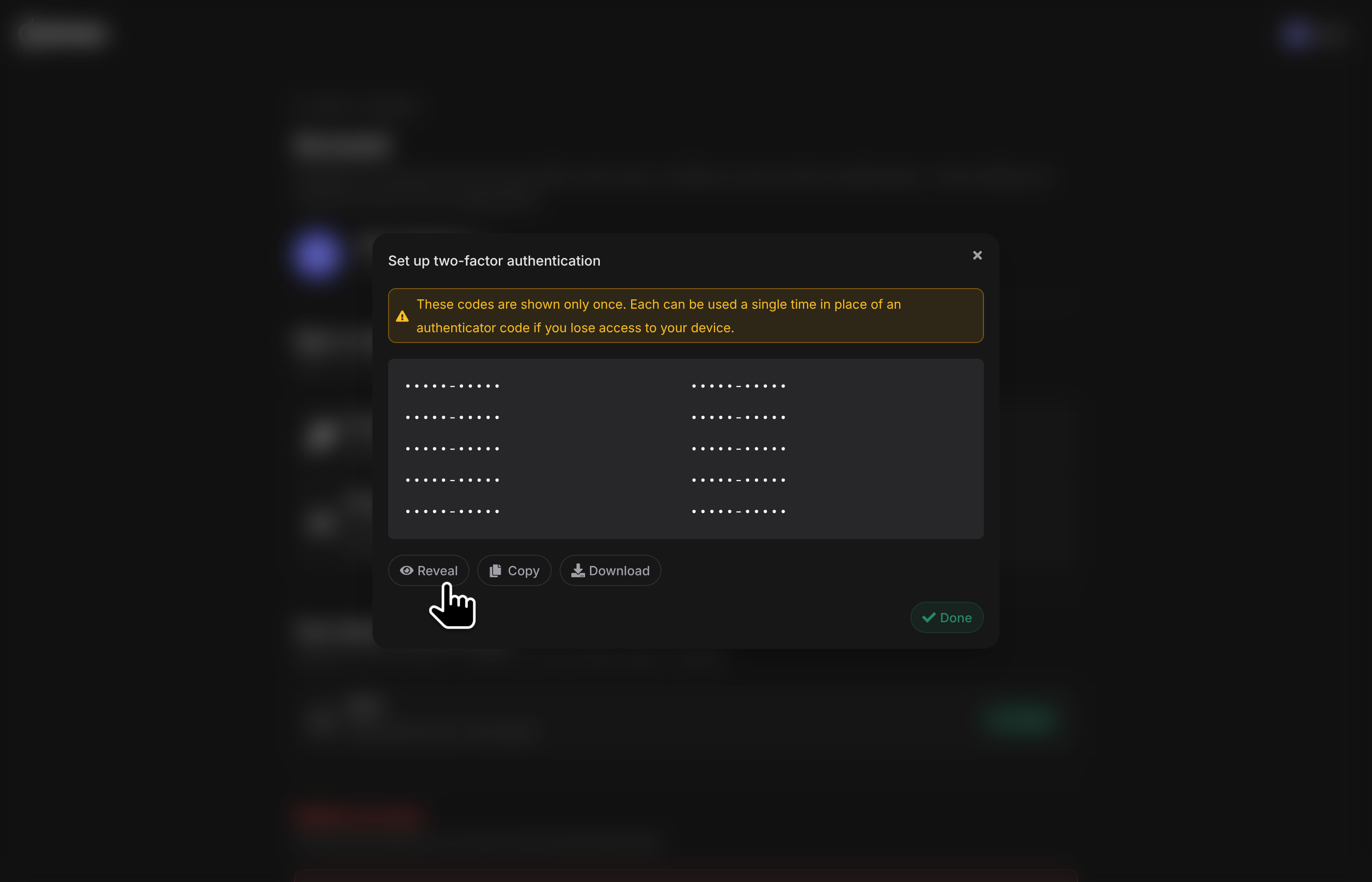
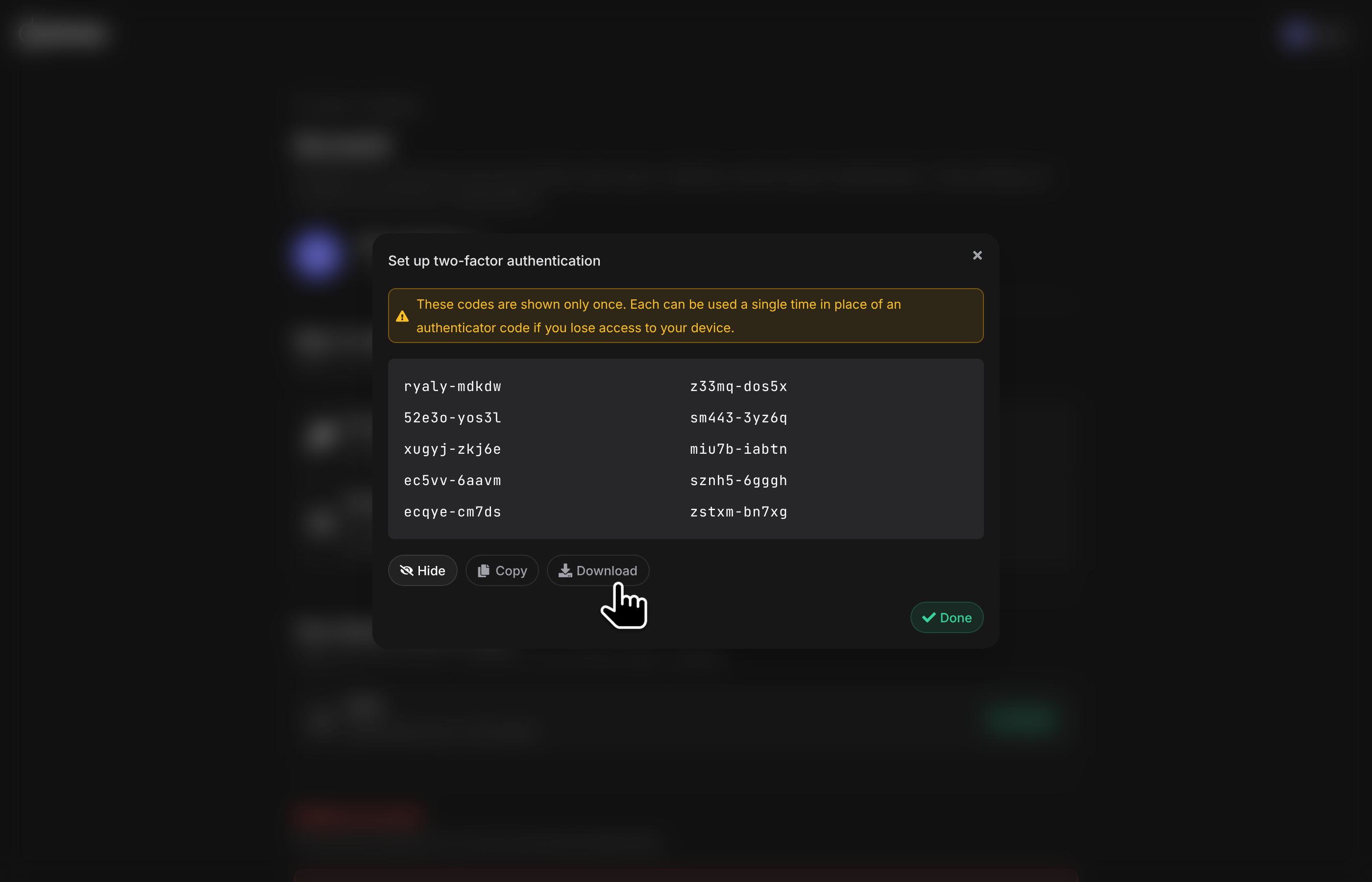
Save your recovery codes: reveal, copy, or download them before finishing. They are shown only once.
Once enabled, the Account page shows the TOTP status and your remaining recovery codes.
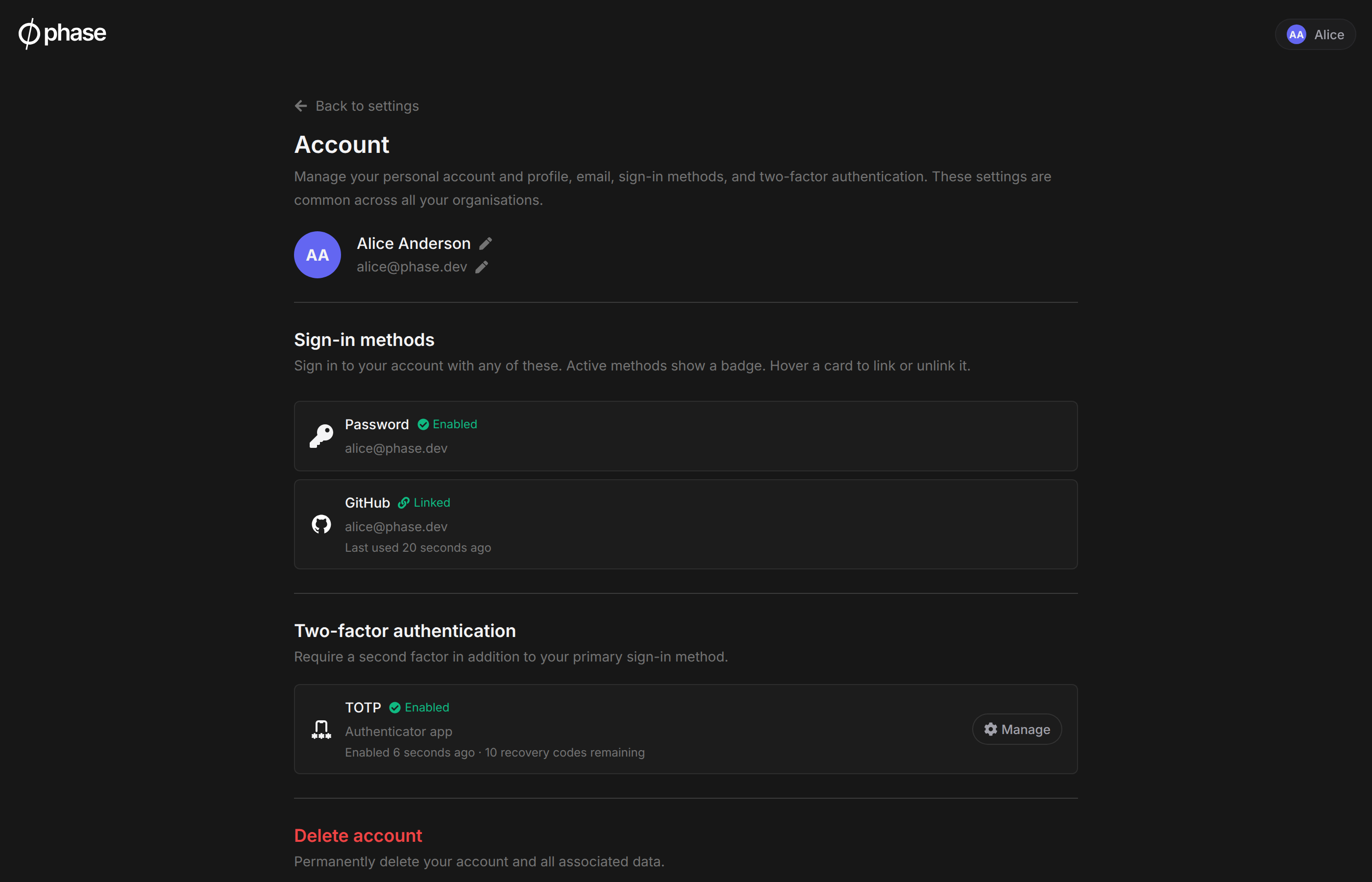
Phase sends you an email notification when 2FA is enabled, when it is disabled, and when you regenerate your recovery codes.
Signing in with 2FA
After your primary sign-in method succeeds (entering your password, or completing the OAuth/SSO round trip), Phase prompts for a 6-digit code from your authenticator app. The code is accepted with a small clock-skew tolerance (one 30-second step in either direction), and each code can only be used once.
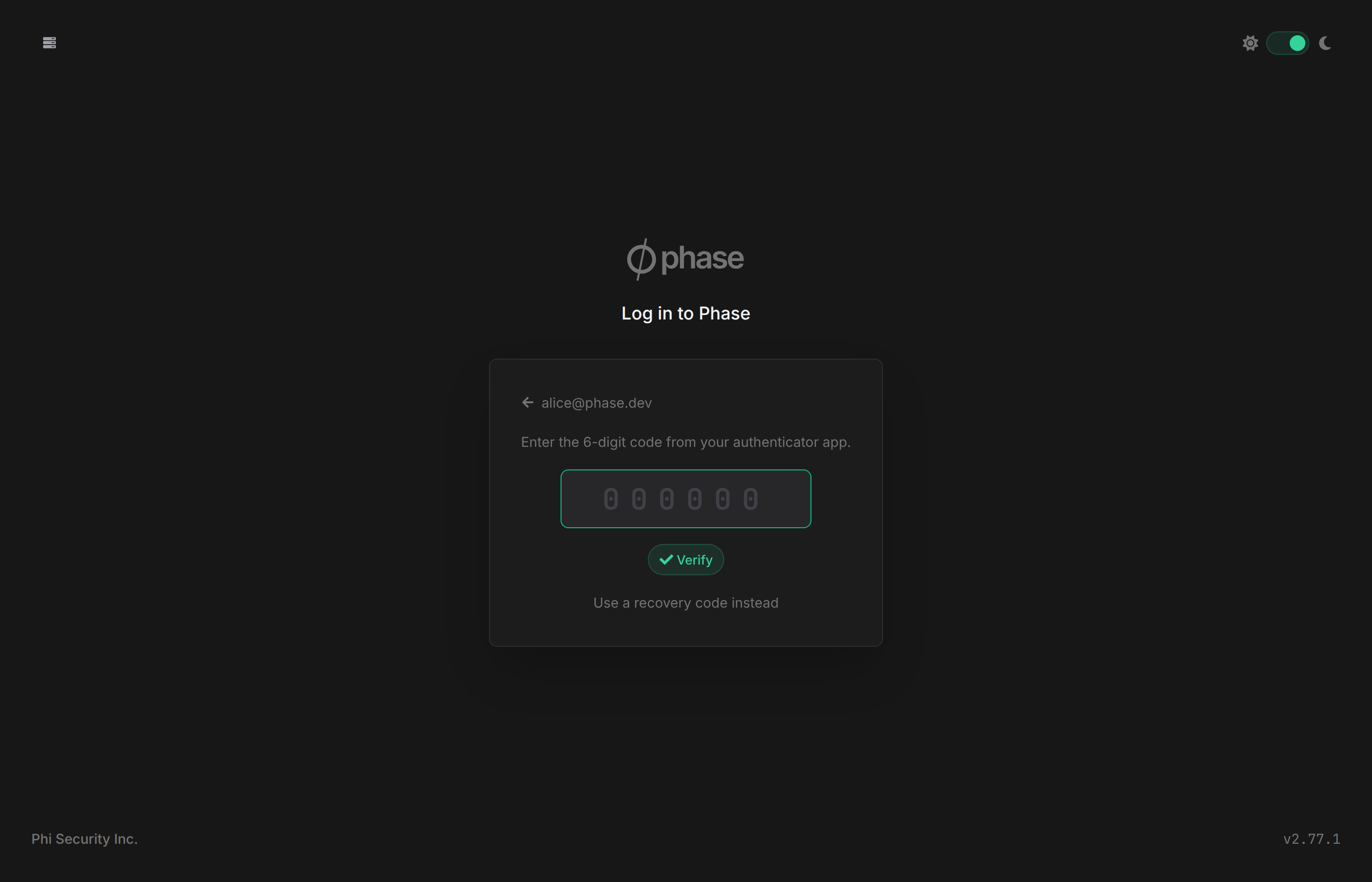
2FA applies uniformly to all of your sign-in methods, including organisation-level SSO. If your identity provider also performs its own MFA, you will complete both. Phase does not skip its challenge based on upstream MFA claims.
Enter the code within 10 minutes of your primary sign-in. After that the challenge expires and you sign in again from the start.
After 10 incorrect codes, verification is locked until 15 minutes after the first failed attempt.
Recovery codes
When you enable 2FA, Phase generates 10 single-use recovery codes. Each can be used once in place of an authenticator code (including at sign-in via the Use a recovery code option) if you lose access to your device.
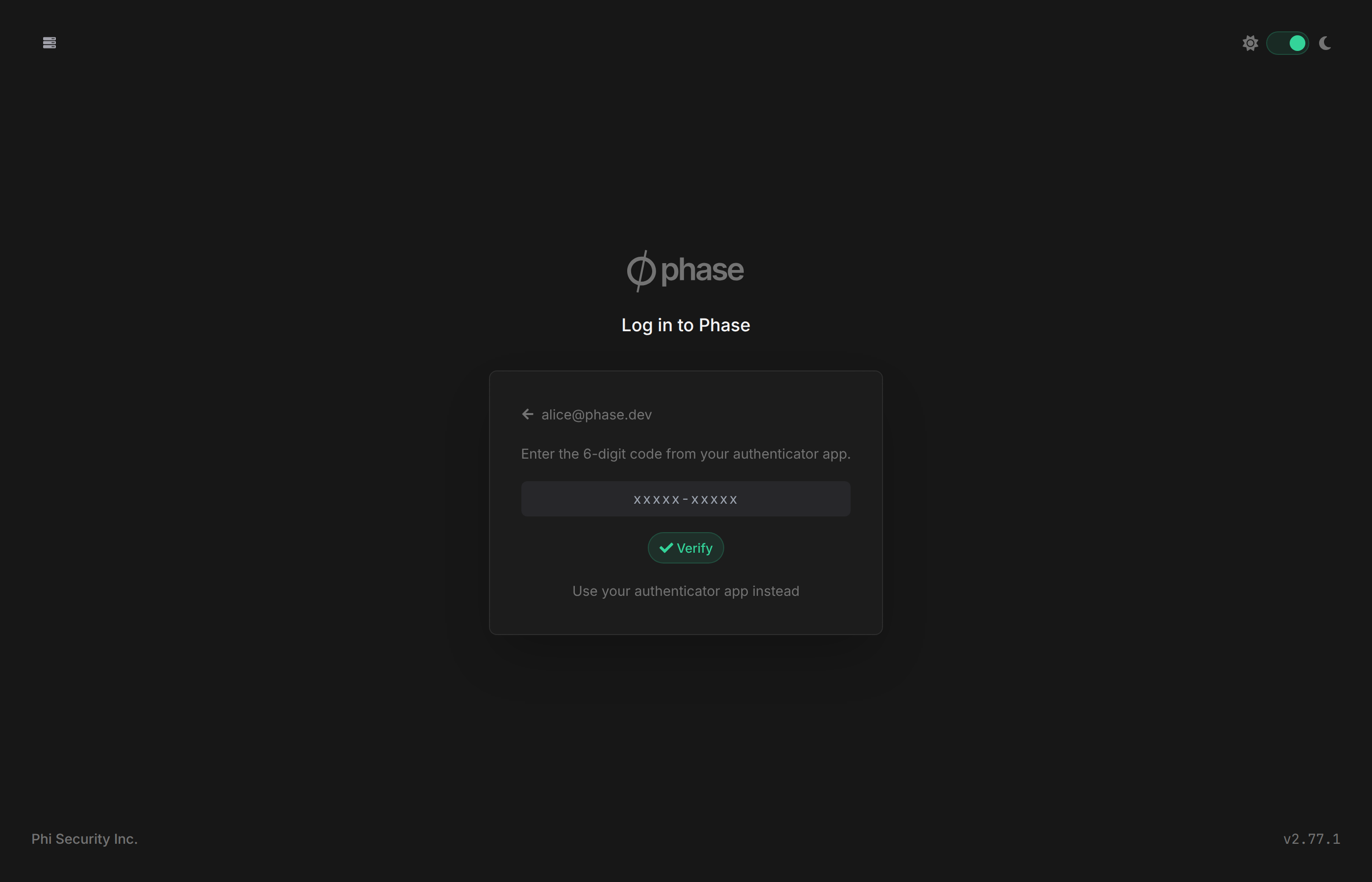
- Store them somewhere safe (a password manager or printed copy). They are displayed only at generation time.
- Your remaining code count is shown on the Account page, with a warning when you are running low.
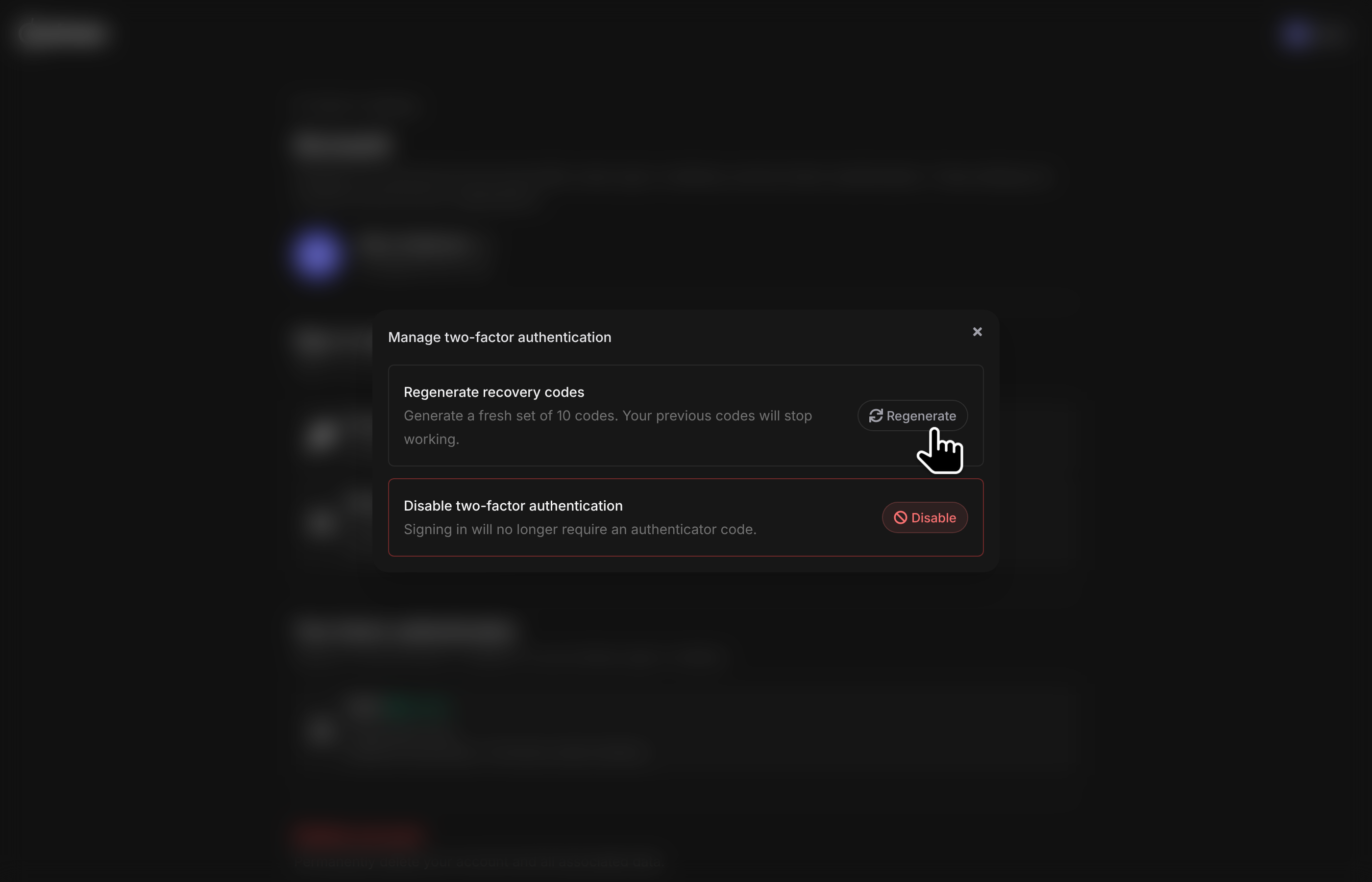
- Regenerate a fresh set at any time from the Account page. Under Two-factor authentication, hover the TOTP card and click Manage, then Regenerate recovery codes. This invalidates all previous codes and requires a current authenticator code or an unused recovery code.
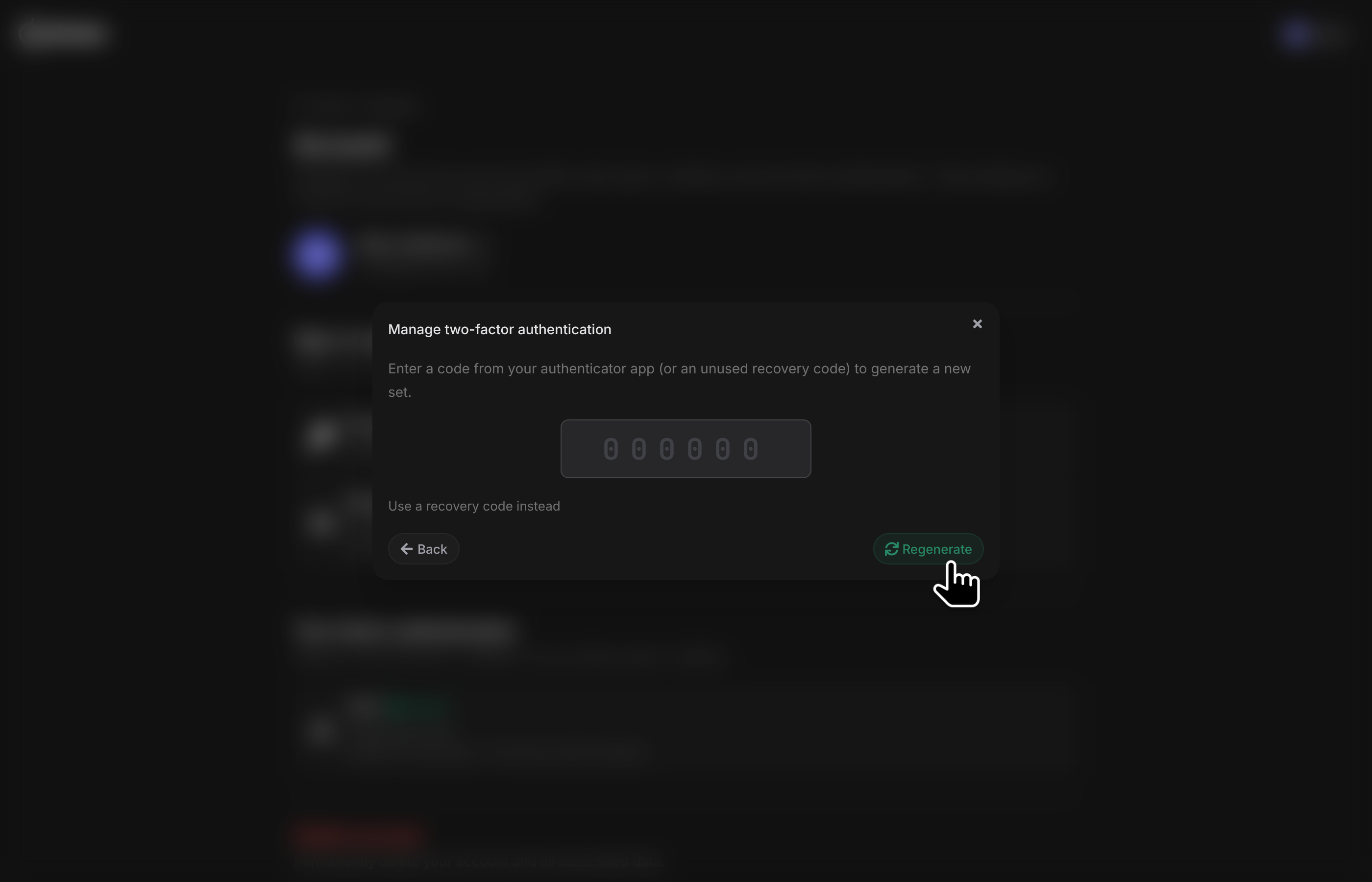
Recovery codes protect your sign-in, not your encrypted data. Your secrets remain protected by your sudo password and recovery kit. Keep both independently safe.
Disable 2FA
On the Account page, under Two-factor authentication, hover the TOTP card and click Manage, then Disable two-factor authentication. Enter a current authenticator code or an unused recovery code to confirm. Signing in no longer requires a code afterwards, and your remaining recovery codes are invalidated.
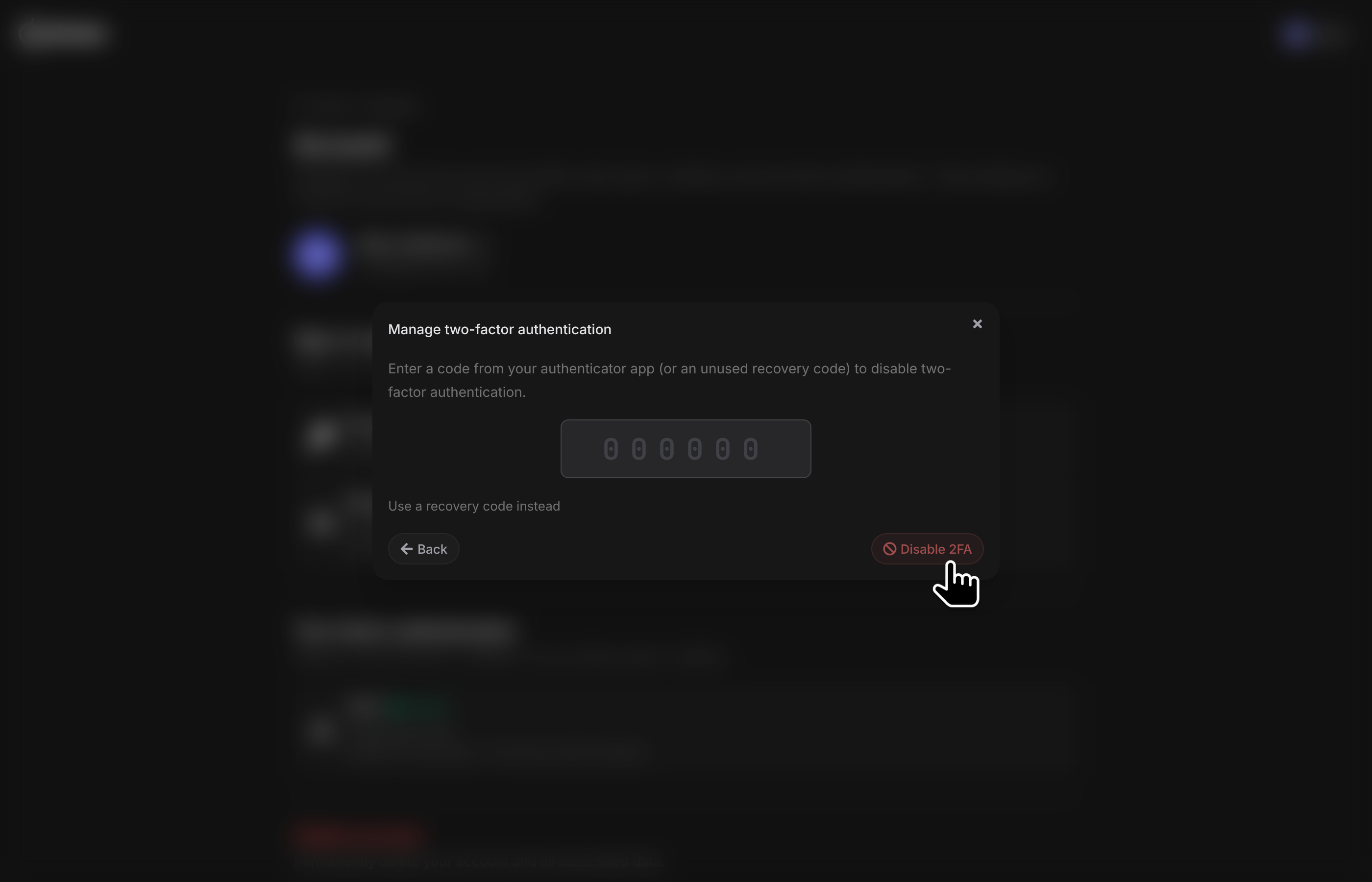
If you have lost both your authenticator device and your recovery codes, you cannot disable 2FA yourself. Contact your instance administrator (self-hosted) or Phase support (cloud).
Security notes
- TOTP follows RFC 6238 with standard parameters (SHA-1, 6 digits, 30-second period) for maximum authenticator app compatibility.
- The TOTP seed is encrypted at rest with the server's keypair and is only shown once, during setup.
- Replay protection: each accepted code advances a per-account high-water mark, so an intercepted code cannot be used a second time even within its validity window.
- Recovery codes are stored as salted Argon2id hashes; the plaintext is never persisted.
- Brute-force protection: per-account attempt limits are enforced server-side, alongside IP-based rate limiting on the verification endpoint.