Organisations
Organisations in Phase contain all your Apps and Users, and allow you to collaborate with your team.
Create an Organisation
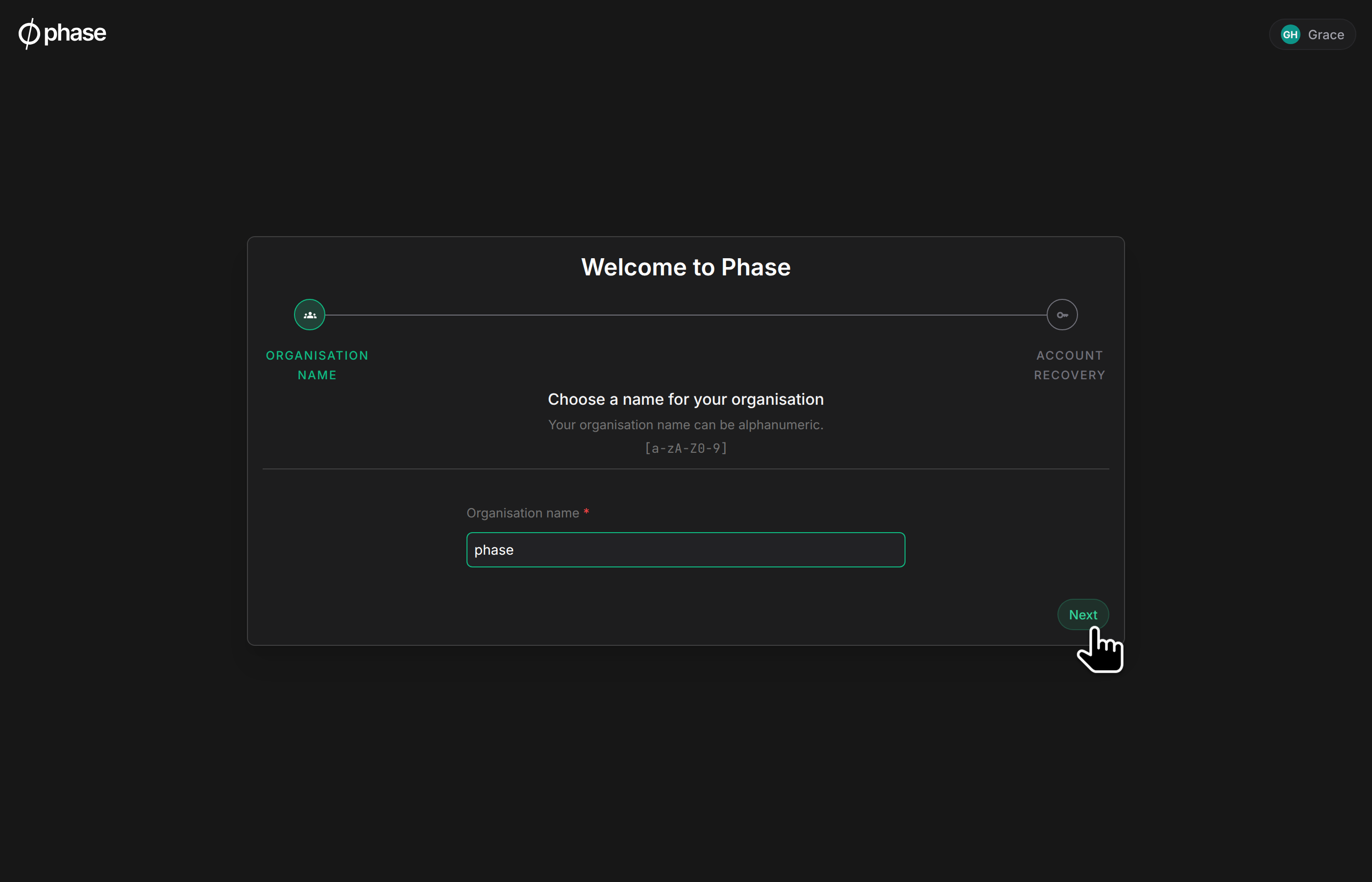
When you sign up on Phase, you will need to create an Organisation. You must choose a name for your Organisation that can contain letters or numbers. Organisation names must be unique.
Apps
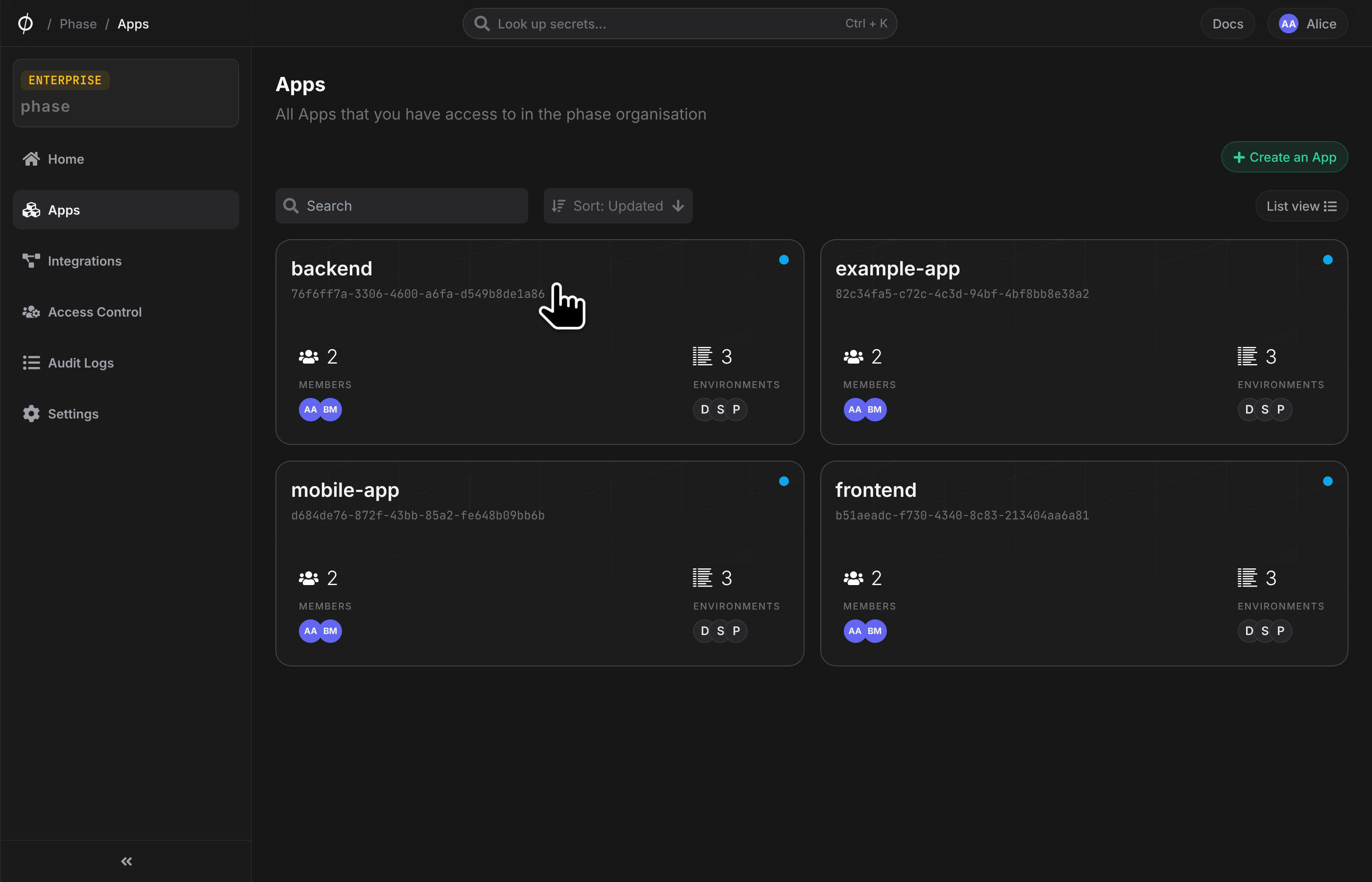
This page lists all Apps in your Organisation, along with information about the number of members, environments, integrations and service accounts accessible by you in each App. Click on an App to view and manage it.
Members
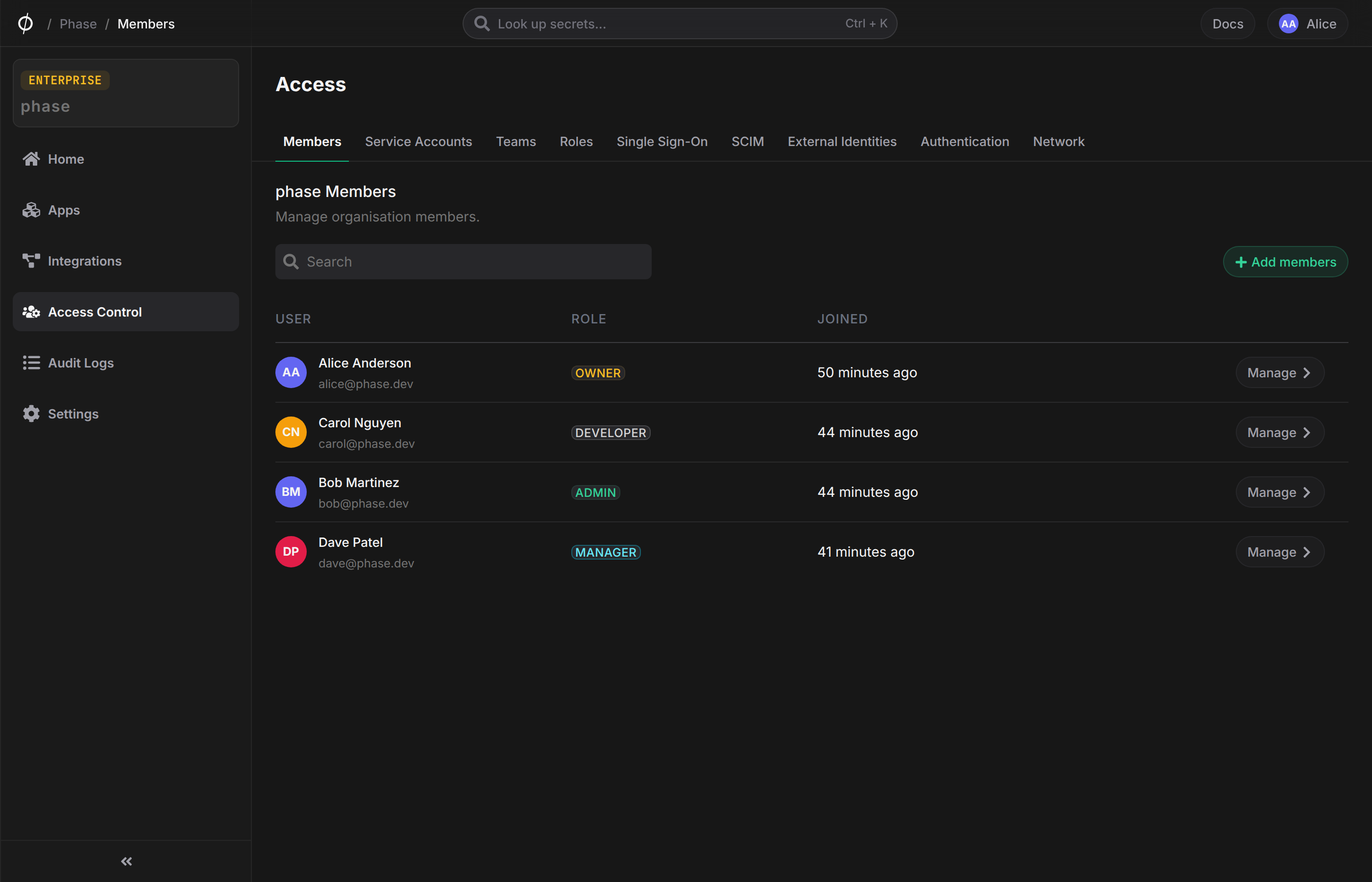
This page lists all members of your Organisation. If you are an Owner or Admin, you can modify member roles from this screen.
You can also invite new members to your Organisation. To invite a new member, click on the "Add a member" button, enter the email of the user you wish to invite, optionally select a role and click "Invite". You will need to manually provision access to Apps for the new member.
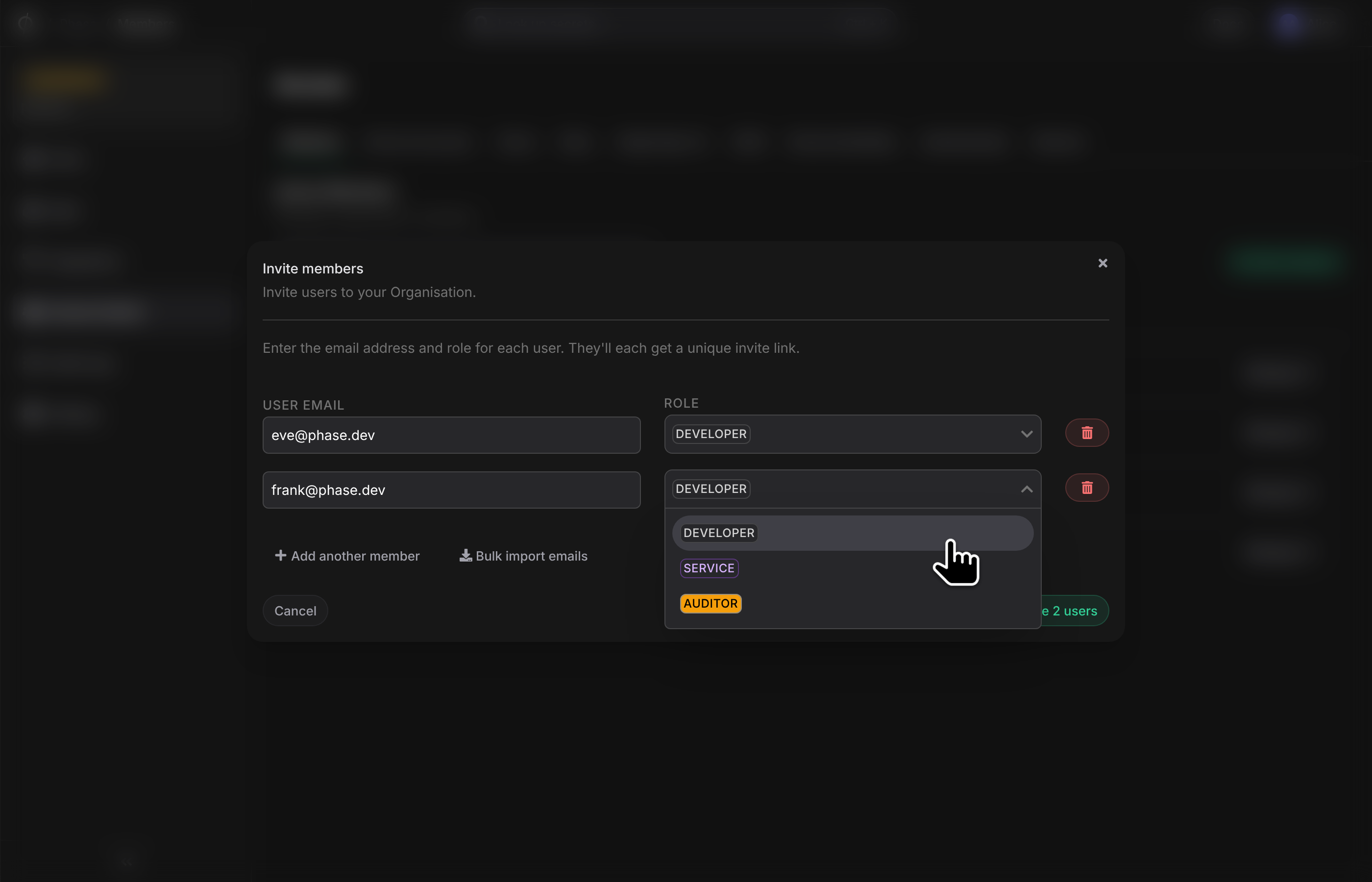
You are limited to selecting a non Global Access role when inviting a new member. This is because the user has not created an account and associated cryptographic keys. For more information on Global Access roles, see Roles.
Once a member has joined, you can grant them access to specific Apps and Environments from their member page.
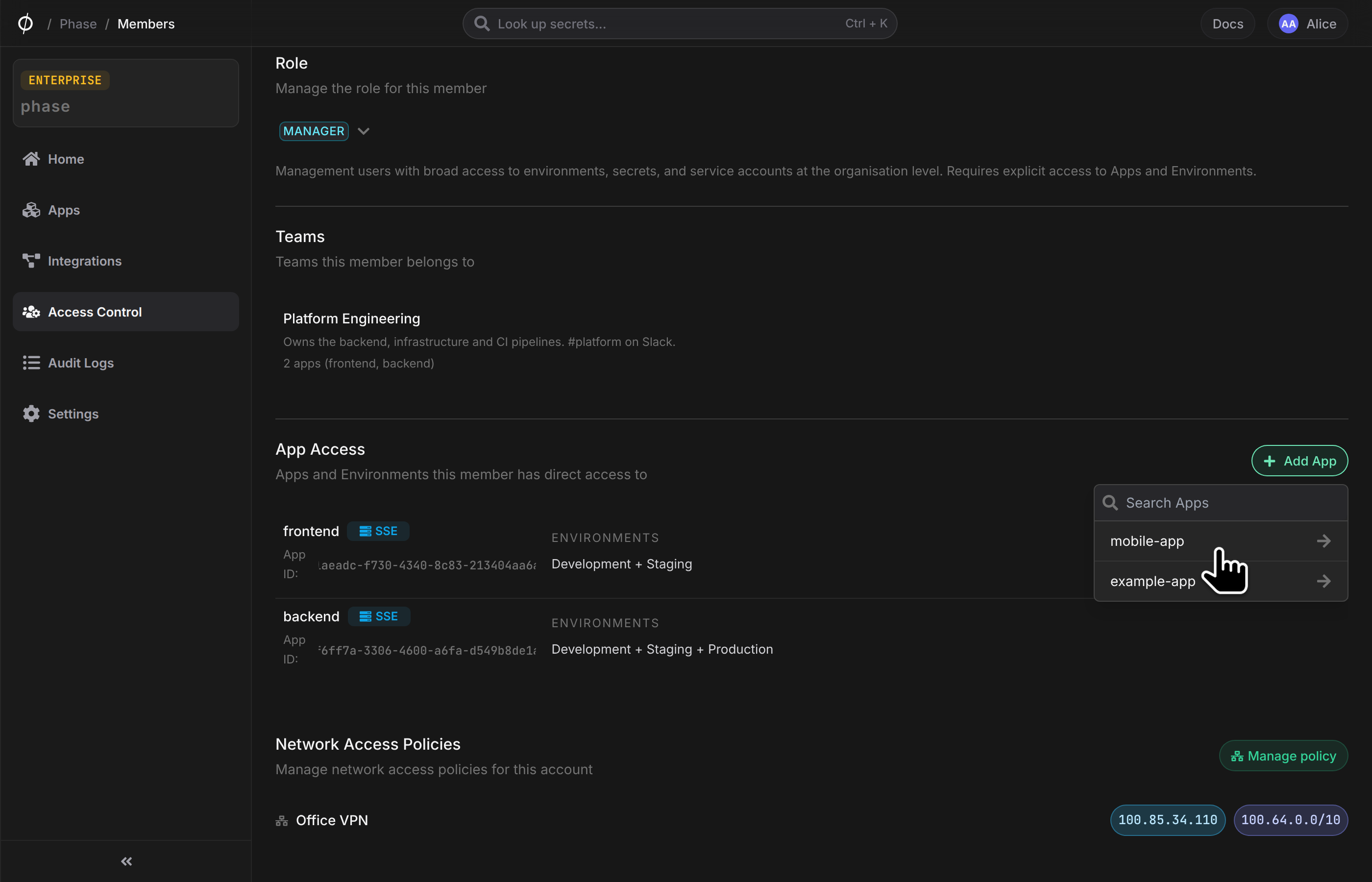
When you invite a member or change a member's role, you can only select a role whose permissions your own role also has. This limit does not apply to users with the Owner or Admin role.
Settings
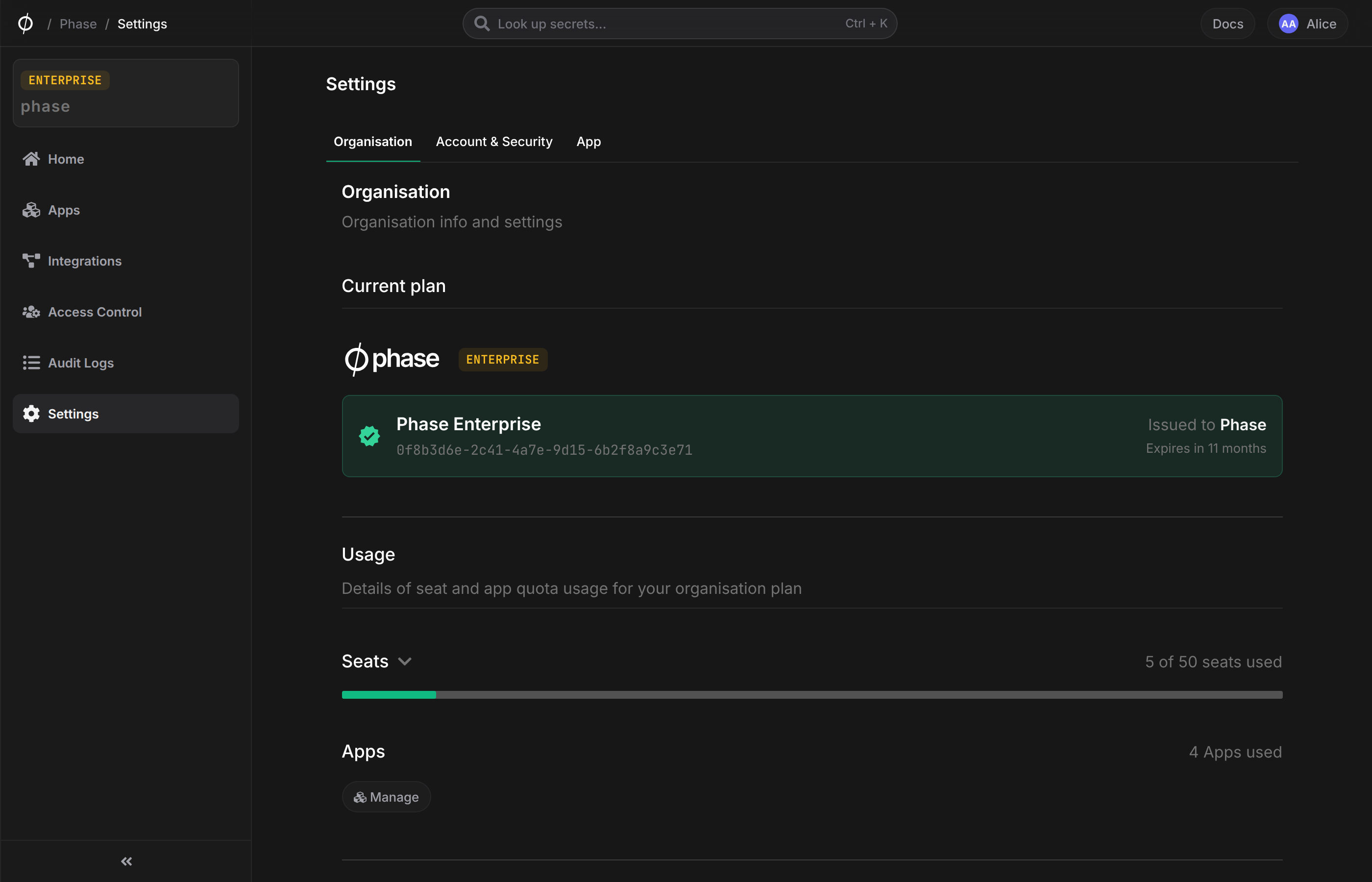
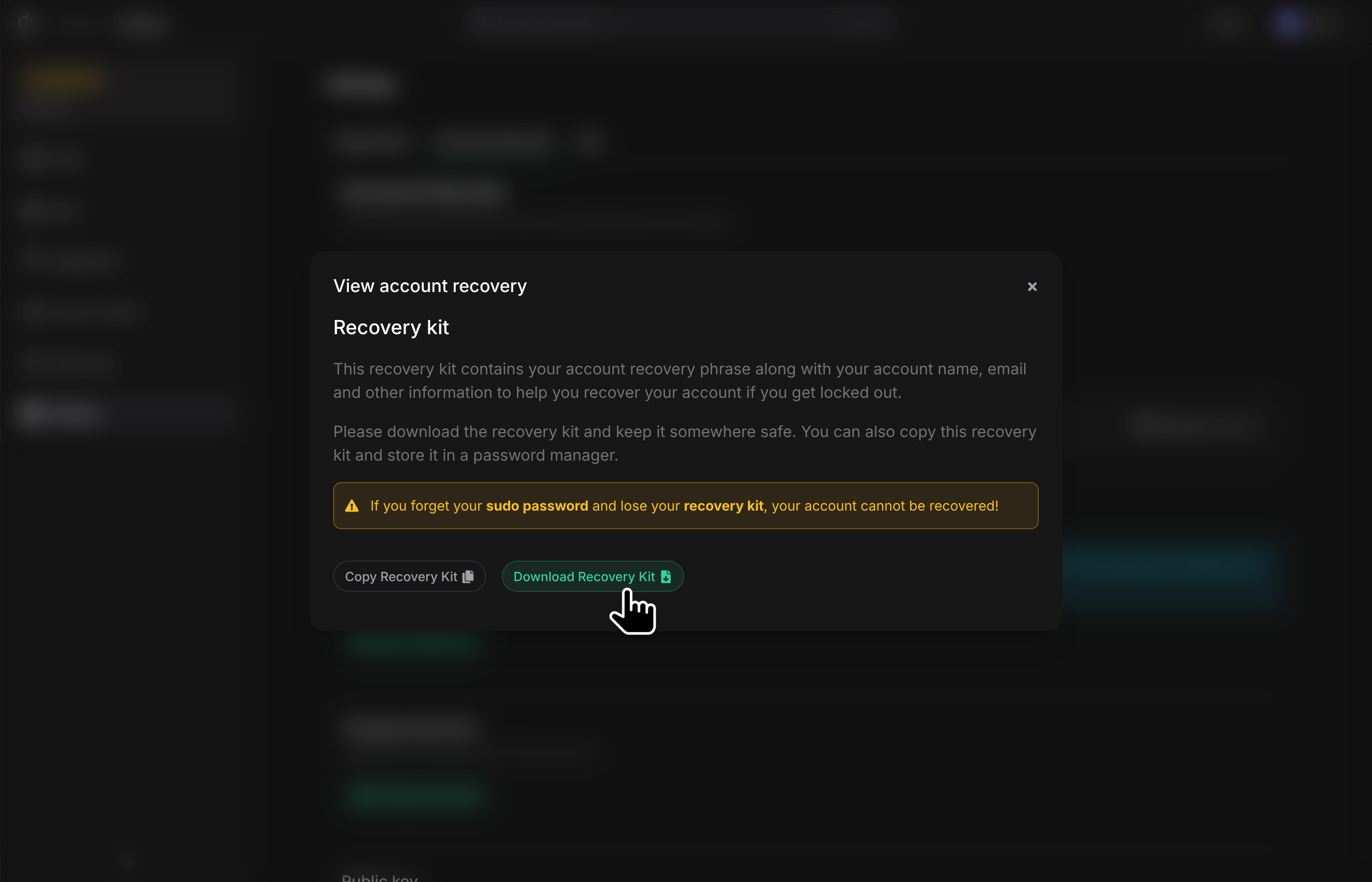
This page shows your account and recovery info related to this Organisation. You can view your current role, preferences and download your account recovery kit from this screen. This page will also show you the current billing status of your Organisation.
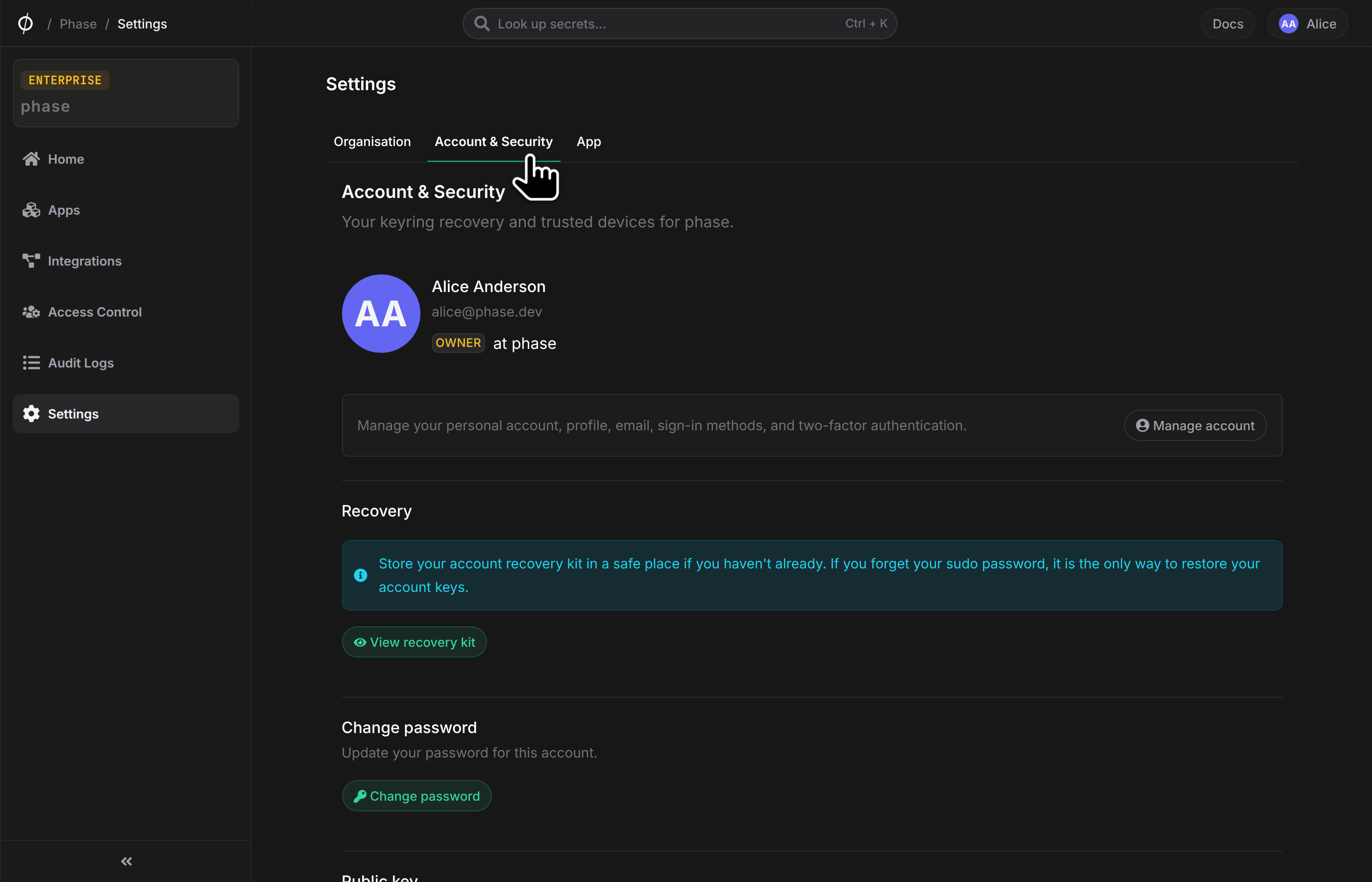
The Account & Security tab lets you view your recovery kit and change your password for this account.
Transfer Ownership
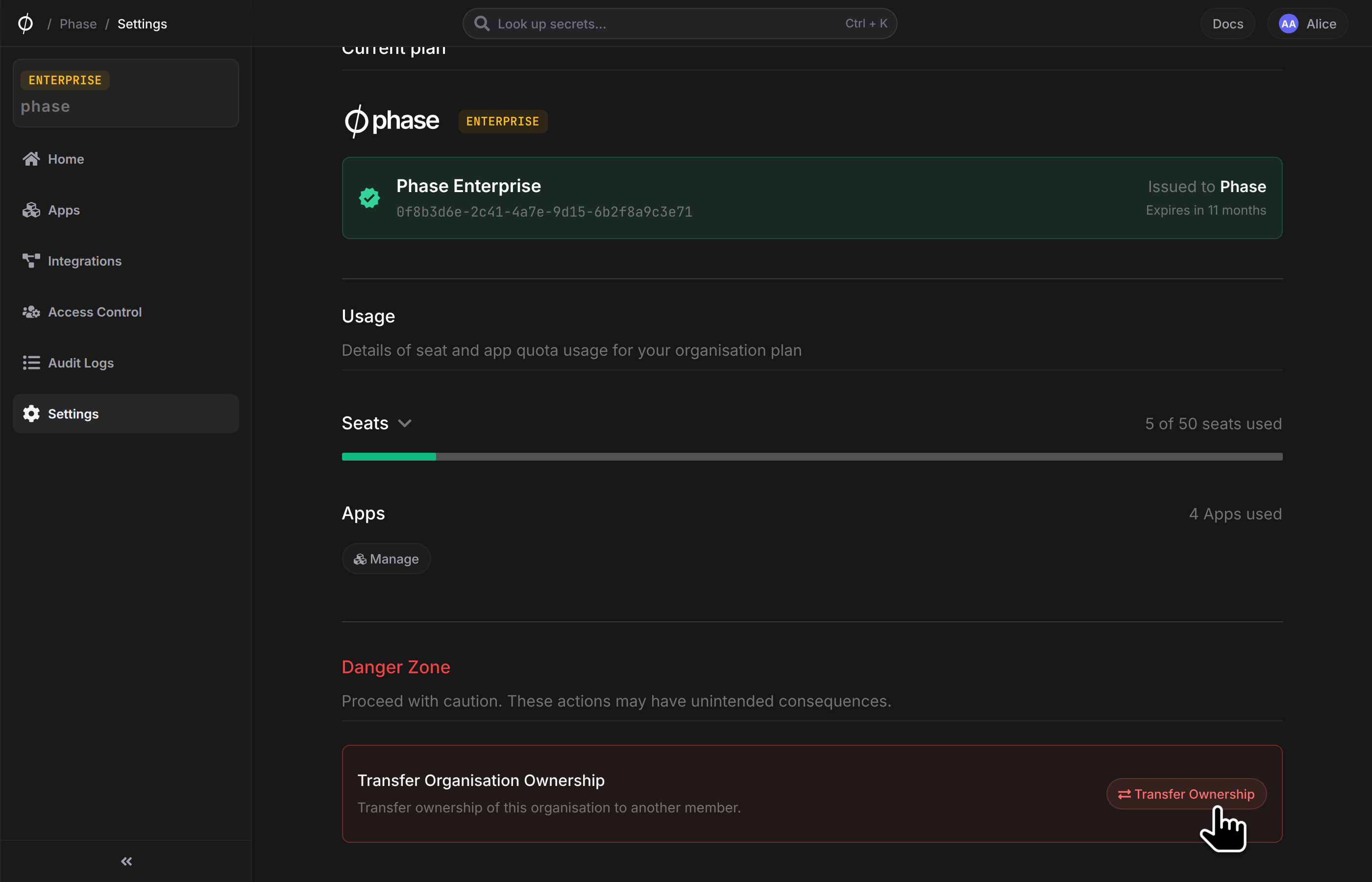
Organisation Owners can transfer ownership to another member who has the Admin role. This is useful when an organisation needs to change hands, such as when the current owner is leaving the team or delegating responsibilities.
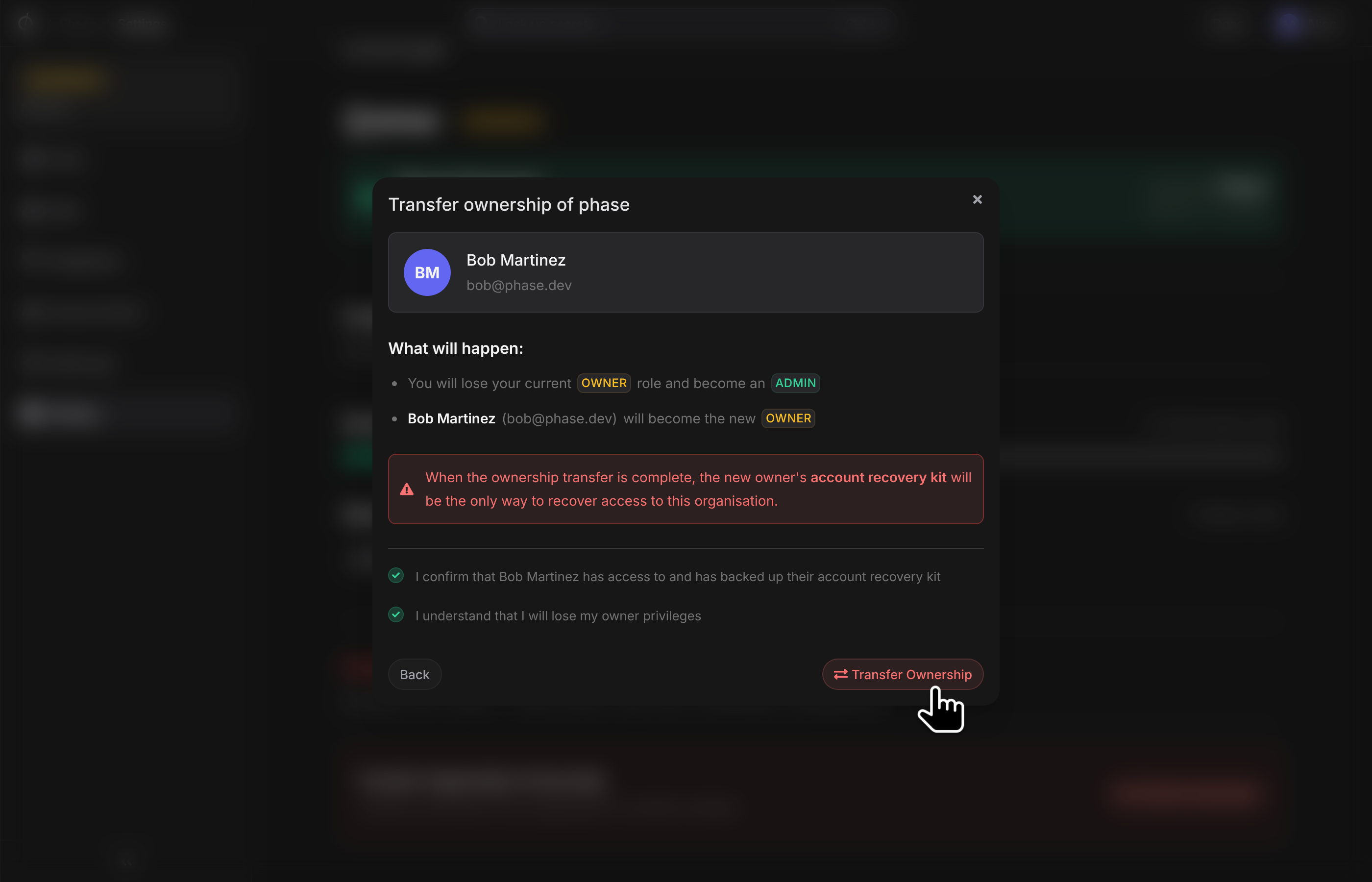
Make sure the new Owner has access to their account recovery kit before transferring ownership. After the transfer, the new Owner's recovery kit will be the only way to restore access to the organisation if they forget their sudo password.
To transfer ownership:
- Log in as the Organisation Owner and navigate to your Organisation Settings. Scroll down to the Danger Zone section and click Transfer Ownership.
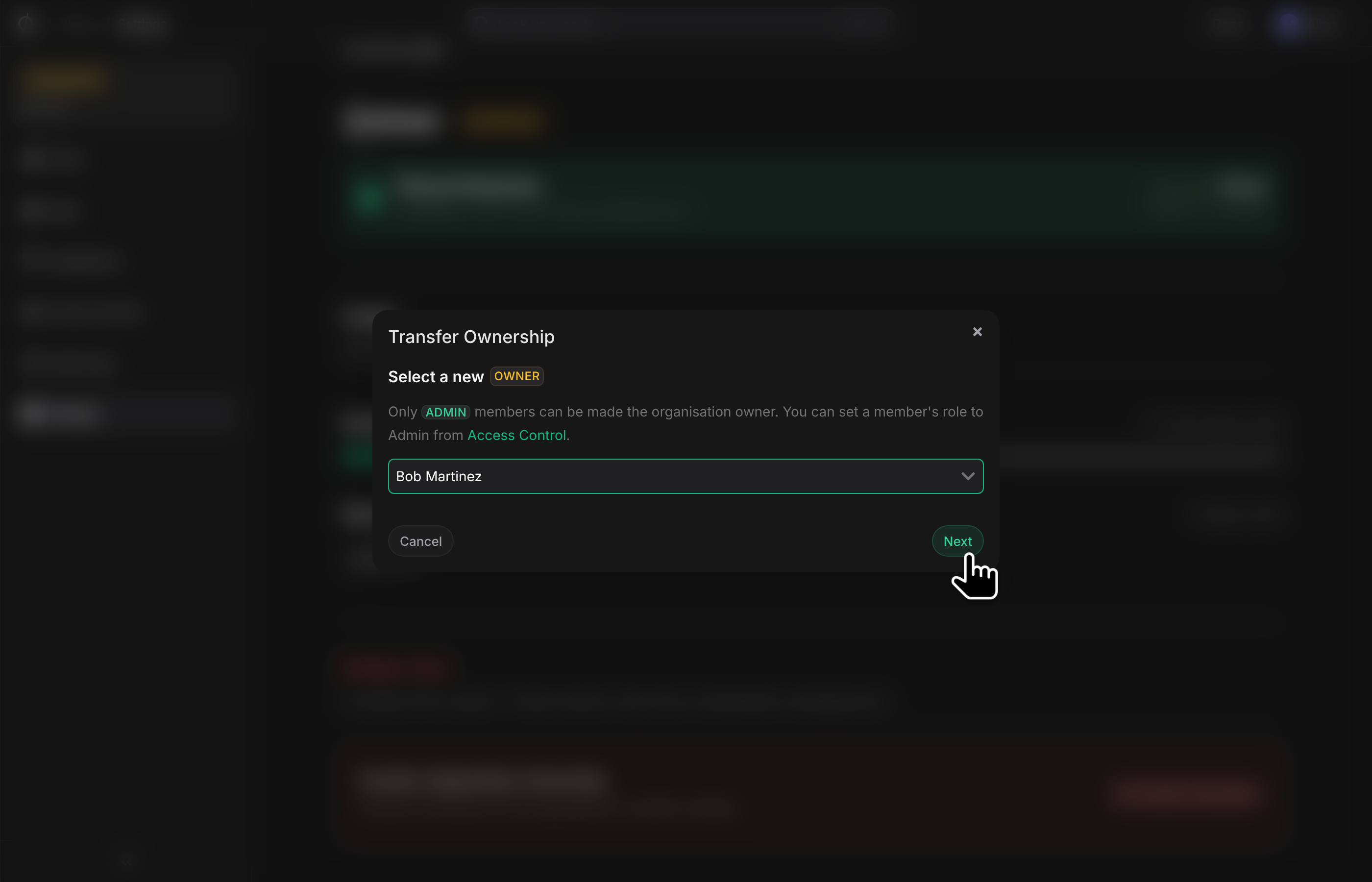
- Select the Admin member you want to make the new Owner. Only members with the Admin role are eligible.
- Review the changes, confirm that the new Owner has backed up their account recovery kit, and acknowledge that you will lose your Owner privileges. Click Transfer Ownership to complete the transfer. If you are using Phase Cloud, you will see a section for updating the billing email address.
Once the transfer is complete:
- The selected member becomes the new Owner of the organisation.
- You will be demoted to an Admin and will continue to remain a member of the organisation until removed.
- Both the old and new Owner will receive an email notification about the transfer.