Service Accounts
Service Accounts provide a secure and controlled method for programmatic access to the Phase platform. Service accounts are non-human users that can use various authentication mechanisms to access resources such as secrets within the applications and environments they have been granted access to.
Service accounts share many of the properties and behavior of human user accounts. Service Accounts follow an Access Policy that can be defined by Managed Roles or Custom Roles based on the permissions required. Service accounts are secured with the same security and cryptographic architecture as user accounts, and must be manually provisioned access to Apps and Environments in order to access secrets.
Org-level vs Team-owned Service Accounts
Service accounts exist in two categories:
- Org-level (default): Visible to all organisation members with
ServiceAccounts.readpermission. Created from the organisation-level Service Accounts page. This is the default behavior and works on all plans. - Team-owned: Created within a Team, visible only to team members and users with global access (Owner/Admin). The service account's lifecycle is tied to the team — if the team is deleted, team-owned SAs are deleted too.
Team-owned service accounts are useful when a team needs dedicated programmatic access for team resources, that is isolated from other teams and users. See Team-owned service accounts for details on creating and managing them.
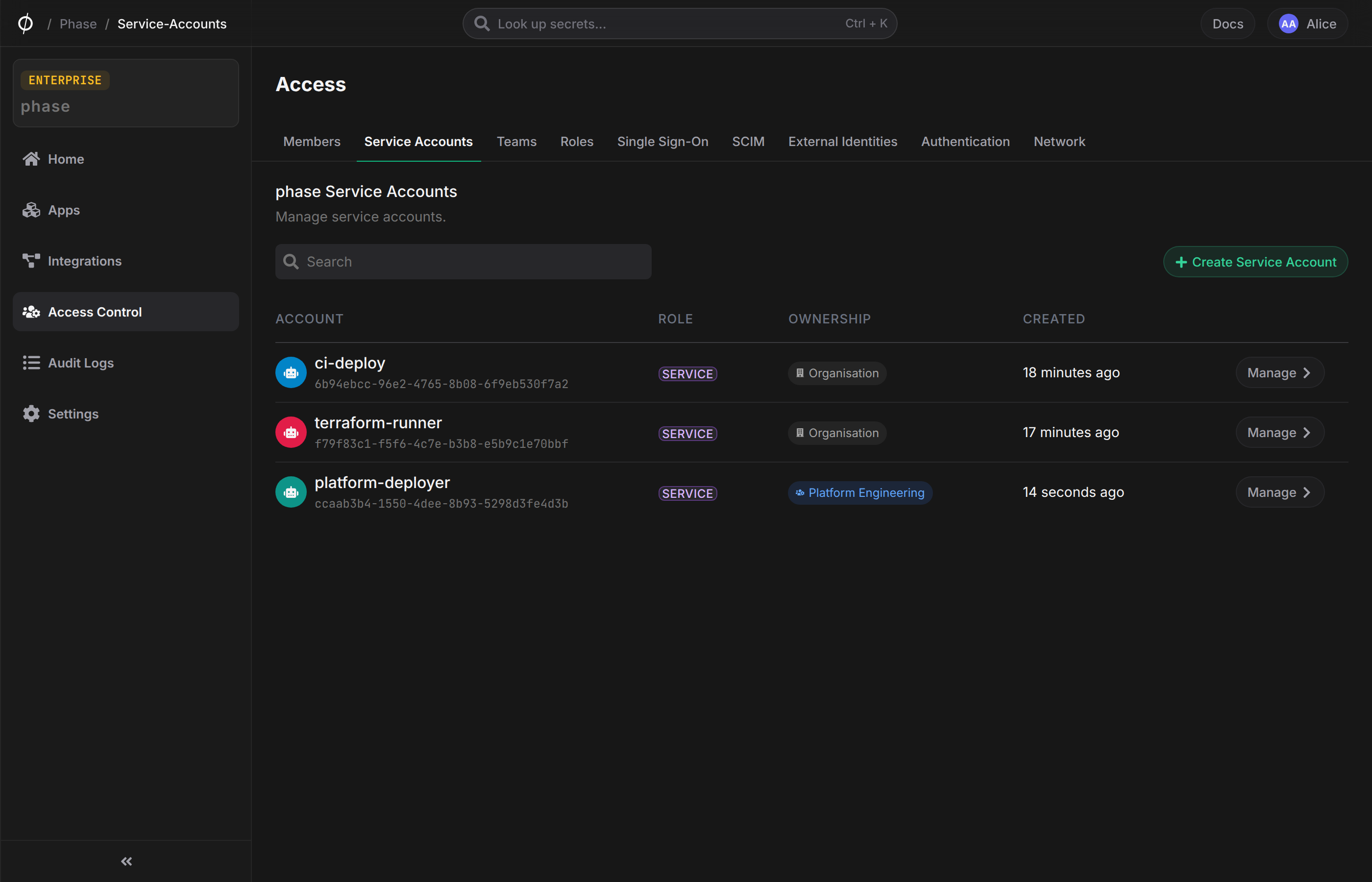
Create a new Service Account
To create a new Service Account:
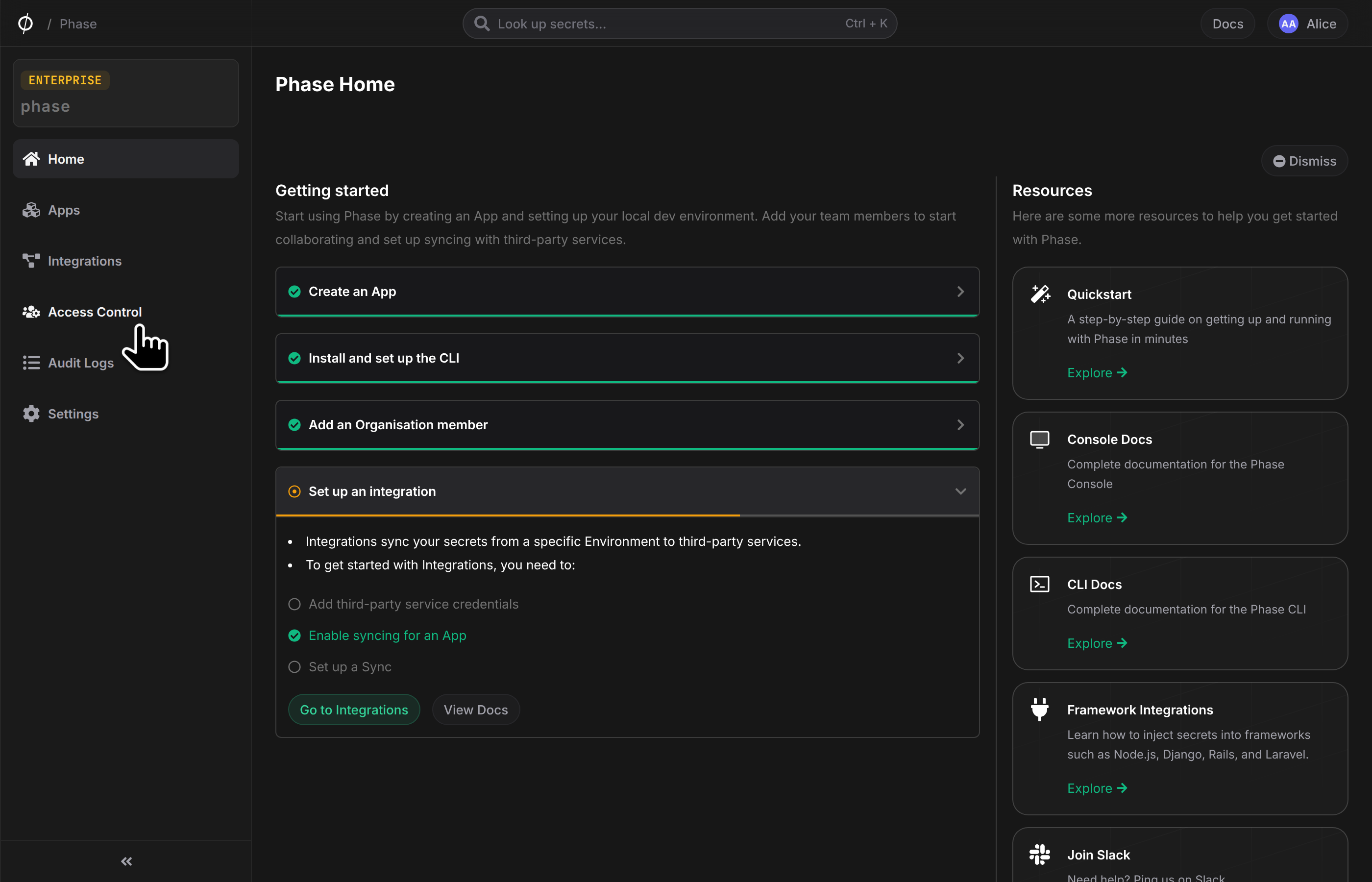
- Navigate to the Access Control page from the sidebar and click on the Service Accounts tab.
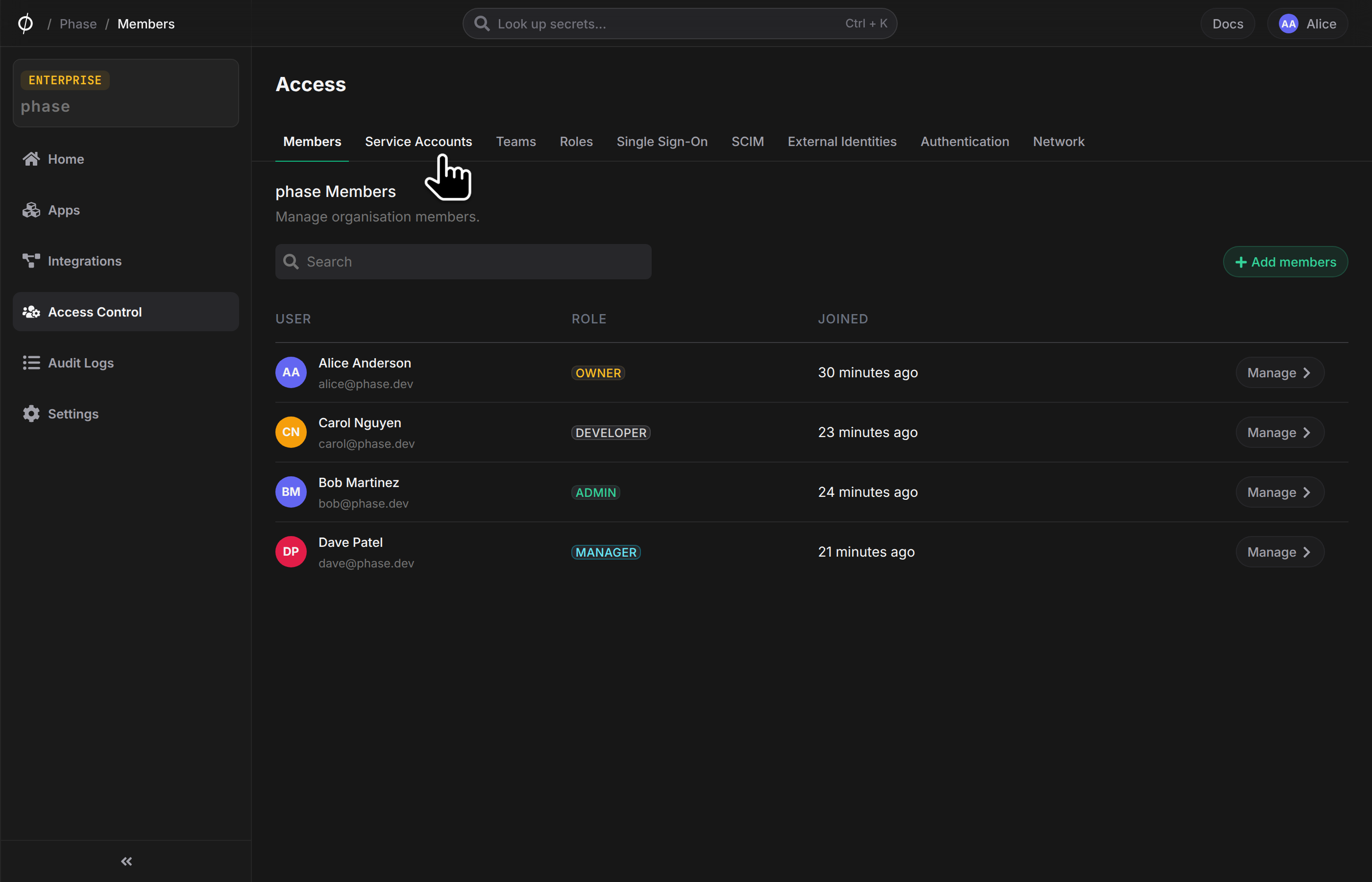
- Click the Create Service Account button in the center of the screen, if you have previously created service accounts you will see it in the top right corner of the screen.
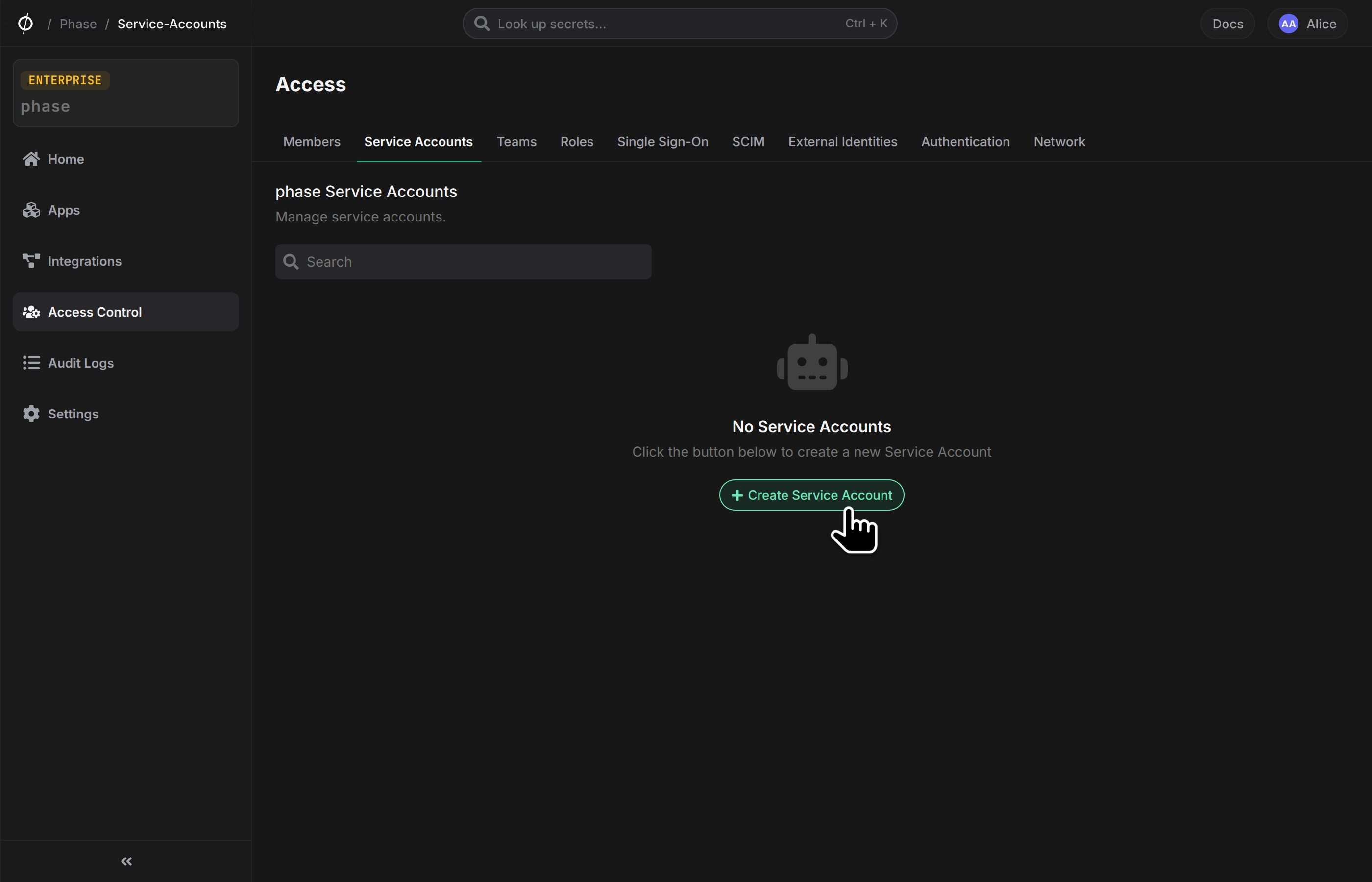
- Give your new service account an Account name and choose a Role and Click "Create Service Account".
By default, when you create a new Service Account it uses the Service role that's managed by Phase which only has access to secrets at the Application level.
Service role secret access policy:
| Resource | Access | Read | Create | Update | Delete |
|---|---|---|---|---|---|
| Secrets | Full access | ✅ | ✅ | ✅ | ✅ |
You may choose to select a different Managed role or a Custom role by clicking one from the dropdown.
You can only select a role whose permissions your own role also has. The dropdown disables roles with permissions that your role does not have. This limit does not apply to users with the Owner or Admin role.
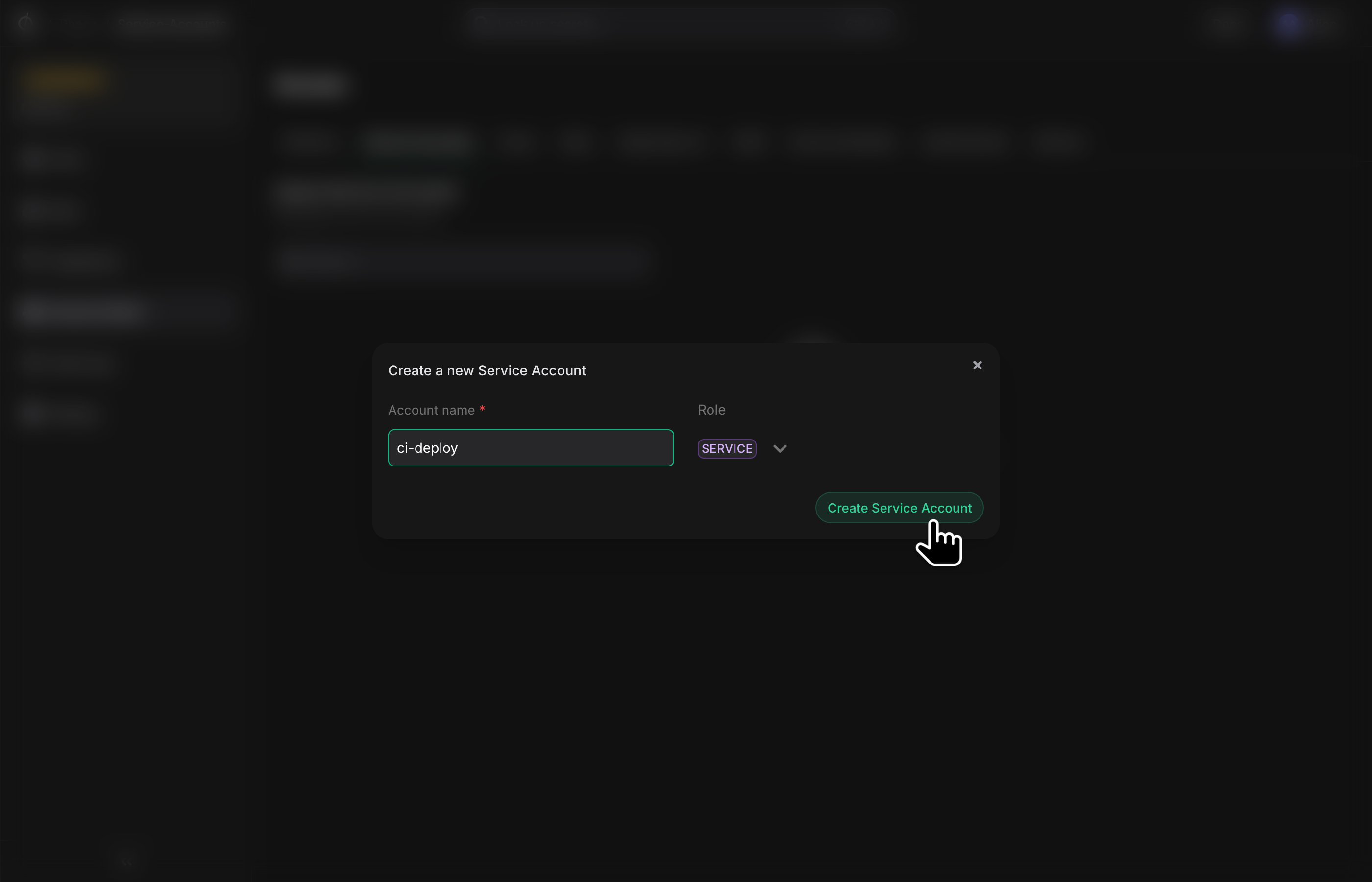
Click "Create service account". This will create a new account with the chosen name and role.
Creating a Service Account can take a few seconds as a unique encryption keyring is generated for each account. Do not close the tab or navigate away from this page during this process. You can find out more about this process in the security architecture page
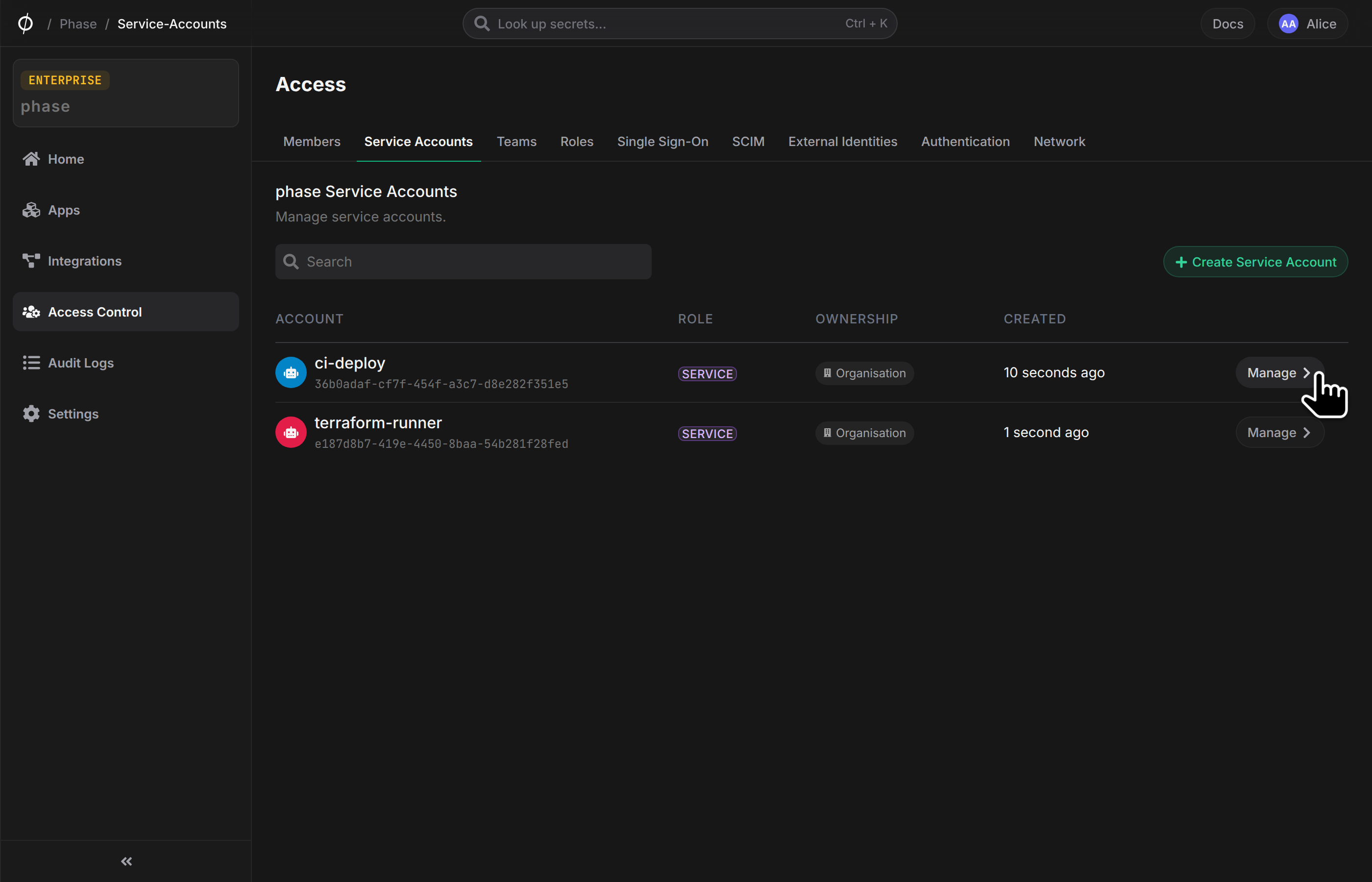
Once the account is created, you will see it listed in the table.
Manage a Service Account
You can manage a Service Account from the account detail page, accessible by clicking the "Manage" account button. Here you will find information about this account including the account name, role, App / Environment access and tokens.
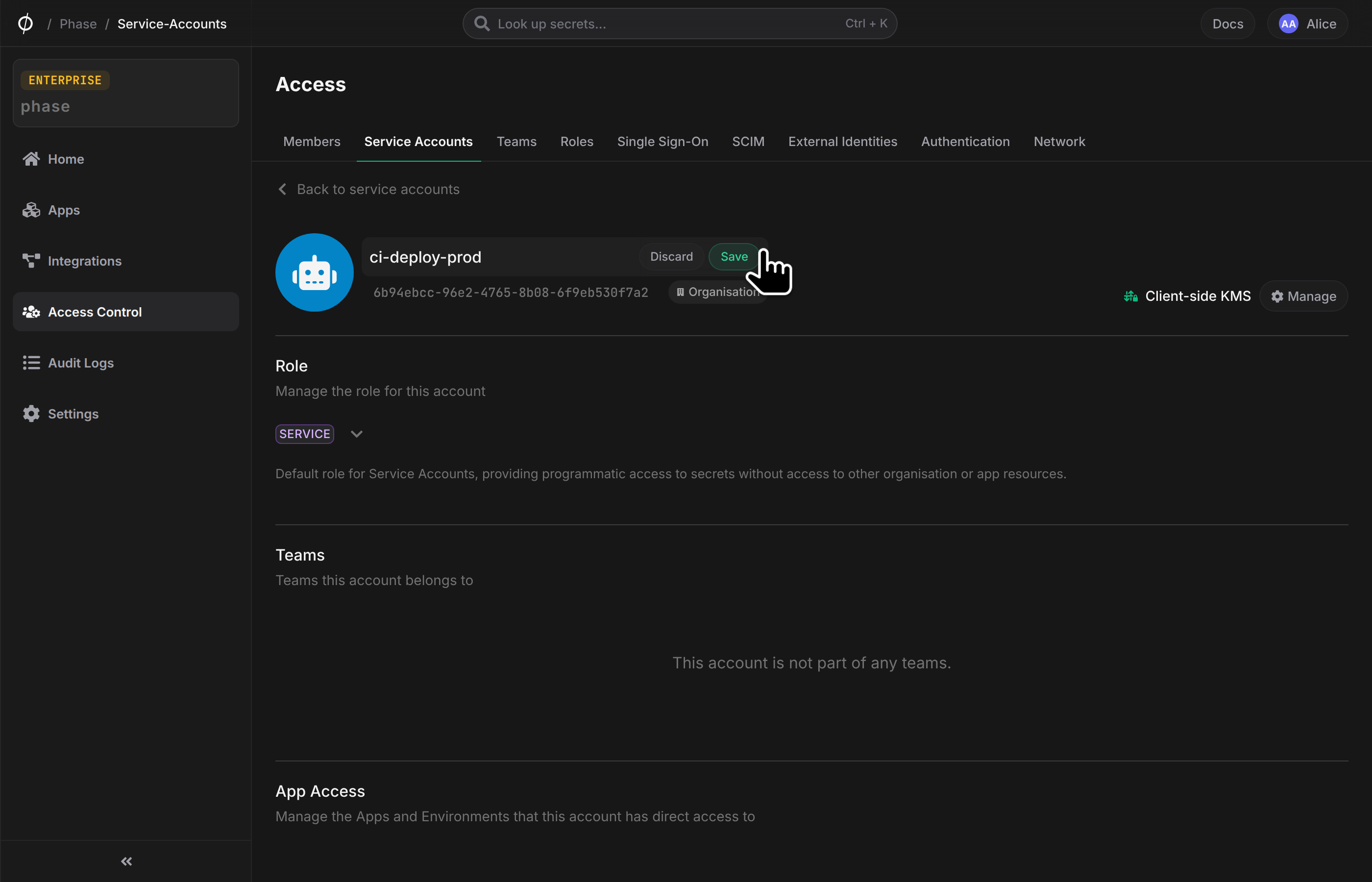
Update account name
To update the name of an account, simply click the account name at the top of the page and edit it in place. Click "Save" to save your changes.
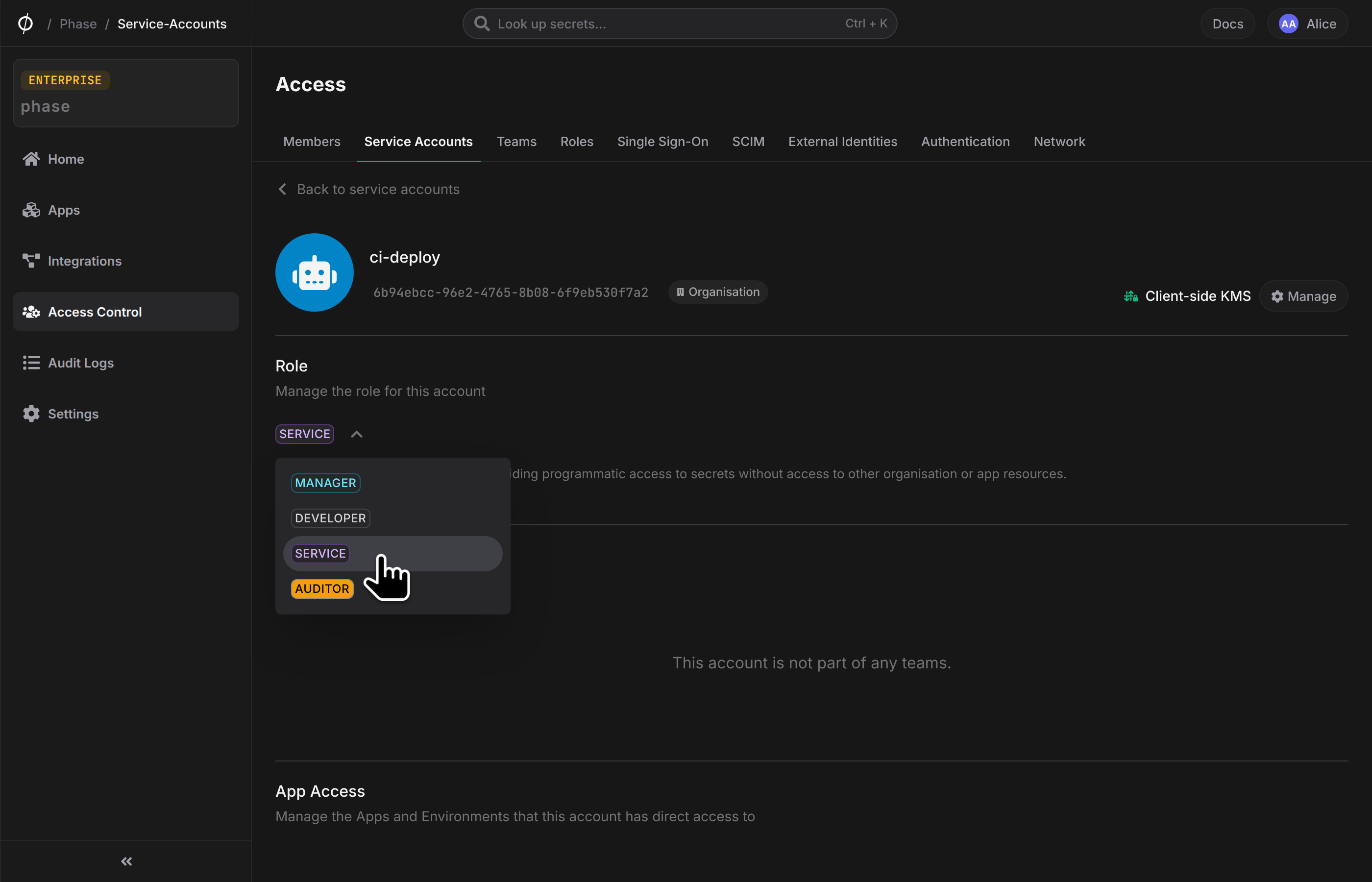
Update account role
To update an account's role, click the role label to open the dropdown and select a role from the list. The selected role will be applied on selection.
You can only select a role whose permissions your own role also has. For a team-owned account, Phase also counts the permissions of the team role override. This limit does not apply to users with the Owner or Admin role.
Delete account
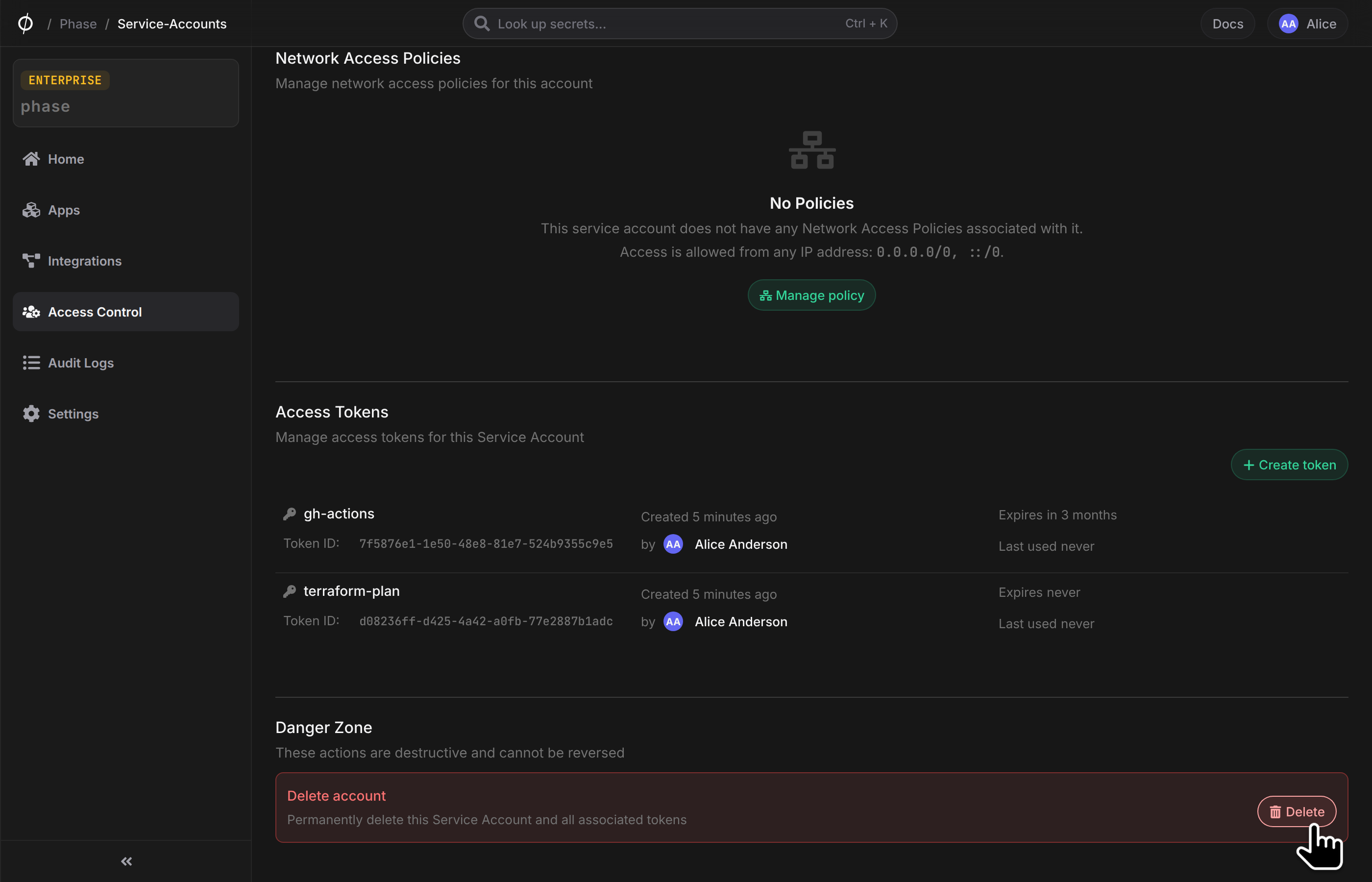
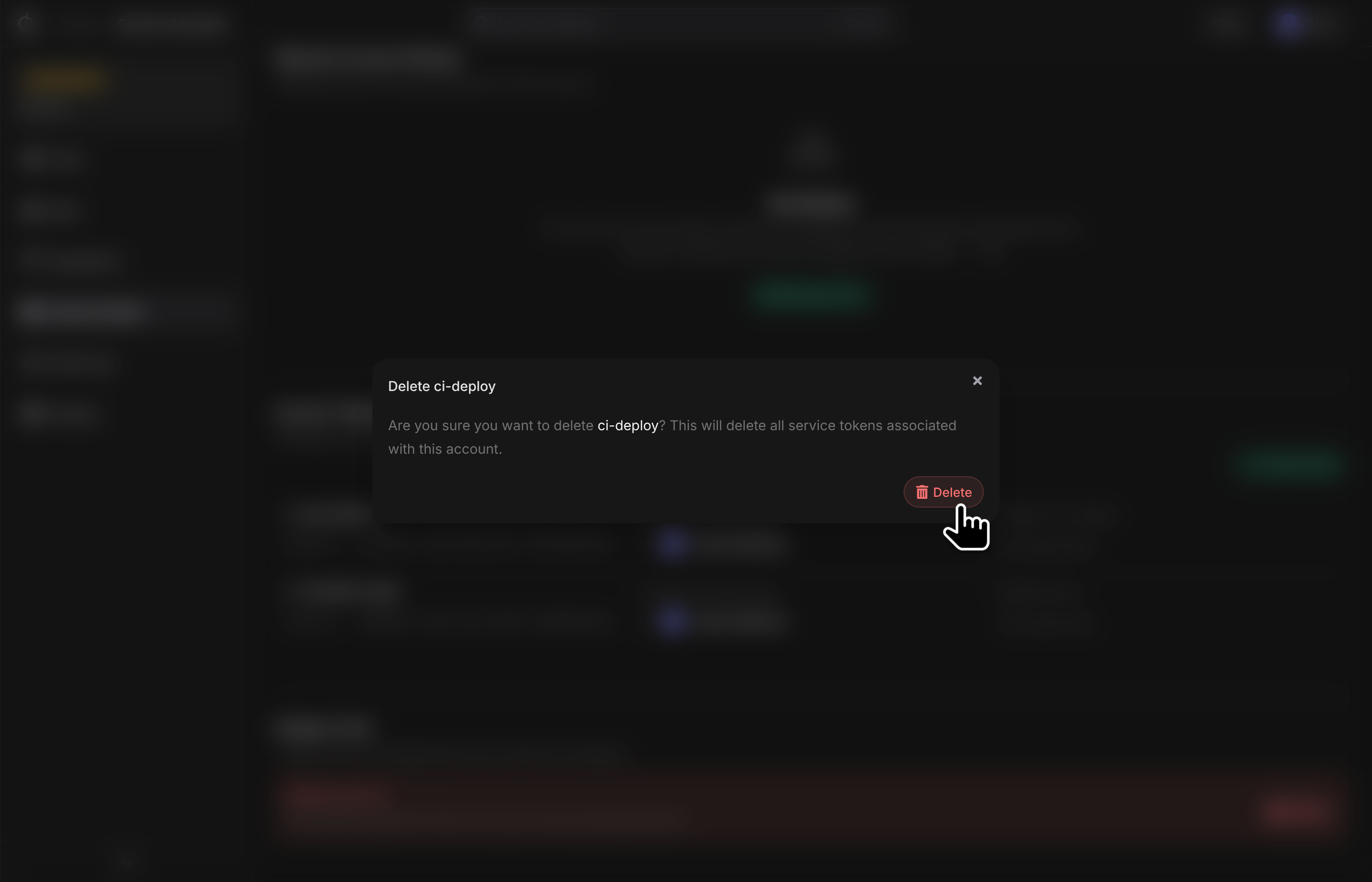
To delete a Service Account, click on the "Delete" button at the bottom of the page. This will permanently delete this account and all associated tokens. Confirm that you want to delete this account by clicking "Delete" on the confirm dialog.
Account KMS
Each Service Account has its own unique keyring, just like User accounts. KMS modes determine who has access to the service account's keyring and can create and manage tokens for this service account.
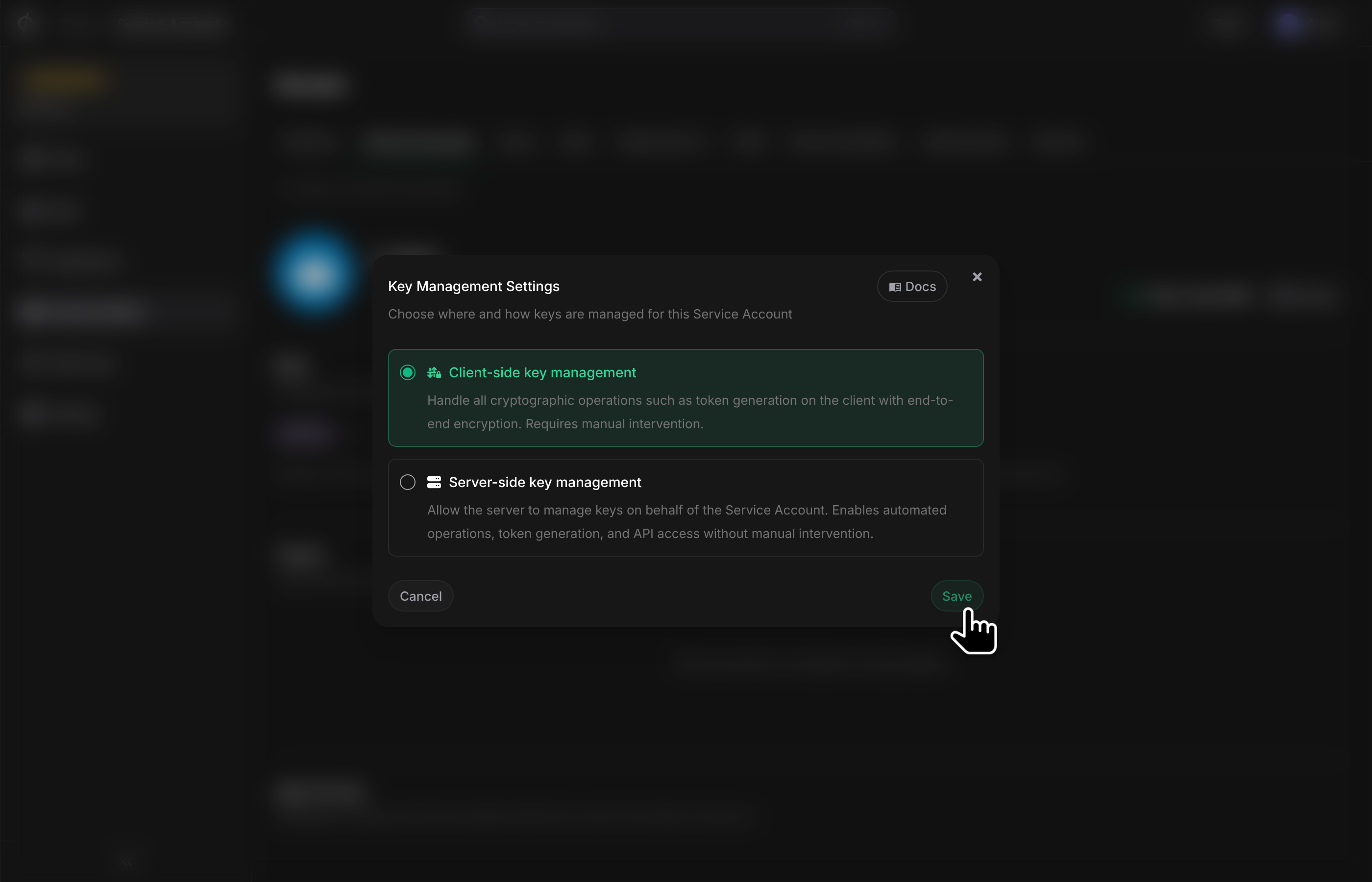
Client-side KMS
By default, org-level Service Accounts use Client-side KMS. This means only designated users with the required ServiceAccountTokens permissions have access to create and manage tokens for this service account. These users are called Service Account Handlers and have access to the service account's keyring, encrypted with their own keys.
Server-side KMS
You can optionally enable Server-side KMS for a Service Account. This grants the Phase backend access to the service account's keyring, effectively making the backend a Service Account Handler. Enabling Server-side KMS allows the backend to create and manage tokens on behalf of the Service Account. This is required to use features such as External Identities.
Team-owned service accounts always use Server-side KMS. This is enabled automatically when the account is created, so that any team member with the appropriate permissions can generate tokens — without needing to be a designated Service Account Handler. This is important for dynamic team membership, including teams managed via SCIM provisioning, where members may join or leave at any time.
Manage KMS mode
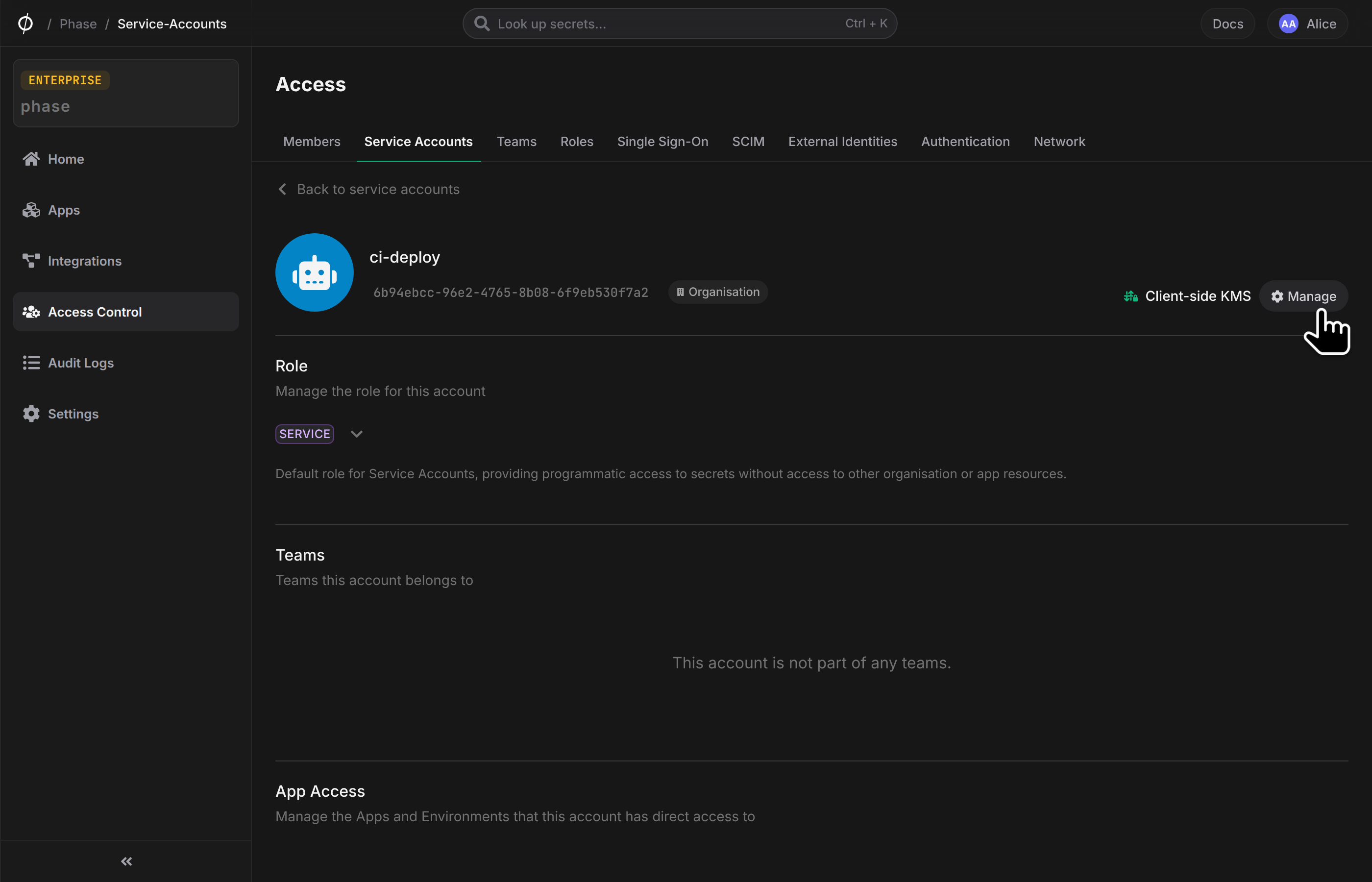
You can manage the KMS mode for a Service Account by clicking the Manage button beside the account KMS indicator at the top of the account page:
Select the KMS mode you want to use and click Save:
Create a new Service Account Token
You can find instructions on how to create a Service Account Token here.
Add a Service Account to an App
You can find instructions on adding a Service Account to Apps here.
Manage account Network Access Policies
You can find instructions on managing Network Access Policies for Service Accounts here.