GitHub Dependabot
You can use Phase to sync secrets to GitHub Dependabot.
Automated secret syncing
Automatically sync secrets in your Phase App to GitHub Dependabot Secrets.
When secret syncing is enabled, secrets stored inside Phase will be treated as the source of truth. Any secrets on the target service will be overwritten or deleted. Please import your secrets into Phase before continuing.
Prerequisites
- Sign up for the Phase Console and create an App
- Enable Server-side Encryption (SSE) for the App from the Settings tab
- GitHub Account with access to repositories you want to sync secrets to
Phase will encrypt your secrets via libsodium's SealedBox using your GitHub
repository's public key before sending them to GitHub. For more information,
please see: GitHub
Docs
Step 1: Authenticate with GitHub
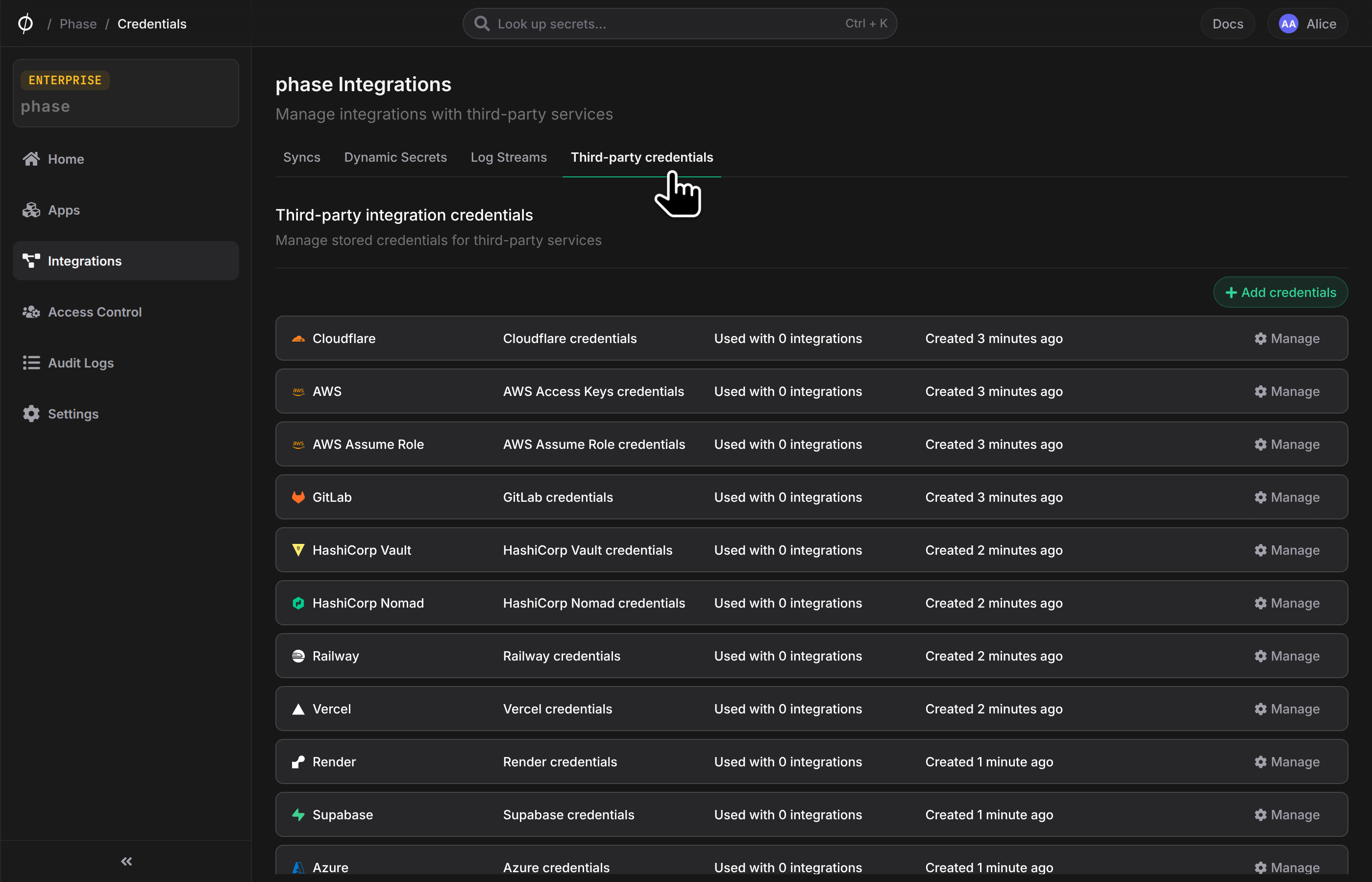
- Go to Integrations from the sidebar, select the Third-party credentials tab and click + Add credentials.
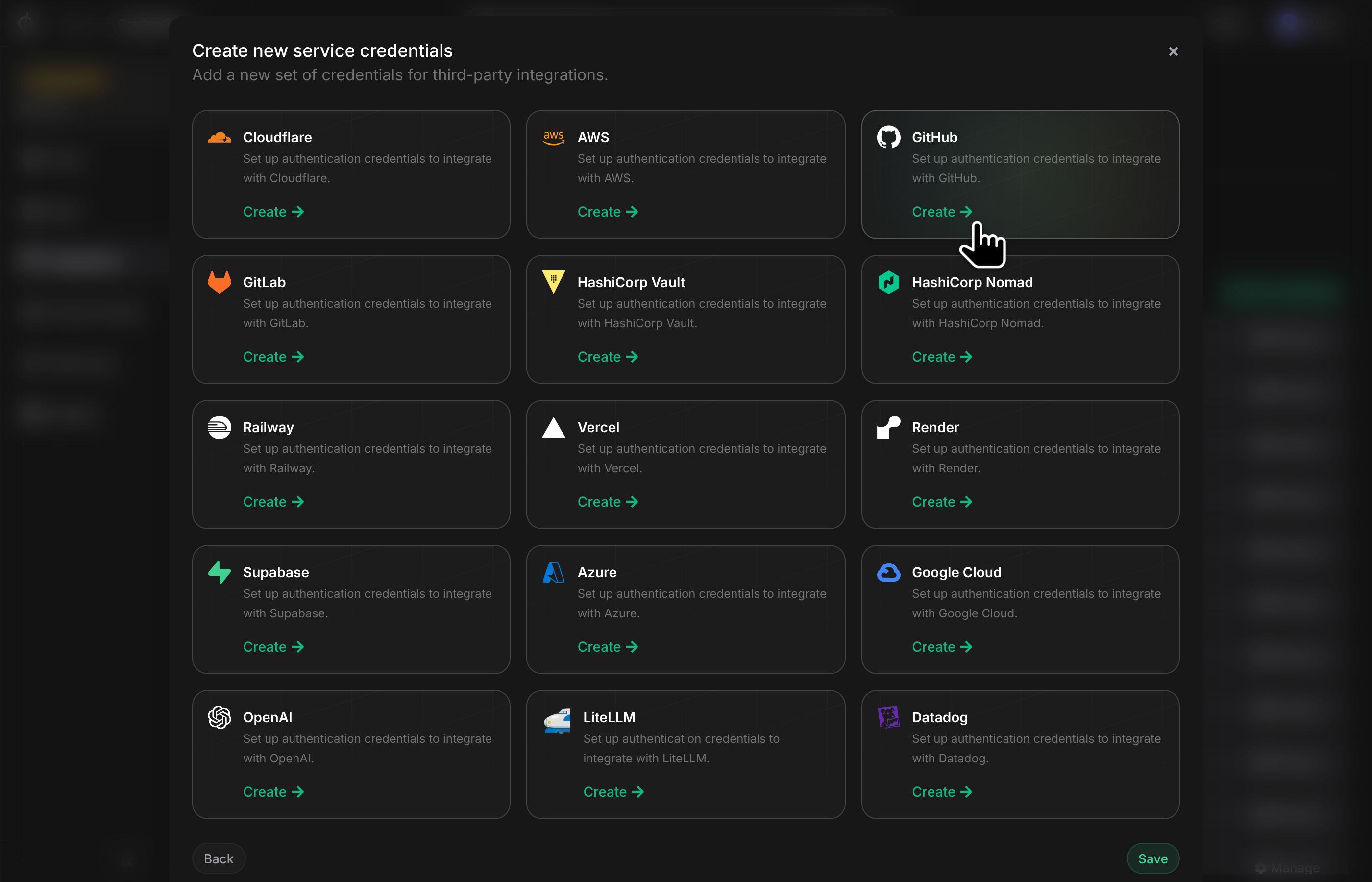
- Click on GitHub
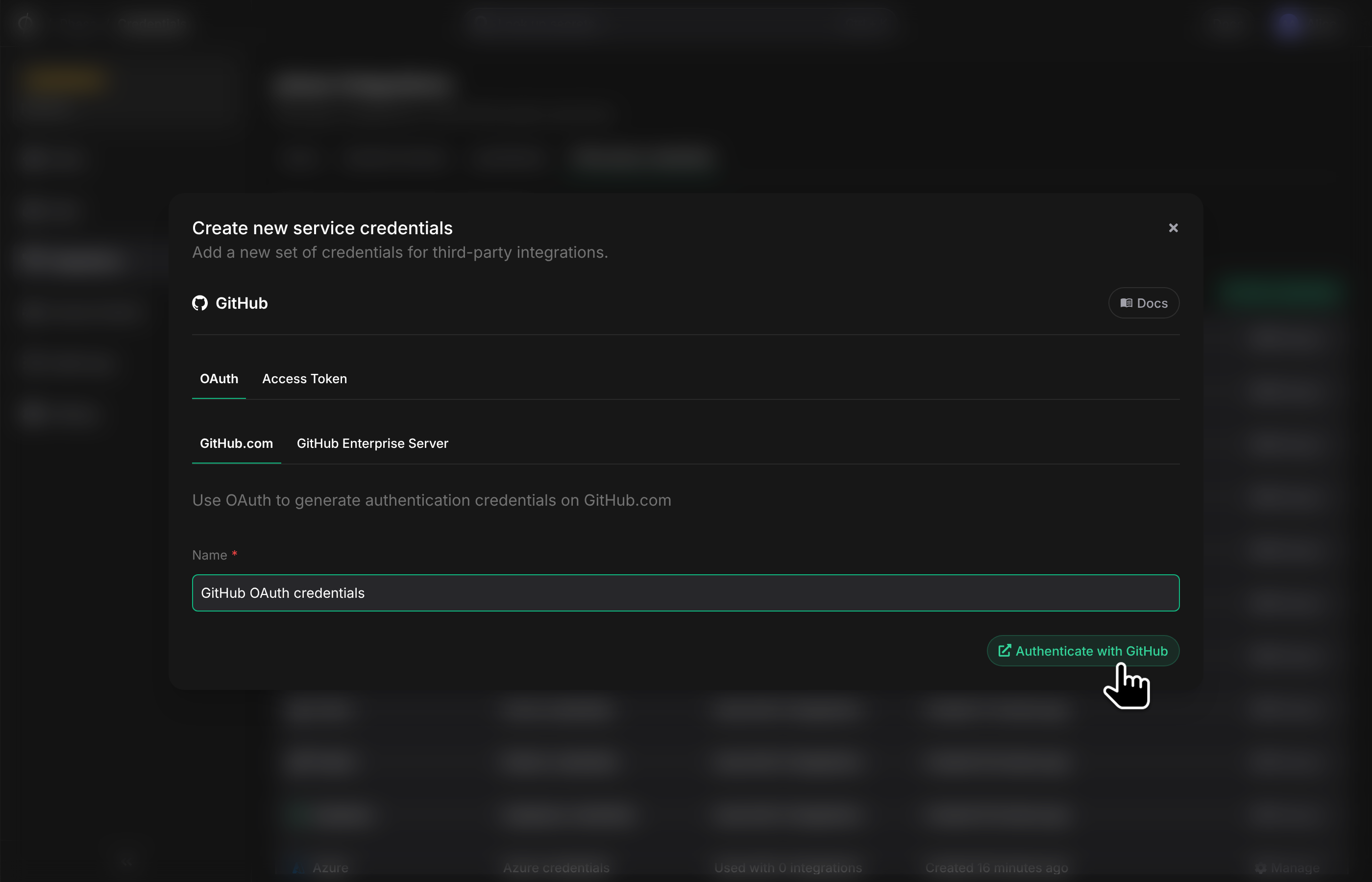
- Choose between OAuth or Access Token authentication method.
OAuth redirects you to GitHub, where you will be prompted to authorize Phase to access your repositories. Using an Access Token requires you to manually create the token on GitHub for a given set of permissions and provide it to Phase.
- Choose between GitHub.com or GitHub Enterprise Server. Select the type of GitHub credentials you wish to add and give it a descriptive name.
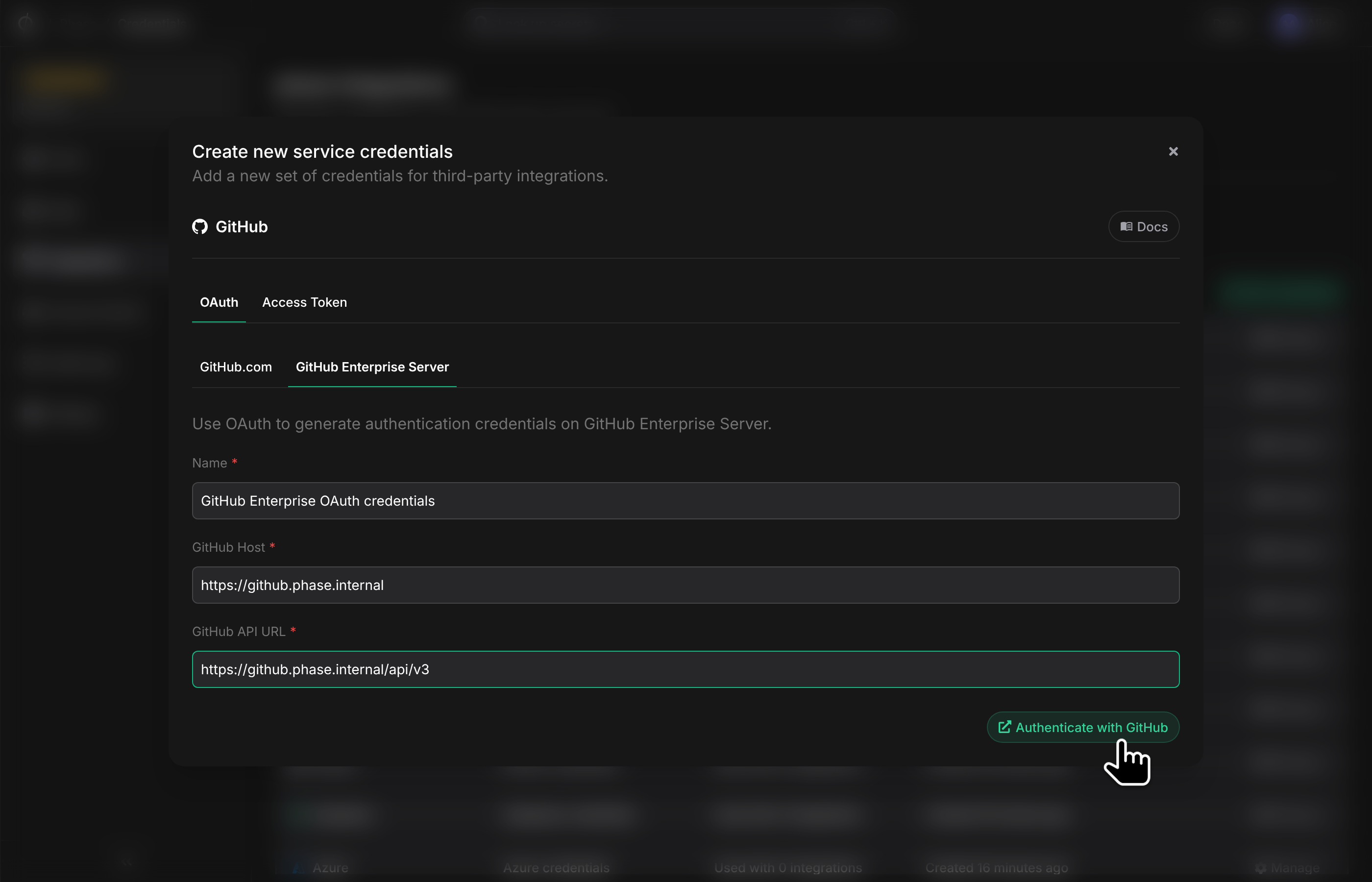
If you want to add GitHub Enterprise Server OAuth credentials, you will need to provide the following information:
GitHub Host (for example github.yourdomain.com) and GitHub API URL (this is typically a path on the GitHub host, for example https://github.yourdomain.com/api. This can also be a subdomain, for example api.github.yourdomain.com. If you are unsure, please contact your GitHub Enterprise Server administrator).
This is only for users who want to integrate their self-managed GitHub Enterprise Server with Phase. If you are using GitHub.com cloud with the GitHub enterprise tier, you can simply set up GitHub.com credentials.
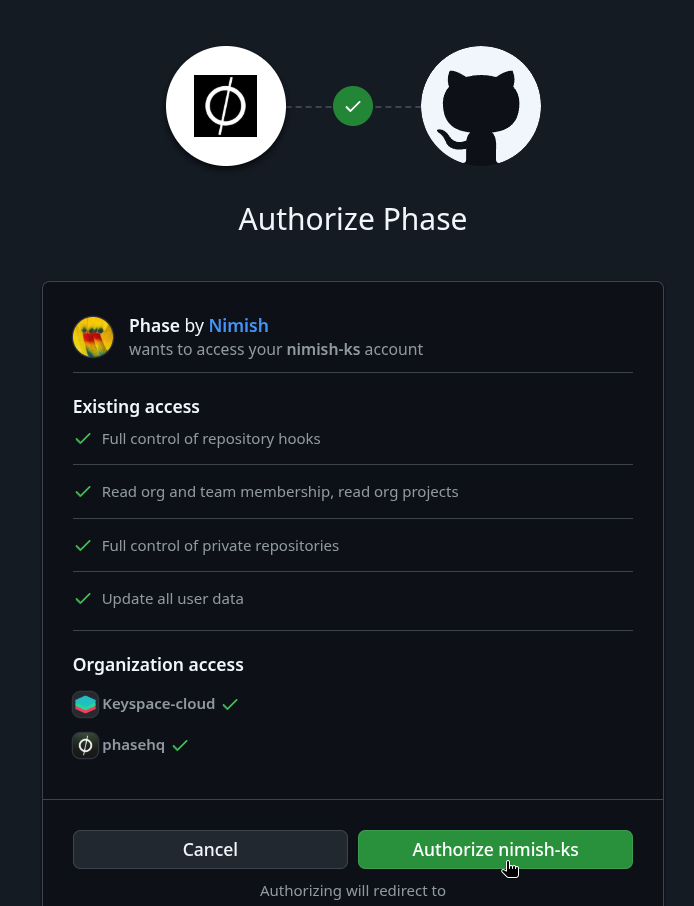
- You will be redirected to GitHub to authorize Phase. Make sure to grant access to any organizations whose repositories you wish to integrate Phase with. Click Authorize to continue.
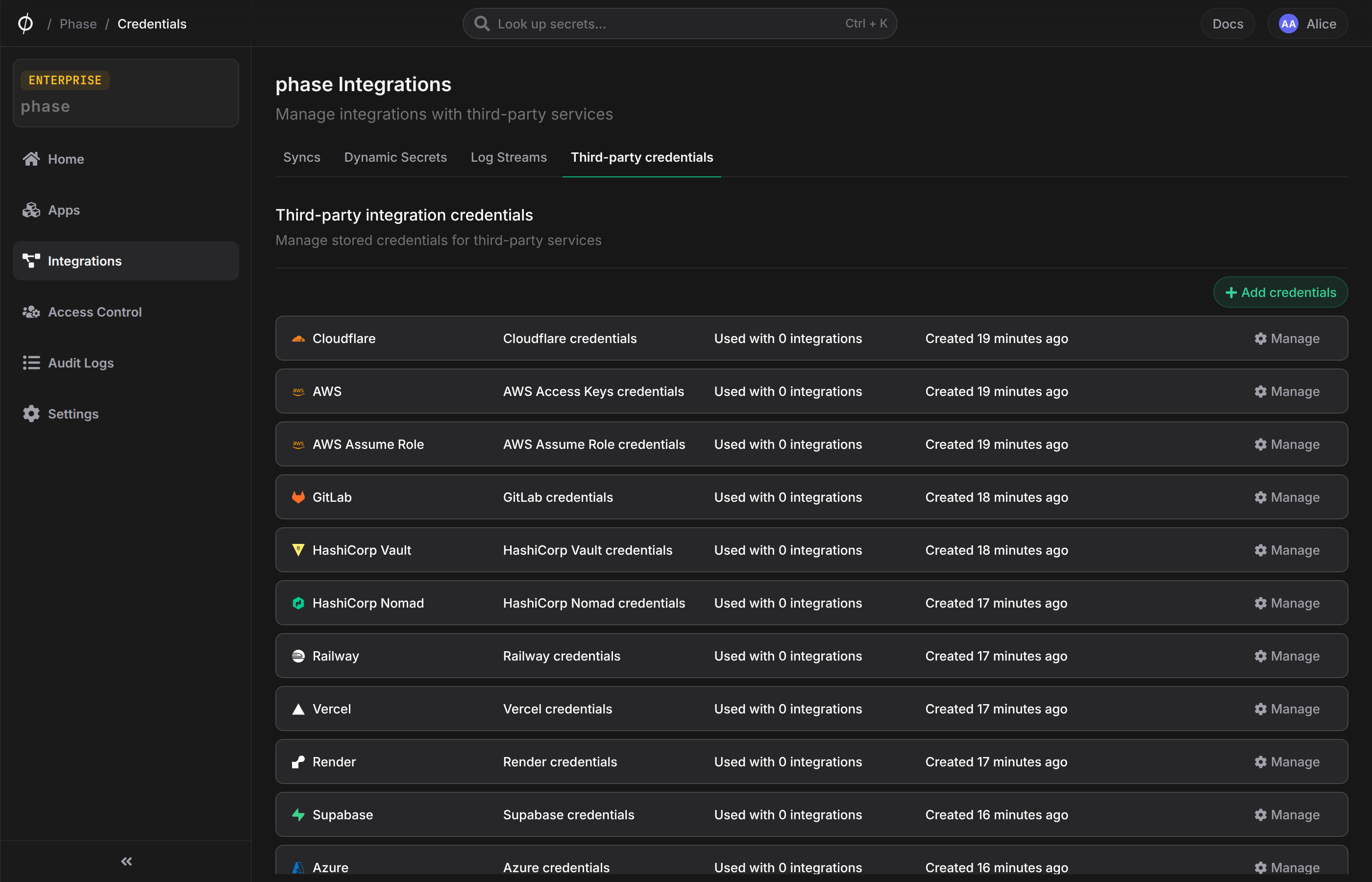
- You will be redirected back to the Integrations page, and your new credentials should be visible under the "Third-party credentials" section:
Step 2: Configure Sync
Now that you have authenticated with GitHub, you can configure syncs for your app:
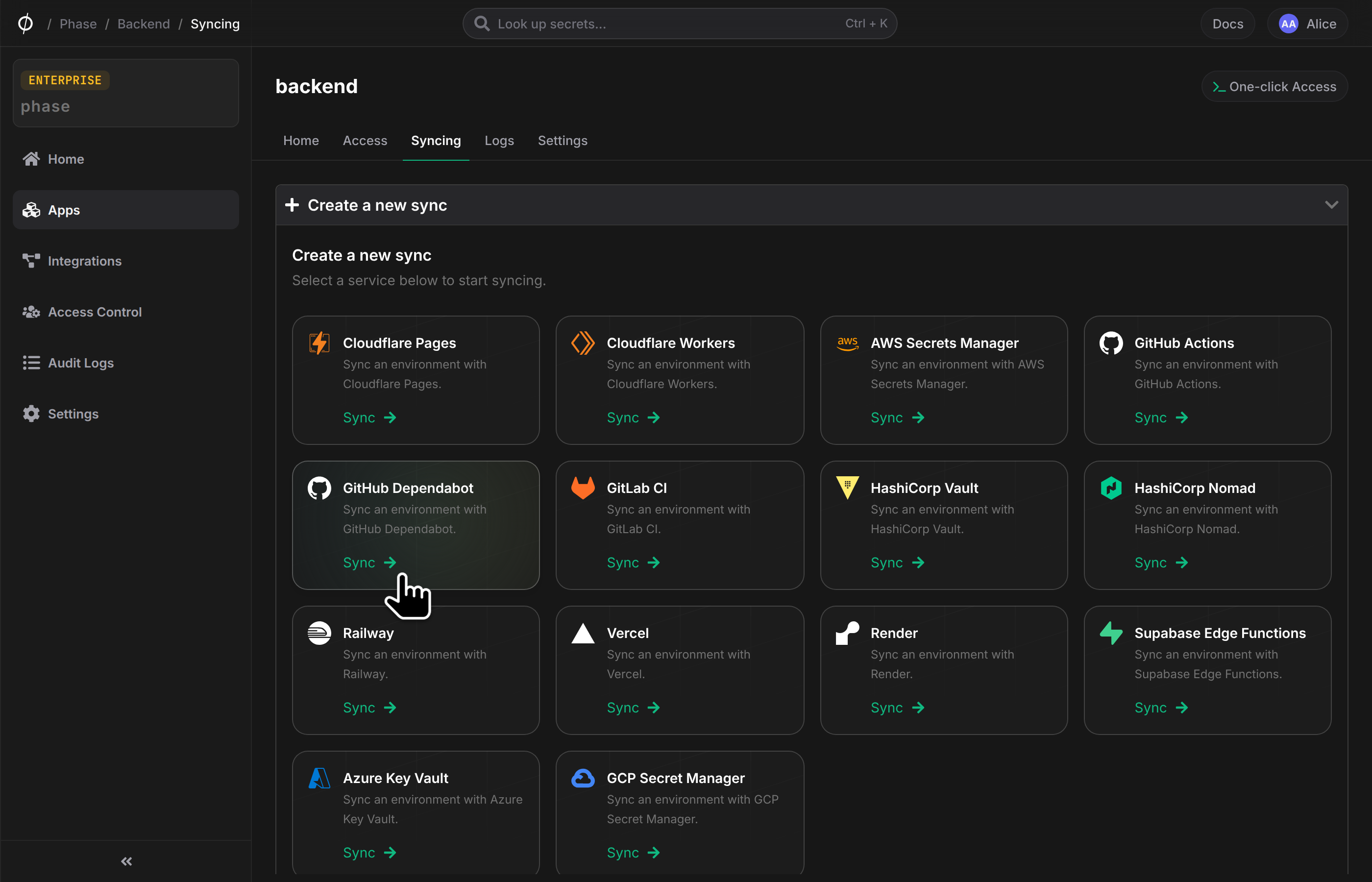
- Go to your App in the Phase Console and go to the Syncing tab. Select GitHub Dependabot under the 'Create a new Sync' menu.
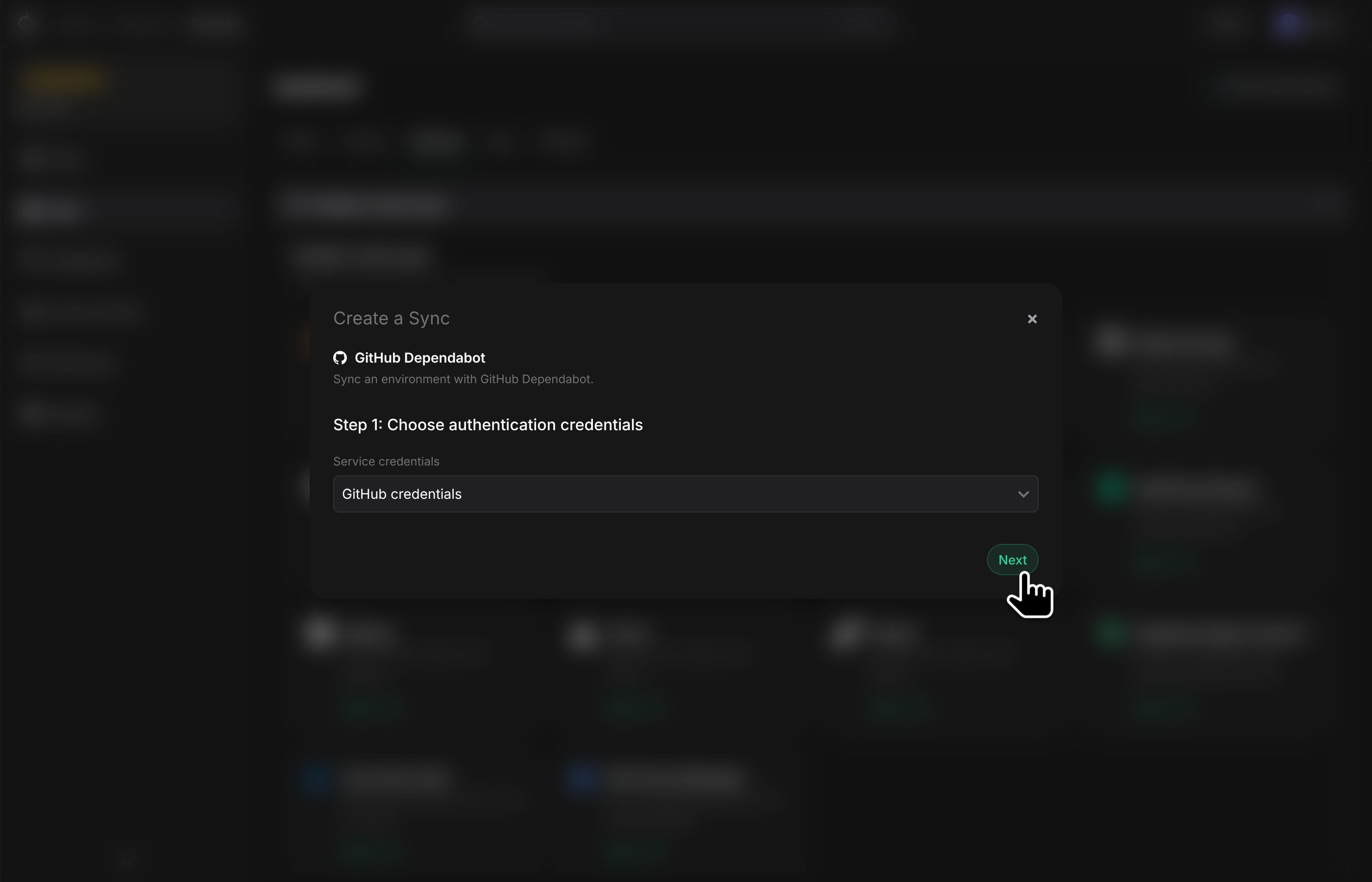
- Select the credentials stored in the previous step as the authentication method for this sync, and click Next
-
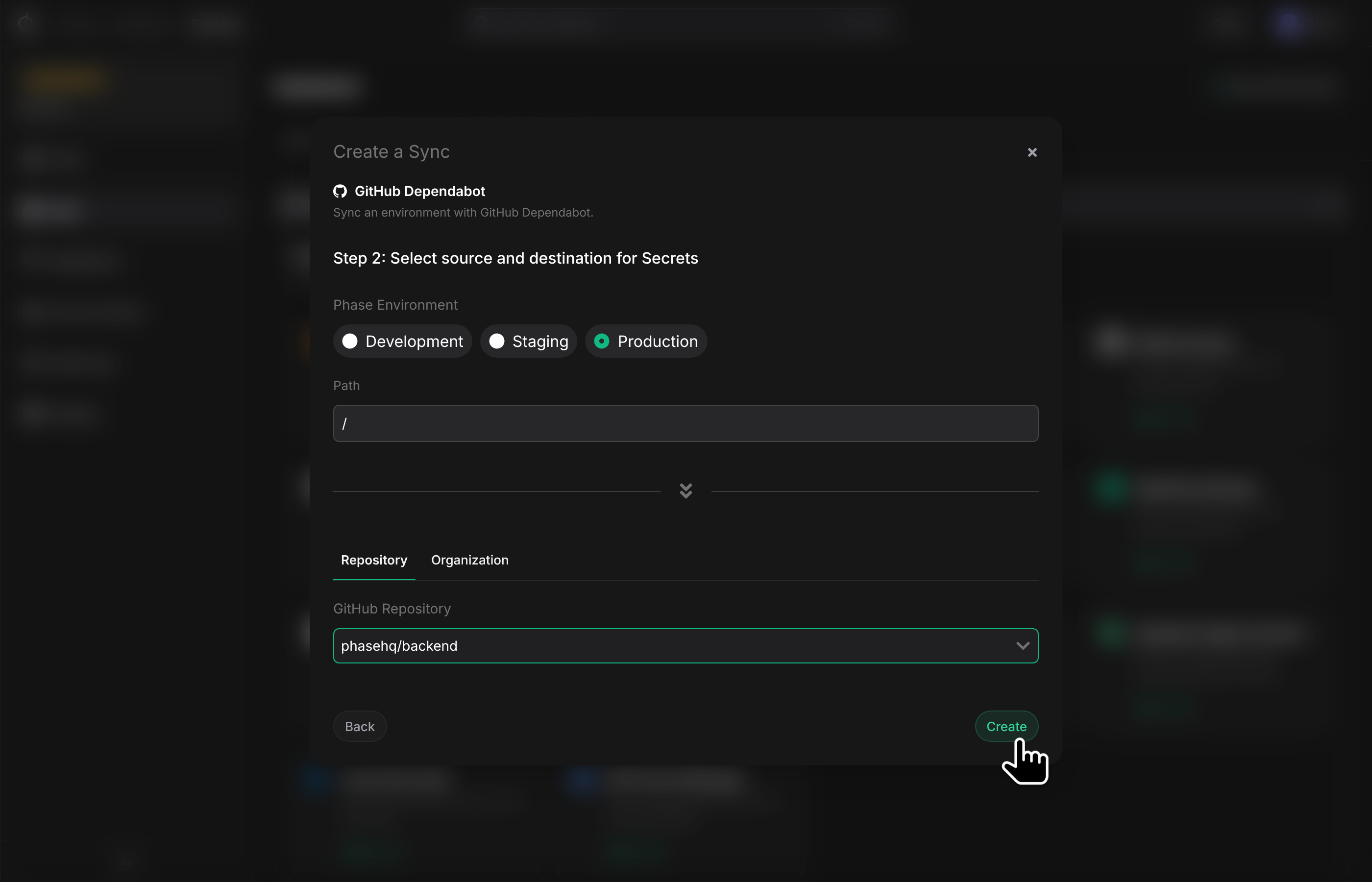
Choose the source and destination to sync secrets. Select the Phase Environment as the source for Secrets. Next, choose a GitHub repository from the dropdown as the destination to sync Secrets to.
For security reasons, secrets in your source Phase Environment will be synced to your GitHub repository as Dependabot Secrets.
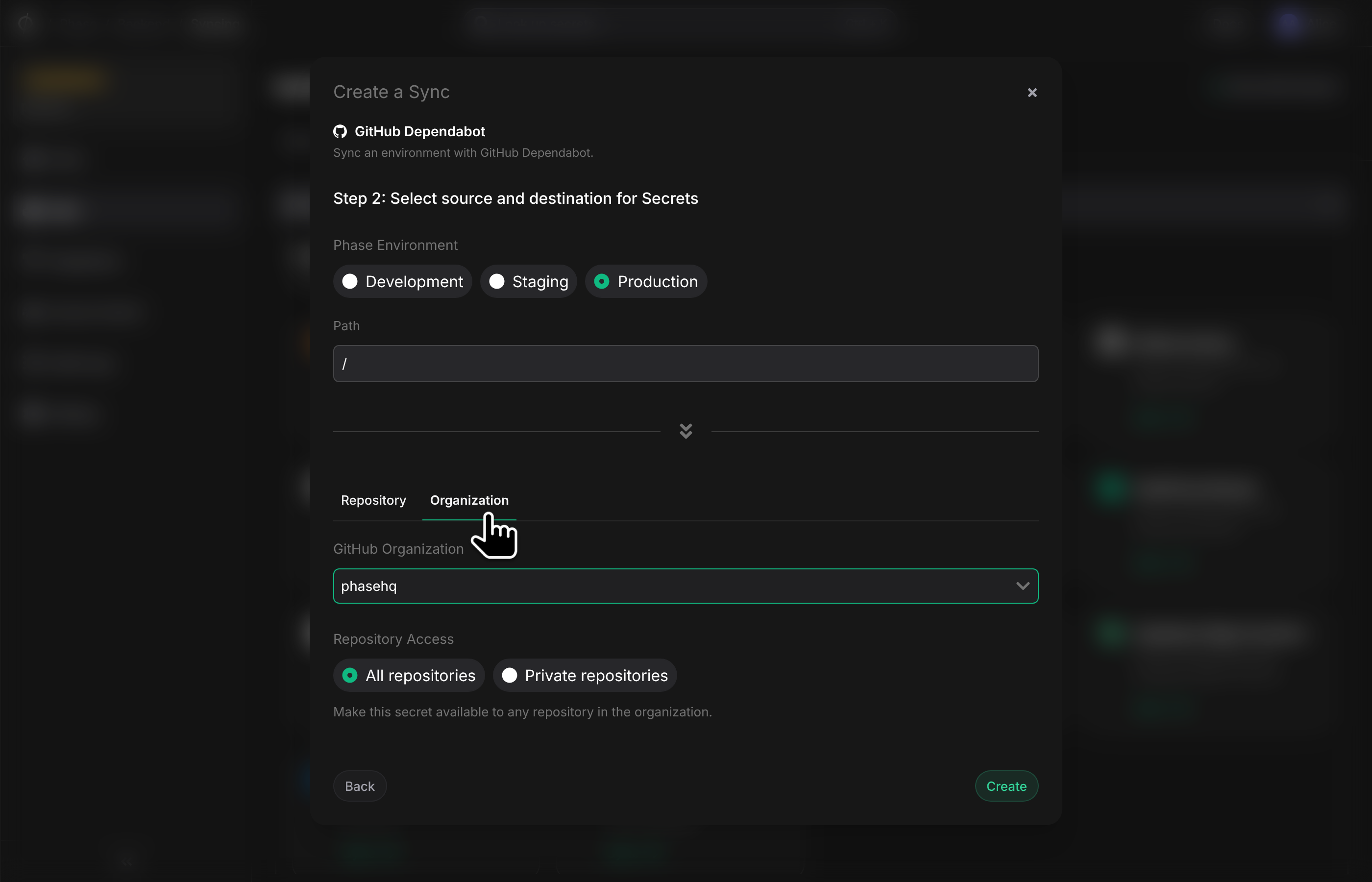
Alternatively, you can sync secrets directly to your GitHub organization. You can choose between All repositories, meaning private and public repositories, or Only Private repositories, based on your requirements. Your GitHub repositories will inherit the organization-level secrets automatically. GitHub Actions secret takes the following precedence:
- Environment secret
- if not present, then use Repository secret
- if not present, then use Organization secret
- if not present, then use Repository secret
-
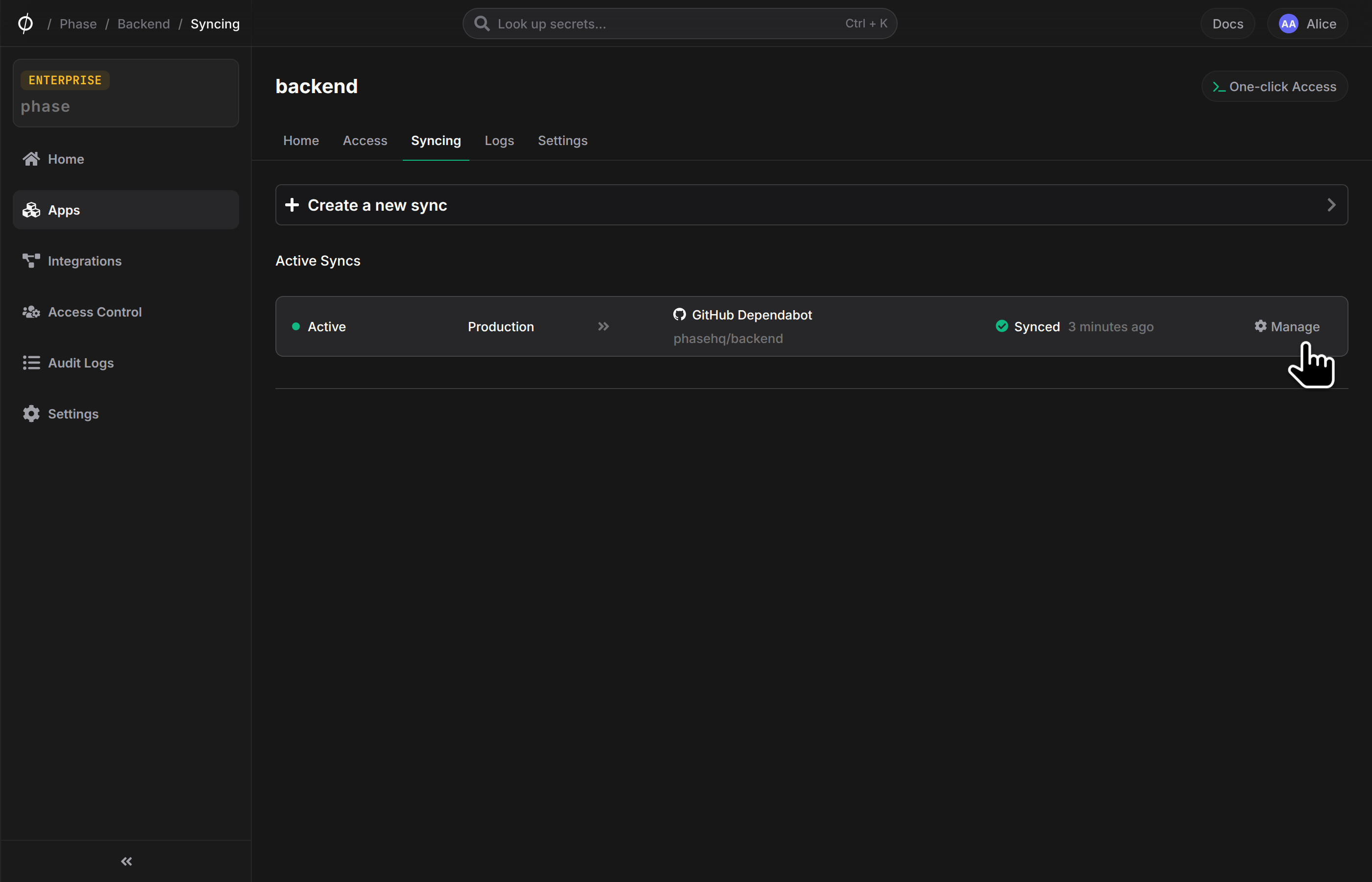
Once you have selected your desired source and destination, click Create. The sync has been set up! Secrets will automatically be synced from your chosen Phase Environment to the GitHub repository as Dependabot Secrets. You can click on the Manage button on the Sync card to view sync logs, pause syncing, or update authentication credentials.
Troubleshooting
- If you are using a self-hosted Phase instance and see a warning message about missing
GITHUB_INTEGRATION_CLIENT_IDandGITHUB_INTEGRATION_CLIENT_SECRETwhile trying to set up GitHub integration credentials, this means the GitHub integration credentials have not been configured for your self-hosted deployment. Please provision the integration credentials following the Third-party integrations configuration guide, restart your deployment and then hard refresh the page in your browser. - If you are not able to see your repositories or organizations, please check if you have provisioned the correct scope of access to your GitHub credentials. If you used the OAuth flow, please make sure to go through it again and to grant access to any organizations whose repositories you wish to integrate Phase with.