Environments
Environments in Phase allow you to manage your application secrets through various stages of your development process. This guide explains how to create, update, and manage environments in your Phase application.
When you create a new application in Phase, it is automatically initialized with three default environments:
- Development
- Staging
- Production
These default environments provide a standard structure for managing your application secrets across different stages of your development workflow. You can then customize these or add additional environments as needed.
The ability to create and manage custom environments is available for organizations with a Phase Pro or Enterprise tier subscription.
Environment names must match the pattern ^[a-zA-Z0-9\-_]{1,32}$. This means they can only contain:
- Lowercase letters (a-z)
- Uppercase letters (A-Z)
- Numbers (0-9)
- Hyphens (-)
- Underscores (_)
- Must be between 1 and 32 characters long
Creating a New Environment
To create a new environment:
- Navigate to the Secrets overview screen inside your app in the Phase console.
- Click the "+ New Environment" button.
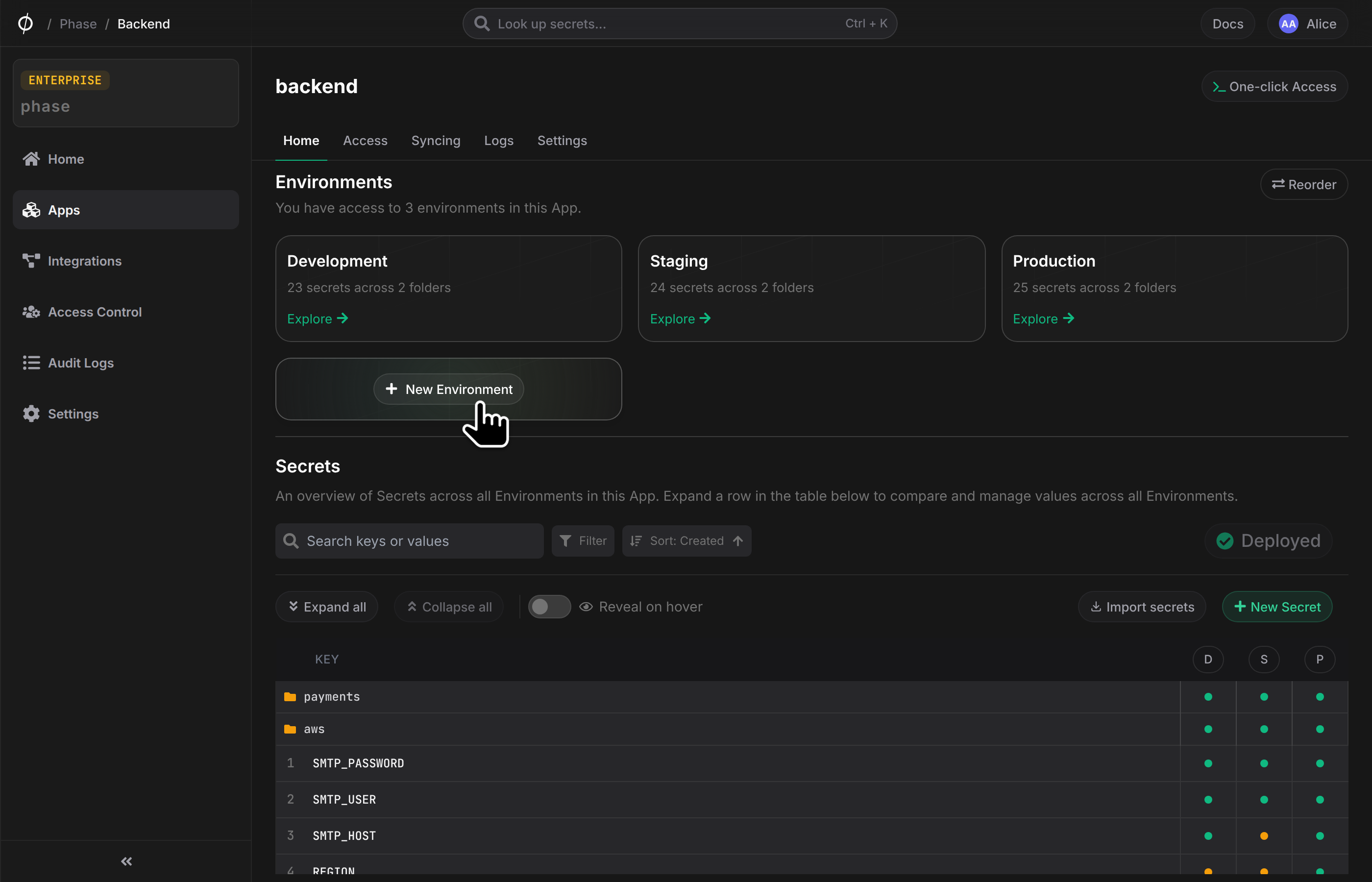
- In the popup dialog, you'll see a message: "Create a new Environment in this App". Enter a name for your new environment in the "Environment name" field. For example, you might enter "QA" for a quality assurance environment.
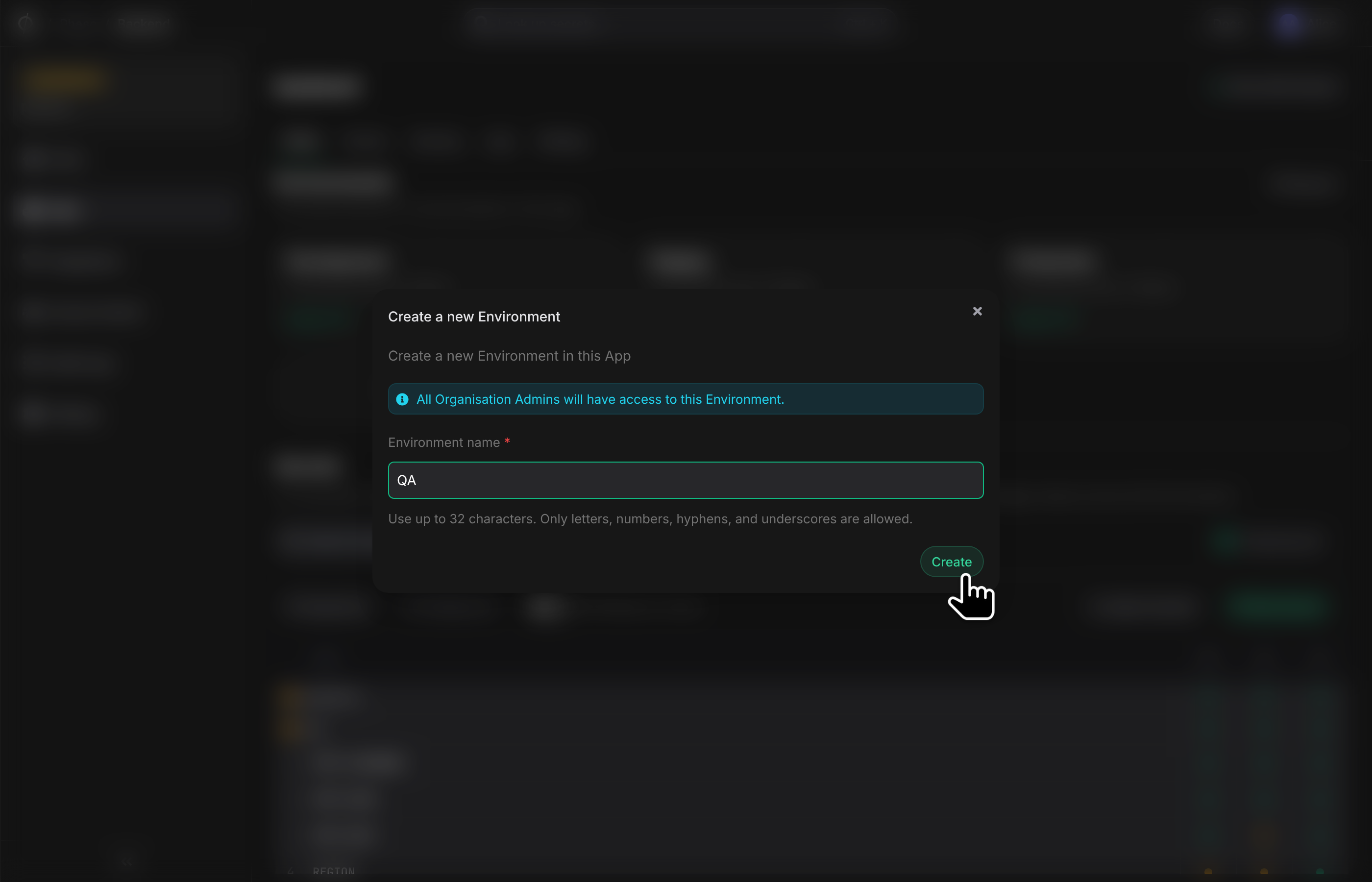
- Click
Create
Note: All Organisation Admins will have access to this Environment.
Managing Existing Environments
To manage an existing environment:
- On the Secrets overview screen, locate the environment card you want to manage.
- Click on the cog icon (⚙️) at the top right of the environment card.
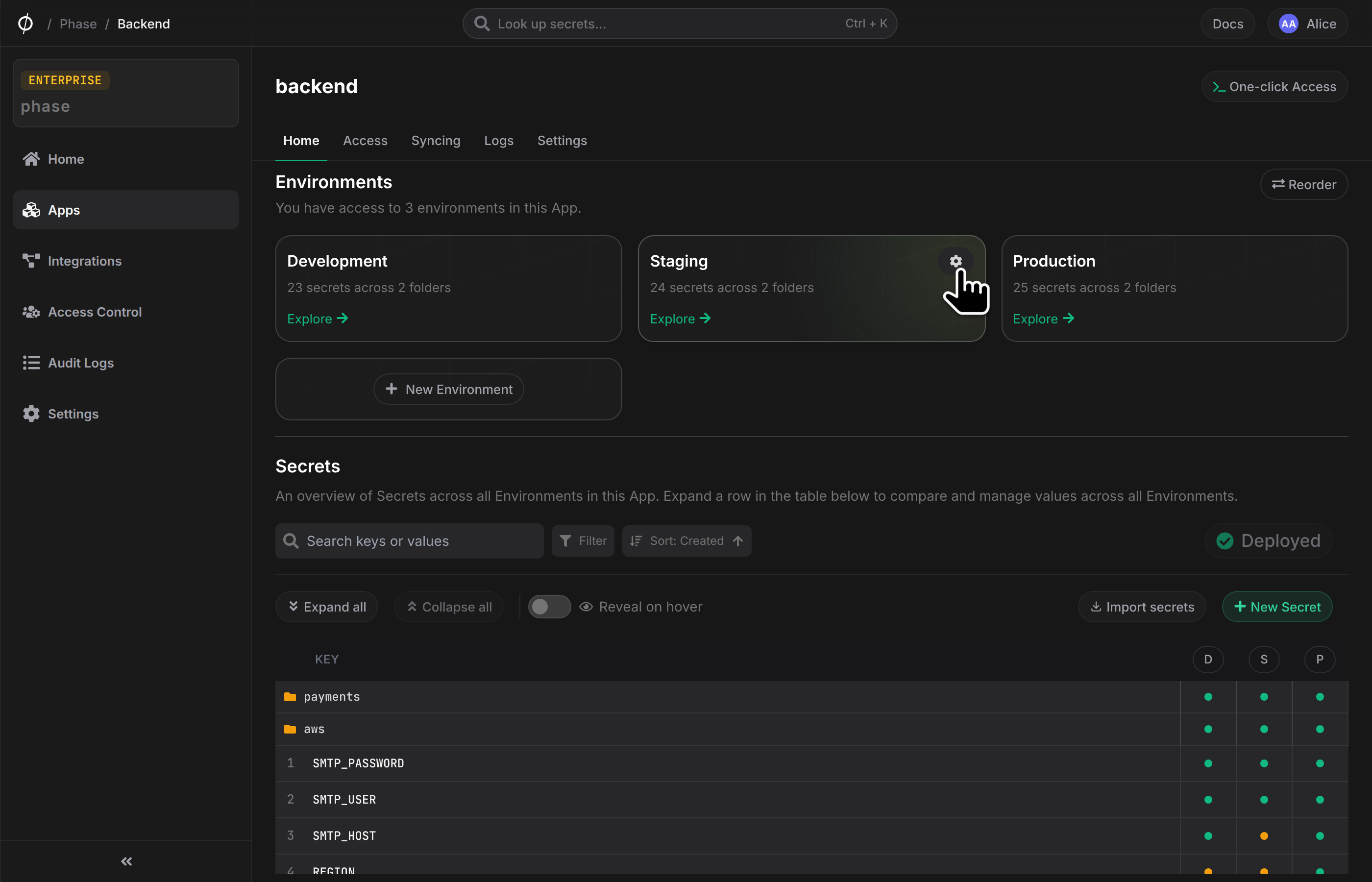
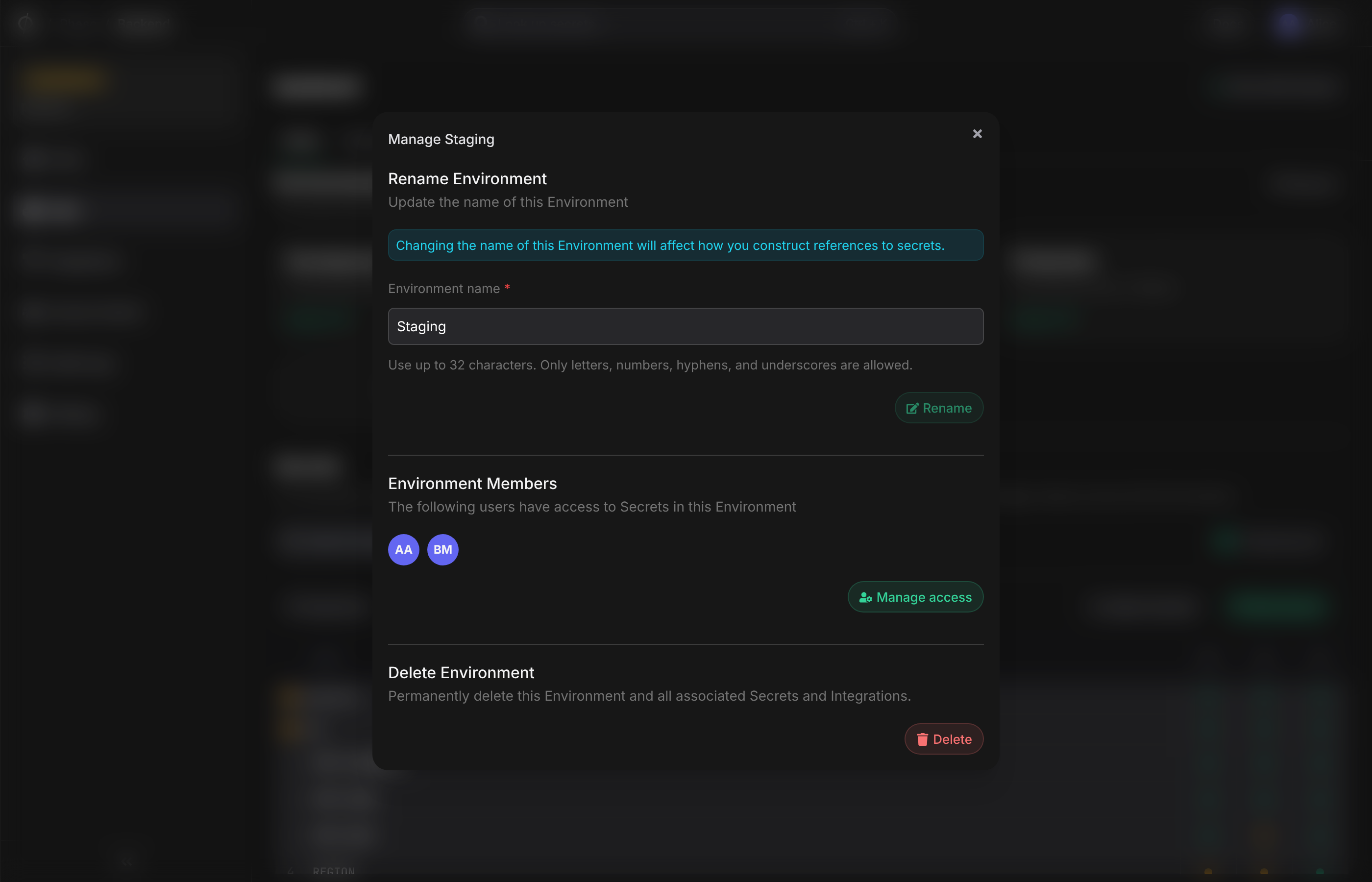
- A "Manage [Environment Name]" dialog will appear with several options:
Renaming an Environment
- Enter the new name in the "Environment name" field.
- Click the
Renamebutton to apply the change.
Changing the environment name will affect how you construct references to secrets.
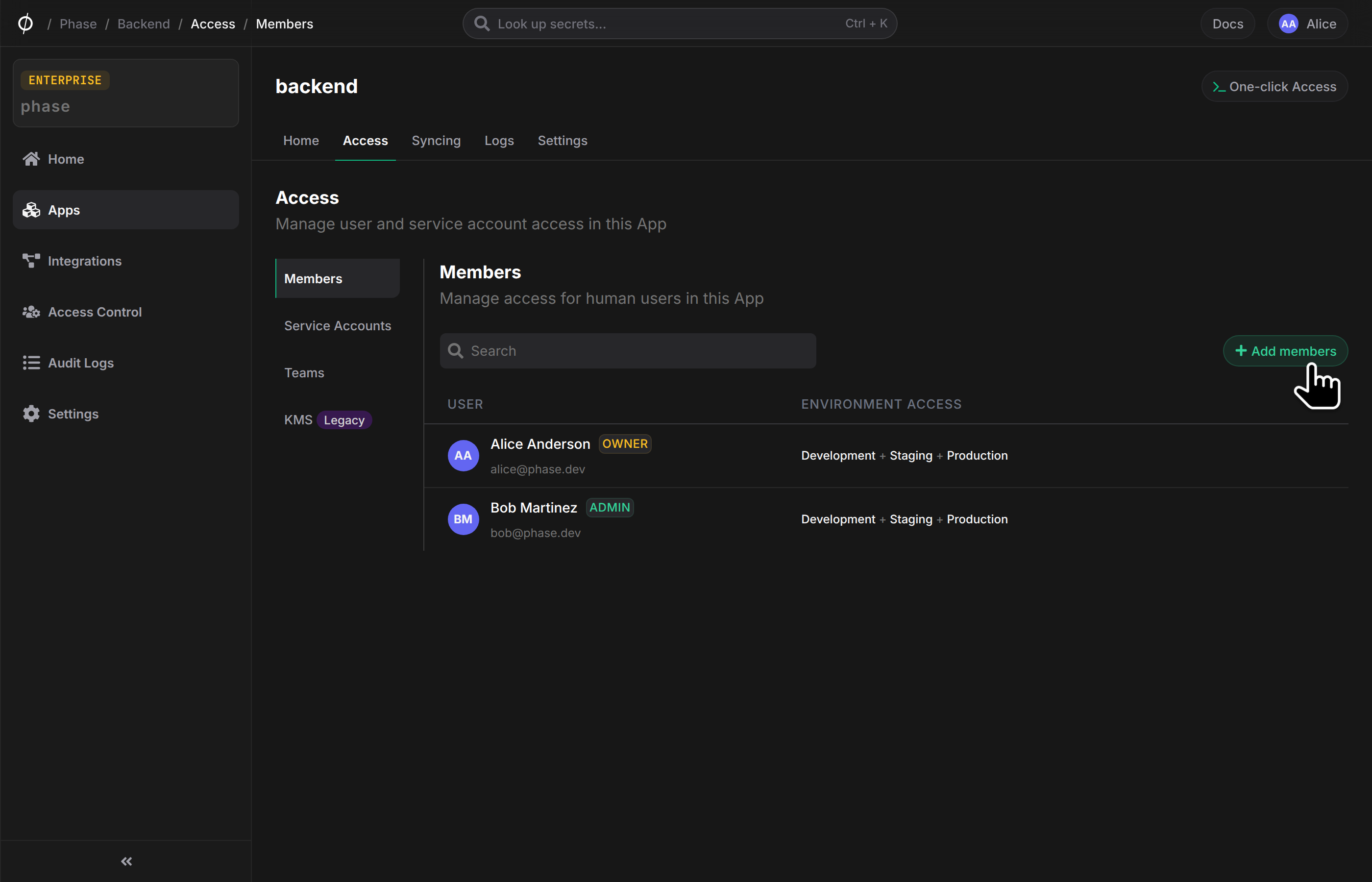
Managing Access
- In the "Environment Members" section, you can see users who have access to Secrets in this Environment.
- Click
Manage accessto add or remove user access to this environment.
Deleting an Environment
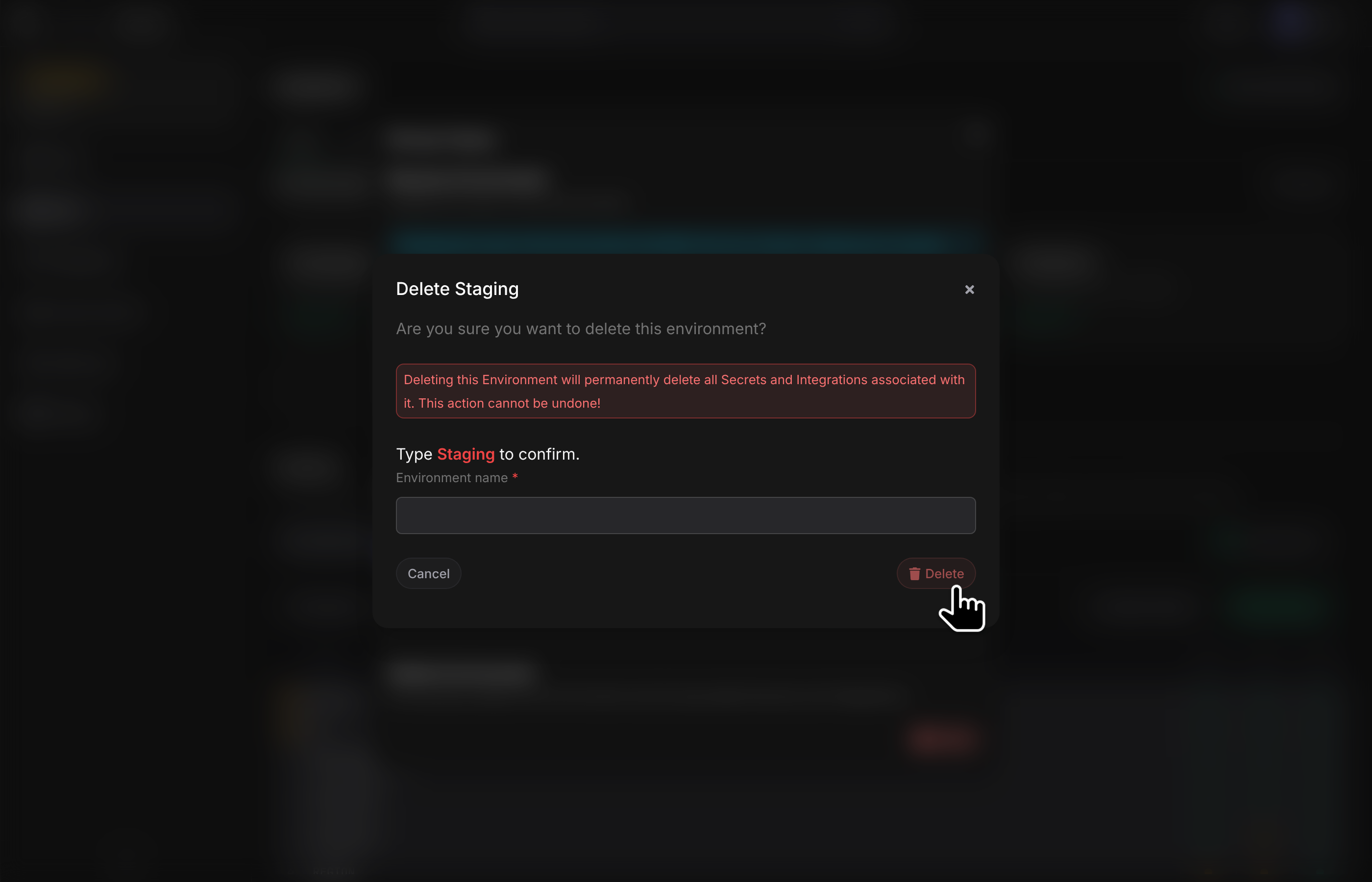
- At the bottom of the dialog, you'll find a "Delete Environment" section.
- Be aware that deleting an environment will permanently delete this Environment and all associated Secrets and Integrations.
- Click the
Deletebutton to remove the environment. Use this option with caution.
Remember, Organization Owners and Admins have access to all Environments by default. For Developers, you can control Environment access from the App Members screen.
By leveraging these customizable Environments, you can create a workflow that suits your development process, from testing and staging to production deployments.