Coolify
You can use Phase to sync secrets to the environment variables of a Coolify application.
When you enable secret syncing, Phase becomes the source of truth for the application's variables. Phase overwrites them and deletes variables that are not in Phase, including ones created in Coolify. Coolify can't restore deleted variables. Import your variables into Phase before you continue.
Prerequisites
- Sign up for the Phase Console and create an App.
- Enable Server-side Encryption (SSE) for the App from the Settings tab.
- A Coolify instance that Phase can reach. Phase Cloud only connects to public addresses. A self-hosted Phase instance can also reach Coolify on a private network.
Step 1: Authentication
Enable the Coolify API
Coolify turns its API off by default. In Coolify, go to Settings → Advanced and set API access to Enabled. Only an instance admin can change this setting. Until the API is enabled, Phase shows "The Coolify API is disabled" when it tries to connect.
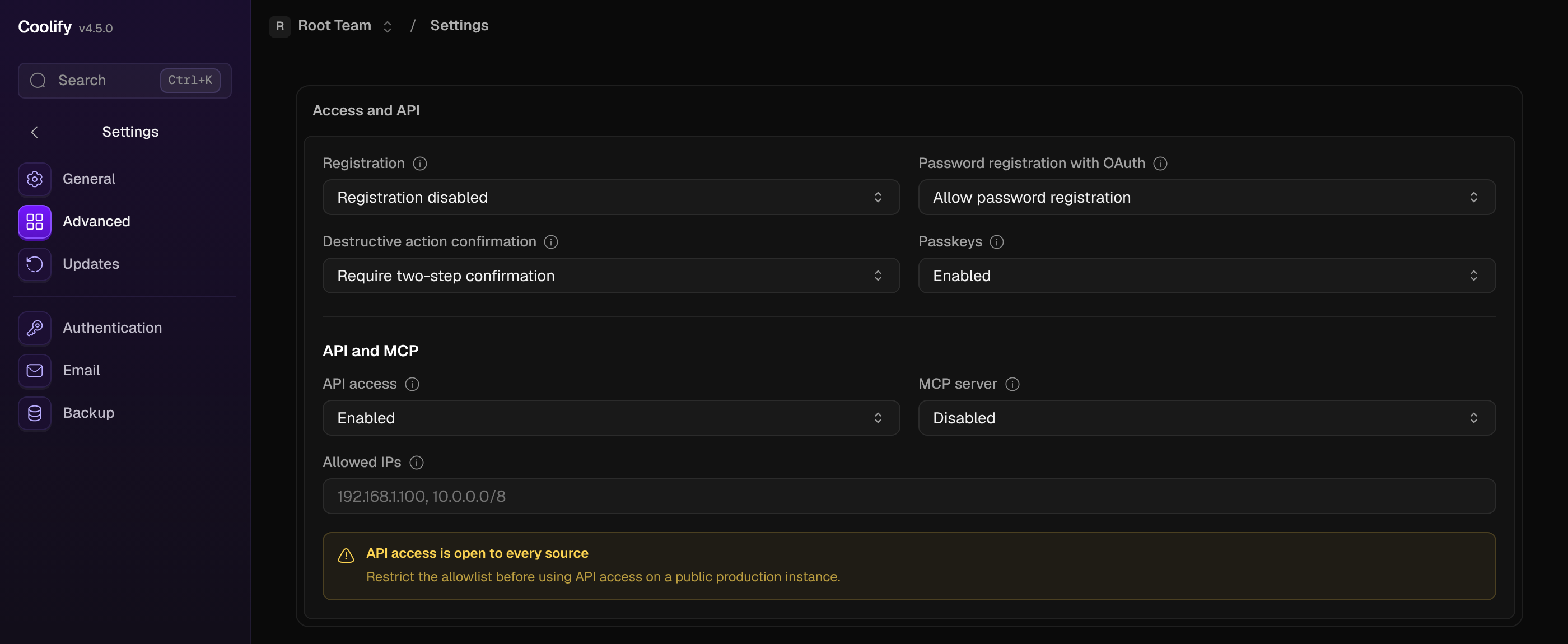
If you set Allowed IPs, include the IP address that Phase connects from.
Create a Coolify API token
A Coolify API token belongs to the team that is selected when you create it, and Phase only sees that team's applications. Only team admins and owners can create a token with Write permission.
-
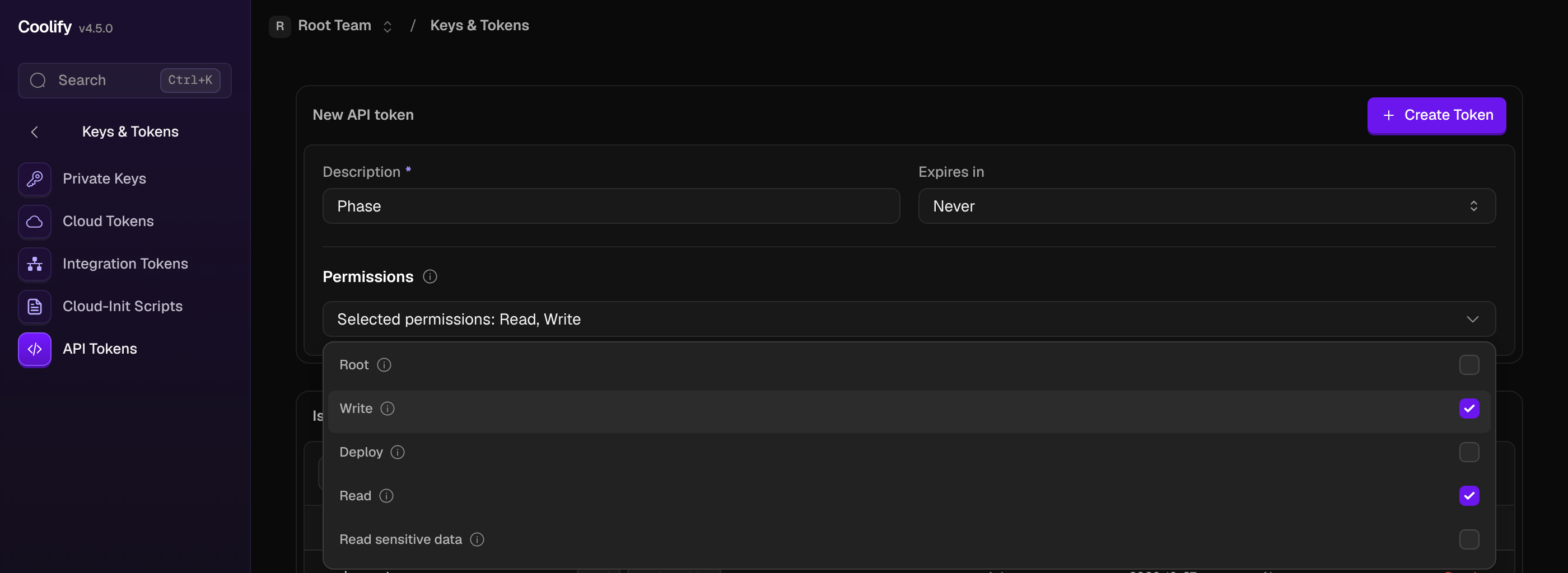
In Coolify, switch to the team that owns your application. Then go to Keys & Tokens → API Tokens.
-
Enter a description and set Expires in. Under Permissions, select Read and Write. Phase doesn't need Read sensitive data. Then click Create Token.
- Copy the token. Coolify shows it only once.
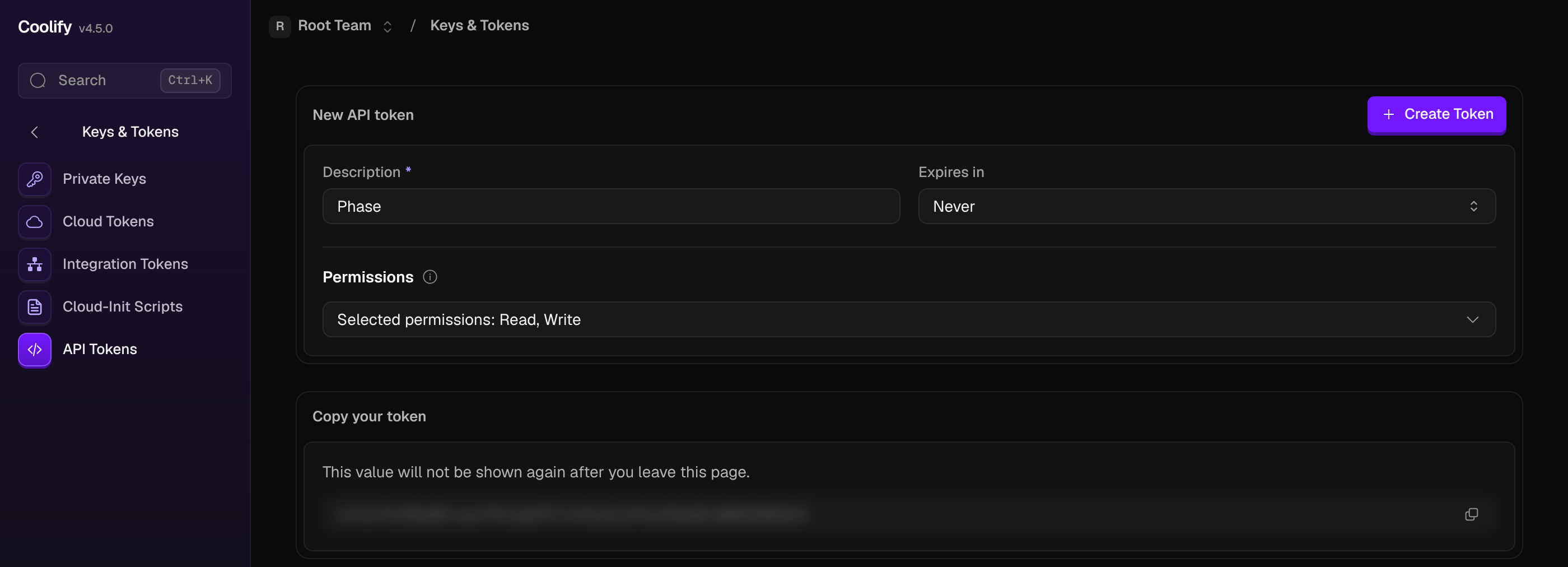
Coolify sets new tokens to expire after 30 days by default. Choose Never or a longer period under Expires in. When the token expires, syncs fail with an authentication error. Syncs resume after you update the stored credentials with a new token.
Store authentication credentials in Phase
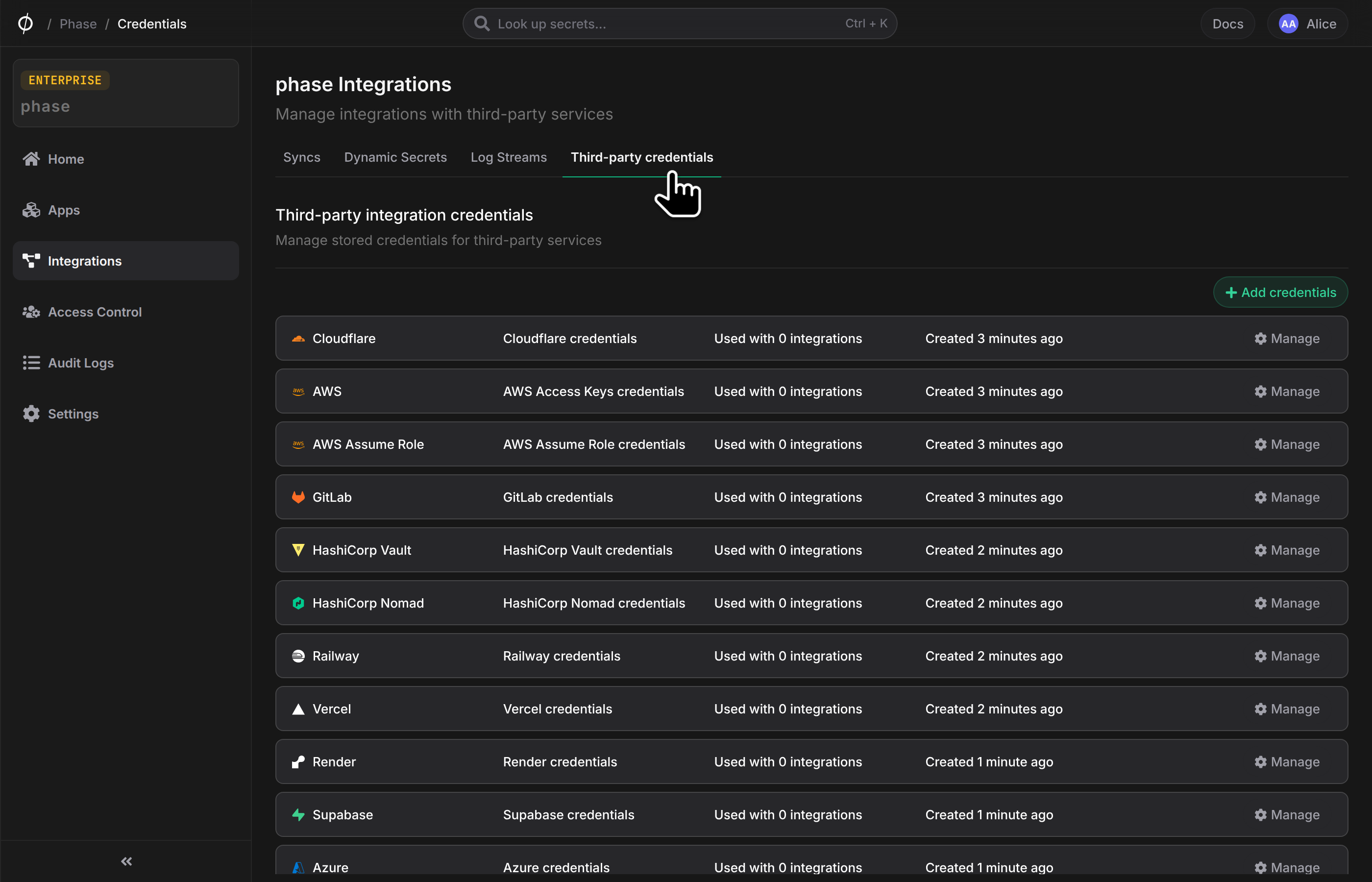
- Go to Integrations in the sidebar. Then click Third-party credentials in the integrations tab.
-
Click Coolify.
-
Enter your instance URL in
Coolify URL, for examplehttps://coolify.example.com, and the token inAPI Token. Use the address you open Coolify at, includinghttps://. Phase doesn't follow redirects. Enter a descriptive name and click Save.
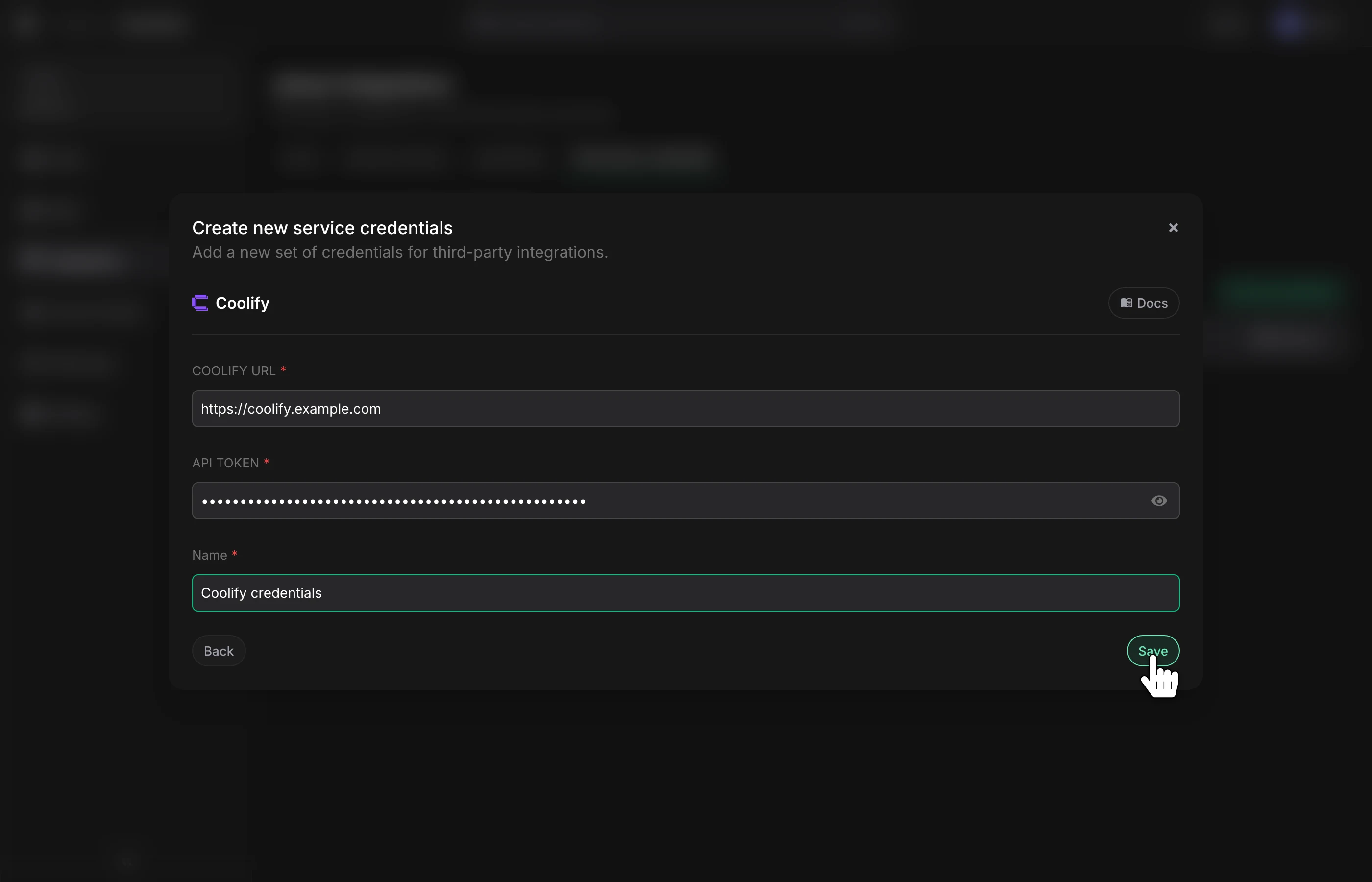
Phase encrypts and saves your credentials. You can view and manage them under Service Credentials in the Integrations screen.
Step 2: Set up a secret sync
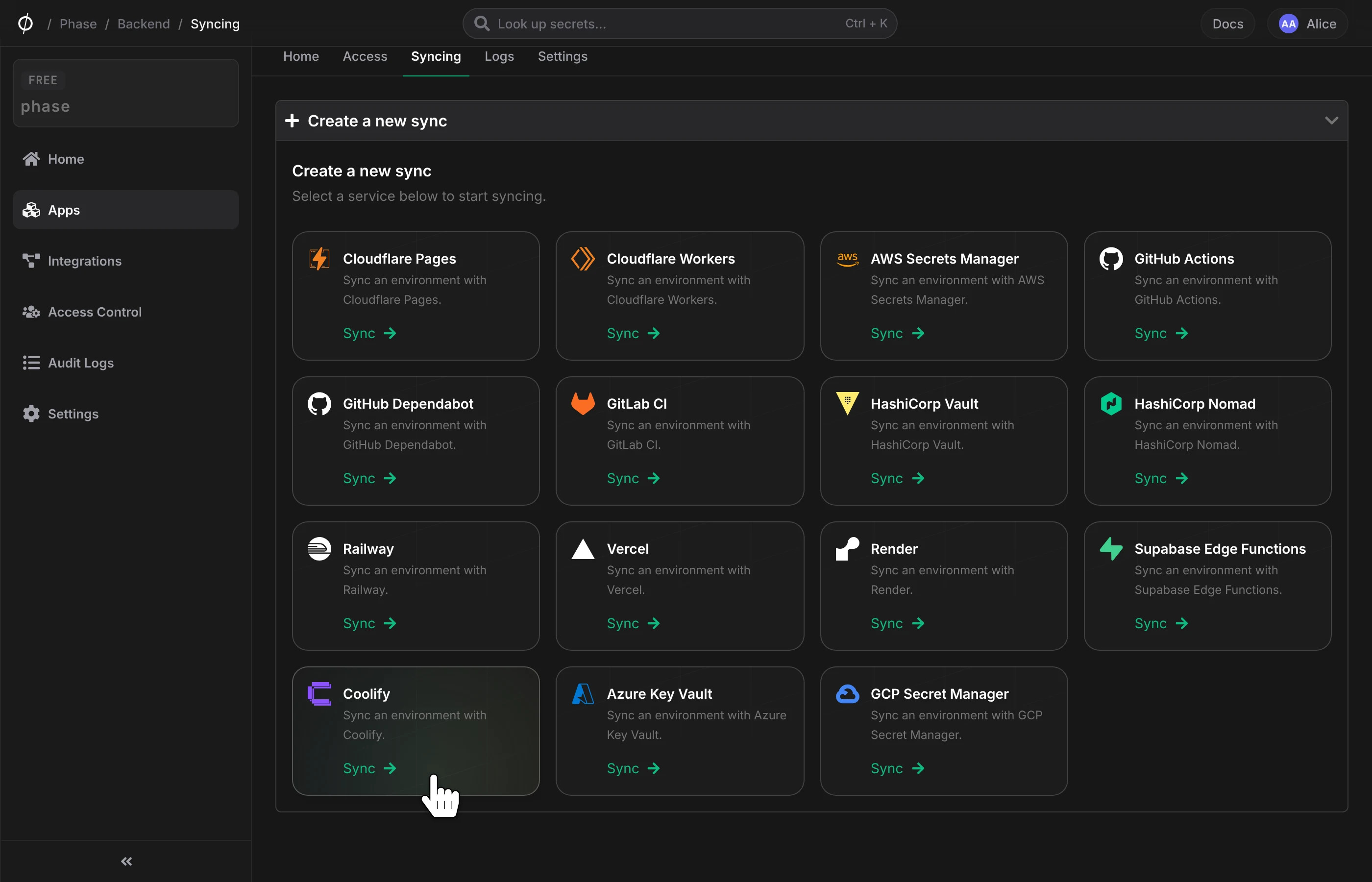
- Open your App in the Phase Console and go to the Syncing tab. Select Coolify in the 'Create a new Sync' menu.
-
Select the credentials that you added in the previous step. Then click Next.
-
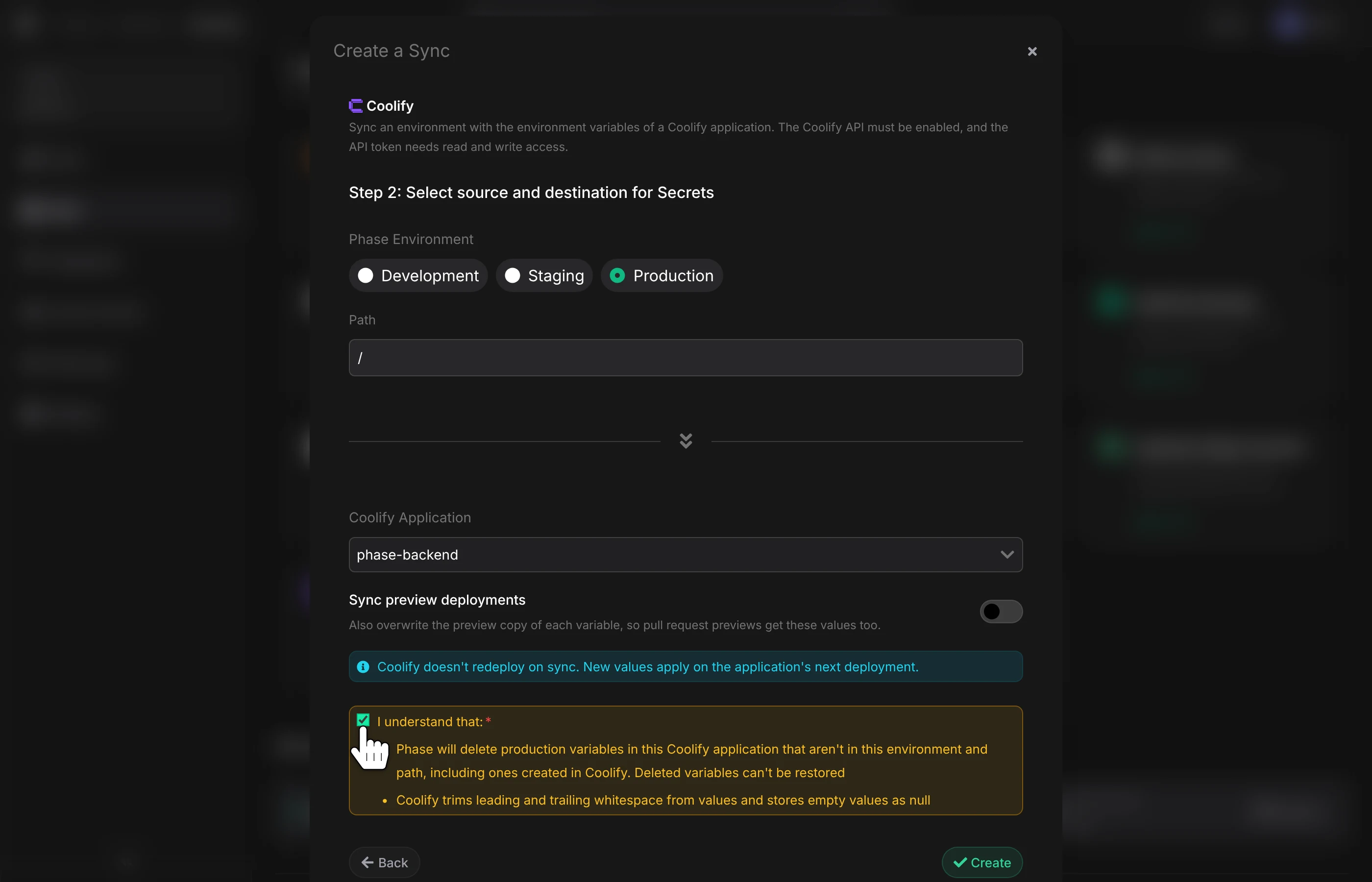
Select an Environment from your App as the source. If you want to sync from a specific folder, set the Path. Then select a Coolify application from the dropdown.
-
Choose whether to turn on Sync preview deployments. It is off by default.
- When it's off, Phase only writes production variables. New secrets stay out of pull request previews, and preview values already in Coolify are left as they are.
- When it's on, Phase also overwrites preview values and deletes preview variables that aren't in Phase.
-
Confirm that Phase may delete variables, then click Create.
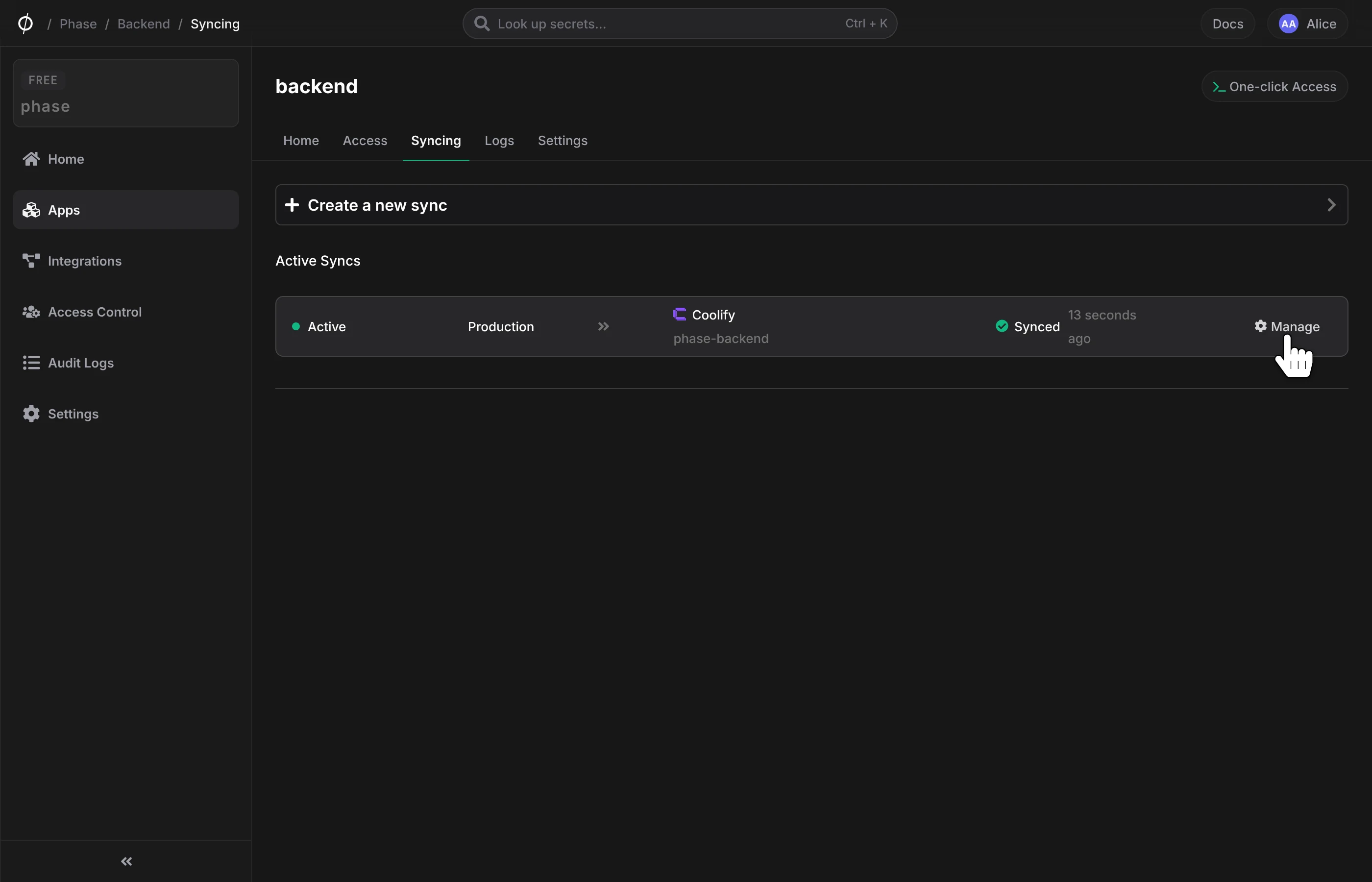
Phase now syncs your secrets to the application. You can manage the sync from the Syncing tab of your App or from the Integrations screen.
How the sync behaves
Redeploys
Coolify doesn't redeploy when variables change. New values apply on the application's next deployment.
Deleted variables
Each sync deletes production variables that aren't in the Phase environment and path, and preview variables too when Sync preview deployments is on. Phase keeps:
- Build settings:
NIXPACKS_*andRAILPACK_* - Coolify's own variables:
SERVICE_*
Coolify treats NIXPACKS_* and RAILPACK_* variables as build settings. If you add one in Phase, the sync writes it, but deleting it in Phase doesn't remove it from Coolify. Remove it in Coolify instead.
If the environment and path have no secrets but the application has variables, the sync stops without changing anything. This protects you from a mistyped path.
Values
- Coolify trims leading and trailing whitespace. A PEM key loses its final newline.
- Coolify stores an empty value as
null. - Phase marks values as literal, so Coolify doesn't expand
$VARinside them. Coolify still resolves shared variable references such as{{environment.X}}and{{team.X}}. - Variables you locked in Coolify stay locked.
Variable names
Coolify accepts names that start with a letter or underscore and contain only letters, numbers, underscores and dots. If a Phase key doesn't match, for example MY-KEY, the sync stops before it writes anything and lists the keys to rename.
Phase doesn't push keys that start with SERVICE_, because Coolify reserves them. The sync logs list the skipped keys.