Password Authentication
Phase supports native email and password authentication out of the box, with no external identity provider configuration required.
Signup
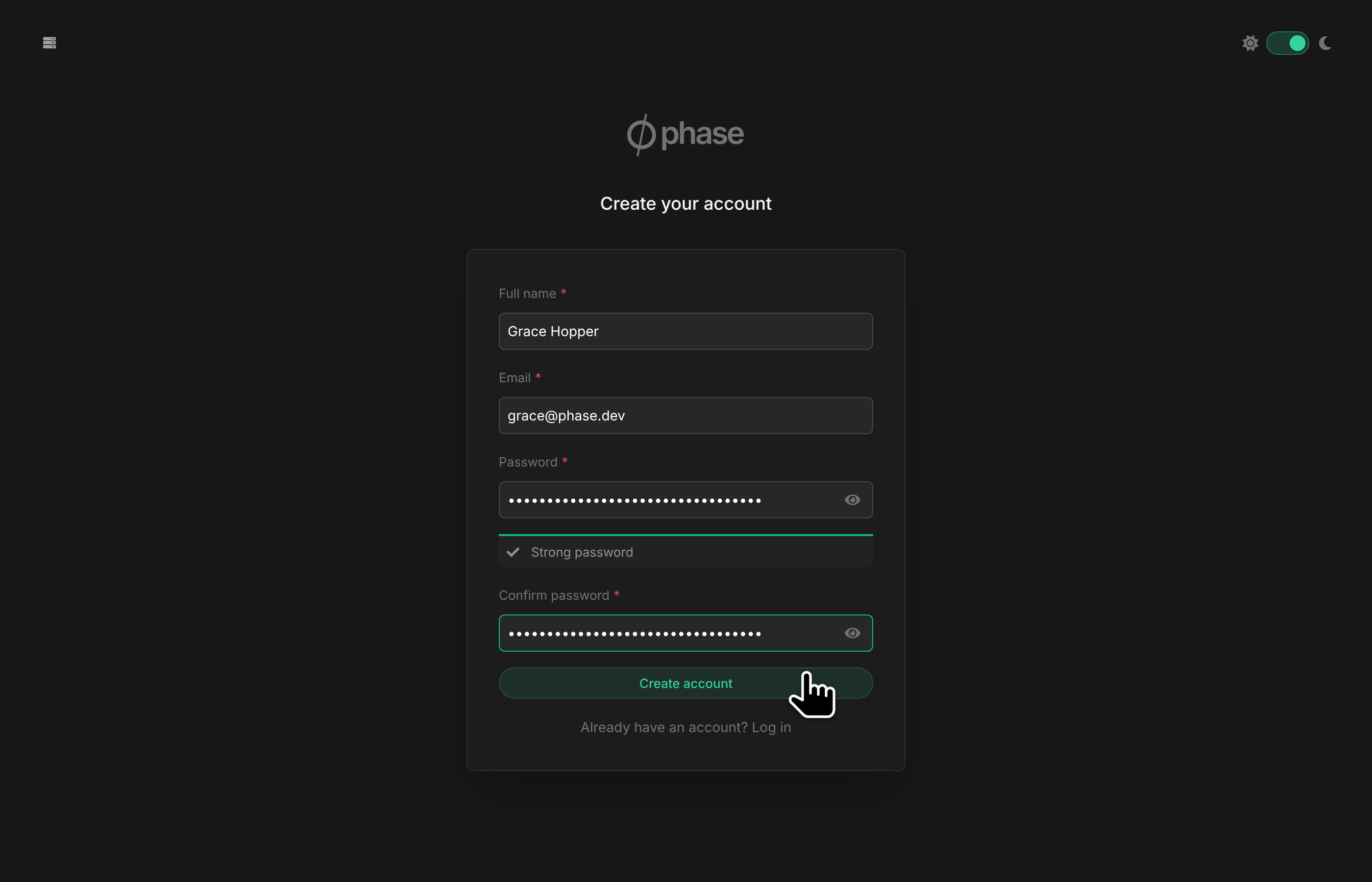
To create a new account with email and password:
- Enter your email address, full name, and a password (minimum 16 characters).
- Verify your email address by clicking the link sent to your inbox. The verification link expires after 24 hours.
- Log in and complete the onboarding flow: set your Organisation name, create a sudo password, and save your recovery kit.
Login
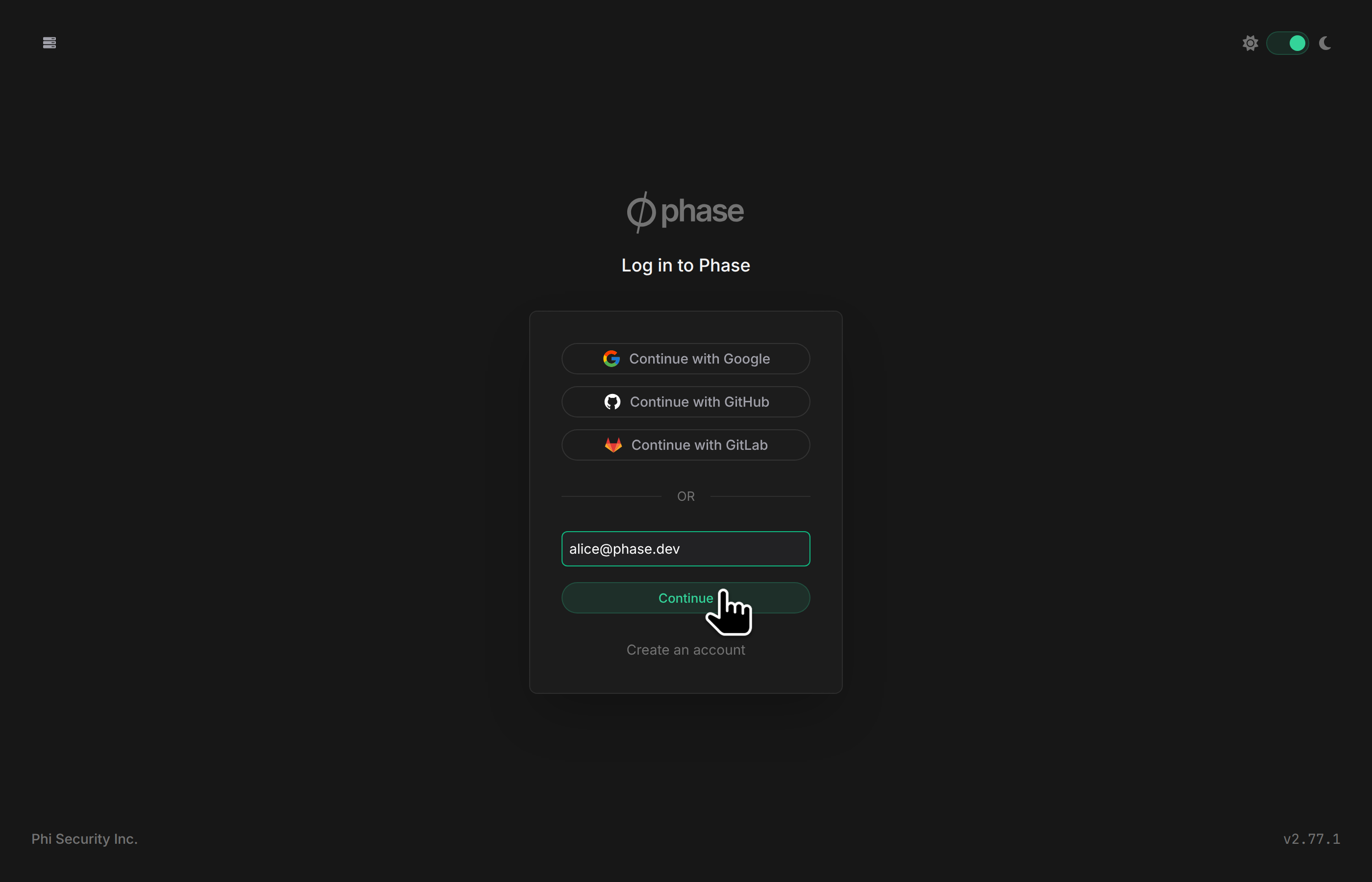
Phase uses an email-first login flow. Enter your email address, and the system will determine the appropriate authentication method:
- If your account uses a password, you will be prompted to enter it.
- If your organisation uses SSO, you will be redirected to your identity provider.
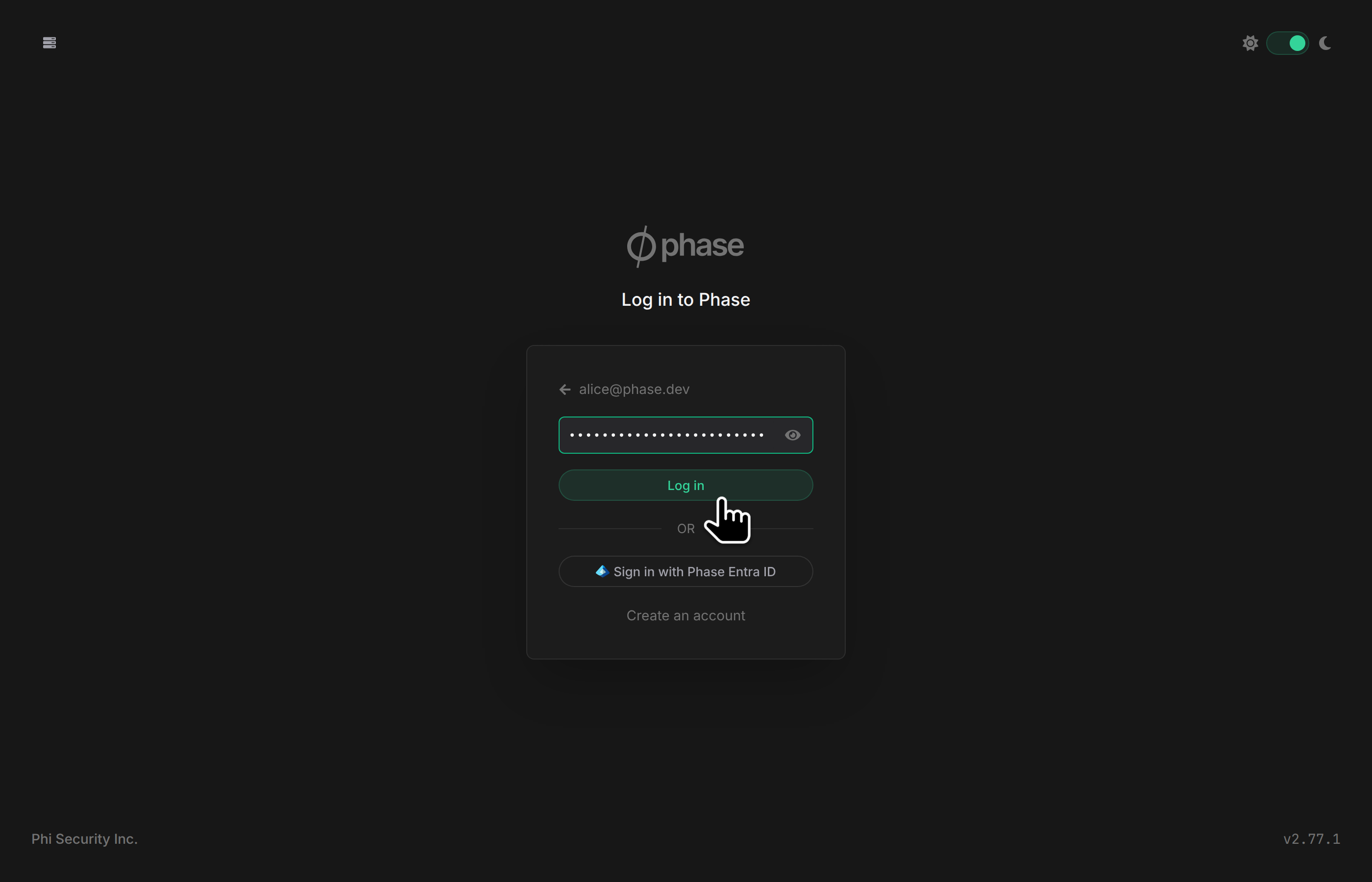
If two-factor authentication is enabled on your account, you will also be prompted for a code from your authenticator app. Your email address and other sign-in settings can be managed from the Account page.
Password change
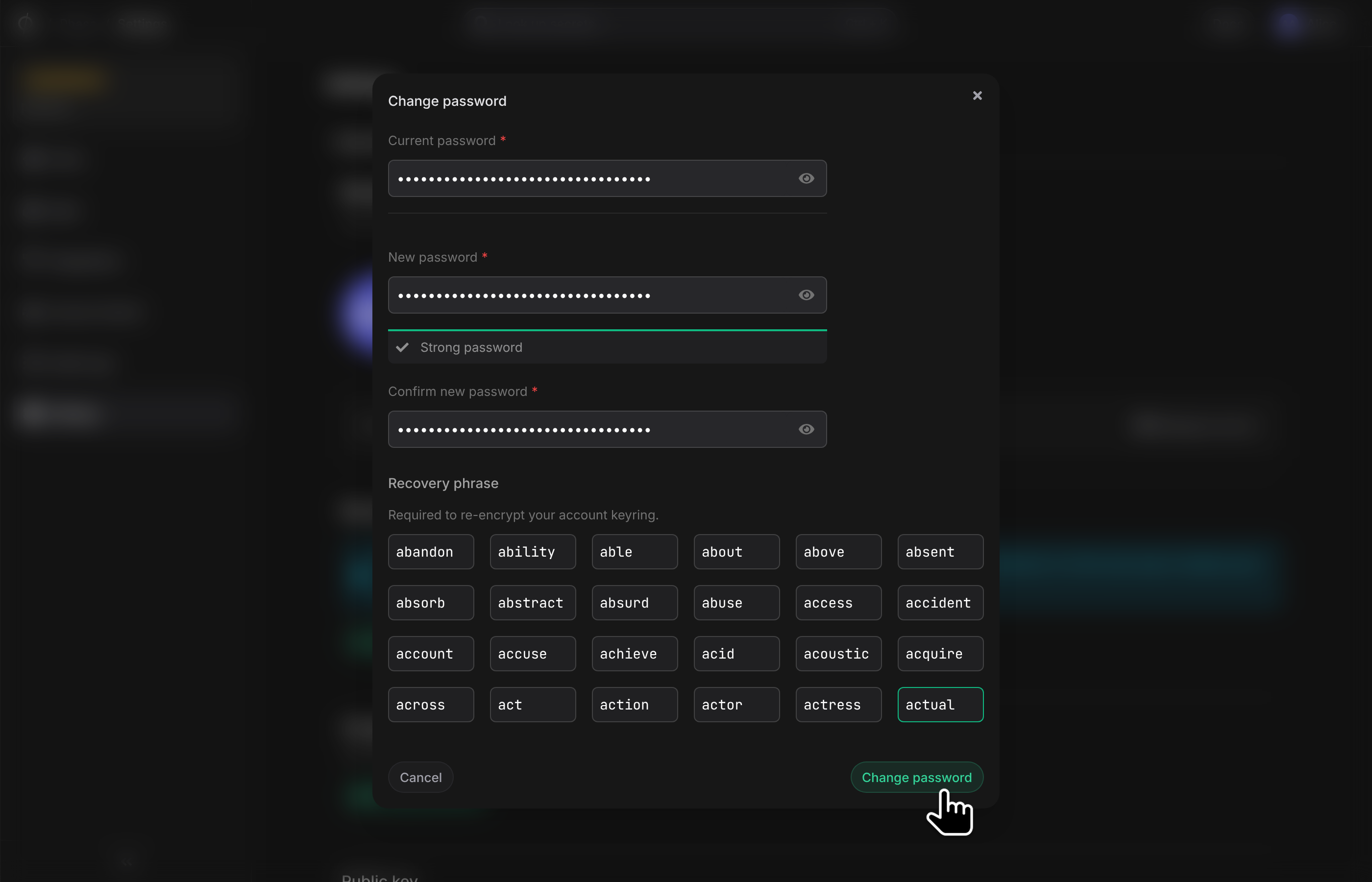
You can change your password from Settings > Account & Security in any of your organisations. Changing your password re-encrypts all organisation keyrings to ensure continued end-to-end encryption with your new credentials.
Account recovery
If you forget your password, you can reset it using the 24-word recovery phrase from your recovery kit. The recovery process generates a new password and re-wraps your account keys.
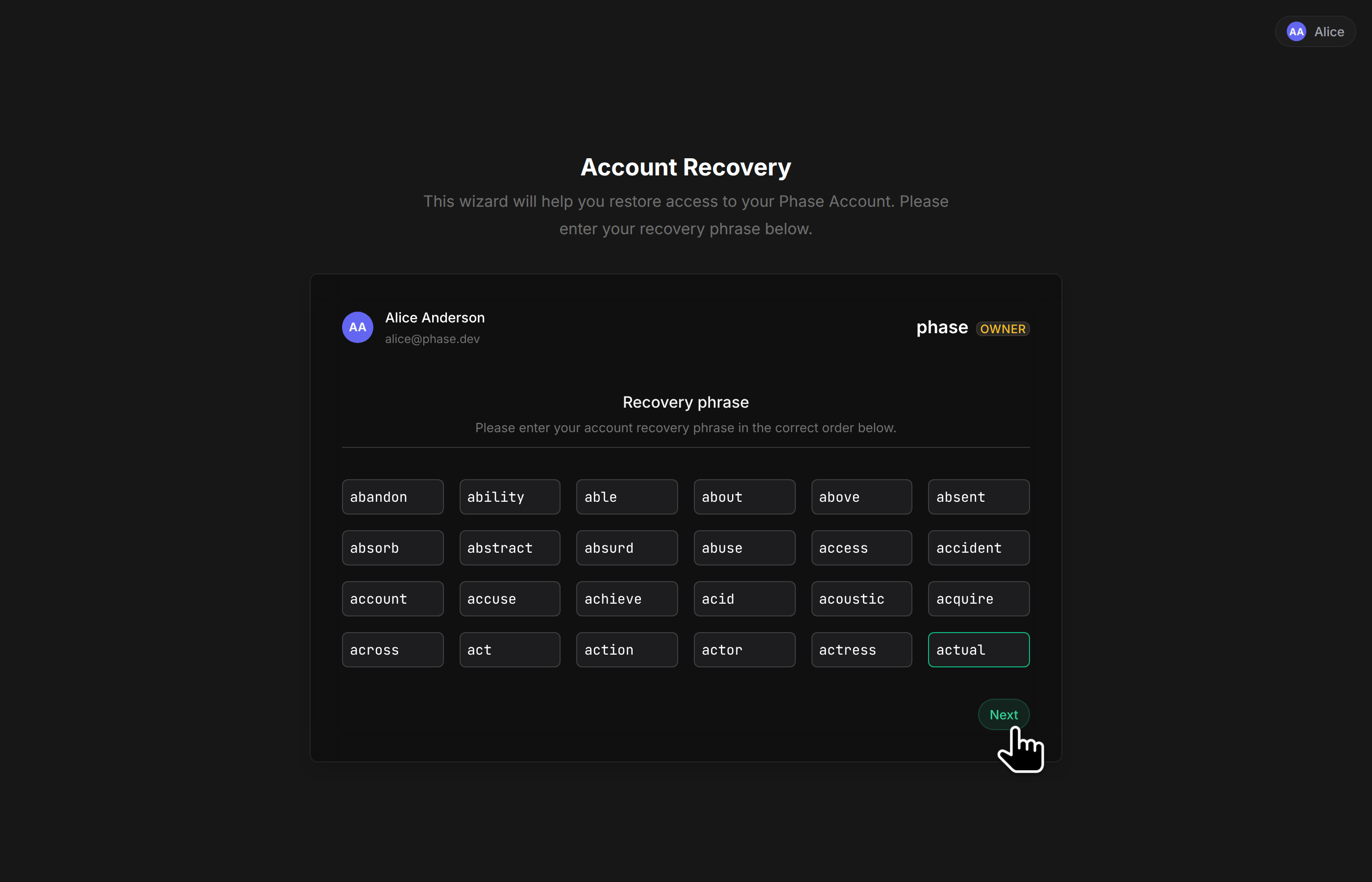
Your recovery kit is generated during onboarding. Store it securely -- it is the only way to regain access to your account if you lose your password.